Вход в рекавери на устройствах Samsung

Самый простой и универсальный метод входа в загрузочное меню Андроид-устройства Самсунг заключается в использовании сочетания физических кнопок на его корпусе.
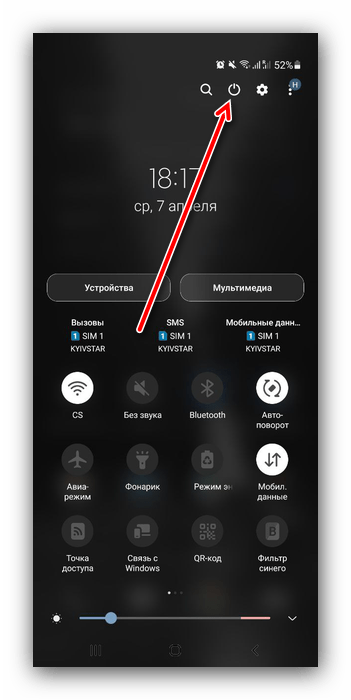
- Выключите смартфон: для устройств под управлением Android 10 и ниже нажмите и подержите кнопку выключения до появления меню, а в девайсах с Android 11 и One Ui 3.1 дважды свайпните строку уведомлений сверху вниз и нажмите на соответствующий элемент.
- После полного отключения (занимает около 10 секунд) воспользуйтесь одной из следующих комбинаций:
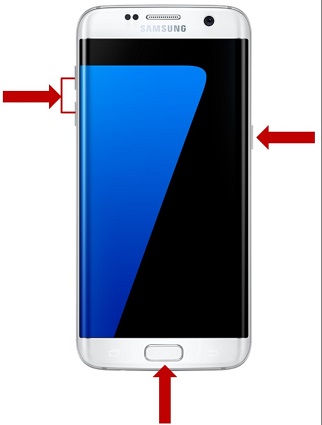
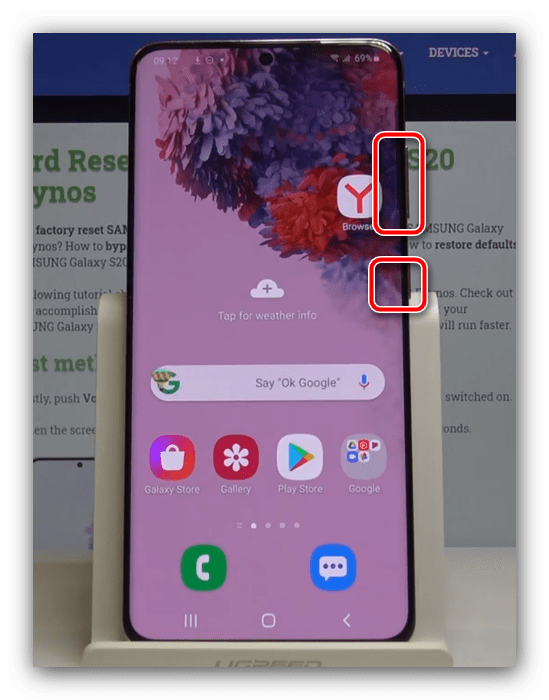
- если на вашем смартфоне есть физическая клавиша «Домой», сочетание будет «Питание»+«Домой»+«Громкость вверх»;
- если присутствует кнопка Bixby – «Питание»+«Громкость вверх»+«Bixby»;
- для устройств без этих кнопок – «Питание»+«Громкость вверх».
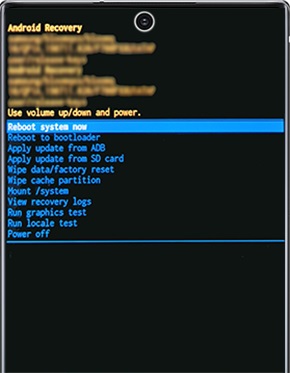
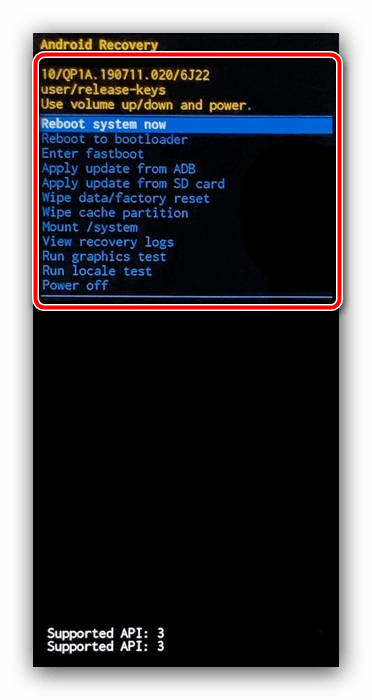
- Если всё сделано правильно, через несколько секунд вы увидите основное меню рекавери. Навигация в нём осуществляется кнопками громкости, а подтверждение – кнопкой питания.
Способ 2: ADB
Также для решения нашей задачи можно воспользоваться инструментом Android Debug Bridge: с его помощью операция займёт не более нескольких минут.
-
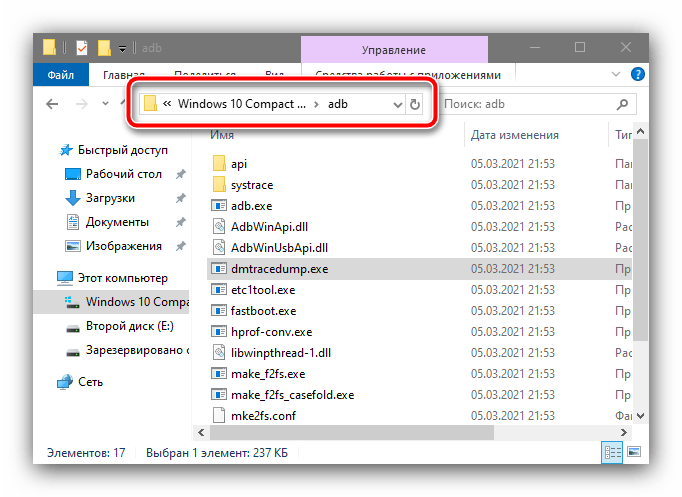
Первым делом скачайте архив с необходимым ПО и распакуйте его в корень системного диска, желательно, по пути C:\adb .
Если она не сработала, попробуйте один из двух представленных далее массивов команд:
- adb shell
reboot recovery - adb reboot —bnr_recovery
Способ 3: Эмулятор терминала (Root)
Если на вашем девайсе доступны права root, можно перезагрузить его в рекавери с помощью приложения, которое эмулирует строку терминала. Таких достаточно много представлено в Play Маркете, но самым удобным мы считаем Terminal Emulator for Android.
После установки откройте программу, затем введите команду su .
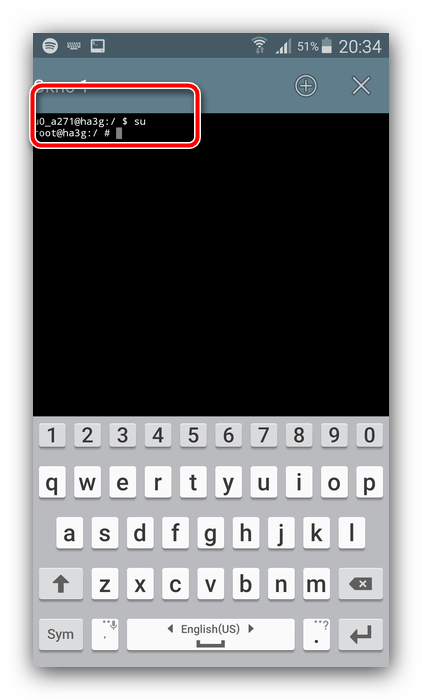
Теперь пропишите оператор вида:
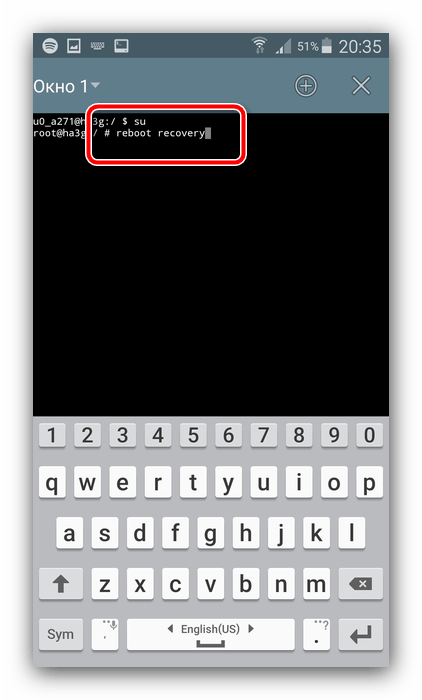
Девайс должен перезагрузиться в соответствующее меню.
Что делать, если телефон не загружается в рекавери
В случае если войти в требуемое меню не получается, последовательно выполните следующее:
- Если проблема возникает при использовании Способа 1, убедитесь, что все требуемые кнопки работоспособны. Если телефон можно загрузить в операционную систему, проделайте это, затем проверьте реакцию на нажатия физических элементов управления – при столкновении с неполадками рекомендуется задействовать вторую и третью инструкции.
- По аналогии с предыдущей проблемой, проверьте качество подключения устройства к компьютеру – если отсутствует реакция на соединение, попробуйте воспользоваться другим USB-портом или замените кабель. Также нельзя исключать и неполадки с соответствующим разъёмом в самом телефоне, но устранить эту проблему без визита в сервисный центр практически нереально.
- Проблемы иногда возникают, если ранее с телефоном производились определённые манипуляции, например, устанавливалась кастомная прошивка со сторонним рекавери, и процедура завершилась неудачно. При этом стоковое загрузочное меню оказалось стёрто, что и приводит к невозможности в него загрузиться. В такой ситуации должна помочь установка полной многофайловой прошивки – пример действий для выполнения этой операции вы найдёте в руководстве далее.
Если же и это не принесет желаемого эффекта, обратитесь в авторизованную мастерскую по ремонту, где специалисты установят ПО инженерным методом.
4 Tips to Fix Samsung Phone Stuck on Android Recovery Screen
Sometimes Samsung Galaxy might just get stuck right in recovery mode, nevertheless the recovery mode is used to fix Android system problem. Then, how to get Samsung phone out of Android recovery mode and back to normal mode? Let’s move on with this article to see how to fix a Samsung phone stuck in Android recovery mode.
What is Android Recovery Mode
Android recovery mode is a special mode on Android phones that could perform various tasks to efficiently help troubleshoot various issues. It loads respectively from Android operating system, which means you can reboot into recovery mode on your Android phone when it can reboot normally.
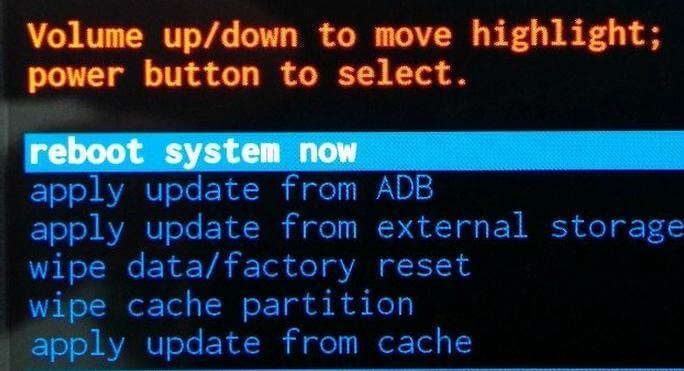
Options in the recovery mode on Android phones vary from models. But there are standard options in all devices:
Reboot system now: To restart the device normally.
Apply update from ADB: ADB, short for Android Debug Bridge, is designed for developers.
Wipe data/factory reset: To wipe all data on the Android phone and restore the phone to factory resetting.
Generally, users will not have to reboot into Android recovery unless they want to fix a major issue or tweak their system.
How to Get out of Android Recovery Mode Normally
In general, it’s very easy to get Android phone out of recovery mode if nothing wrong.
Step 1: Use Volume buttons to highlight Reboot system now option.
Step 2: Press Power button to confirm.
However, when accident happened, the Android phone may not be able to boot into normal mode in normal way.
4 Tips to Fix Samsung Phone Stuck on Recovery Mode
Tip 1: Check buttons of the Samsung phone stuck in recovery screen
From the last part, we could know that when a Samsung phone gets into Android recovery mode, it needs key combination to get it back to normal, which means that if one button cannot work, we can’t get our Samsung phone back into normal mode.
Here’s how you can check buttons of the Samsung phone:
Click Volume buttons and Power button several times. If you have protective shell on your phone, please remove it first.
Tip 2: Force restart the Samsung phone
And then, let’s try to force restart the Samsung phone stuck in recovery mode.
To force restart the Samsung phone, hold down the Power button for about 10 seconds until the Samsung logo shows.
If the Samsung phone still stuck in recovery mode, simultaneously press and hold the Power and the Volume Up buttons for about 10 seconds until the phone reboots.
Tip 3: Perform a factory reset on Samsung phone
If buttons work well and the last method doesn’t work, I am afraid that you need to factory reset the Samsung phone, with data loss.
Press the Power button for a while to turn off the Samsung phone.
Press the Power button and Volume Up/Down button at the same time and hold them for 20 – 30 seconds.
Tip 4: Utilize advanced software to fix Samsung stuck in recovery mode
Utilizing an Android system repair software is the easiest way to fix Samsung phone stuck in recovery mode. Here, we recommend Cocosenor Android Repair Tuner – a wonderful software to fix almost all kinds of Android system problem within 4 steps.
Step 1: Download, install and launch Cocosenor Android Repair Tuner.
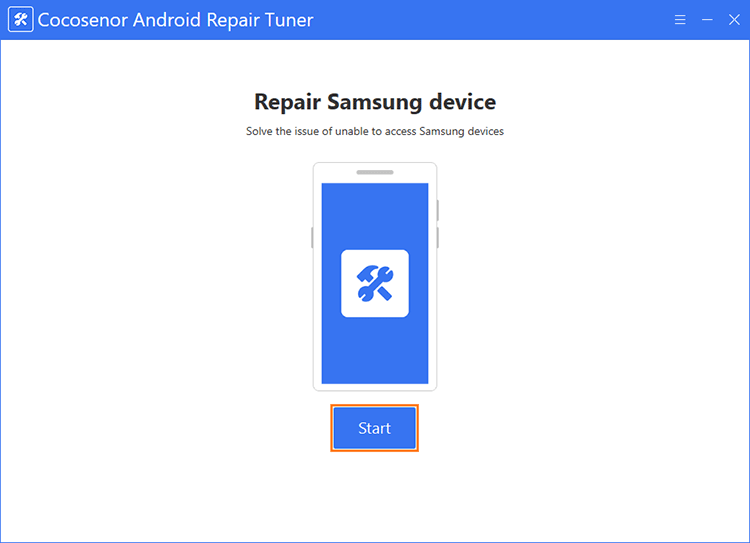
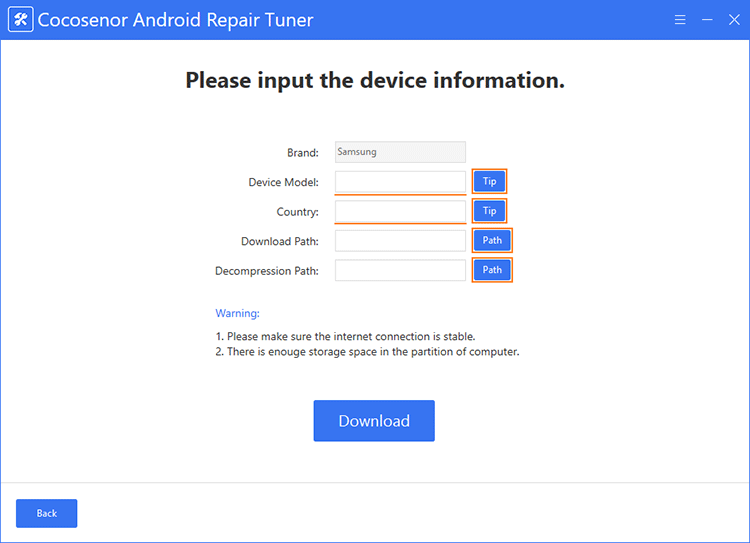
Step 2: Confirm device information.
If you don’t know how to get device model and region of the Samsung phone stuck in recovery screen, learn more in: How to Check Your Samsung Phone Model or CSC Region Code.
Sequentially, click each Path one after another to select path for download and decompression.
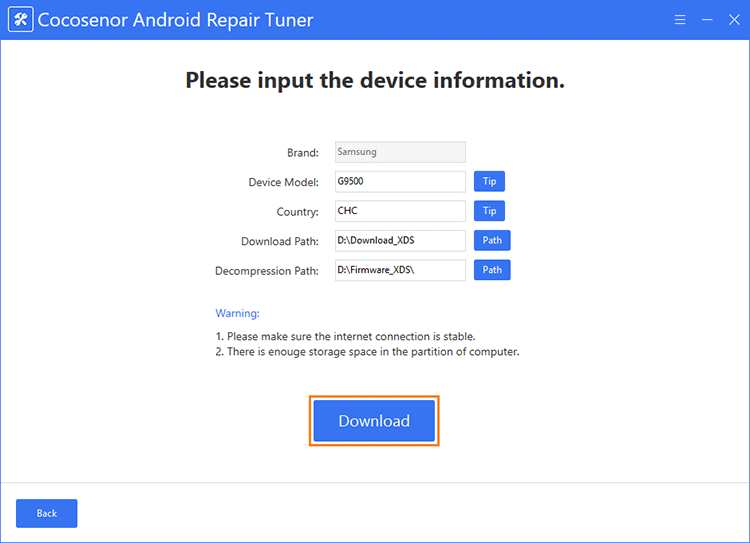
Step 3: Download the system package.
When done confirmation, click Download to download the system package.
Step 4: Start the repair process.
Follow the on-screen instruction to get Samsung device into download mode, then click Start to set on repairing process.
Lepzon.ru
Случается, что вы достали мобильный из сумочки или кармана, а на его экране меню Android Recovery. Вероятно, были случайно задействованы клавиши телефона, в результате появилось подменю системы. Оно предназначено для безопасного удаления файлов, возврата смартфона к прежним настройкам и тестирования его модулей.
Как закрыть Android Recovery
У телефонов с системой Андроид рекавери может иметь разный вид и служит средством отладки смартфона в критических ситуациях. В нём можно перемещаться по пунктам клавишами регулировки громкости. Для выбора служит кнопка включения/отключению питания (Power).
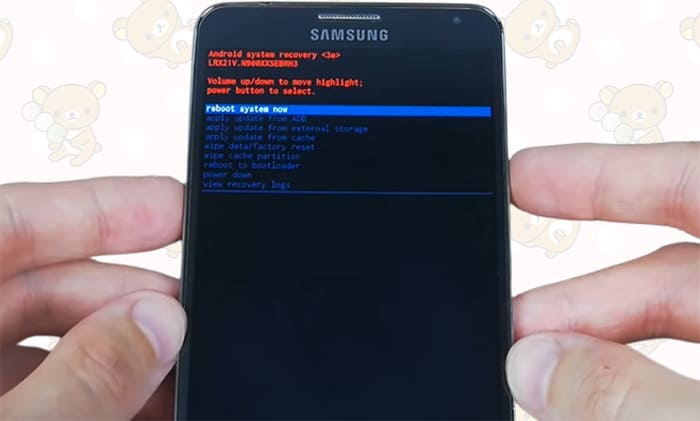
Если на вашем телефоне появилось такое меню, выйти из него можно, выбрав пункт перезагрузки – reboot system now. Клавишей + или – переместите на него фокус и нажмите один раз кнопку питания. Есть альтернативный способ выхода из Android Recovery – пункт Power Down.
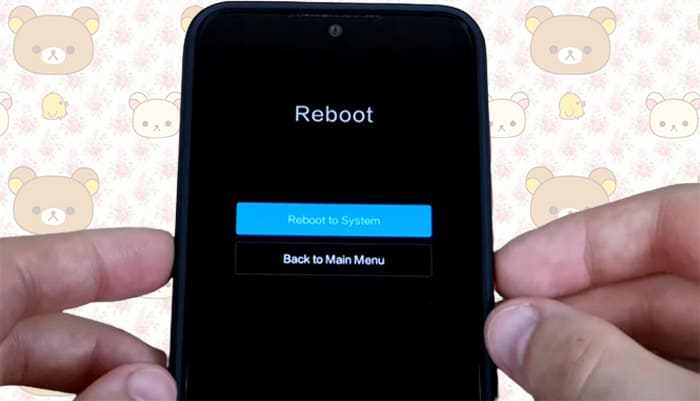
На экране смартфонов некоторых китайских производителей может появиться дополнительное меню. В нём также нужно выбрать перезагрузку (Reboot System) или выключение питания. После чего вы уже сможете включить свой телефон кнопкой Power.
Как попасть в меню Recovery на Xiaomi
Для запуска подменю в китайских смартфонах Сяоми необходимо использовать комбинацию клавиш с разной периодичностью.
- Выключаем телефон.
- Удерживаем несколько секунд кнопку Громкость +.
- Затем нажимаем кнопку питания и не отпускаем.
- На экране вы увидите надпись Xiaomi, теперь отожмите кнопку питания, но продолжайте жать кнопку громкости.
Чтобы выйти из рекавери, выберите в главном меню кнопку Reboot to System.
Вызвать Recovery в телефоне Samsung
Для большинства современных смартфонов Самсунг попасть в Recovery можно по инструкции для Xiaomi (выше). Для выхода из меню выберите пункт Reboot System Now.
Запуск меню Recovery на ZTE
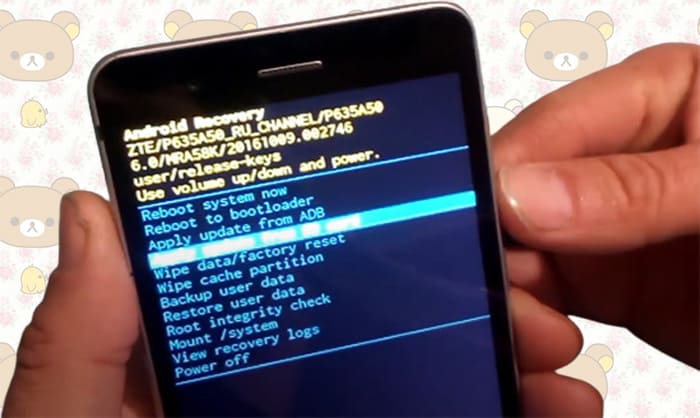
В моделях телефона ZTE для перехода в подсистемное меню необходимо при выключенном телефоне нажать одновременно Power и Громкость +. Когда появится логотип, продолжайте держать кнопку громкости, но уже отпустите Power. Чтобы отключить Recovery переключитесь на Reboot System и выберите его.
Вход в Recovery на телефонах Honor и Huawei
Для перехода в меню отключите телефон. Далее нажмите кнопку Громкость + и Power (кнопка включения) одновременно. Когда на экране возникнет логотип, отожмите Power и держите Громкость +.
Для выхода из Android Recovery в меню нужно выбрать пункт Reboot System Now.
Не получается войти в Recovery
Если не можете попасть в меню, скорее всего либо неправильно выполняете рекомендации для входа, либо для вашей модели нужна другая инструкция. Где её найти – на сайте разработчика. Используйте разделы поддержки и строку поиска технической информации по модели своего телефона.
Basic Knowledge about Samsung Recovery Mode
Hi, I am locked out of my Samsung Galaxy S10e device. I tried to reboot my device into recovery mode to factory reset my device but failed several times. So, does anybody know how to boot into Samsung Galaxy recovery mode?
Getting locked out of your Samsung device can be really maddening. Perhaps you end up forgetting the passcode or someone messed with your device and changed the passcode. Nevertheless, the good news is that you can get back in your device with ease using Samsung recovery mode. In fact, no matter why you need to boot your device into recovery mode, this guide is all you need. Here, you’ll learn how to enter and exit the Samsung Galaxy S8/Galaxy S7 recovery mode.
Part 1. What is Samsung Recovery Mode?
Before you know how to enter and exit Samsung recovery mode, let’s first learn what is Samsung recovery mode and when it comes in handy? Well, Samsung Recovery Mode is one of Samsung’s menus. The catch is that this menu is invisible but entails many great features.
There are a number of scenarios when demand booting into Samsung Recovery mode. And some of the situations include:
- To fix Samsung malfunctions.
- To format your entire partition or system.
- To install brand new, powerful ROMs in order to boost the performance of your device.
In short, whenever you encounter a maddening issue with your Samsung device, or you want to erase your device without causing any damage, Samsung Recovery Mode is a solution. So, read on to learn how to enter and exit the Samsung S8/S7 edge recovery mode.
Part 2. How to Enter Recovery Mode on Samsung Devices?
Here are two free ways to boot into recovery mode on Samsung devices.
Way 1. Use Free Samsung Recovery Mode Tool to Enter Recovery Mode on Any Samsung Device by One Click
If you want a one-click solution to boot Samsung into recovery mode, look no further from UltFone Android System Repair. This free Samsung recovery mode tool comes with 100% free feature to enter Samsung recovery mode without home button or Samsung recovery mode without power button.
Here’s how to enter Samsung recovery mode using UltFone Android/Samsung System Repair:
Step 1 Run the software on the computer and connect your Samsung device to the system with the help of a USB cable.
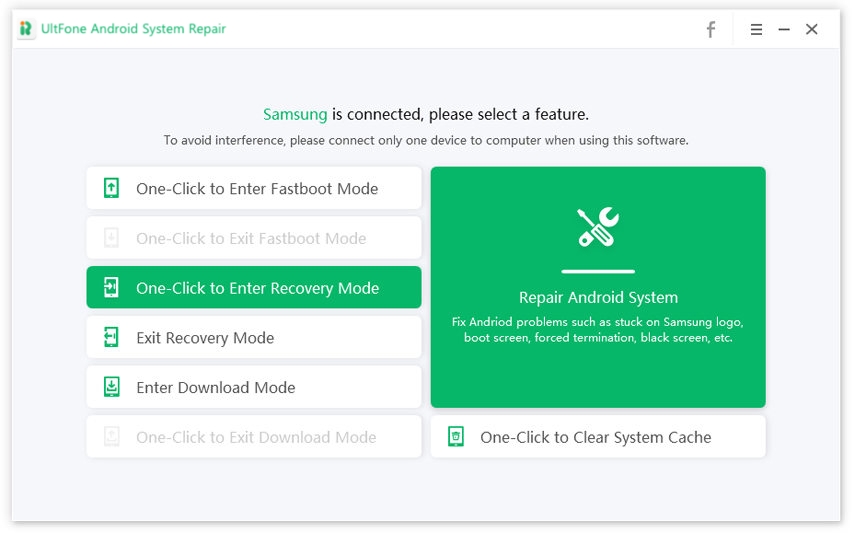
Step 2 From the main interface of the software, select “One-Click to Enter Recovery Mode”.
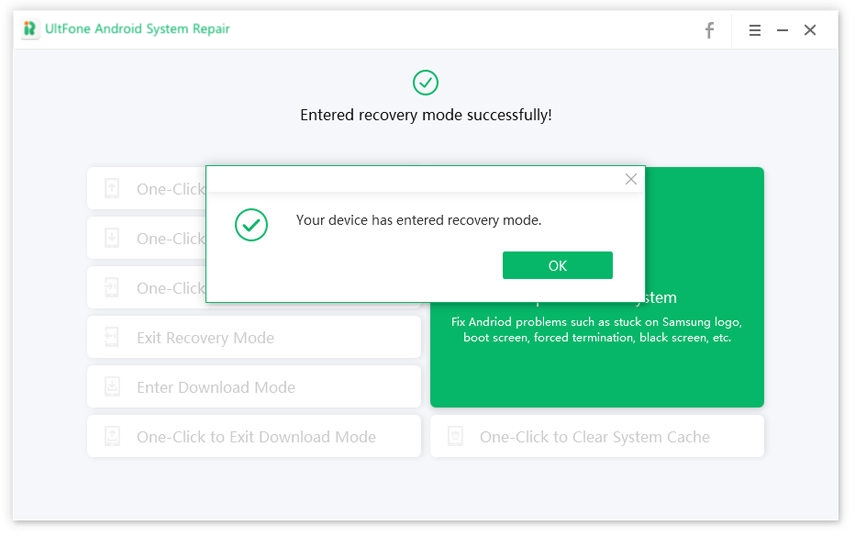
Step 3 In a while, your device will successfully enter the recovery mode.
Whether it’s about entering Samsung S5 recovery mode or Samsung S8 recovery mode, you can use this freeware with one click away.
Way 2. Enter Samsung Recovery Mode using Key Combinations
Using key combinations, you can boot your device into recovery mode. If you don’t want to rely on any third-party tool, then using the right key combinations can help you get the job done. Here’s how to enter recovery mode Samsung using key combinations on different Samsung devices.
Samsung Devices with Power, Home and Volume Buttons
Follow the below steps if your Samsung device has a Home button, such as Galaxy S5, Samsung Galaxy S7(Edge), etc.
- Turn off the device.
- Press and hold down the “Home”, “Power” and “Volume Up” buttons at once for 5-7 seconds.
- When the Samsung logo appears, release the “Power” button but continue holding other buttons unless and until you see the Android recovery screen.
Samsung Devices with Volume and Power Buttons
Follow the below steps to enter recovery mode on Samsung A8.
- Switch off your device.
- Hold down the “Power” and “Volume Up” buttons at once for 5 seconds.
Samsung Devices with Bixby, Power and Volume Buttons.
Here are the steps to recovery mode Samsung S8/S9/S10, etc.
- Turn off your device.
- Press and hold down the “Bixby”, “Power” and “Volume Up” buttons at once for 5 seconds.
- Continue holding until you see the recovery menu.
Samsung Devices with Bixby/Power and Volume Buttons
Follow the below steps if you have a latest high-end, flagship Samsung phone such as Samsung Galaxy S20/Note 10/Galaxy A80:
- Turn off your device
- THold down the “Power” and “Volume Up” keys for 5 seconds.
As you may notice, the steps are slightly different on different models. If you are a tech novice, it is not recommended to use this method as the incorrect operation may cause your device to be bricked.
Part 3. How to Exit Recovery Mode on Samsung?
Getting out of recovery mode on Samsung is as easy as booting your device into recovery mode. All you need to do is to use the right key combinations.
Here’s how to get out of recovery mode on Samsung devices:
- Use the “Volume Up/Down” key to highlight the “Reboot System Now” option.
- Use the “Press” key to choose that option.
In a while, your device will be back to its usual state.
Part 4. How to Fix Samsung Stuck in Recovery Mode?
What if your Samsung stuck in recovery mode and you can’t get out of Samsung recovery mode using key combinations?
In fact, one of the Android users recently reported that he booted the device into recovery mode to clear the cache. After that, his phone freezes on the wipe cache menu and unfortunately is now 100% unresponsive to touch. If the situation sounds familiar to you, then no worries!! We have a solution for you!!
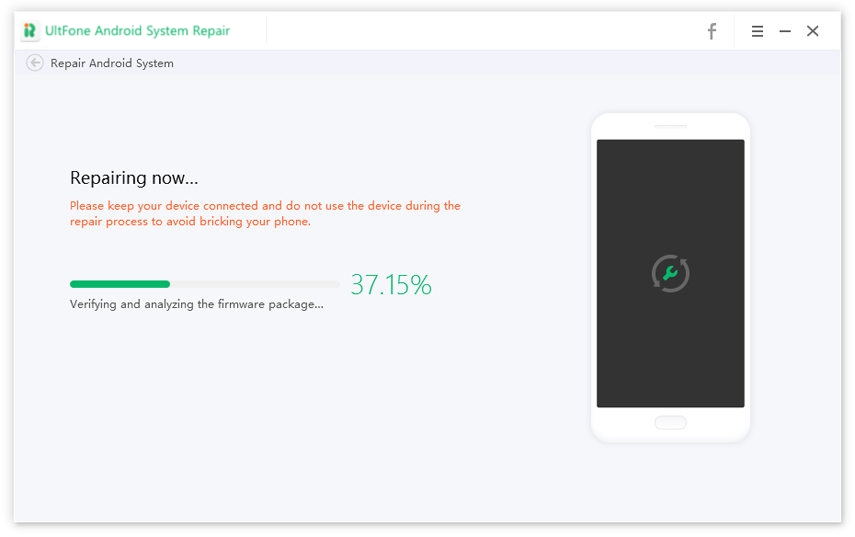
UltFone Android System Repair can help you fix Samsung stuck in recovery mode problem with ease. Actually, this Android system repair tool can fix all common issues you can encounter with your Samsung device such as stuck in recovery mode/download mode, Samsung logo and more. Most importantly, the tool will help you resolve the issue without any data loss. Isn’t, it sounds great?
Here’s how to fix Samsung stuck in the recovery mode:
Step 1: Launch the software and connect your Samsung device to the computer. Choose “Repair Android System” option.
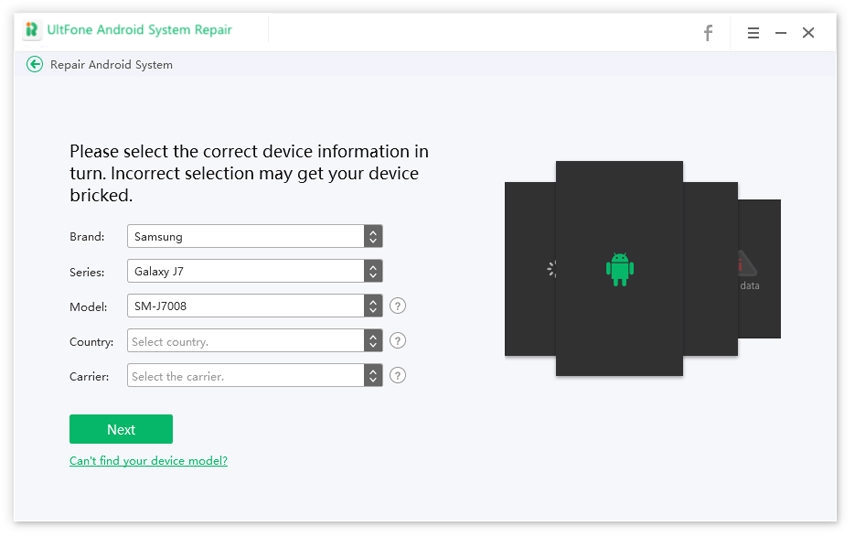
Step 2: Hit “Repair Now” on the next screen and enter your device information.
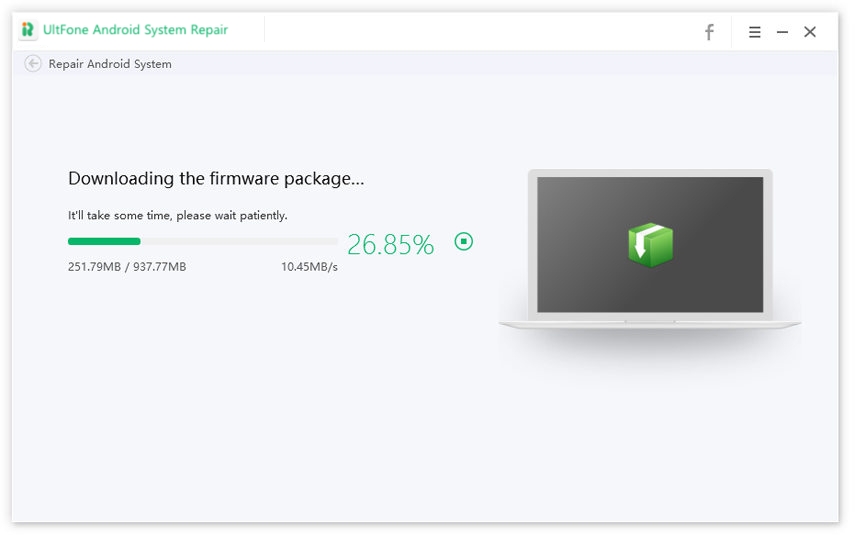
Step 3: In a while, the software will download the firmware package for your Samsung device.
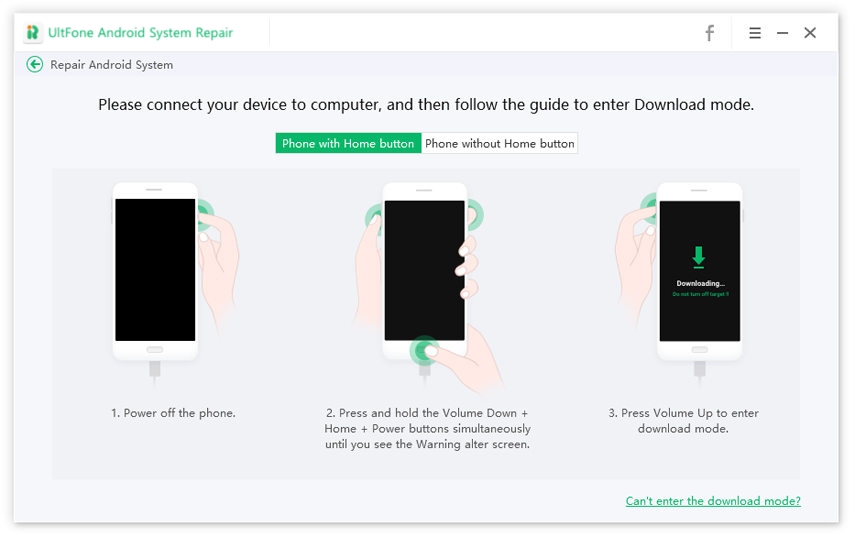
Step 4: Once the firmware is downloaded, you can then click “Repair Now” button. This program will instruct you to put your device into download mode before system repair initiates.
Step 5. Once the program detects that you’ve entered download mode successfully, the repairing process starts automatically.
The Bottom Line
We hope that our guide has helped you enter Samsung recovery mode and how to get out of it. It’s common to get stuck in recovery mode and thanks to UltFone Android Repair software, you can easily enter and exit recovery mode on any Samsung phone free.