TrueTone на MacBook Pro. Что нужно знать?
Хотя выход новых MacBook Pro не был широко освящен компанией, в свою очередь обновление линейки оказалось действительно существенным. Так, например, в ноутбуках Apple впервые появилась функция TrueTone. Сегодня мы рассмотрим, что из себя представляет данная технология, и какие есть подводные камни при ее использовании.

О True Tone впервые стало известно еще в 2016 году. Тогда опция использовалась только в профессиональной линейке планшетов Apple. С тех пор технология хорошо себя зарекомендовала и сейчас используется во всех последних моделях iPhone и iPad Pro. Ее приход на компьютеры Mac был лишь вопросом времени.
Согласно заверениям Apple, функция TrueTone работает практически незаметно. Для этого используются датчики внешней освещенности. Сенсоры автоматически отслеживают цветовую температуру освещения, вместе с тем подстраивая баланс белого до оптимального. Таким образом, изображение на экране всегда выглядит естественным вне зависимости от условий освещения или времени суток, что в свою очередь снижает нагрузку на зрение.
В последнем поколении MacBook Pro для работы True Tone используется многоканальный сенсор внешней освещенности, который расположен рядом с камерой FaceTime. Поэтому, если вы используете внешний монитор, вам необходимо выполнить два условия для работы TrueTone на нём:
1) Верхняя крышка MacBook Pro должна быть открыта во время работы.
2) Необходимо обладать совместимым внешним дисплеем:
— Apple Thunderbolt Display
— LG UltraFine 4K
— LG UltraFine 5K
TrueTone не подходит для работы с изображением и видео?
Как оказалось, технология True Tone имеет право на жизнь даже при профессиональной обработке снимков или видео. Операционная система автоматически регулирует цвета с помощью ColorSync, поэтому неточности в цветопередаче будут исключены.
Итак, как включить опцию TrueTone в macOS?

Сделать это достаточно просто. Открываем «Системные настройки», затем переходим в раздел «Мониторы». Осталось только активировать функцию «True Tone». Заметим, что технологию можно использовать вместе с Night Shift.
Как использовать функцию True Tone на MacBook Pro
Все модели MacBook Pro 2018 года поддерживают технологию True Tone от Apple. Функция распространяется как на сам дисплей Retina, так и на тачбар. Подстраивая цветовую температуру экрана под освещение, функция помогает снизить нагрузку на глаза. Ниже мы объясним, как пользоваться функцией True Tone на новых MacBook Pro.

О технологии
Улучшенный световой датчик на MacBook Pro 2018 постоянно считывает данные о яркости и цветовой температуре окружения (датчик предыдущих моделей измерял только яркость).
Используя эти данные, операционная система подстраивает баланс белого на дисплее под ваше освещение. В результате вы видите изображение более естественным, а нагрузка на глаза снижается.
Всё дело в восприятии.

По сути функция обманывает ваш мозг и заставляет его верить, что цвета не дисплее не меняются в зависимости от обстановки. Меняются не только программы и другие элементы интерфейса, функция True Tone меняет баланс белого и температуру всего экрана.
Принцип функции можно сравнить с бумагой. Иногда один и тот же белый лист бумаги выглядит или жёлтым, или синим при разном освещении.
Пока что технологию True Tone поддерживают только модели MacBook Pro 2018 года, но позже она появится и на других моделях ноутбуков. Впервые функция True Tone появилась на 9.7-дюймовом iPad Pro в 2016 году. После этого технологию добавили на iPhone 8, iPhone 8 Plus и iPhone X, iPad Pro 2017 (10.5 и 12.9 дюймов) и MacBook Pro 2018.
True Tone с внешним дисплеем
На новых MacBook Pro функция True Tone работает благодаря мультиканальному световому датчику рядом с камерой FaceTime HD над экраном ноутбука. Когда вы используете внешний дисплей, крышка ноутбука должна быть открыта, чтобы функция могла работать.
Иными словами, технология True Tone не работает, когда ноутбук закрыт.
Технология True Tone работает с внешними дисплеями LG UltraFine 4K и UltraFine 5K, а также с дисплеем Apple Thunderbolt Display вместе с адаптером Thunderbolt 3 – Thunderbolt 2.
Как использовать функцию True Tone на Mac
1) Откройте Системные настройки в меню Apple, с помощью Siri, через док или папку с программами.
2) Нажмите на иконку Встроенный монитор.
3) Выберите вкладку Монитор.
4) Поставьте галочку рядом с пунктом True Tone, чтобы включить функцию.

Чтобы отключить функцию True Tone, просто уберите галочку.
Технология True Tone может не работать со следующими функциями:
- Инверсия цвета
- Увеличение контраста
- Понижение точки белого
Если пункта True Tone нет в настройках экрана, ваш Mac просто не поддерживает технологию.
Если вы часто пользуетесь ноутбуком по вечерам или по ночам, стоит включить функцию Ночной режим, которая тоже снизит нагрузку на глаза. Её можно использовать вместе с функцией True Tone.
True Tone в работе
Стоит отметить, что функция True Tone подходит даже тем, кто работает с редактированием фото и видео, а также с иллюстрациями. Система управления цветом ColorSync обеспечивает точную передачу цветов, и вышеупомянутая технология не нарушает её работу.

Даже профессионалы могут включить функцию True Tone, чтобы их проекты выглядели одинаково и максимально реалистично при любом освещении.
What is Apple's True Tone technology on the 2018 MacBook Pro, and why does it matter?
 Malcolm Owen | Jul 12, 2018
Article Hero Image 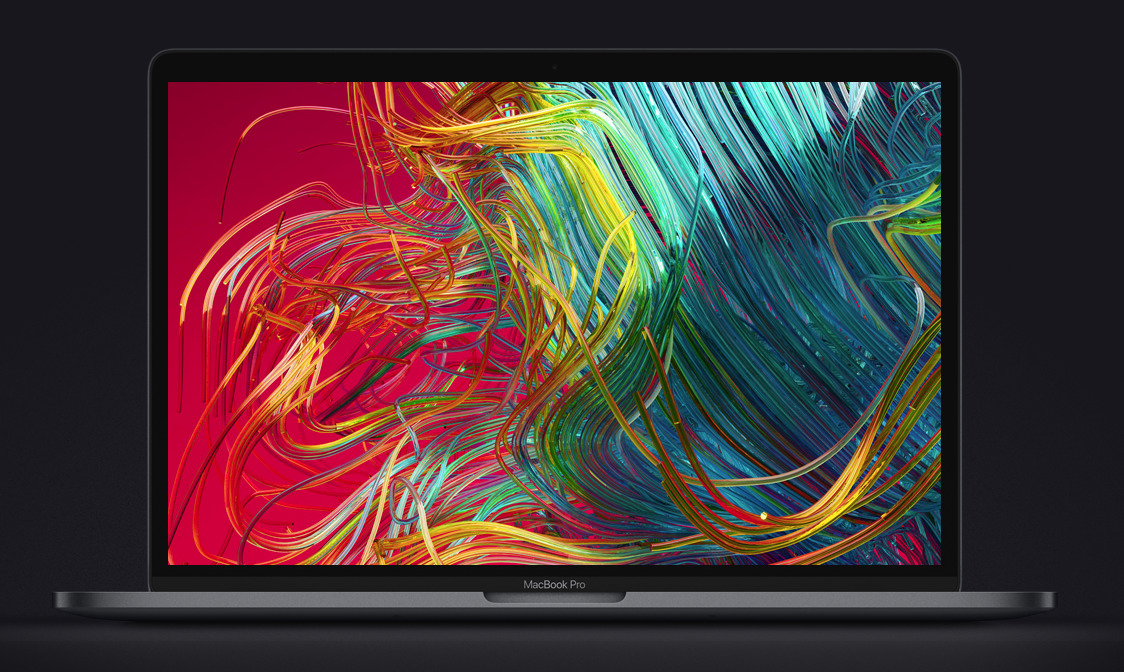
Apple’s MacBook Pro refresh on Thursday revealed Apple has incorporated True Tone technology into a Mac’s display for the first time. AppleInsider sheds some light on the color management system that aims to keep the image the same for the user, wherever they are situated.
The announcement of the 2018 MacBook Pro line included a number of changes to the notebook lineup, with the main changes including support for up to 32GB of memory, 8th-generation Intel Core processors, and up to 4TB of SSD storage. Other important changes include a new quieter keyboard, the use of the Apple T2 chip for enhanced security, and the addition of «Hey Siri» support.
As part of the updates, the display also received some attention. Alongside the 500 nits of brightness and P3 wide color gamut support, the display also uses Apple’s True Tone technology, marking its first appearance in an iMac or MacBook display.
What is True Tone?
First introduced in the Apple ecosystem with the 9.7-inch iPad Pro, True Tone is Apple’s system for keeping the white balance of the display the same in appearance to the user, regardless of the ambient light around the screen. When the device is moved from one environment to another, the screen is perceived by the user to be the «same» at all times.
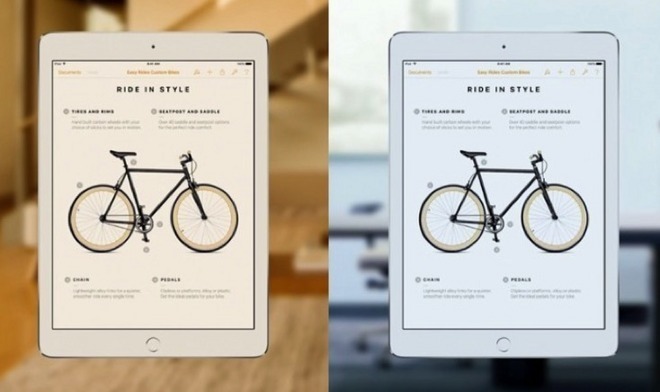
Normally when the ambient light in an environment changes, the screen’s white balance and general coloring appears to change, such as becoming more blue or orange, even if the display’s settings are kept the same. This is actually a problem caused by the user’s own vision, due to observing the change in the rest of the environment’s lighting conditions and adapting to that, while also noting the «changed» display.
True Tone combats the issue by using four-channel sensors to detect the ambient light that can affect the perception of the display. If a change is detected, such as the user moving an iPad Pro from a room lit with cool blue-ish lightbulbs to the more-yellow light outside on a sunny day, the screen automatically alters what it displays to match, in turn keeping the screen comparably similar despite the differing light situations.
Why use True Tone?
For the most part, True Tone is meant to make the experience of using the device more comfortable for the user. Matching the environment’s light scheme can help prevent any strain or discomfort to the user viewing a suddenly more blue or orange screen, one that also constantly changes if they are moving around.
Another reason is to minimize the amount of blue-colored light a user could be subjected to during their working day. It is believed overexposure to blue-toned light can interrupt a user’s sleep patterns.
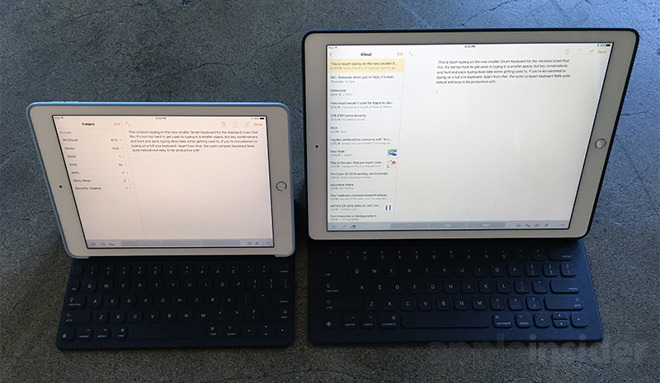
The color-matching also helps create a situation where the user’s perception of a color on the screen is the same regardless of their surroundings. Apple called this a «paper-like» viewing experience, as it is a similar effect to seeing a drawing on a piece of white paper, and how it appears under different lighting situations.
Will it affect users in creative professions?
There may be some concern for users in industries where visual appearance is important, such as video editing, illustrating, and photography. These creative professions already have to deal with issues in color, such as making sure different screens display the same image with identical colors.
On Apple systems, this has largely been managed by the color management tool ColorSync, which helped keep color representation accurate between desktops. This only solved part of the problem, as while the colors displayed on connected screens could be accurate, the problem of human perception comes back, as it doesn’t take into account the environment and may appear «wrong» to the user.
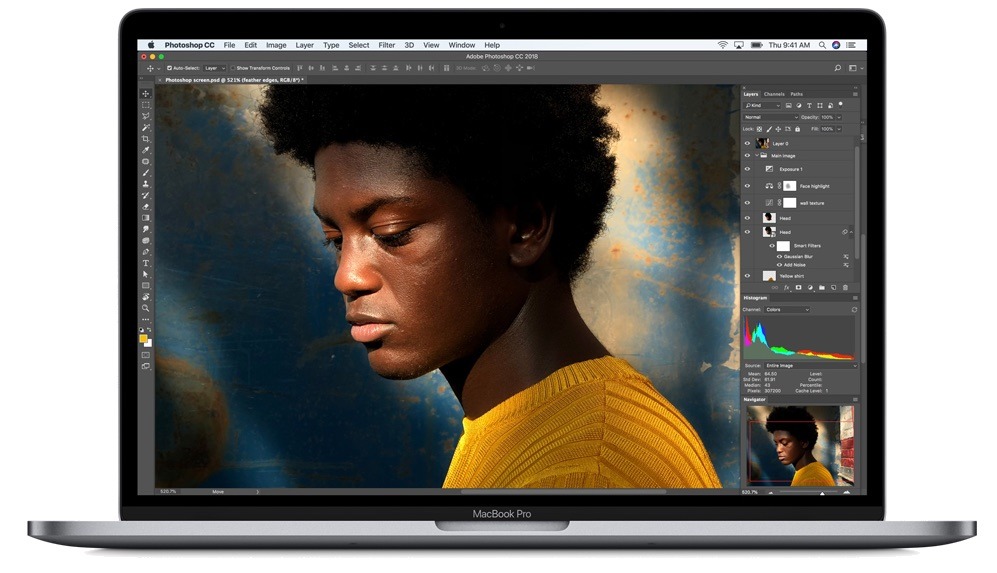
As True Tone handles the environmental lighting problem, this should make it easier for user to see their work in different conditions and perceive it in the same way. As a technology specifically affecting the display, it also does not interact directly with apps or files in any way, since it only changes what the screen eventually shows to the user.
This also potentially allows creative users to work under a variety of lighting conditions, without vastly affecting color-related tasks. For example, when applying color to an illustration, the same «red» color perceived in one environment will still appear to be the same «red» if the user opens the file up under different conditions.
Can I try it out?
Depending on your investment into the Apple ecosystem, you may be able to try out True Tone for yourself, before shelling out for the 218 MacBook Pro. It has been available for some time in the 9.7-inch iPad Pro, as well as the 10.5-inch iPad Pro and the 2017 12.9-inch iPad Pro.
You can also try it out if you or someone you know owns one of Apple’s current-generation iPhones. The iPhone X, iPhone 8, and iPhone 8 Plus all use True Tone in their displays, which can be enabled and disabled from the Settings menu.
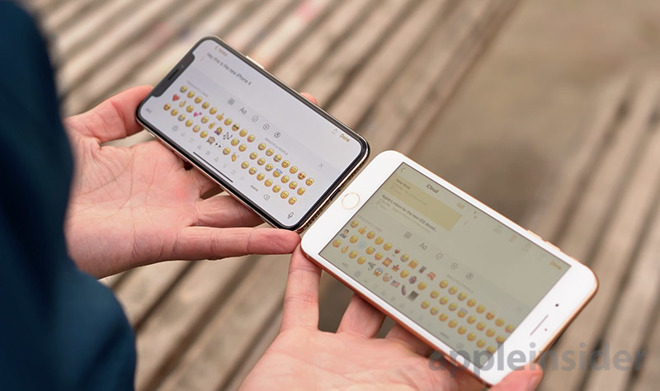
Considering its appearance in the 2018 MacBook Pro, as well as rumors and speculation, it’s possible that Apple will incorporate the technology in other Pro-grade product displays in the future, like the forthcoming Apple Pro displays.
Based in South Wales, Malcolm Owen has written about tech since 2012, and previously wrote for Electronista and MacNN. In his downtime, he pursues photography, has an interest in magic tricks, and is bothered by his c.
ttocsxela
If you’re a “professional” using the laptop monitor for referencing, you should reconsider the title and do a little more research. Excited to upgrade though. Welcoming bump.
wood1208
It doesn’t matter. When Apple overlooked to upgrade non-touch bar MBP than upgrading screen or processor or whatever has no value. Touch bar was wrong decision in first place and because of pride, Apple wants to continue on that pah even knowing wrong. User would have been OK if along with touch bar MBP, non-touch-bar was also upgraded. Looks like Apple have lost it’s way.
kevin kee
I like Touch Bar. I think it is the right long term decision. Touch Bar is the most visionary decision Apple ever took. It opens the path for future design, whatever it is. It goes beyond the limit of traditional keyboard.
The Touch Bar is nice to have, if still a bit of an expensive gimmick. It doesn’t really add to ease of use or productivity IMO. And is just a halfway house to a full haptic feedback virtual keyboard anyway.
Regarding the touch bar, while it may not seem particularly useful at present, anybody who truly knows Apple is aware that they play the long game. Time and time again they introduce features that we initially think have little utility and then suddenly it all falls into place and you find yourself thinking how obvious and inevitable it was in hindsight. They always implement the foundations for new innovation years in advance of introducing the main features. There are too many examples of this to mention, but when they first introduced Touch ID most people thought it was unnecessary while I saw potential — it paved the way for Apple Pay as well as enabling robust security. The Face ID module is another. The key with most things Apple is future potential.
How to use the True Tone display feature on your MacBook Pro to reduce eyestrain

All MacBook Pro models introduced in 2018 take advantage of Apple’s True Tone technology that makes images on the built-in Retina display and Touch Bar appear more natural. By matching the display’s color temperature to the surrounding light, True Tone helps reduce eyestrain. Here’s how to use this super-handy feature on your MacBook Pro notebook.
TAKEAWAYS:
- MacBook Pro models introduced in 2018 rock True Tone technology.
- It makes onscreen images and Touch Bar appear more natural.
- True Tone adjusts display color and intensity to match ambient light.
- It can also adjust external displays connected to your Mac with its lid open.
- True Tone relies on multichannel ambient light sensors located next to the camera.
True Tone technology is likely to find its way into all Macs over time.
True to its word
An advanced ambient light sensor in 2018’s MacBook Pro continually assesses brightness and color temperature (older models have a sensor that measures brightness only).
Using sensory data, the macOS software dynamically adjusts the display’s white balance to match the light around you. What you’re ended up with is an accurate viewing experience that not only reduces eyestrain but makes the images appear more natural.
It’s all about perception, really.
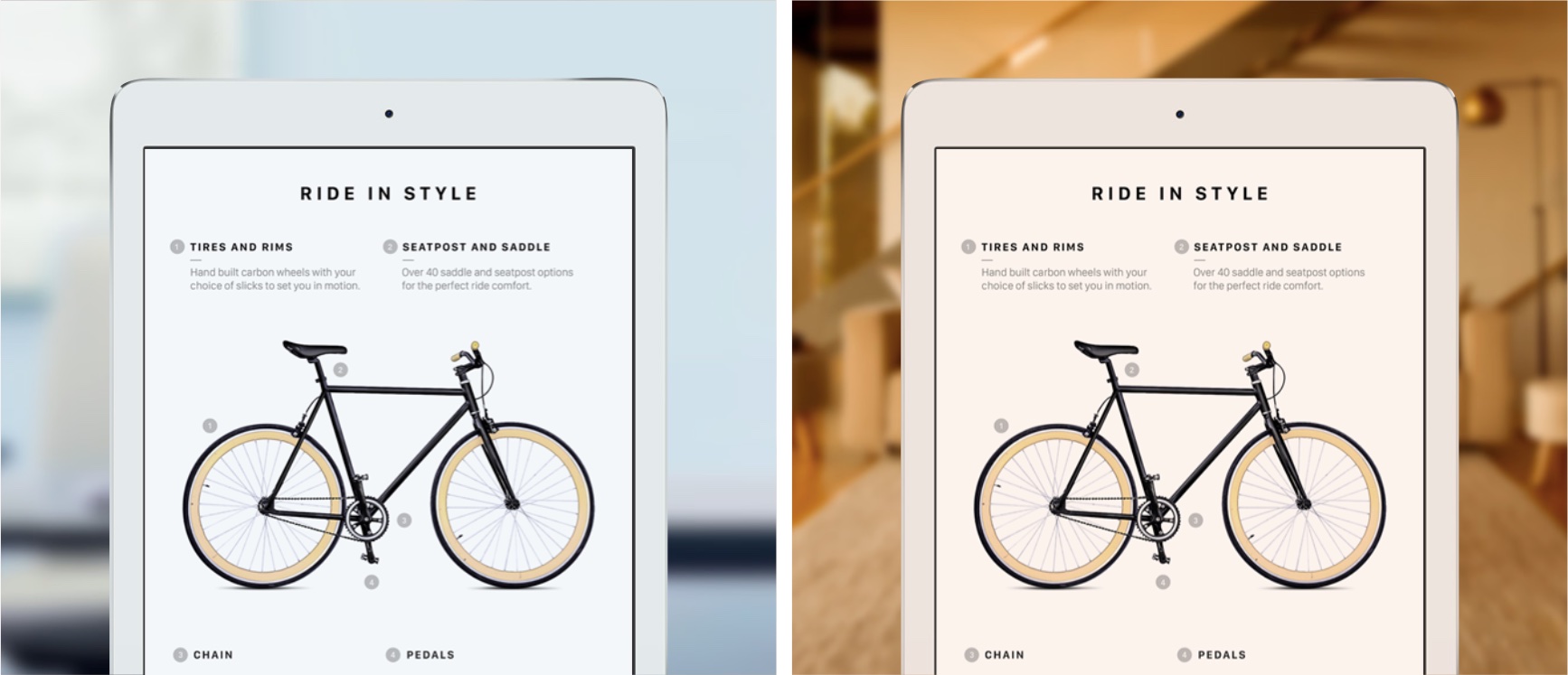
True Tone made its debut on the 9.7-inch iPad Pro model in 2016
What this color-matching basically does is fool your brain into believing that your subjective perception of display color is the same regardless of your actual surroundings. Rather than adjust apps or their graphic assets, True Tone simply alters the display’s white balance and color temperature to match the light around you.
This in Apple talk “paper-like” viewing experience can be likened to how a sheet of white paper appears to look warmer and yellower or cooler and bluer under different lighting conditions.
Although True Tone is currently limited to 2018 MacBook Pro models, it’ll be making its way into other Macs as they’re refreshed. True Tone debuted in the original 9.7-inch iPad Pro back in 2016 before it was subsequently added to the iPhone 8/8 Plus/X/XS/XS Max/XR phones, 2017’s iPad Pros (10.5 and 12.9-inch models) and 2018’s MacBook Pros.
True Tone in clamshell mode
On the MacBook Pro models released in 2018, True Tone relies on a multi-channel ambient light sensor found next to the FaceTime HD camera at the top of the display. If an external display is connected to the notebook, however, the lid must remain open for True Tone to work.
True Tone supports these Thunderbolt 3/USB-C external displays:
- Apple Thunderbolt Display via the Thunderbolt 3 (USB-C) to Thunderbolt 2 adapter
Again, True Tone on an external display doesn’t work when the notebook is in clamshell mode.
How to use True Tone on your Mac
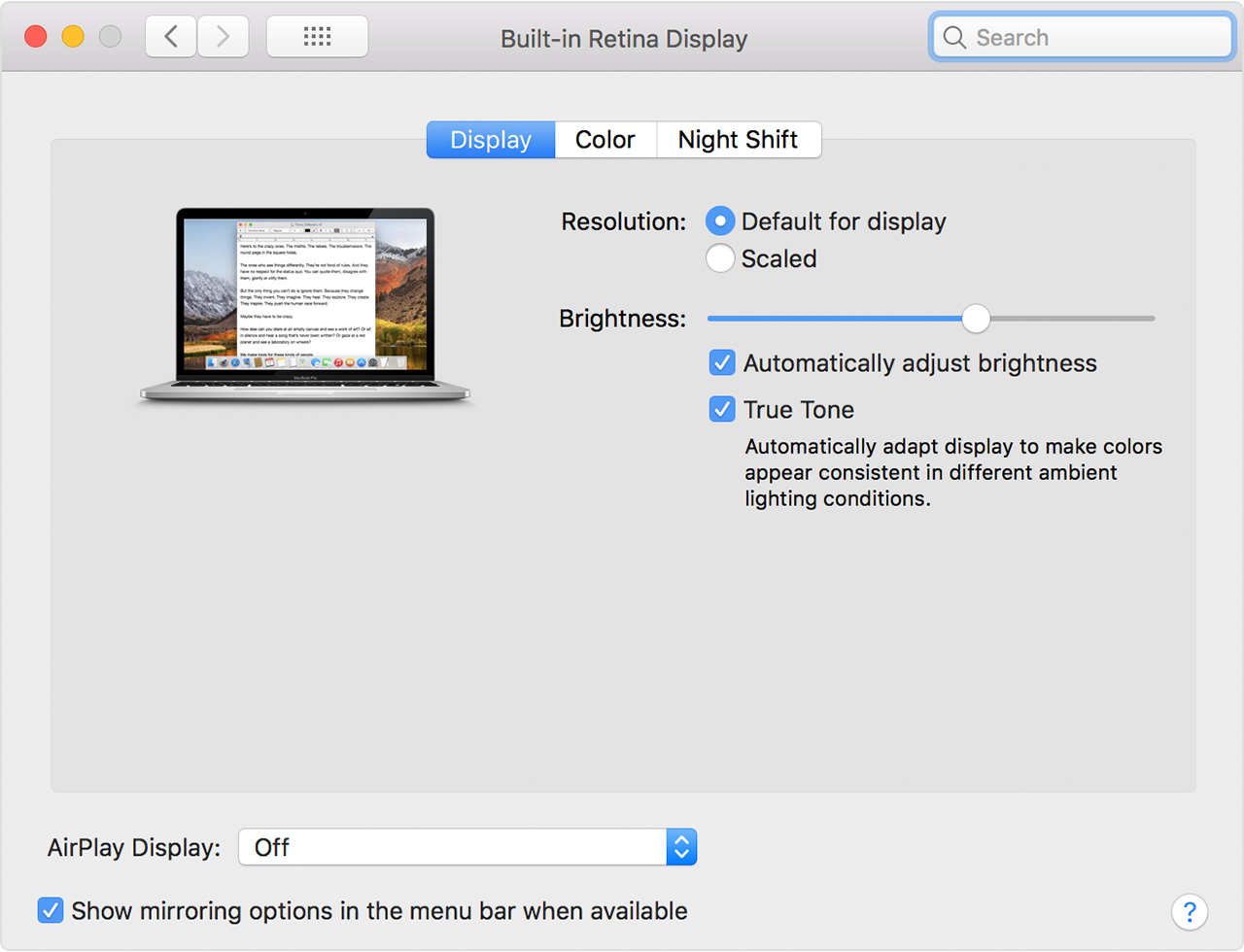
You can turn True Tone on or off in the Displays preference pane.
1) Open System Preferences via the Apple menu, Siri, the Dock or your Applications folder.
2) Click the icon labeled Displays.
3) Now click the Display tab.
4) Tick the box next to True Tone to turn the feature on.
Conversely, untick the box if you’d like to turn True Tone off.
The following display accessibility features might disable True Tone:
- Invert Colors
- Increase Contrast
- Grayscale
Don’t see the True Tone toggle in display preferences? That’s because your Mac model has a less-capable ambient light sensor that can measure brightness but not color temperature.
As we mentioned, continually adapting display brightness and temperature to make the onscreen colors appear consistent under different lighting conditions helps reduce eyestrain.
If you use your computer late at night, it may also be a good idea to turn Night Shift on, which was designed to automatically cut down on sleep-disrupting blue light emission.
You can use True Tone along with Night Shift.
True Tone and pro work
It should be noted that True Tone isn’t necessarily an enemy of creative professionals who depend on precise color reproduction. If you’re editing video, touching up photographs or working on an illustration, Apple’s ColorSync color management system already takes care of accurate color reproduction across screens and operating systems.
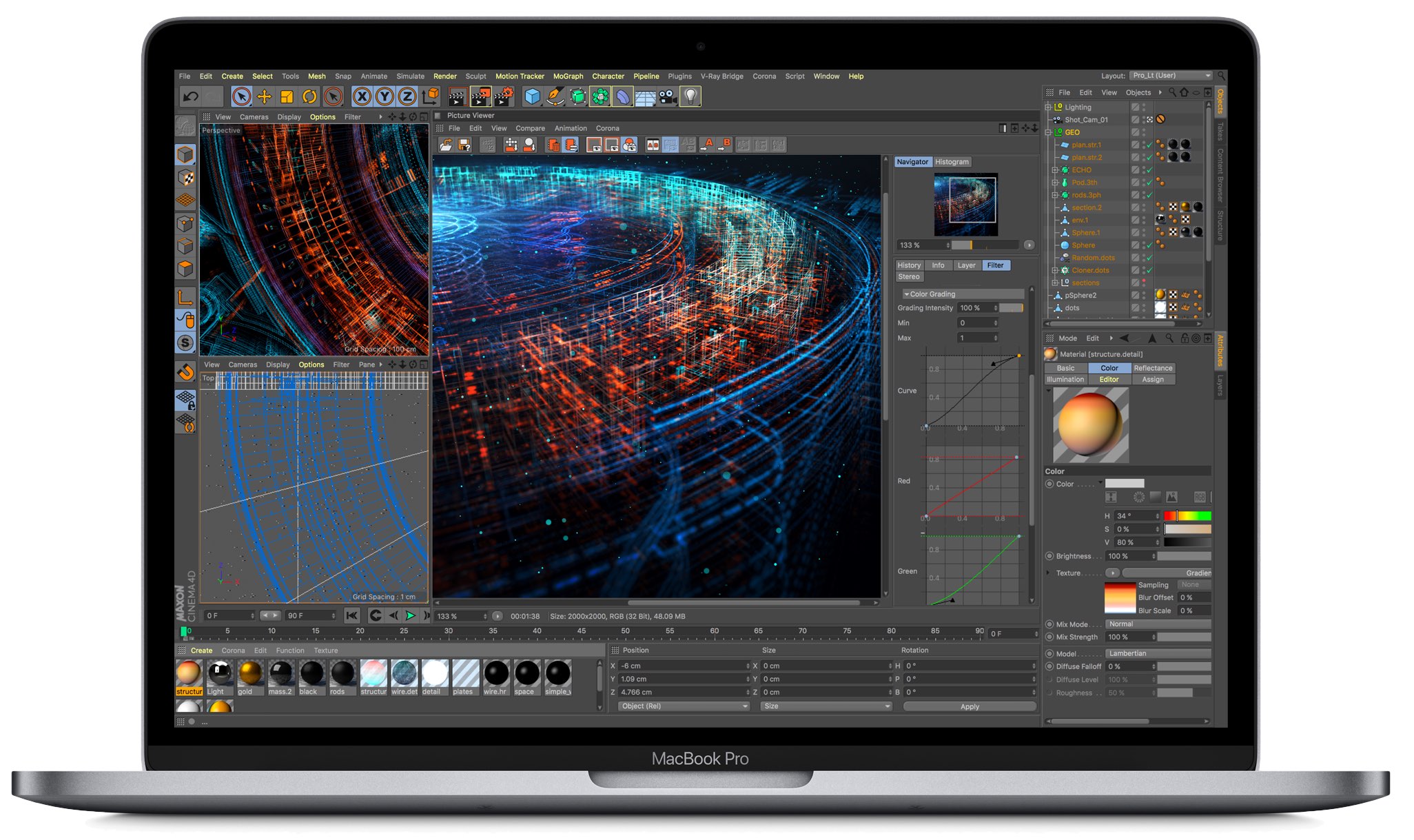
If you’re a pro user, enabling True Tone will tweak the display’s color temperature so that your project is perceived in the same way no matter your lighting conditions.
And that’s how you use True Tone on your Mac like a pro!
Need help? Ask iDB!
If you like this how-to, pass it along to your support folks and leave a comment below.