Sorry, you have been blocked
This website is using a security service to protect itself from online attacks. The action you just performed triggered the security solution. There are several actions that could trigger this block including submitting a certain word or phrase, a SQL command or malformed data.
What can I do to resolve this?
You can email the site owner to let them know you were blocked. Please include what you were doing when this page came up and the Cloudflare Ray ID found at the bottom of this page.
Cloudflare Ray ID: 8118e941bda44131 • Your IP: Click to reveal 45.84.122.39 • Performance & security by Cloudflare
Как сделать снимок экрана Samsung S22 Ultra и Plus
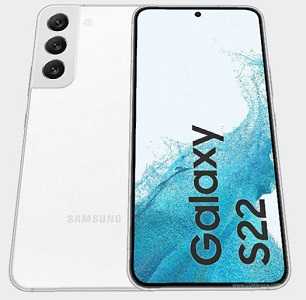
Создание скриншотов стало настолько распространенным, что появилось множество способов их делать. Если вы хотите похвастаться своей новой покупкой, доказать свою точку зрения или просто поделиться забавным мемом.
Самсунг галакси S22 Ultra или Plus предлагает различные простые способы сделать скриншот экрана. В нем реализовано 5 встроенных способов. Есть простые, если требующие ловкости, есть кнопками, есть касанием по значку и есть голосом.
Полный список всех доступных способов сделать снимок экрана на телефонах серии Samsung Galaxy S22 приведен ниже.
Это через Гугл Ассистент, Bixby, использование кнопок, специальная иконка и использование жестом ребра ладони.
К тому же вы еще можете сделать скрин экрана Samsung Galaxy S22 используя приложение из гугл плей, но это уже лишнее, встроенных способов вполне достаточно.
Первый способ — скриншот кнопками
Начнем с классического варианта — кнопками, хотя как я заметил он всех не устраивает, тогда рекомендую третий способ. Он самый доступный и, помимо этого, получите еще несколько функций о которых вы даже не подозревали.
Сделать скриншот на самсунге s22 кнопками это самый распространенный вариант. Вам всего лишь нужно вместе зажать и сразу отпустить «Питание» и звуковую кнопку «Тише».
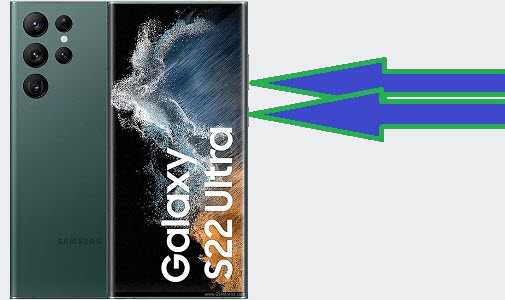
Только делать все нужно мгновенно, без задержки, иначе не получится. Задержитесь появится меню выключения.
Второй способ — сделать скрин ребром ладони
Это как переворачивать страницу при чтении книги. Просто проведите рукой справа налево по экрану, и будет сделан снимок экрана.
Единственное преимущество этого способа то, что это забавно. Любителям книг это особенно понравится. Но это первые разы потребует ловкости.
Третий способ – через значок скриншот
Вы можете вывести кнопку скриншот на экран вашего самсунга s22. Это очень удобный способ, только его нужно настроить один раз.
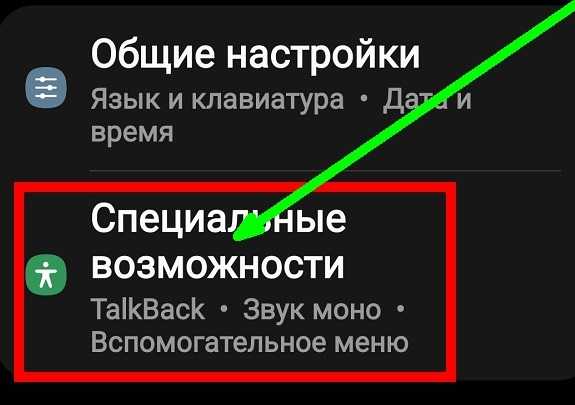
Для этого в настройках перейдите в спец. возможности – опускайтесь в низ до тех пор, пока не увидите такую строку.
Затем перейдите в категорию «Нарушение координации …».
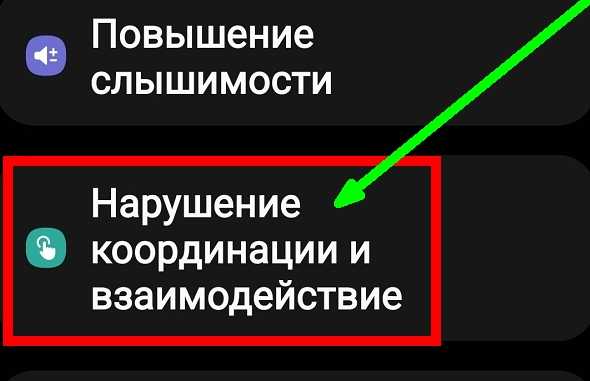
Теперь двиньте вправо переключатель напротив «Вспомогательное меню».
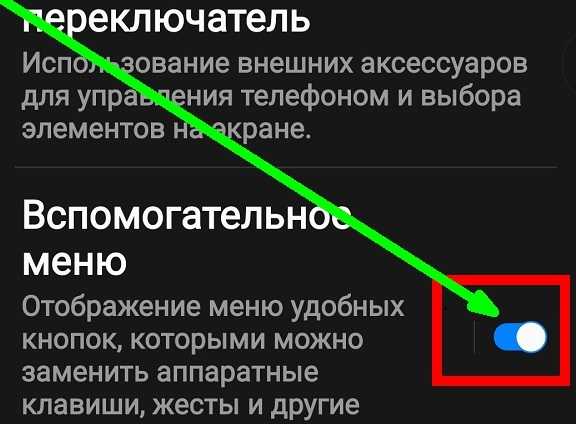
На этом можно было бы остановится, но самсунг s22 способен предложить вам больше. Нажмите на воспитательное меню.
Там рекомендую отключить прозрачность кнопки и выбрать параметр закрепить кнопку. Также можете заменить жест на касание, например при принятии звонков (лично мне больше нравится касание чем движения, которые не всегда срабатывают).
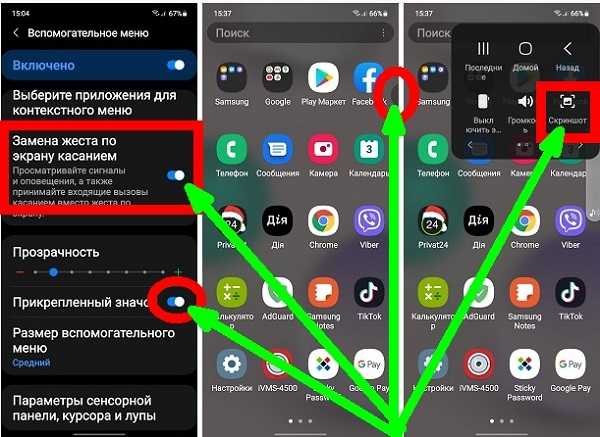
Теперь на каждом экране будет сбоку закреплена кнопка. При нажатии на нее появится небольшое окошко и в нем будет значок «Скриншот». Вам лишь нужно коснуться его.
Четвертый способ — снимок экрана через Google Ассистент
Те, кто много разговаривает по телефону, могут воспользоваться голосовым помощником Google. Достаточно сказать: «Окей, Google, сделай скриншот». И все сделано.
Скрин сохраняется в памяти телефона самсунг S22 ультра или плюс и его можете найти в галерее и в системной папке «Screenshot».
Сделать скрин через Биксби
На телефоне самсунг s22 можете задействовать специальную опцию для создания снимка экрана. Это фирменный помощник Bixby.
Вам нужно запустить Биксби и сказать на английском всего лишь одно слово — screenshot и это будет сделано.
О телефоне самсунг С22
Серия S22 — это новейший выпуск Samsung, состоящий из трех моделей — S22, S22 Plus и S22 Ultra. Все модели флагманские, а Ultra является лучшей из трех и обладает гораздо большей мощностью, чем обычная и плюс.
В этой серии кореец достиг пика производительности — новейшие чипсеты Exynos в сочетании с графикой, фантастические камеры, обогащенные опытом Olympus, длительное время автономной работы, объем памяти и многое, многое другое.
Покупка любого из этих трех телефонов будет держать вас в покое с точки зрения качества, производительности и долговечности.
Для тех, кто готов расстаться с большими деньгами, чтобы получить лучшее из лучшего, самсунг S22 — отличный выбор.
5 Ways To Take A Screenshot On Samsung Galaxy S22 Ultra Plus
In this article, we will discuss all the possible ways to take a screenshot on Samsung Galaxy S22 Ultra.
1 Take a Screenshot on Samsung S22 Ultra1.1 Using Volume Down Button + Power Button Key Combo1.2 Take Screenshot Using Google Assistant1.3 Taking Screenshot Using Palm Swipe Gesture1.4 Taking A Screenshot on S22 Ultra With The Edge Panel1.5 Taking Screenshot on S22 With The Assistant Menu
Using Volume Down Button + Power Button Key Combo#
The first way to take a screenshot on Galaxy S22 Ultra is by using the Volume Down + Power Button. To take a screenshot, press and hold down the Volume Down + Power Button on your phone while on the relevant screen. The screenshot you took will be saved to the gallery in the Screenshot album.
Take Screenshot Using Google Assistant#
You can also use Google Assistant to take a screenshot on Samsung Galaxy S22 Ultra. To take a screenshot on your device using Google Assistant, say OK Google to turn on Google Assistant. Then ask Google Assistant to Take a screenshot. This will take the screenshot, which will be saved to the Gallery app.
Taking Screenshot Using Palm Swipe Gesture#
Another way to take a screenshot on Samsung Galaxy S22 Ultra is by using the Palm Swipe Gesture. Follow the steps given below to take a screenshot using the Palm Swipe Gesture on your Samsung Galaxy S22 Ultra-
Open the Settings app on your S22 Ultra. In the Settings app, head to the Advanced Features section.
Here, search for and tap on the Motion & Gesture control option.
Next, you will find a Palm swipe to capture option. Turn on the toggle for this option.
By turning on this feature, you will take a screenshot by swiping the edge of your hand across the screen.
Taking A Screenshot on S22 Ultra With The Edge Panel#
You can also use the Edge Panel on your Samsung Galaxy S22 Ultra to take the screenshots. Before taking a screenshot using the Edge Panel, you will first have to activate it. To activate the Edge Panel, follow the steps given below-
Firstly, open the Settings app on your Samsung Galaxy S22 Ultra. Here, head to the Display section and tap on it.
After doing so, tap on Edge Panels and turn on the toggle for it.
Next, tap on the Panels and select Smart Select and Tasks.
Now to take a screenshot from the Edge Panel, swipe the Edge Panel on the right side on the screen. Next, tap on the Screenshot option in the Tasks panel to take a screenshot. If you want to take a screenshot in oval or rectangle shape, head to the Smart Select panel, and select the Rectangle or Oval option.
By doing so, you can take a screenshot on Samsung Galaxy S22 Ultra.
Taking Screenshot on S22 With The Assistant Menu#
Assistant Menu on Samsung Galaxy S22 Ultra is another way to take screenshots on your phone. To take a screenshot with the Assistant Menu, follow the steps given below-
Open the App Menu on your Samsung Galaxy S22 Ultra tap on Settings app to app. In the Settings app, head to the Accessibility section.
Next, tap on Interaction and Dexterity.
Next, enable the toggle for the Assistant Menu.
You will now see the Assistant Menu on the screen. Tap on it, and then tap on screenshot to take a screenshot on your device.
This is how you can take screenshots on Samsung Galaxy S22 / S22 Ultra / S22 Plus. We have discussed all the possible ways to take a screenshot on the S22 Ultra. RELATED GUIDES:
Factory Reset Samsung Galaxy TabletTake a Screenshot On Windows 11Fix Can’t Take Screenshot Due To Security Policy ErrorTake a Screenshot on a Dell Laptop
How to take a screenshot on Samsung Galaxy S22 Ultra/S22 Plus
The Samsung S22 Ultra or S22 Plus is the new flagship launched by Samsung as part of the recently launched S22 series. The Samsung S22 Ultra is the successor to the Samsung S21 Ultra released last year. Taking a screenshot on the Samsung Galaxy S22 Ultra is quite easy and there are different ways to do it.
Take a Screenshot on Samsung S22 Ultra
In this article, we will discuss all the possible ways to take a screenshot on the Samsung Galaxy S22 Ultra.
Using the key combination “Volume Down”+ “Power Button”
The first way to take a screenshot on the Galaxy S22 Ultra is to use the Volume Down + Power button. To take a screenshot, press and hold the Volume Down + Power button on your phone while on the corresponding screen. The screenshot you take will be saved in the gallery in the screenshot album.
Take a screenshot with Google Assistant
You can also use Google Assistant to take a screenshot on the Samsung Galaxy S22 Ultra. To take a screenshot on your device with Google Assistant, say” OK Google” to enable Google Assistant. Then ask Google Assistant to take a screenshot. This will take a screenshot which will be saved in the Gallery app.
Taking a screenshot with a swipe gesture
Another way to take a screenshot on the Samsung Galaxy S22 Ultra is to use the palm swipe gesture. Follow the instructions below to take a screenshot with a swipe gesture on the Samsung Galaxy S22 Ultra.
- Open the Settings app on S22 Ultra.
- In the Settings application, go to the Additional Features section.
- Here find and tap the Motion and gesture control option.
- Next, you will find the palm grip option. Turn on the toggle for this option.
By enabling this feature, you will take a screenshot by swiping the edge of your hand across the screen.
Screenshot on S22 Ultra using Edge panel
You can also use the Edge panel on your Samsung Galaxy S22 Ultra to take screenshots. Before you can take a screenshot with Edge Panel, you first need to activate it. To activate the Edge panel, follow these steps:
- First, open the Settings app on your Samsung Galaxy S22 Ultra.
- Here, go to the Display section and click on it.
- After that, click on Edge Panels and turn on the switch for it.
- Then click on the Panel and select Smart Choice and Tasks.
- Now, to take a screenshot from the Edge bar, swipe the Edge bar from the right side of the screen.
- Then click on the Screenshot option in the Tasks panel to take a screenshot. If you want to take a screenshot of an oval or rectangular shape, go to the Smart Select panel and select the Rectangle or Oval option .
So you can take a screenshot on Samsung Galaxy S22 Ultra.
Screenshot on S22 using assistant menu
The assistant menu on the Samsung Galaxy S22 Ultra is another way to take screenshots on your phone. To take a screenshot of the assistant menu, follow these steps:
- Open the apps menu on Samsung Galaxy S22 Ultra, tap” Settings” in the app.
- In the Settings app , go to the Accessibility section .
- Then click Interaction and Agility.
- Then turn on the toggle for the assistant menu .
- Now you will see the assistant menu on the screen. Click on it and then click on Screenshot to take a screenshot on your device.
This is how you can take screenshots on Samsung Galaxy S22/S22 Ultra/S22 Plus. We have discussed all possible ways to take a screenshot on S22 Ultra.