How To Install Google TV on Any Android TV

Finally, after a long wait, Android TV received the biggest interface update in years which came with the launch of Chromecast with Google TV. For those who cannot wait to receive the official update on their older Android TV devices, you came to the right place. In this post, we will take you through a step-by-step guide on how to install Google TV on any Android TV device.
It will take a couple of years for Google to upgrade all Android TV devices to Google TV. The biggest update is the newly designed home screen meant to be simpler for users. Google TV uses machine learning, Google Knowledge Graph as well as Google Assistant to make it easier for users to get what they are looking for. Though not a whole new operating system by itself, Google TV, is a software layer that runs on top of the old Android TV
Though Google TV will be available on most Android TV devices like Xiaomi’s Mi Box and Nvidia’s Shield TV, you will need to be running Android 9.0 Pie or later to be eligible. Google TV was launched first in the US but you can use a VPN to use it in other regions.
Step 1: Minimum Requirements
We first need to establish that your Android TV device meets the basic requirements for this exercise. Remember we highlighted that you need to be running Android 9.0 pie to be eligible for this update. Let us check that real quick.
- Click Settings on your Andoid Tv
- Hit Device Preferences
- Select About
- Click on Version
If it says Android 9.0 or newer, you are good to go, otherwise, enjoy reading through and bookmark this page for future reference.
Step 2: What To Download
Go ahead and use the links below to download both the Google TV APK and Google Apps for Android TV APK. You may download them on your phone or PC and copy them to a USB flash drive. Plugin the USB Flash drive with the 2 downloaded files into your Android TV device.
Most Android TV devices come with a pre-installed file manager or file explorer. If yours doesn’t have one, go ahead search for and download a file manager from the Google Play Store. There are many to choose from and any will get the job done.
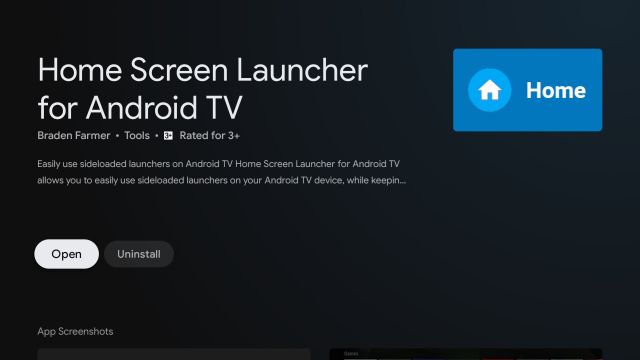
While still on the Google Play Store, search for and download an app called “Home Screen Launcher for Android TV”.
Step 3: Enable Installation From Unknown Sources
Now we need to give your file manager app permission to install the applications we just downloaded. For that, on your Android TV, go to:
- Settings
- Click Device Preferences
- Then Security & Restrictions
- Select Unknown Sources
- Turn on for your preferred File Manager App
Step 4: Installing Google TV and Google Apps On Android TV
Using your preferred file manager, browse to the folder on your USB Flash Drive with the two APKs we downloaded in step 2. Select one APK file and click install via package installer. Select the second APK and install it as well. After this, both apps will appear on the apps list section of your Android TV.

Now open the “Home Screen Launcher for Android TV” app we also downloaded in step 2. This will auto-detect the LauncherX (Google TV) app which is already installed. Now select to open the LauncherX or the Google TV UI. And Just like that, you are running Google TV. Now restart your new Google TV device once and start enjoying better-personalized content.

Because of this launcher kind of thing, you will have to be opening the Home Icon (Home Screen Launcher for Android TV app) any time you turn your TV on. This is what will be switching you to Google TV every time you switch on your device.
To get rid of that minor inconvenience, we need to set your Google TV UI as the default launcher. For that be on the lookout for our next post detailing how to set Google TV UI as the default Android TV launcher.
LIKE WHAT YOU ARE READING?
Sign up to our Newsletter for expert advice and tips of how to get the most out of your Tech Gadgets
Subscribing to our newsletter indicates your consent to our Terms of Use and Privacy Policy. You may unsubscribe from the newsletters at any time.
Как обновить андроид тв до гугл тв
Google TV Home
Версия: 1.0.560849918
Последнее обновление программы в шапке: 06.09.2023


Краткое описание:
Главная страница Google TV
Описание:
Google TV Home — это основа для всех действий на вашем развлекательном устройстве с Google TV. Просматривайте тысячи фильмов, шоу и телеканалов в прямом эфире из своих подписок, не переключаясь между приложениями. Открывайте для себя новые вещи, которые стоит посмотреть, с рекомендациями, основанными на том, что вы смотрите и что вас интересует.
Требуется Android: Устройство с Google TV 10+
(есть ограниченная поддержка Android TV 10+)
Русский интерфейс: нет данных
How To Install Google Tv On Any Android Tv
It will take a couple of years for Google to upgrade all Android TV devices to Google TV. The biggest update is the newly designed home screen meant to be simpler for users. Google TV uses machine learning, Google Knowledge Graph as well as Google Assistant to make it easier for users to get what they are looking for. Though not a whole new operating system by itself, Google TV, is a software layer that runs on top of the old Android TV Though Google TV will be available on most Android TV devices like Xiaomi’s Mi Box and Nvidia’s Shield TV, you will need to be running Android 9.0 Pie or later to be eligible. Google TV was launched first in the US but you can use a VPN to use it in other regions. Also Read: What is Android TV? 10 beginner’s questions answered
Step 1: Minimum Requirements#
We first need to establish that your Android TV device meets the basic requirements for this exercise. Remember we highlighted that you need to be running Android 9.0 pie to be eligible for this update. Let us check that real quick.
Click Settings on your Andoid TvHit Device PreferencesSelect AboutClick on Version
If it says Android 9.0 or newer, you are good to go, otherwise, enjoy reading through and bookmark this page for future reference. Also Read: Chromecast with Google TV Review: As good as it gets
Step 2: What To Download#
Go ahead and use the links below to download both the Google TV APK and Google Apps for Android TV APK. You may download them on your phone or PC and copy them to a USB flash drive. Plugin the USB Flash drive with the 2 downloaded files into your Android TV device.
Google TV APK download linkGoogle Apps for Android TV APK download link
Most Android TV devices come with a pre-installed file manager or file explorer. If yours doesn’t have one, go ahead search for and download a file manager from the Google Play Store. There are many to choose from and any will get the job done. While still on the Google Play Store, search for and download an app called “Home Screen Launcher for Android TV”. Also Read: Chromecast with Google TV vs Fire TV Stick (3rd Gen)
Step 3: Enable Installation From Unknown Sources#
Now we need to give your file manager app permission to install the applications we just downloaded. For that, on your Android TV, go to:
SettingsClick Device PreferencesThen Security & RestrictionsSelect Unknown SourcesTurn on for your preferred File Manager App
Also Read: Android TV streaming boxes and dongles: Here are our top recommendations of 2022
Step 4: Installing Google TV and Google Apps On Android TV#
Using your preferred file manager, browse to the folder on your USB Flash Drive with the two APKs we downloaded in step 2. Select one APK file and click install via package installer. Select the second APK and install it as well. After this, both apps will appear on the apps list section of your Android TV. Now open the “Home Screen Launcher for Android TV” app we also downloaded in step 2. This will auto-detect the LauncherX (Google TV) app which is already installed. Now select to open the LauncherX or the Google TV UI. And Just like that, you are running Google TV. Now restart your new Google TV device once and start enjoying better-personalized content. Because of this launcher kind of thing, you will have to be opening the Home Icon (Home Screen Launcher for Android TV app) any time you turn your TV on. This is what will be switching you to Google TV every time you switch on your device. To get rid of that minor inconvenience, we need to set your Google TV UI as the default launcher. For that be on the lookout for our next post detailing how to set Google TV UI as the default Android TV launcher. Also Read: What’s new with Chromecast with Google TV streaming device
How to install Google TV on Android TV Box in 2023
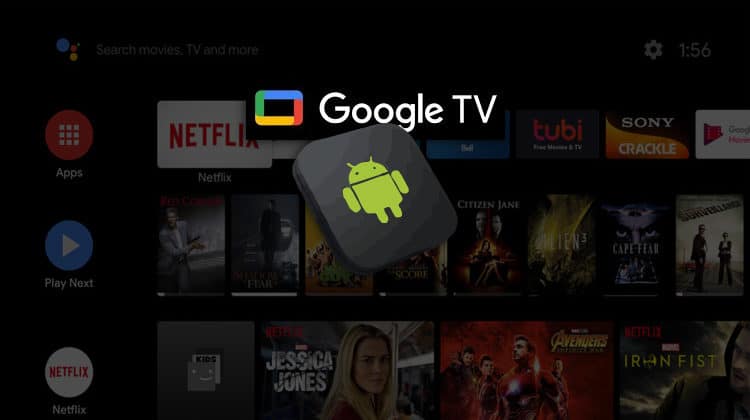
To make the Android TV simpler for its users, the latest interface for Android TV, known as Google TV, is designed accordingly. It is operated using Google Assistant, Google Knowledge Graph, and Google’s machine learning. Google TV makes it easier for its users to find anything they are looking for by providing all the streaming content in a well-organized manner. It is a software layer running on top of Android TV; it provides Live TV services with movies and TV shows too! We know how excited Android TV users are for this new interface; so, here is a complete and simple guide on how to install Google TV on Android TV Box.
Features of Google TV
A lot of thought and consideration was put into this new interface to make sure it is useful to all users. Google examined how users look for online media content, for example, searching for movie titles or scrolling through lists to find what they like. The Knowledge Graph has now improved thanks to these observations. It uses machine learning techniques to get to know what topics and genres attract the users. Google Search and Google Assistant can assist you in finding your desired media content, just by asking them to bring content from your favorite genre!
All the movies and TV shows are organized by category; it also supports services by Amazon Prime Video, Crackle, Hulu, HBO Max, HBO Go, Netflix, MTV, Disney+, Disney Now, and the list goes on. Furthermore, Google TV is compatible with Chromecast and Sony Android TVs, while Android TV devices and TVs will update to the new Google TV at the start of the upcoming year 2023. Google TV is also available live for Android phones in the United States.
⚠ Stream safely!
A Virtual Private Network, VPN, helps protect its users from outside threats on the internet by acting as a shield between the user and the website accessed. Users browsing the internet are mainly exposed to threats like viruses, identity theft, hackers, etc. VPNs help protect them and keep their data safe and encrypted.
When selecting a VPN, users can choose between free VPNs and commercial ones. With video streaming, I would always recommend a commercial VPN like Surfshark for various reasons. This applies to Google TV also as while many of the applications are commercial ones, you can still install apps like Kodi and others that give you access to third-party streams.
The VPN I recommend
Surfshark is one of the best VPNs out there, that provides all the protection you need. While many VPNs save the users browsing activity onto their servers, Surfshark uses a special no-logging system to make sure your browsing activity is not saved in its servers, as this information can help anyone track you down. Surfshark is also exceptionally good at helping address censorship issues through its massive network of servers distributed around the world. If you ever get that dreaded message – “the content you are trying to view is unavailable in your region” – Surfshark can help. Simply connect to a server in a country where the content is available and bypass that pesky restriction. Check out some of the other amazing things a VPN can help with. Surfshark also offers a 7-day refund if you are not fully satisfied with their services. Their customer service is amazing, and their representatives always solve your VPN related issues on time.
Surfshark can help you stay safe from all outside threats on the internet, especially while streaming content online, so make sure you try it out!
We were able to get an exclusive 82% of Surfshark.
�� Save 82% of Surfshark now!
How to Install Google TV on Android TV Box
Before we head to the installation steps on how to install Google TV on Android TV Box, you need to make sure you meet all the requirements:
- Your Android TV set-top box, dongle, or TV should be running Android 9 or higher. To check this, go to Settings > Device Preferences > About > Version.
- You need to sideload the Google TV Home launcher and the updated Google App (Google Base APK).
After downloading these files on your Android phone or tab or on your iPhone or iPad, move them to your Android TV using a cloud service like Google Drive. Then access Google Drive on your Android TV using the File Commander app.
Open these APK files with File Commander; you will see a message asking you to allow File Commander to install unknown apps. Hit ‘Settings’ and turn on the ‘File Commander’ switch. Now select the APK again and hit ‘Install.’
Now that you meet the requirements, you can install Google TV using the following steps:
- At the top right corner of your Android TV Home Screen, select the cogwheel icon named Settings.
- Here, select Device Preferences and choose About at the top.
- Now, keep selecting Build continuously until a message appears saying, “You are now a Developer!”
- Hit the ‘Back’ button and go to Developer options.
- Here, turn on the Network Debugging switch.
- Using an Android phone or tab, install Remote ADB Shell from Google Play Store.
- Open this app and enter your Android TV device IP Address. To find this, go to Settings > Device Preferences > About > Status > IP Address on your Android TV.
- Enter 5555 as the port number, and then select Connect and hit OK.
- Now, you can use command to install the Android TV Launcher by typing the following command and hitting the Enter key:
pm uninstall –user 0 com.google.android.tvlauncher .
In the future, if you want to reverse the installation to reinstall the Android TV Launcher, type the following command:
cmd package install-existing com.google.android.tvlauncher . - When you press the Home button on your Android TV remote, you will automatically be led to the new Home Screen for Google TV.
- Make sure to try out all the features!
Conclusion
The new Google TV is an amazing interface that makes Android TV easier and simpler to use, especially for new users. The installation is very easy; you can follow our guide on how to install Google TV on Android TV Box. Google TV works on Chromecast and Sony Android TVs, and this installation can help you install it on Android TV. Furthermore, all the content is well-organized so that users can find what they are looking for without a hassle. However…
Whenever you are streaming anything on the internet, it is advised that you use a Good VPN like Surfshark to keep your device and your data safe from any threats.
We hope you find this guide on How to install Google TV on Android TV Box helpful. Make sure to follow the steps and enjoy the all-new interface!
If you found this article useful, you may also be interested in reading other Android TV-related articles.