Режим Fastboot на Xiaomi — что это такое, как включить и отключить
На экране вашего телефона внезапно появилась странная картинка — заяц в шапке занимается починкой робота? Не нужно переживать. Просто на смартфоне активировался режим Fastboot. В этом материале мы разбираем, что делать, если включился Fastboot на Xiaomi, как его отключить, как в него войти и для чего этот режим вообще нужен.
 Если на экране появился заяц, который чинит робота, значит включился режим Fastboot. Фото: china-gadgets.de
Fastboot Xiaomi — что это такое
Fastboot — это один из специальных режимов смартфона, который можно использовать, чтобы немного изменить своё устройство. Например, перепрошить его, установить кастомные приложения. Все эти изменения невозможно внести в стандартном режиме и обычно пользователю они не нужны. Но есть люди, которые любят устанавливать неофициальные версии прошивки, обновления неизвестного происхождения и т. д. Например, в целях эксперимента.
Главная особенность режима Fastboot — он позволяет управлять смартфоном через ПК, используя командную строку. Если телефон переведён в этот режим, то компьютер распознаёт его не как отдельное внешнее подключённое устройство, а как часть своей системы.
Как включить Fastboot Xiaomi
Активировать Fastboot можно на любом устройстве Сяоми. Обычно достаточно просто нажать на две кнопки: выключения и снижения громкости. Клавиши удерживаются до 10 секунд. После этого гаджет вибрирует и экран фастбута запускается.
 Включить Fastboot можно быстро на любом устройстве. Фото: dimsog.ru
Есть и другой метод. Достаточно запустить процесс выключения телефона. Когда дисплей потухнет, нужно нажать и не отпускать клавишу уменьшения громкости. Сразу после этого нужно зажать кнопку включения. Когда смартфон начнёт включаться, клавишу включения можно отпустить. А когда на экране появится кролик в шапке, можно будет отпустить и клавишу громкости.
Что делать, если Fastboot не включается
В некоторых моделях указанный вариант не всегда работает. Тогда нужно воспользоваться ещё одним способом.
Нужно установить специальную программу ADB run Fastboot (подойдет для Xiaomi и других моделей на Android). Утилита скачивается на ПК и устанавливается. Далее в самом смартфоне нужно включить «отладку по USB».
Как это сделать:
- зайти в Настройки, выбрать «О телефоне»;
- несколько раз быстро нажать на надпись «Версия MIUI». На экране мелькнёт фраза «Теперь вы разработчик»;
- вернуться в «Настройки», пролистнуть вниз до пункта «Расширенные настройки»;
- выбрать «Для разработчиков»;
- выбрать «Отладка по USB».
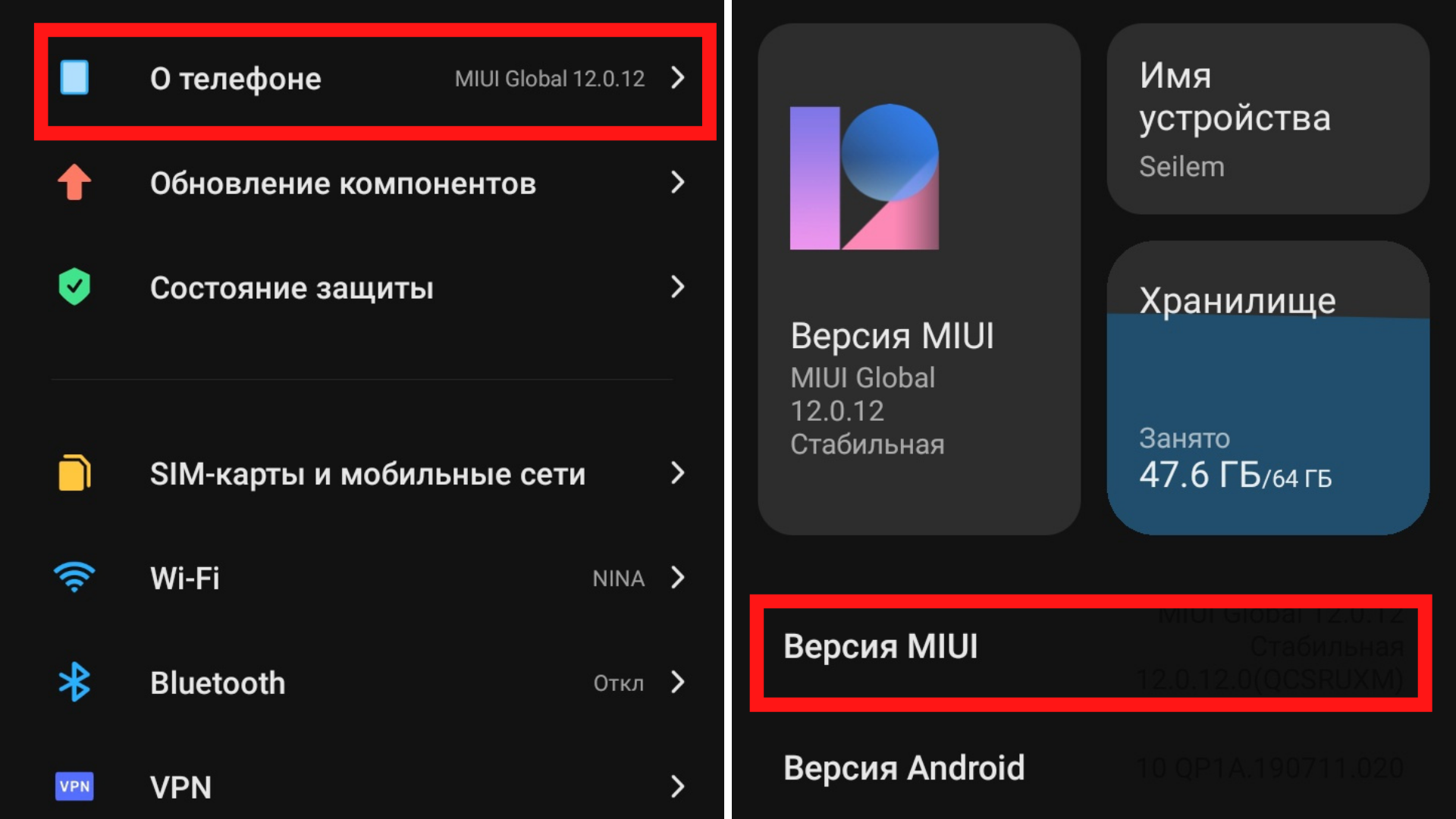 На надпись «Версия MIUI» надо быстро тапнуть несколько раз, чтобы включить режим разработчика. Иллюстрация: Елизавета Чупикова, Xi.Express
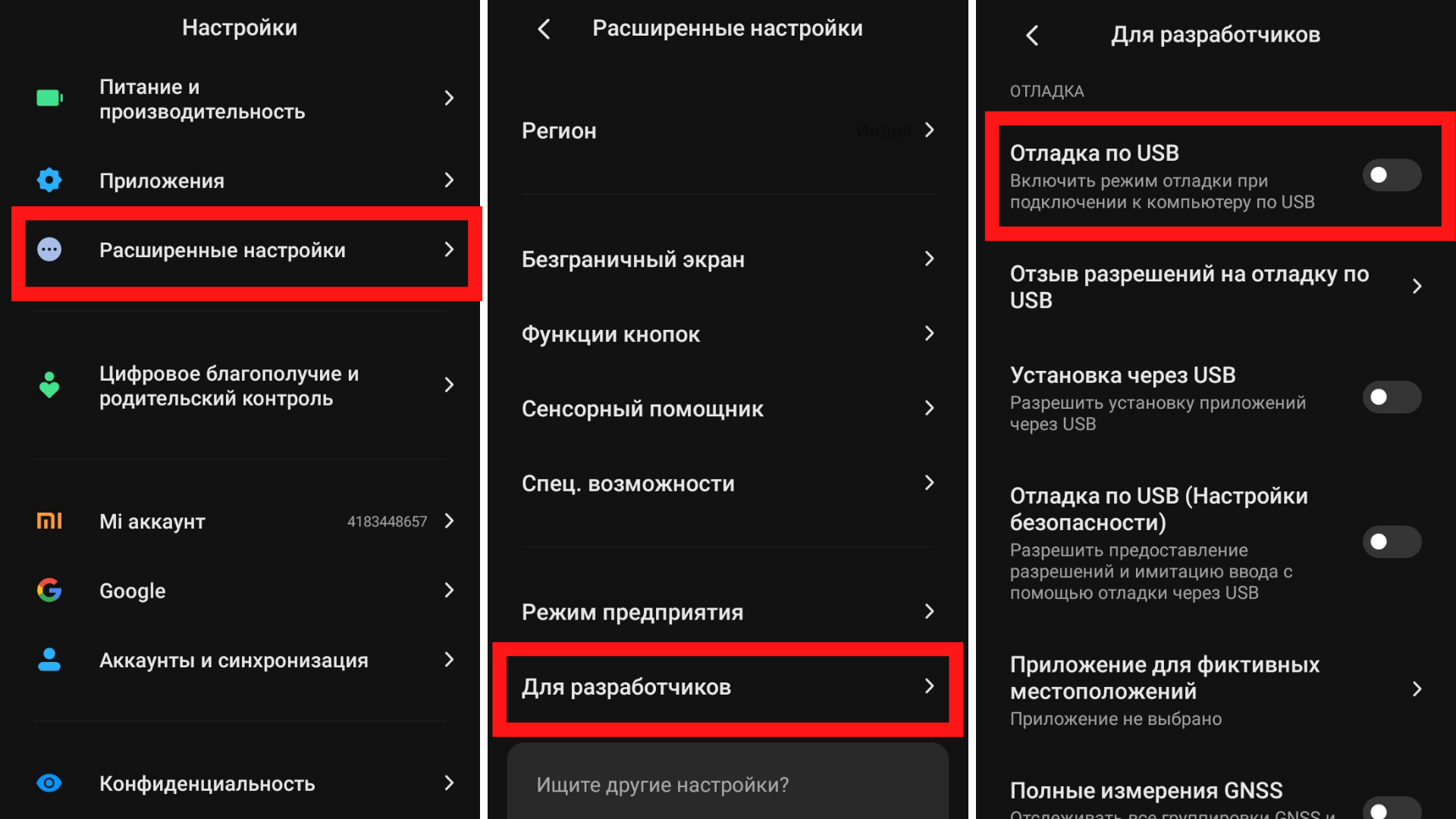 Как включить «отладку по USB» на Сяоми. Иллюстрация: Елизавета Чупикова, Xi.Express
После этого необходимо подсоединить смартфон к ПК через USB. Следующий шаг — запустить программу для управления телефоном (ADB). На экране всплывёт запрос на подключение. Его нужно подтвердить.
Далее в меню ADB нужно выбрать Reboot — Reboot Bootloader. Подключённое устройство перезапустится и войдёт в режим Fastboot.
Почему появляется режим Fastboot Xiaomi Mi
Чтобы зайти в этот режим, его нужно включить самостоятельно. Но иногда пользователи внезапно обнаруживают, что этот режим запустился сам по себе.
Что значит Fastboot на Xiaomi?
- Из-за чего-то слетела прошивка. Возможно это ошибка в самом Android или была криво установлена кастомная прошивка.
- Установили приложение, которое не совместимо с осью.
- Была попытка активировать рут-права, которая завершилась неудачей.
- Был удалён какой-то важный системный файл.
- Случайно зажали кнопки, которые привели к запуску режима.
А как узнать, что запустился именно этот режим? На экране вместо привычного рабочего стола будет написано голубыми буквами «Fastboot».
Иногда простое выключение и включение аппарата решает эту проблему. Но если это не помогло, можно использовать другие методы. О них расскажем дальше.
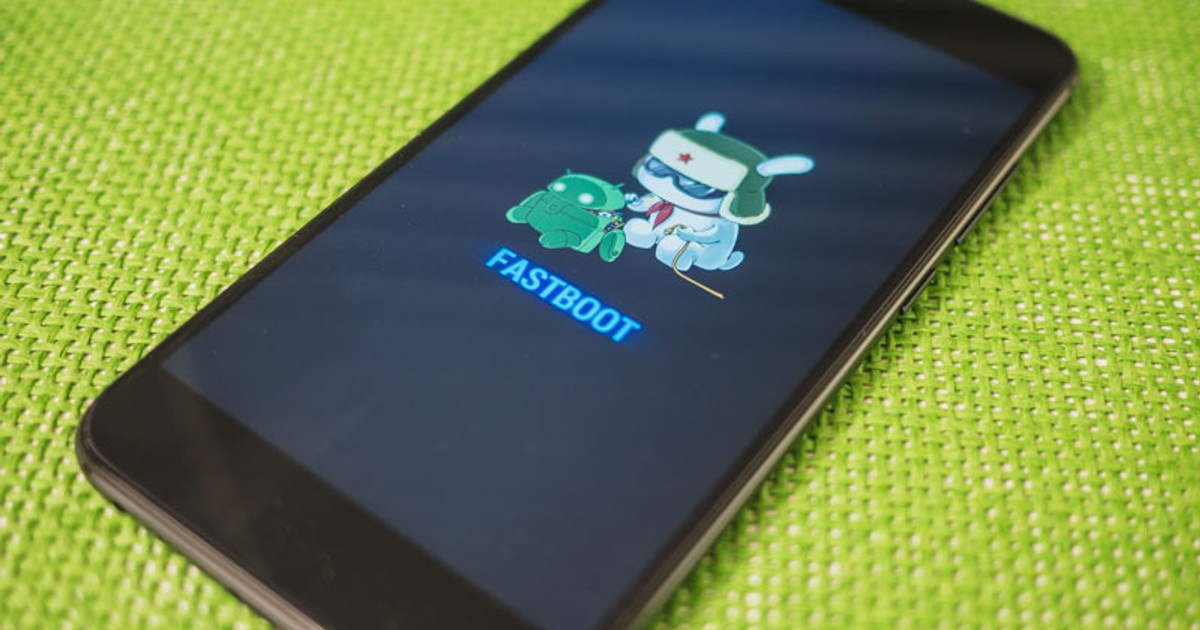 Не стоит пугаться, если включился режим Fastboot. Возможно вы просто зажали кнопки в кармане и простая перезагрузка устранит проблему. Фото: teletype.in
Как выйти из режима Fastboot Xiaomi
Популярны три способа:
- стандартный — простая перезагрузка. Если из смартфона достается аккумулятор, вы можете просто достать его, а потом вставить обратно;
- через Recovery — для тех, кому не помог первый вариант;
- через компьютер — используется обычно только если другие методы не помогли исправить ситуацию.
Стандартный способ
Как убрать Fastboot на Xiaomi (Redmi)? Самый простой метод занимает меньше минуты. Всё, что нужно — нажать на клавишу отключения и держать её несколько секунд. Устройство завибрирует, начнёт перезагружаться (кнопку можно отпустить).
Такой способ не подойдёт, если:
- Сяоми был в стадии перепрошивки и внезапно завис;
- смартфон упал, выключился, а после включения включился режим Fastboot;
- была установлена вредоносная программа с вирусом и он перестал включаться, при запуске запускается Fastboot.
В любом из вышеперечисленных случаев нужно прибегнуть к следующем способу, о котором расскажем ниже.
Как выключить Fastboot Xiaomi через меню Recovery
Чем отличается этот способ? Он позволяет восстановить заводские настройки Сяоми, сменить прошивку, удалить информацию с карты памяти. Для устранения проблемы нужно выполнить такие шаги:
- одновременно нажать обе клавиши изменения громкости. Зажать их нужно на 15 секунд;
- гаджет начнёт перезагружаться. На это уйдёт до 10 минут. Не нужно во время перезагрузки доставать батарею, нажимать на какие-то кнопки, пытаться выключить телефон;
- после перезагрузки на экране появится меню Recovery. Будет доступно на выбор 3 варианта: Reboot, Wipe Data, connect with MIAssistant. Нужно нажать Wipe Data. В появившемся окне надо выбрать Factory Reset. Для переключения между пунктами пользуются клавишами переключения громкости;
- устройство снова перезапустится.
На это уйдёт до 10 минут. После смартфон снова включится. На нём будет стоять самая первая версия прошивки, которая предусмотрена это моделью.
Обновиться до новой версии прошивки просто. Достаточно зайти в «Настройки» — «О телефоне» — выбрать текущую версию MIUI, нажать на «Проверить обновления». Последний шаг — установить их и дождаться перезагрузки устройства.
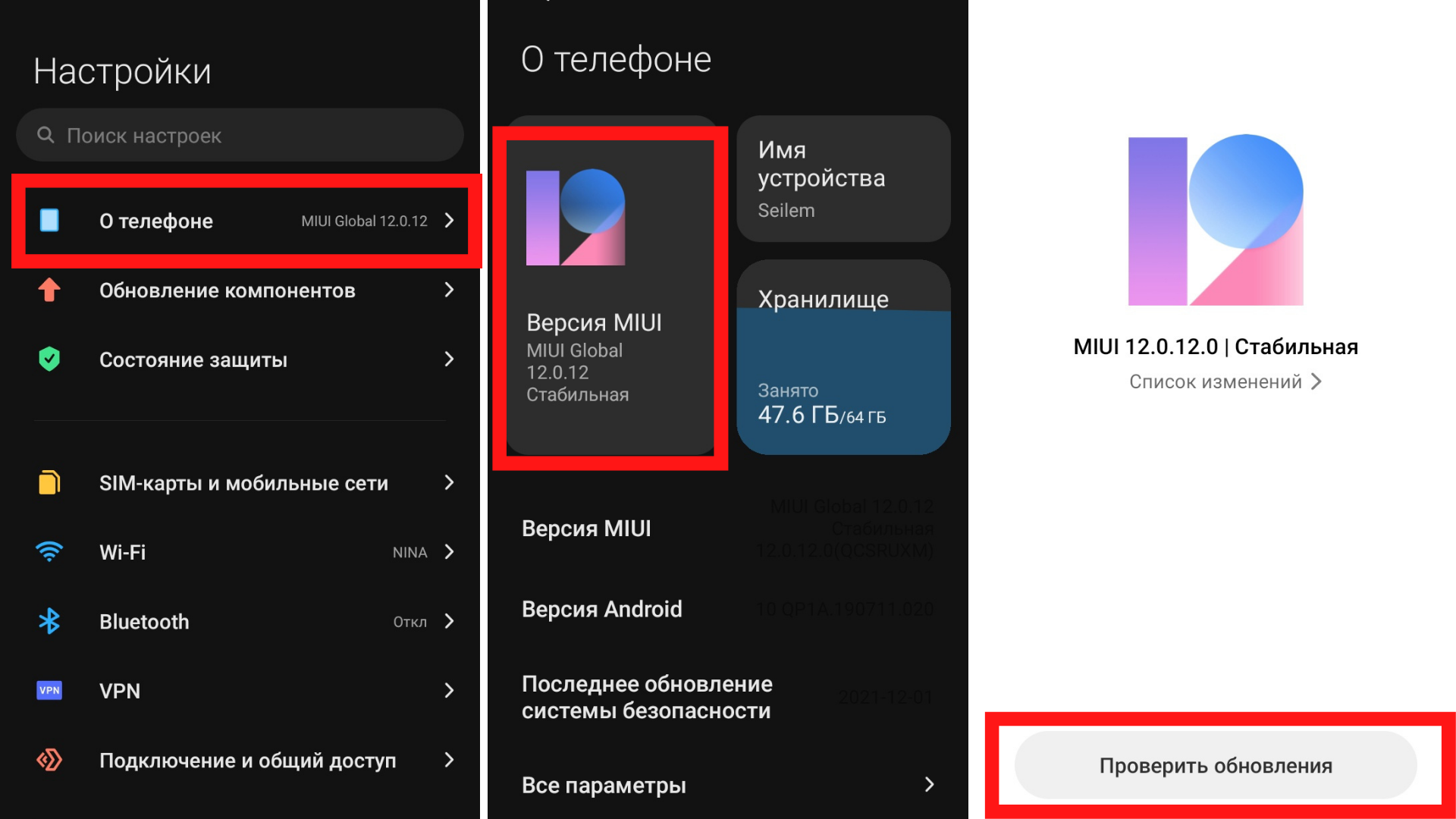 Как можно проверить наличие обновлений MIUI на Xiaomi. Иллюстрация: Елизавета Чупикова, Xi.Express
Способ выйти из режима через ПК
Для этого понадобится:
- компьютер с Windows 7 и выше;
- USB шнур.
- скачать загрузочный файл fastboot, который подходит к операционной системе вашего компьютера (Windows, Mac, Linux). Найти его можно на официальном сайте;
- распаковать файл и установить его;
- подсоединить телефон через USB;
- запустить командную строку (нужно открыть меню нажав на «Пуск», прописать cmd и нажать Enter);
- в появившемся окошке напечатать «cd» и нажать Enter;
- ввести «cd amd»;
- ввести «fastboot reboot».
Подтверждается введение команды каждый раз нажатием клавиши Enter. Если всё сделано правильно, гаджет перезагрузится и выйдет из режима фастбут.
How to Boot any Android Device to Fastboot Mode
In this guide, we will show you two various methods to boot your Android device to Fastboot Mode. The Fastboot Mode (also known as Bootloader Mode or Download Mode) beholds a plethora of options up its sleeves. Near about every major tweak that a tech enthusiast is willing to try out, would have to make use of this mode. Right from the first step of unlocking the device’s bootloader to flashing the patched boot.img file for root, there’s a lot to try out.
Likewise, if your device gets soft-bricked, then you may easily unbrick it by flashing the stock firmware via Fastboot Commands. Well, the possibilities stand endless and that is why it becomes all the more important to get yourself aware of the steps to boot your Android device to Fastboot Mode. And in this guide, we will make you aware of just that. So without further ado, let’s get started.
Table of Contents
Boot Android Device to Fastboot Mode via ADB Command
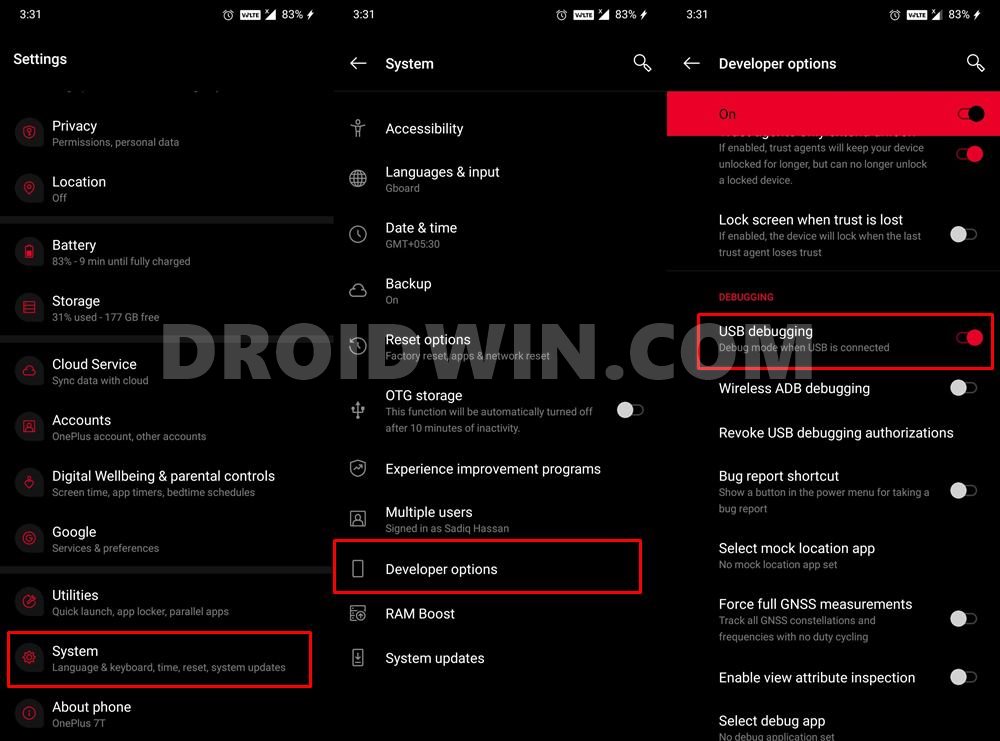
- To begin with, enable USB Debugging on your device. To do so, go to Settings > About Phone > Tap on Build Number 7 times > Go back to Settings > System > Advanced > Developer Options > Enable USB Debugging.
- Next up, connect your device to the PC via USB cable.
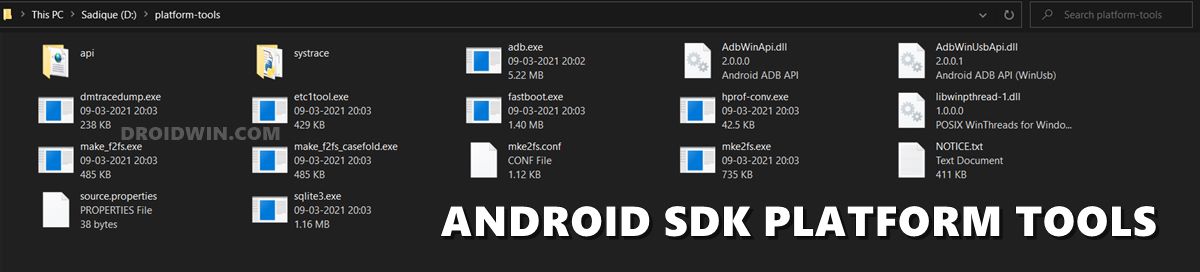
- Then install the Android SDK Platform Tools on your PC. This is the official ADB and Fastboot binary provided by Google and is the only recommended one.
- So download it and then extract it to any convenient location on your PC. Doing so will give you the platform-tools folder.
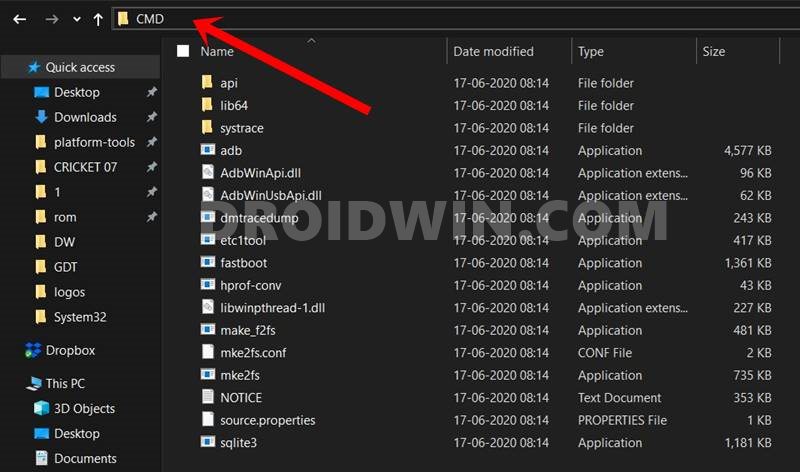
- Go to this platform-tools folder, type in CMD in its address bar, and hit Enter. This shall launch the Command Prompt window.
- Now type in the below command to boot your device to Fastboot Mode:
Boot Android Device to Fastboot Mode Via Advanced Power Menu
Some OEMs provide an Advanced Power menu that accompanies a couple of other options- apart from the usual Reboot and Emergency Call. They tend to incorporate the ability to boot the device to Stock Recovery or Fastboot/Bootloader Mode. However, this option is usually hidden from the normal user. To enable it, you will first have to enable Developer Options.
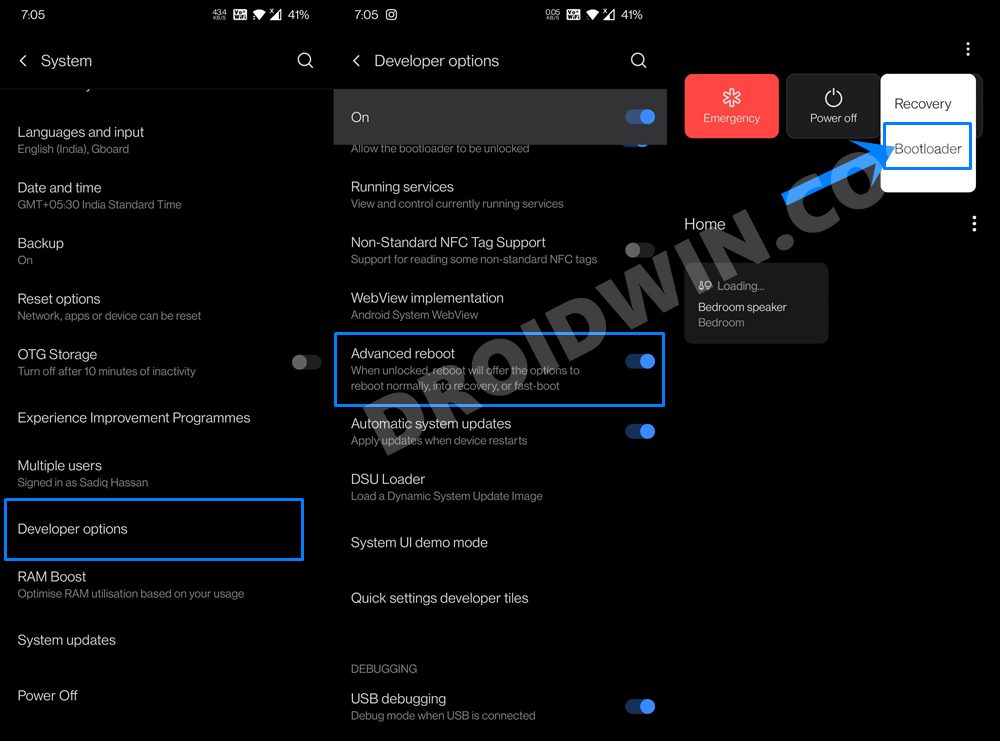
As explained above, this could be done by Settings > About Phone > Tap on Build Number 7 times > Go back to Settings > System > Advanced > Developer Options. Once you reach this screen, search for the feature that spells something along the lines of Advanced Power Menu (Advanced Reboot in OnePlus). Then enable it and you may now directly boot your Android device to Fastboot Mode via this Power Menu.
Boot Android Device to Fastboot Mode via Magisk App
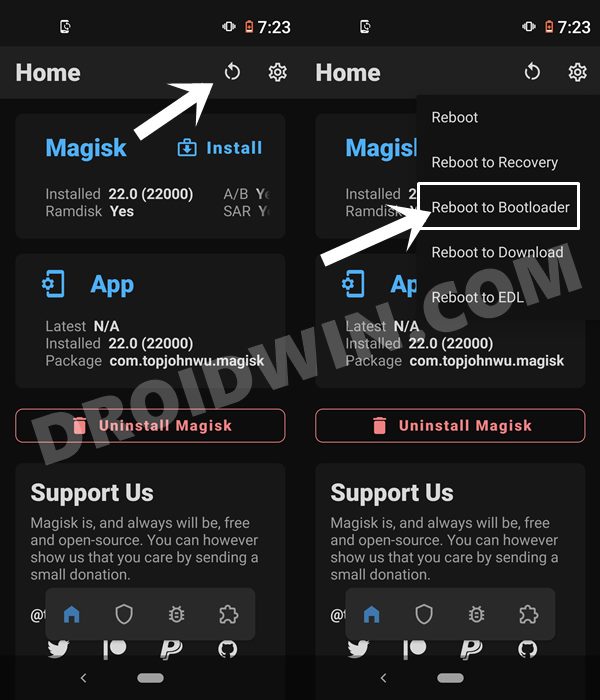
If your device is rooted and you have the Magisk App installed, then there is no better way to boot to the Fastboot Mode than by using this app. So launch the Magisk app and tap on the circular reboot icon situated at the top menu bar. Then select Fastboot Mode and your Android device will now straightaway boot to this mode.
Boot Android Device to Fastboot Mode Via Hardware Key Combinations
The biggest plus point with this method is that you wouldn’t have to take the help of a PC or any other third-party app. However, the issue is that there are no universal hardware key combinations. Two different devices even from the same manufacturers tend to follow a different set of button combinations. And this is where the problem arises. However, I have tried to cover most of the OEMs and also mentioned all the exceptions, as and when required So without further ado, let’s get started.
Boot Google Pixel and Nexus devices to Fastboot Mode
Power off your device. Then press and hold the Power and Volume Down button for a few seconds and your device will be booted to Fastboot.
Boot OnePlus Device to Fastboot Mode
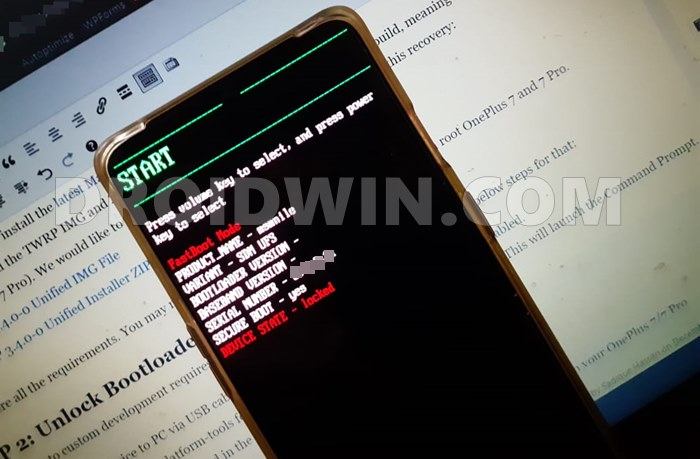
Power off the device. Then press and hold the Volume Up, Volume Down, and Power buttons together for a few seconds and your OnePlus will boot to Fastboot Mode.
Boot Samsung Device to Fastboot Mode
Samsung devices take a slightly different approach. Rather than the Fastboot Mode, they come with the Download Mode. This is the mode where all the flashing via Odin takes place. So if you wish to boot your Samsung device to this mode, then refer to our comprehensive guide on this topic: How to Boot any Samsung Device to Download Mode.
- Don’t Miss: How to Boot Rooted Samsung to Recovery Mode and Rooted OS.
Boot Xiaomi/Redmi/Mi Devices to Fastboot Mode
To begin with, power off your device. Then press and hold the Volume Down + Power buttons for a few seconds and your Xiaomi/Redmi/Mi device will boot to Fastboot Mode.
Boot Nokia Device to Fastboot Mode
Power off the device and connect it to a charger. Then press and hold Volume Down + Power buttons together. Then keep both the keys pressed until the device vibrates. You should then also see a Download Mode message on the top-left of your screen.
Boot Huawei/Honor Device to Fastboot Mode
If you are planning to boot your Huawei or Honor device to Fastboot Mode, then power off your device. Then press and hold the Volume Down + Power buttons. If that doesn’t work out, then you may also press and hold the Volume Down button and at the same time, connect your device to the PC using a USB cable.
Boot Oppo Device to Fastboot Mode
Start by powering off the device then press and hold Volume Up + Power buttons. Your Oppo device will now boot to Fastboot Mode.
Boot Realme Device to Fastboot Mode
Power off your phone. Then press and hold Volume Up + Power buttons and your Realme device will boot to Fastboot Mode.
Boot Vivo Device to Fastboot Mode
Power off the device. Then press and hold the Volume Up + Power button together for a few seconds and your Vivo device will be booted to Fastboot Mode.
Boot Asus Device to Fastboot Mode
Power off your device and then press and hold the Volume Up + Power buttons together. Your Asus device will now boot to the Fastboot Mode.
Boot Motorola Device to Fastboot Mode
Power off your device. Then press and hold the Volume Down + Power buttons together for a few seconds. This will boot your Motorola Device to Fastboot Mode.
Boot Sony Device to Fastboot Mode
To begin with, power off the device. Then press and hold the Volume Down button and connect it to the PC via USB cable. Your Sony device shall now boot to Fastboot Mode.
Boot HTC Device to Fastboot Mode
Power off your phone. Then press and hold down Volume Down + Power button together for a few seconds. After that, release the Power button but keep pressing the Volume Down key until your HTC device gets booted to Fastboot Mode.
However, in some HTC devices, you would be booted to Bootloader Mode. So use the Volume Keys to bring up the Fastboot Mode and then hit the Power key to confirm it.
Boot LG Device to Fastboot Mode
In older LG devices, there was just the Download Mode and no Fastboot Mode. However, newer devices come with a standalone Fastboot Mode as well. Instructions for both these types of LG devices are given hereby:
Older LG Devices (G5 and Earlier):
Power off the device. Then press and hold the Volume Up button and connect the device to your PC via USB cable. Your LG device will now boot to Download Mode.
Newer LG Devices (G6+):
Power off the device. Then press and hold the Volume Down button and connect your device to the PC via USB cable. Your LG device will boot to the Fastboot Mode.
Conclusion: Booting Android Devices to Fastboot Mode
So with this, we round off the guide on how to boot Android devices to Fastboot Mode. We have shared four different methods, you may try out the one that you find more comfortable to deal with.
Do keep in mind that while the ADB method is universally accepted across all the devices, that might not be the case with hardware key combinations. In those cases, you may try tweaking the key combinations and see out what works best for you.
About Chief Editor
Sadique Hassan
A technical geek by birth, he always has a keen interest in the Android platform right since the birth of the HTC Dream. The open-source environment always seems to intrigue him with the plethora of options available at his fingertips. “MBA by profession, blogger by choice!”
Как войти в режим Fastboot на Xiaomi

Что такое Fastboot Mode на Android?
Как войти в Fastboot на Xiaomi (MIUI)
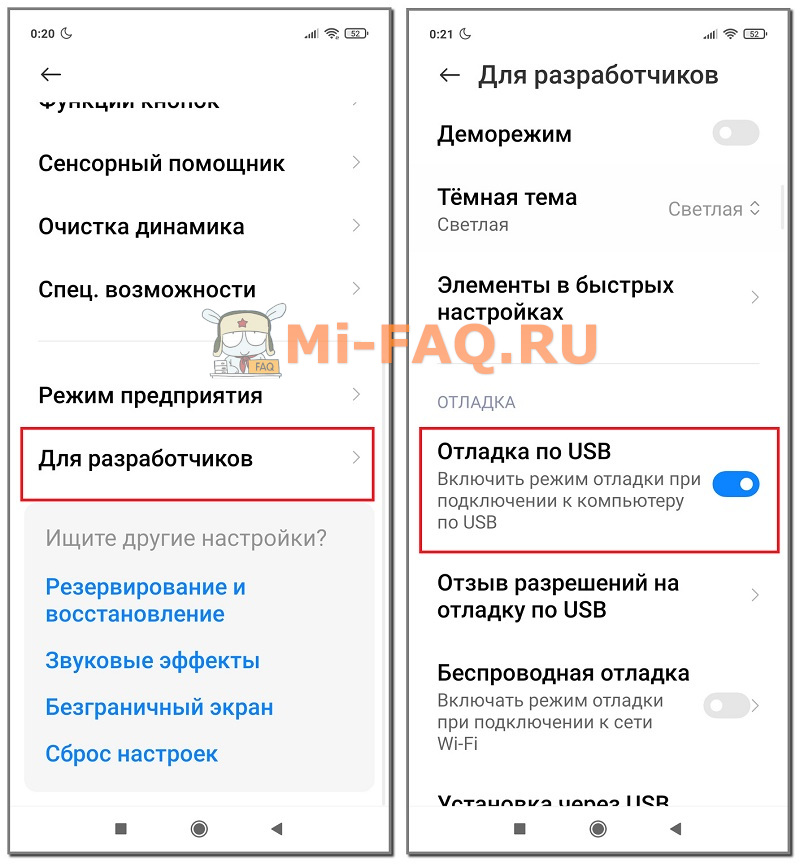
- Открыть «Настройки» и перейти в раздел «О телефоне».
- Несколько раз быстро кликнуть по строке «Версия MIUI», пока не появится уведомление, что вы стали разработчиком.

- Вернуться назад и открыть «Расширенные настройки» – «Для разработчиков».
- Опуститься до пункта «Отладка поUSB» и активировать ползунок.
- Выключаем телефон.
- Зажимаем клавишу питания и уменьшения звука. Когда раздастся вибросигнал, кнопку питания отпускаем, а качельку снижения громкости удерживаем до появления зайца в ушанке, ремонтирующего Андроид. Готово, у нас получилось войти в Фастбут.
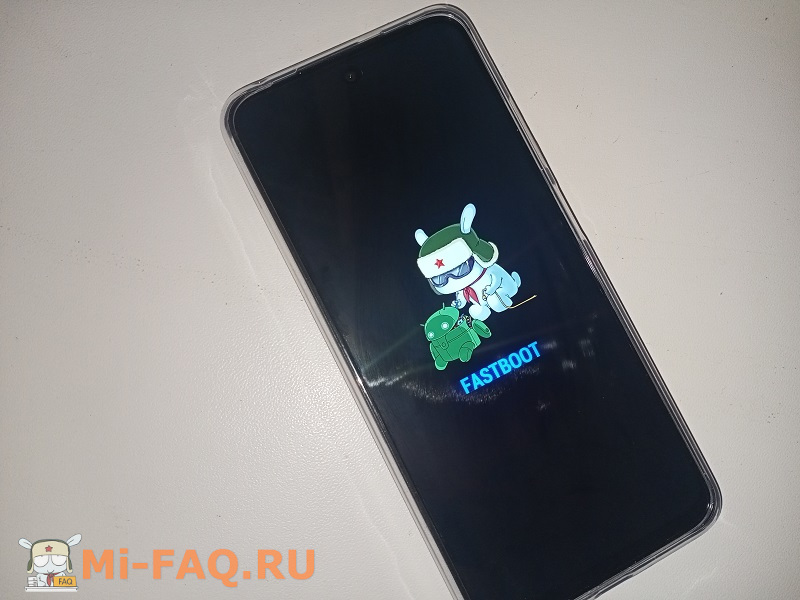
- Берем USB-кабель и подключаем телефон к компьютеру. Теперь можно приступать к необходимым процедурам со смартфоном.
Выход из Fastboot
Статья помогла 4
Статья не помогла 7
Главный автор статей и новостей о Xiaomi. Отвечаю за качественный и актуальный контент на сайте. Пользуюсь и люблю продукцию этой компании, так как считаю ее лучшим соотношением цены и качества. Еще
How to Enter and Exit Fastboot Mode on Android?
Fortunately, entering and getting out of fastboot mode is easy as there are many ways available. With the right procedure, you can boot your Android device into fastboot mode and perform modifications you want to. However, if you have no clue how to enter and exit fastboot mode on Android, no worries!! This comprehensive fastboot mode guide entails all you need to know – what is fastboot mode, how to boot and exit fastboot mode on Android.
Part 1. What is Fastboot Mode?
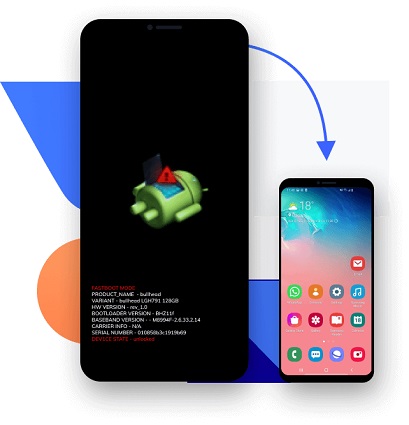
So, what is fastboot mode in Android? In technical terms, fastboot is nothing but a utility for your computer system that lets you modify or write the flash partitions of your Android device’s flash memory. Essentially, it lets your computer communicate with your phone without it being entering the Android operating system.
To simply put, fastboot allows you to perform modifications on certain components of your device’s essential files. For the purpose of security and safety, manufacturers lock these essential files. Still, most of the manufacturers permit the bootloader to be unlocked. In case it’s allowed, you can enter into fastboot mode and commence performing modifications using fastboot commands.
Therefore, fastboot mode is known as a boot mode in which your phone permits the fastboot utility to interact with your phone. Keep in mind that fastboot commands work only when the phone is entered into fastboot mode.
Part 2. When Should I Use Fastboot Mode?
You now have a basic understanding of what is fastboot mode but have you any clue when to use this mode, or do you really need it?
Well, let’s commence with a simple question – are you satisfied with your Android phone and desire to perform no significant modifications to it? If your answer is yes, then you probably don’t need fastboot mode. But if you want to give your Android device a complete overhaul, you would like to boot your device into fastboot mode. Fastboot mode can help you gain access to alter the very structure of your device’s software right from the OS down to the kernel/recovery.
Part 3. How to Enter Fastboot Mode?
1. One-Click to Enter Fastboot Mode on Android/Samsung
Whether it’s about how to enter fastboot mode on Samsung, Google, HTC, or Sony devices, UltFone Android fastboot mode tool offers a one-click solution to enter fastboot mode on any Android device. Moreover, this feature to enter fastboot/bootloader mode is 100% free to use.
Here’s how to enter fastboot mode on Android using this software.
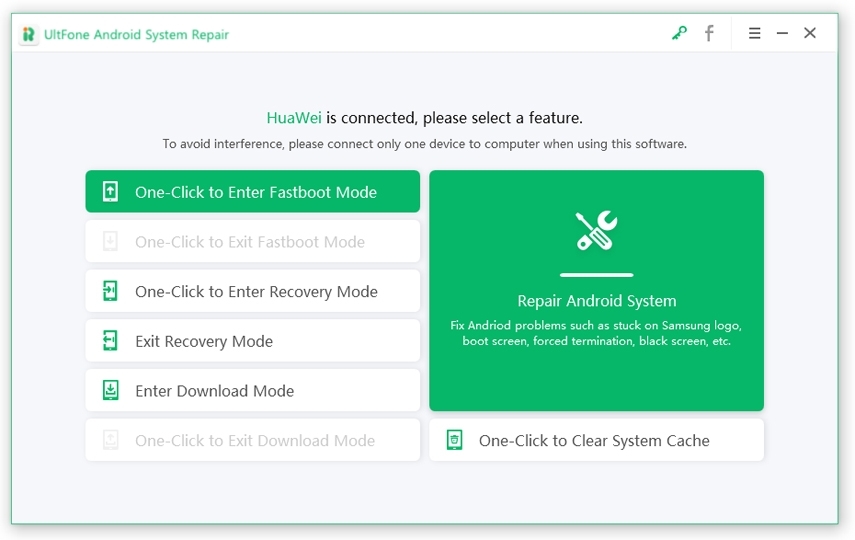
Step 1 Run the tool and connect your phone to the computer with a digital cable. From the software’s main interface, select “One-click to Enter Fastboot Mode.”
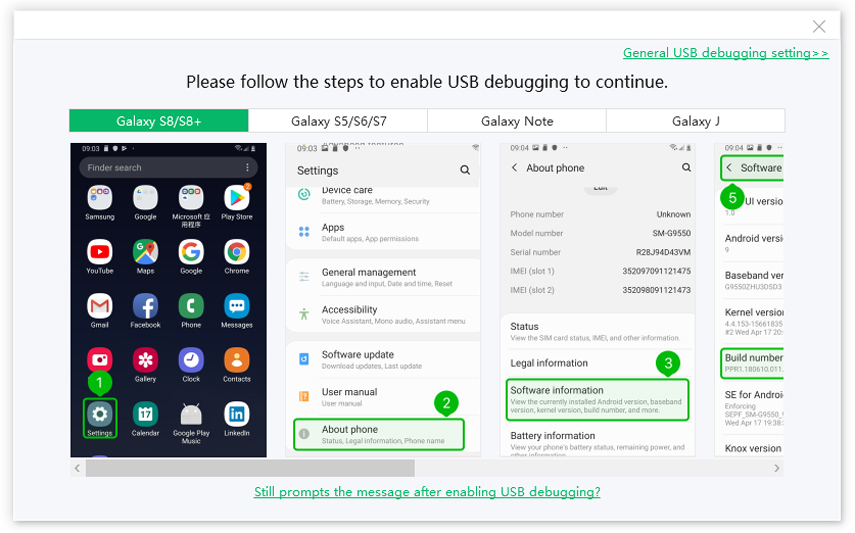
Step 2 The software will detect your device’s brand and display the onscreen instructions to allow USB debugging on your device.
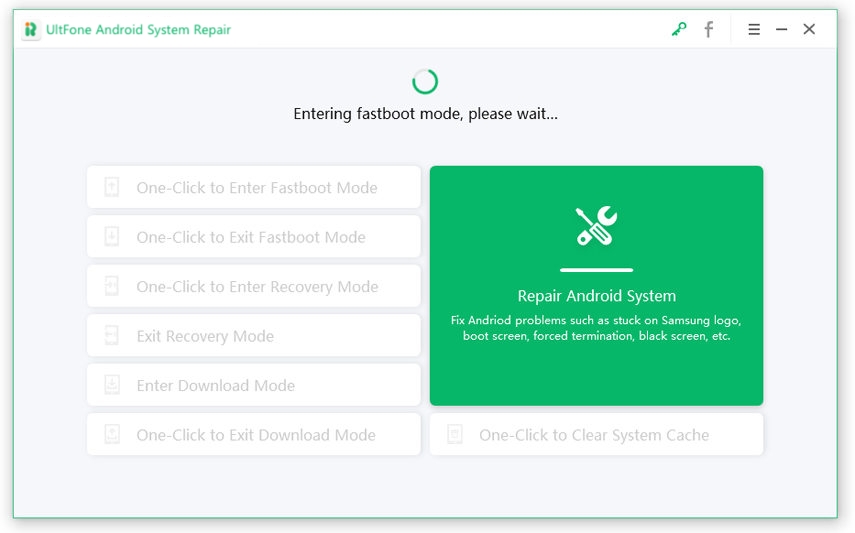
Step 3 In a while, your device entered into fastboot mode, and you’ll see a message saying “Entered fastboot mode successfully,” as shown in the figure.
2. Enter Fastboot Mode using ADB
To enter Android fastboot mode, you can also take advantage of ADB (Android Debug Bridge). This method needs a PC and working ADB setup.
Here’s how to enter fastboot mode using ADB:
Step 1: There are two ways to commence:
- 1st Way: Get Android SDK from the official Android Developers site and install it. Additionally, you need to set it up using downloading Platform-Tools & Google USB Drivers package in Android SDK.
- 2nd Way: Besides that, you can download ADB/Fastboot – Android SDK platform tools separate package and get it on your system. You can get it from the below links in accordance with your OS and install it anywhere in your system.
Step 2: Allow USB debugging mode on your Android phone and connect your device to the PC.
Step 3: Now, run the command prompt on your system and type an ADB command.
- If you have selected 1st way, then go to android-sdk-windows/platform-tools directory and run command prompt (use “Shift + Right”>” Open Command Prompt” or Terminal if you’re using a macOS).
- IIf you have selected the 2nd way, then navigate to where you extracted the downloaded package. Launch the platform-tools folder and run the command prompt (use “Shift + Right”>” Open Command Prompt” in that directory).
Step 4: Enter the command “adb reboot bootloader” and press Enter.
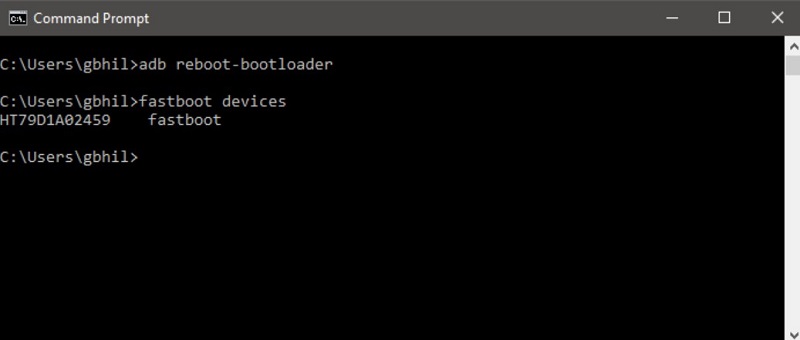
Step 5: Your Android device will turn off and then entered into the fastboot mode.
3. Using Key Combinations
You can also boot your device into fastboot mode using key combinations. Whether you want to enter Samsung/Motorola/OnePlus 2 fastboot mode, below are the steps:
Enter Fastboot Mode On Google/ OnePlus/ Xiaomi/ Motorola Devices:
- Turn off your device.
- Press & hold the “Power + Volume Down” keys for 5-6 seconds and then release.
- In a while, the device will enter into fastboot mode.
Enter Fastboot Mode On Nokia Devices:
Follow the below steps to learn how to get to fastboot mode on Nokia devices.
- Press & hold the “Power” button to turn off the device.
- Connect the device to your computer once it’s switched off.
- The device will display a Powered by Android image and, after that, progress to the battery animation.
- Once the charging animation appears, hold the “Volume Up + Power” key at the same time.
- In a while, a countdown would commence indicating “Please release to power off…”. Ignore the message and continue holding the keys.
- Once the countdown is completed, your device would boot into the recovery mode.
- You should get an option saying “Reboot to bootloader mode.” Highlight this option with Volume Keys and then choose it using the Power key.
Enter Fastboot Mode On HTC Devices:
- Go to the home screen of your phone.
- Hold “Power + Volume Down” keys at the same time for around 15 to 20 seconds.
- Once the screen goes black or powered off, release the “Power” button. Once the fastboot mode screen appears (a screen with multiple text options with black background), release the “Volume Down” button.
Enter Fastboot Mode On Samsung Devices:
- Turn off your device.
- Press & hold the “Power + Volume Down + Home” keys for 5-6 seconds and then release.
- In a while, the device will enter into fastboot mode.
Part 4. How to Exit Fastboot Mode on Android?
Below are all the ways on how to get out of fastboot mode. So, have a look and figure out which one helps you get the job done.
1. Exit Fastboot Mode by One-Click using UltFone Android Systerm Repairfor for Free
UltFone Android System Repair is not only helpful to boot your Android into fastboot mode in just one-click. In fact, it even comes in handy to get out of fastboot mode on your Android device using one-click. Also, this feature is 100% free to use.
Here’s how to exit from fastboot mode on Android using this Android fastboot mode tool:
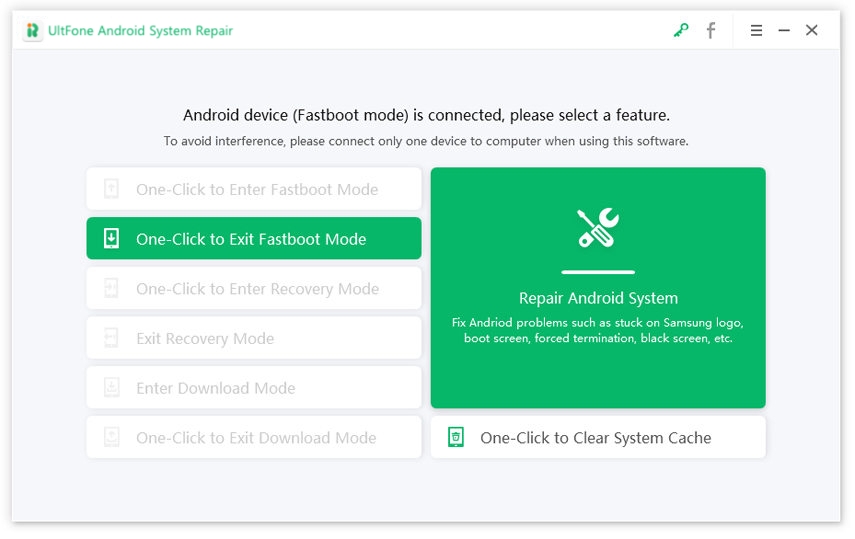
Step 1 Run this program and connect your device to the PC. From the software’s main interface, choose “One-Click to Exit Fastboot Mode.”
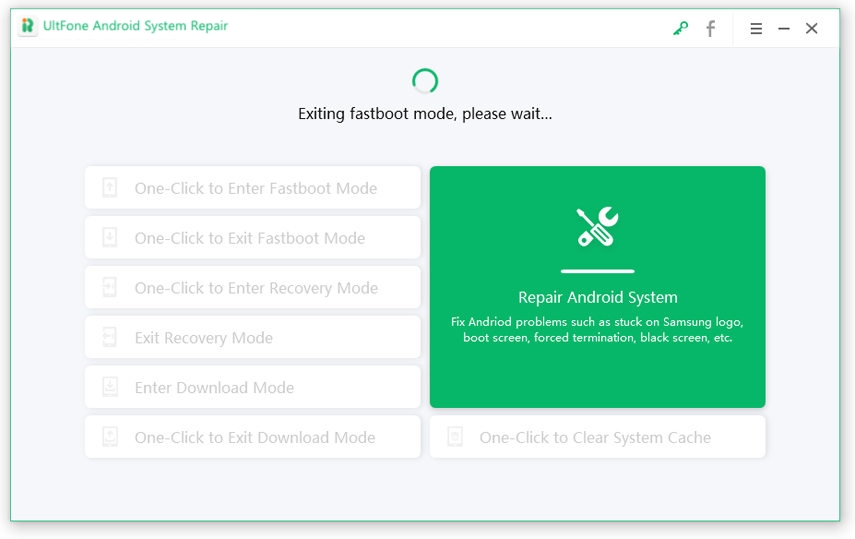
Step 2 In a while, your device will get out of fastboot mode.
2. How to Get Out of Fastboot Mode using The Power Key
Below is how to come out of fastboot mode on Android using the Power key.
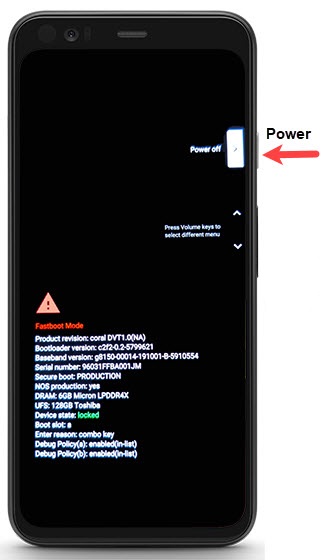
- Step 1: Press and hold down the “Power” key for about 30 seconds.
- Step 2: Let go of a Power key and wait for a while.
Step 3: In a while, your device will be rebooted automatically.
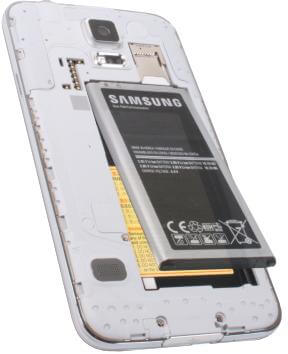
3. Remove the Battery to Exit Fastboot Mode
If the above methods are of no help to you, try this method to remove fastboot mode. However, this solution works only for Android devices that come with a removable battery.
- Step 1: Remove your Android device’s battery for about 20 to 30 seconds.
- Step 2: Put the battery back into your device.
Step 3: Switch on the device.
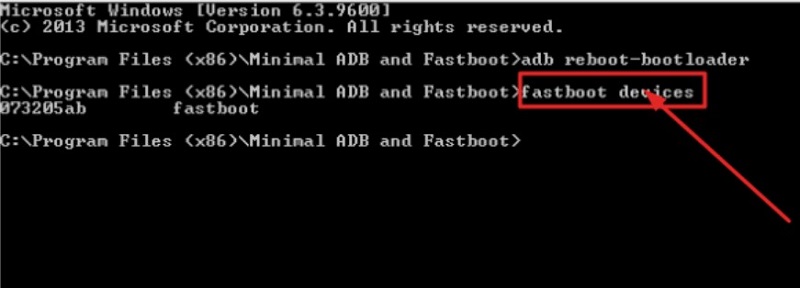
4. Exit Fastboot Mode Using Minimal ADB and Fastboot Tool
This method entails using Minimal ADB and fastboot tool. Let’s see how to close fastboot mode.
As this solution is a bit technical and complex, we recommend this method only to those who have some sort of technical knowledge. However, below is how to exit fastboot mode on Android using Minimal ADB and fastboot tool:
Step 1: To begin, get “Minimal ADB and Fastboot Tool” on your system.
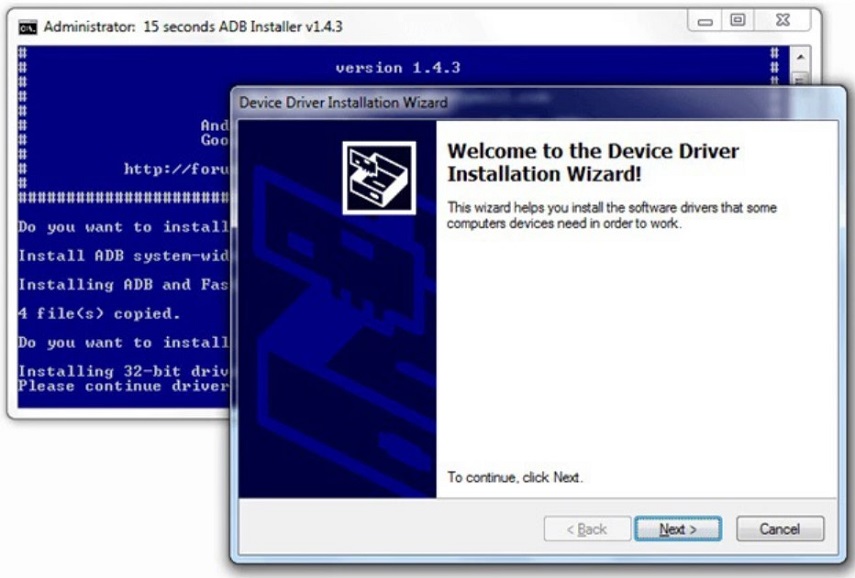
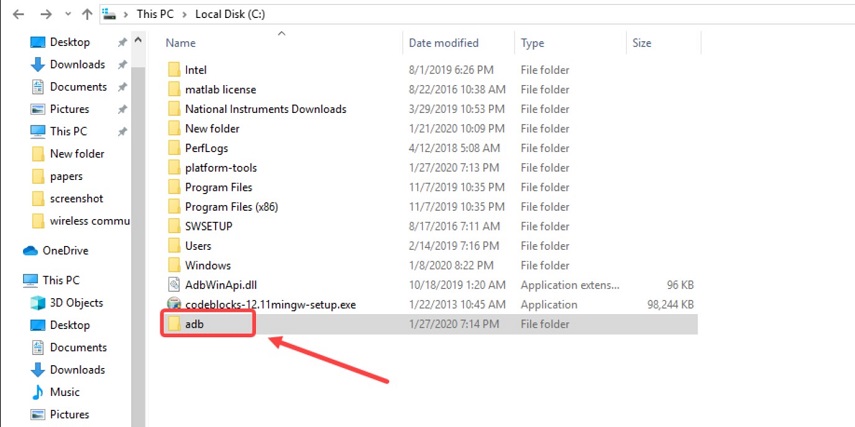
Step 2: Once installing the program, go to the installation directory.
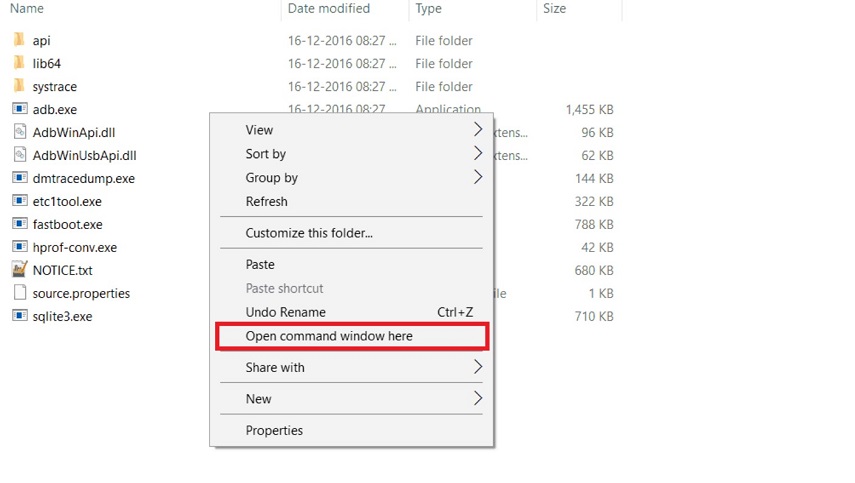
Step 3: In the ADB folder, tap anywhere and press and hold down the “Shift key + Right Mouse” key. After that, choose “Open Command Window Here.”
Step 5: Once the device is detected, enter “Fastboot Devices” in the command window and hit Enter.
The Bottom Line
As you can now see that there are so many ways to enter and exit fastboot mode on Android. You can pick the one that you find most convenient. If you ask us, then our top recommendation is UltFone Free Fastboot Mode software. This tool offers the most hassle-free way to boot an Android device into fastboot mode and get out of it in just one-click.