How to Clear Cookies on iPhone Apps

For those who use Apple products, such as the iPhone and iPad, you’ve probably noticed that at one point, your device starts to lag or slow down. This usually happens when your device starts to fill up with unwanted apps and files that bog down the memory causing your handheld phone to slow down. How will you be able to correct this issue? You will need to clear cache and cookies on your iPhone apps to give your device the boost it needs to work faster and smoother too.
How to Clear Cache and Cookies on iPhone Apps
What’s great about iOS devices is that they don’t need the same maintenance as that of macOS or Windows for that matter. However, they still need to undergo maintenance for them to run fast even when you are buying refurbished phones like the ones you can get from Qwikfone. As a matter of fact, older iPhones and iPads will benefit greatly if you give them some spring cleaning. Aside from helping your device run at optimum speed, clearing the cache and cookies on your iPhone apps will also help you focus on important applications on your device.
If you are wondering how to clear cache and cookies on iPhone apps, there are a few steps that you need to do.
Deleting Cache on Safari
The first thing to do on how to clear cache and cookies on iPhone apps is to delete the cache on your Safari. Take note that doing this will also log you out from any websites that you have signed in to. Here’s what you need to do:
· Open the Settings on your phone, then scroll down to the fifth set of options (where you will find Passwords and Accounts at the top), then tap on Safari.
· Scroll down further until you see ‘Clear History and Website Data’. Tap this option and then tap ‘Clear History and Data’ to confirm your choice.
Once you are done with clearing the cache on your Safari, you can start clearing app data on your iPhone.
How to Clear App Data on Your iPhone
Data that is stored by other apps on your iPhone can also cause your device to slow down. Fortunately, you can clear stored data by using the Usage option located in Settings. Here’s what you need to do:
· Go to the Settings option on your phone then tap General. Select iPhone Storage.
· Take a look at the bottom of the screen. This is where you’ll see all the apps that you have on your phone where they are arranged according to the amount of storage they are taking up on your iPhone. Choose the app that is taking up most of the space on your phone.
· If the Documents & Data is taking up more than 500mb, you might want to delete and reinstall the app just to clear up some space. Don’t forget that Documents & Data do not contain dead data, but rather it will contain your documents, preferences, saved games, as well as downloaded data too.
· If you want to proceed, choose Delete App, tap confirm, then go to the App Store or your Purchased list to re-download this app. This type of installation will not include your data and documents. This is why you need to consider if you will delete this app.
Restart Your Device
What’s great about iOS devices is that they can easily manage memory without your involvement at all. Still, there are times when restarting your iPhone can help clear up the memory on your phone so you will have extra space for your apps. Here’s what you need to do to restart your iPhone.
· You will need to hold down your phone’s power button until the “slide to power off” appears on your screen. For iPhones that do not have a home button, you will need to hold the power and volume up buttons until you see the slider on your screen.
· Swipe the power slider off.
· Once your device has powered down completely, you can press down on the power button until your device turns on again.
Install a Cleaner App
If you are wondering how to clear app cookies on iPhone X, installing a cleaner app may just help you out. There are several apps out there that can help get rid of all the unwanted files on your phone. These apps are usually downloaded on your PC or Mac, then connect your device to the computer or laptop, and let the app do its work. Having a cleaner app helps in opening up more space on your iPhone, but if you are planning to get the app that has the most features, you will need to pay a fee for it.
Just to give you an idea on how these cleaner apps work, here are a few options that you can try out.
· PhoneClean. This cleaner app can be installed on your computer to clean up your iPhone and iPad. Once you have downloaded it on your PC, you will need to plug your iPhone into your computer, open the PhoneClean app, then click Scan. After the app has completed scanning your iPhone, you can select Clean for it to remove all the apps and files that are no longer needed.
· iMyFone Umate. Another option for you to consider if you are looking for apps to clean your iPhone fast is the iMyFone Umate. This app is ideal for both Mac and Windows which can help remove any temporary as well as junk files that are stored in your iOS device. To do this, you will need to connect your iPhone to your PC or Mac. You will need to open your iMyFone Umate then click Scan to have your device scanned by the app. You should check the Temporary Files as well as Junk Files sections then clear them up. This will help clear up more space on your phone. Another plus to using this app is that it will remove any large files that are stored in your device by deleting them.
Why Delete Cookies and Cache on Your iPhone
Like it was mentioned before, our iPhone devices tend to slow down once their memory is almost full. You may not pay attention to websites informing you that they will be putting cookies in your phone to store information. Unfortunately, these cookies are eating up a lot of space. These cookies are just small files that are stored on your phone to help the site remember you and your choices when you visit their site again. Although these cookies make your user experience more personal, they can affect the function of your device to the point that you will need to clear or block certain cookies completely.
Compared to blocking, clearing cookies is much better since they will help make your user experience friendlier as opposed to blocking them. Aside from clearing cookies on your device, it is also recommended that you remove all the history in your Safari too to help clear up more space. This step also works in improving how your browser operates which is a plus.
If you are using other browsers on your iPhone, you will need to do the following steps:
For Firefox
· If you are using Firefox, you should tap on the menu located in the lower right corner of the app.
· Tap on “Settings” then choose “Data Management”.
· Select “Clear Private Data” then tap on “OK” to confirm your choice.
For Chrome
Third-party browsers let you remove the cookies the same way. Here’s how to clear the cookies in Chrome.
· Open your Chrome browser then tap on the menu located in the lower right portion of the screen. It will appear as three horizontal dots.
· Tap “Settings” then choose “Privacy”.
· Select “Clear Browsing Data” to go into the page where you will be able to choose which ones you want to remove from your browser’s history.
· Tap on “Cookies, Site Data” as well as whatever item you want to remove. Now tap “Clear Browsing Data”. Confirm when you are prompted to.
Once you have done all these steps, you can start removing any apps you no longer need in your device or at least disable them, especially those that are eating up most of the storage on your phone. As much as we want to keep all the apps we’ve downloaded, if we take a look at our user history, we’re often surprised to find that we don’t use much of these apps. Since they are only taking up space on your iPhone, it would be better to remove those that are not needed so you will have more room to download the more important items.
If your iPhone or iPad starts to slow down, it is possible that its memory is starting to become full. With the steps mentioned above, you can easily clear the cache and cookies from your browser and apps to give your device a boost. You’ll find that doing these steps from time to time will help improve your phone’s performance soon enough.
How To Clear Cookies On Iphone
The login information and previous sessions are generally stored in your iPhone in the form of cookies. Sometimes, iPhone cookies can be vulnerable so that hackers can access them and steal your personal information stored by websites. So, it is always better to clear cookies on iPhone often. Here is how to remove cookies from iPhone on all browsers including Safari and Google Chrome.
How to Remove Cookies from iPhone#
Cookies and caches that are stored by the websites are often intended to speed up the page loading and identify the users easily. Whenever you visit a website with iPhone that you are already logged into, you get directs to the logged-in page automatically, right? Well, it is because of the cookies on iPhone’s Safari browser the website identifies that you did already log in. However, the stored cookies on iPhone can also be harmful at some points. Hackers might misuse the stored cookies to run background scripts or to steal passwords and other personal information. Also, the cached websites and stored cookies take up space from your device. Also, stored cookies can cause trouble visiting certain websites. If you have such a problem, you can clear safari cache and delete cookies from iPhone as follows.
Removing all the website data including cookies and cache on iPhone will not delete your bookmarks or browsing history. You will only clear cookies on iPhone and it will log you out from all websites and other local information stored. You can still see the browsing history.
How to Block Cookies on Safari?#
If you have done with deleting cookies from your iPhone, there is nothing to worry about the cleared website data anymore. What if you do not want those cookies anymore? Well, wait before you block all cookies on the Safari browser from your iPhone. Blocking cookies can affect your browsing experience, despite the privacy it ensures. You will need to log in to the same website every single time you visit them. Imagine the situation you have to log in to Facebook every time you access the Facebook website using your own iPhone. If you are too concerned about your privacy and security, and not the browsing experience go ahead and block all cookies. Here is how to block cookies on Safari from iPhone.
Some websites might not work on your iPhone after disabling cookies. Also, your login information will not be stored for later reference by websites when the cookies are blocked. So, think twice before you block cookies on Safari.
How to Prevent Cookie Tracking on iPhone#
As we discussed earlier, deleting cookies alone does not help you get protection from fraudsters and hackers. On the contrary, clocking all cookies is not a one-stop solution for all users. Therefore, the only thing that you could do is to prevent cookie tracking. There are several content blocker apps available for iOS devices. The ad blocking, cooking blocking apps can protect you from cookie leak and compromising your personal data. Here is how to use AdGaurd, one of the most useful apps on the App Store that can protect yourself from ‘cookie hackers.’
Apart from AdGaurd, you can also use certain other content blocker and cookie protection apps on your iPhone. They can help you remove cookies from iPhone, and protect you from cookie vulnerabilities without blocking cookies on Safari.
How to Delete Cookies on Chrome on iPhone#
All the above methods are straightforwardly focused on the Safari browser. In case you are more used with Google Chrome, or Mozilla Firefox, you need to manually remove cookies and website data from within the apps. Google Chrome on both Android and iOS lets users clear the website data and cookies easily. However, only Android users can block all cookies using in-app options. If you have been looking for how to remove cookies from iPhone, clear history and clear cache on iPhone from Google Chrome here is how.
Similar to other browsers including Safari, deleting cookies will log you out of most websites. You will be asked to log in again to each website you are visiting. Nonetheless, it can protect your personal information from hackers and fraudulent sites. As you know, cookies are essential pieces of data produced and saved by websites you are visiting on your iPhone. You can easily clear cookies, clear safari cache and other website data from iPhone without much hassle. However, before going with clearing every single data, check with the websites that have stored important information on your browser.
Как включить или отключить Cookie на iPhone

Некоторые пользователи могут задаваться вопросом, как включить Cookie на iPhone. У разных людей разные мнения о том, является ли включение куков риском для безопасности или приватности. Некоторые сайты имеют функции, зависящие от файлов cookie, и поэтому требуют их включения.
Браузеры, в свою очередь, тоже имеют разную степень настройки когда дело доходит до файлов Cookie. В этой статье мы расскажем, как можно включить, отключить или изменить настройки куков в Safari, Chrome и Firefox на iPhone.
Что такое куки?
HTTP-cookie – это небольшие коллекции данных, которые веб-сервер создает, когда пользователь просматривает веб-сайт. Затем веб-браузер оставляет файл cookie на устройстве пользователя.
Зачем их разрешать?
Куки, используемые сайтом, могут использоваться для сохранения важной информации о ваших предпочтениях, имён пользователей и паролей.
Зачем их отключать?
Куки, используемые третьими лицами, например рекламными компаниями, могут служить для отслеживания вашей интернет-активности с целью таргетинга рекламы по вашим интересам.
Как отключить или изменить предпочтения в отношении файлов Cookie
Safari
Если вы используете Safari для просмотра интернет-страниц на iPhone, вы можете изменить множество параметров через Настройки.
- Откройте приложение «Настройки», затем прокрутите вниз и выберите Safari.
- Чтобы включить куки, прокрутите вниз до раздела «Конфиденциальность и безопасность» и нажмите на тумблер рядом с пунктом меню «Блокировка всех Cookie».
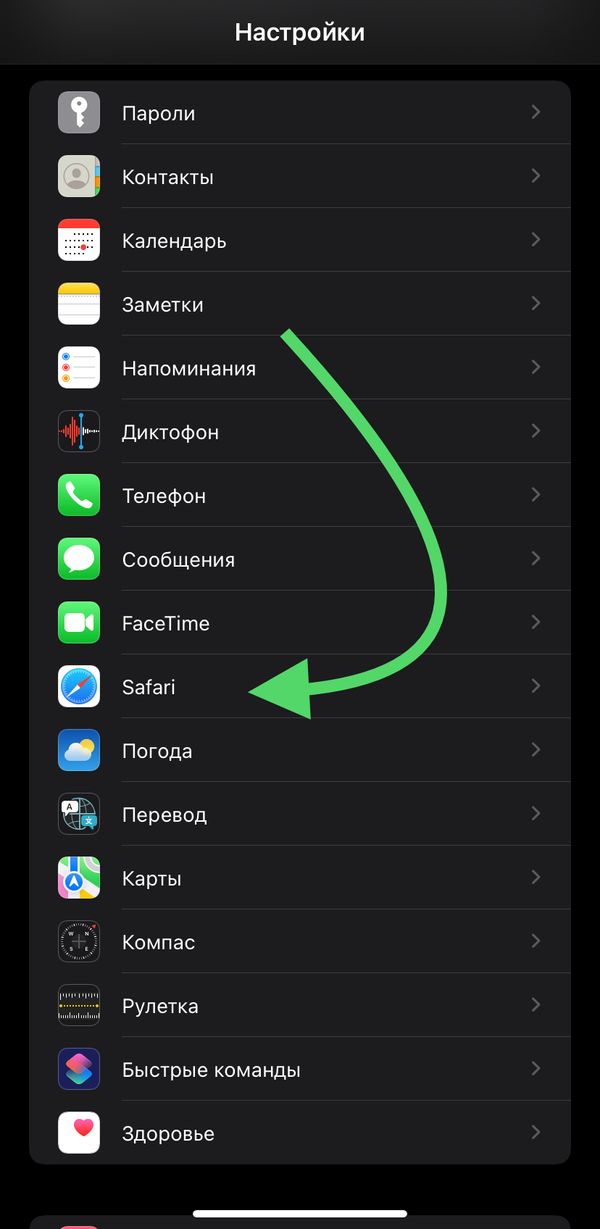
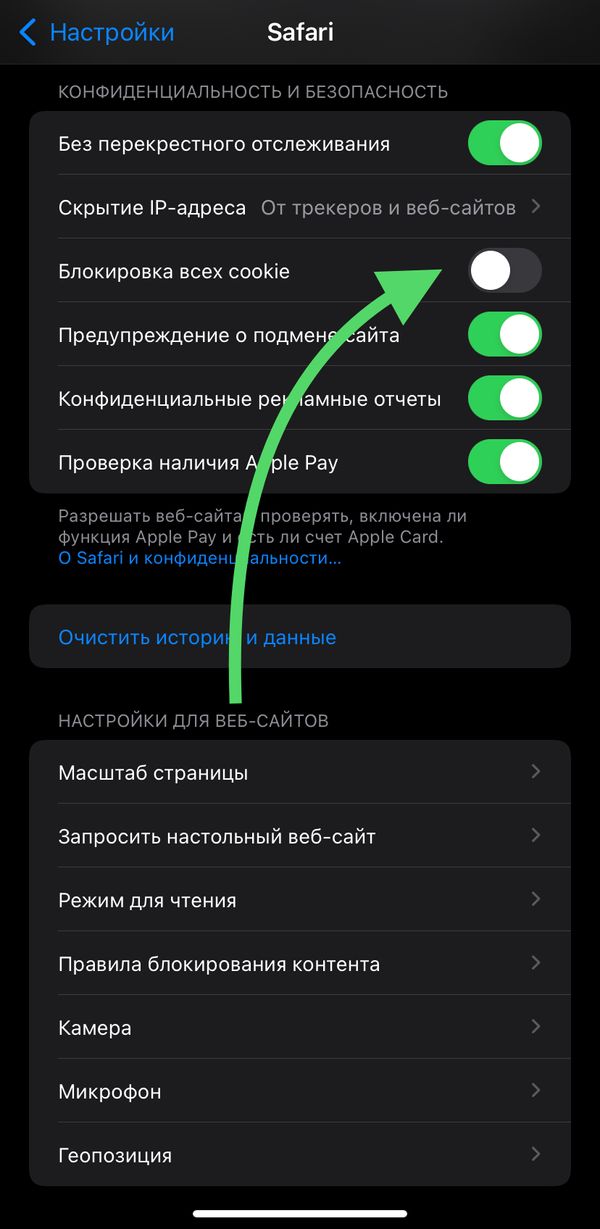
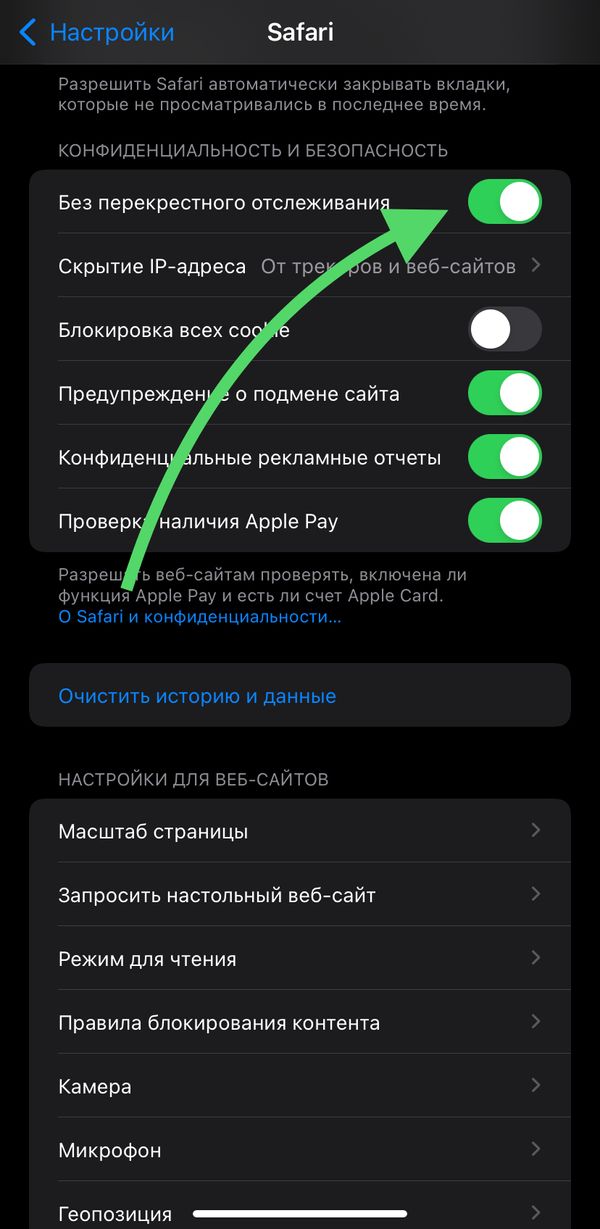
- Чтобы заблокировать сторонние куки-файлы, которые рекламные компании используют для отслеживания ваших действий, установите переключатель рядом с пунктом «Без перекрёстного отслеживания» в положение ВКЛ.
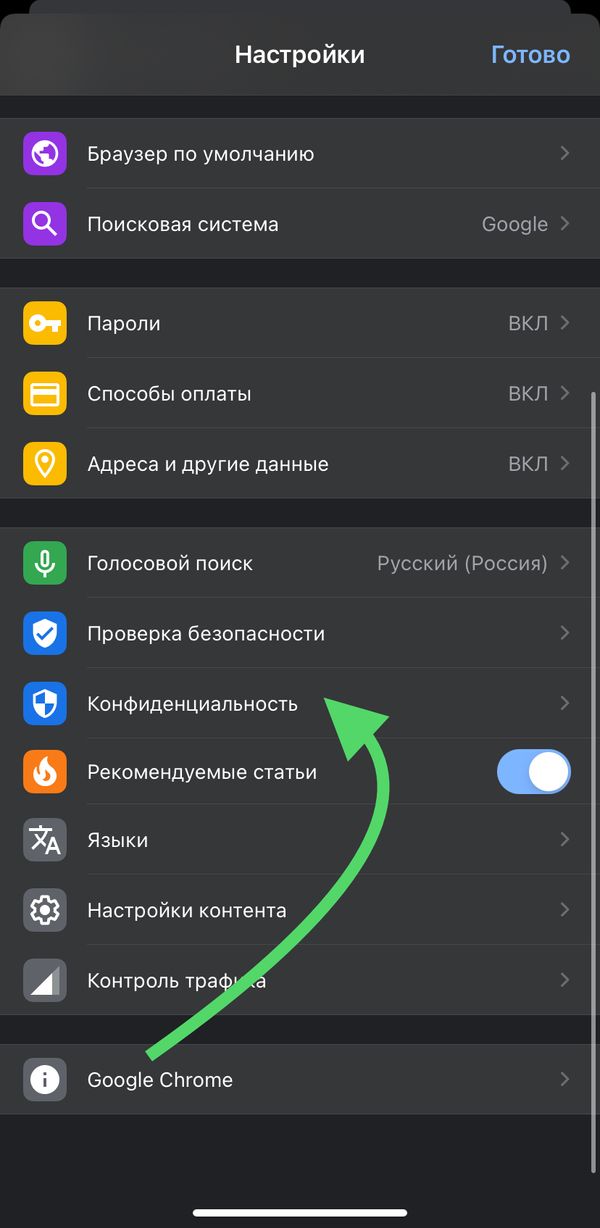
Chrome
В Chrome невозможно отключить файлы cookie, поэтому они включены по умолчанию. При желании вы можете удалить уже сохраненные куки-файлы.
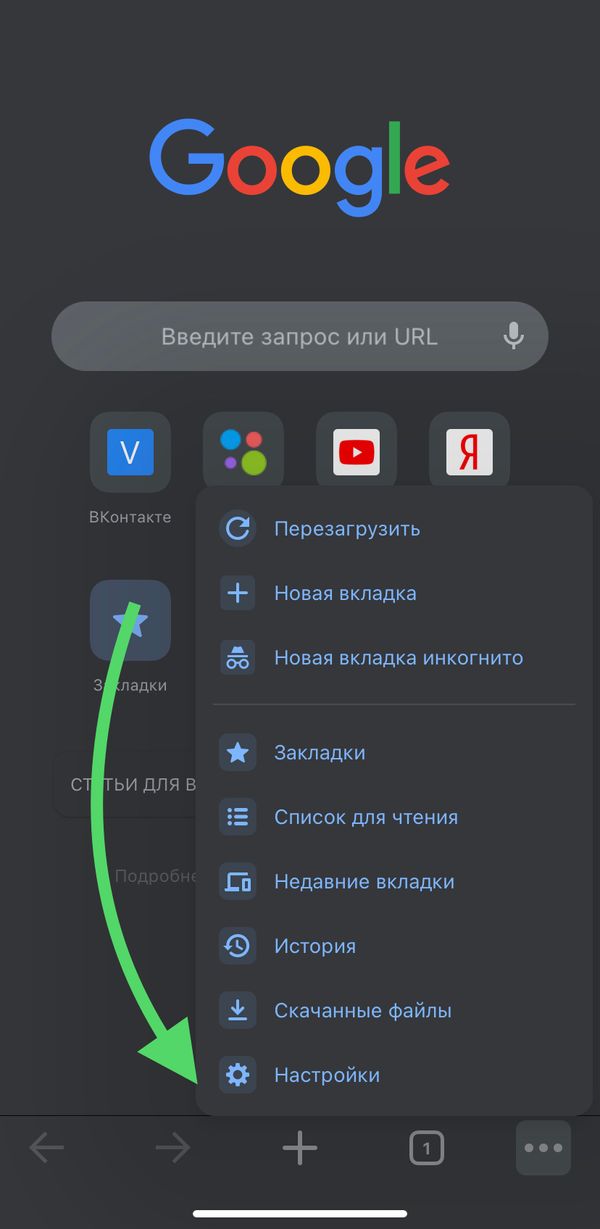
- Откройте Chrome и нажмите на значок меню (три точки) в правом нижнем углу.
- Выберите пункт меню «Настройки».
- Коснитесь пункта «Конфиденциальность», затем «Очистка истории».
- Выберите «Cookies, данные сайта» и всё, что вы хотите удалить.
- Нажмите на «Временной диапазон», чтобы выбрать интервал времени, за который нужно удалить все куки.

Firefox
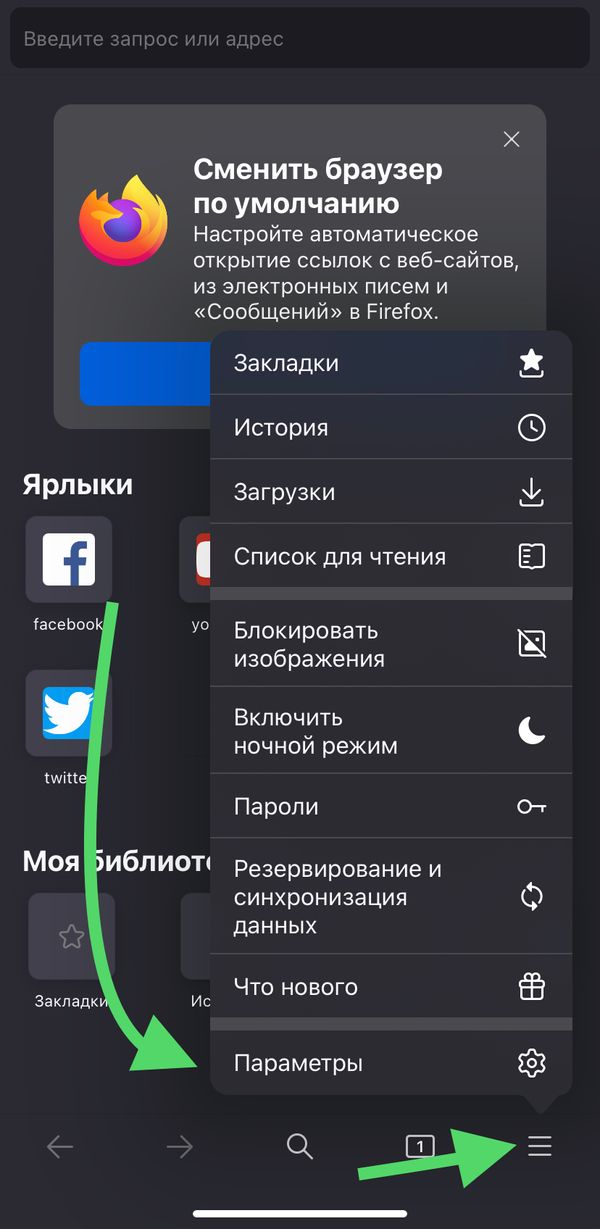
В Firefox есть несколько различных настроек отслеживания на выбор. Здесь нет такой настройки, как «Блокировать все куки», поэтому по умолчанию куки разрешены. Чтобы выбрать уровень защиты от отслеживания:
- Откройте Firefox и нажмите на значок меню (три линии) в правом нижнем углу.
- Нажмите на пункт меню «Параметры».
- Прокрутите вниз до раздела «Приватность» и выберите пункт «Защита от слежения».
- Вы можете включить расширенную защиту от слежения, если вам это необходимо.
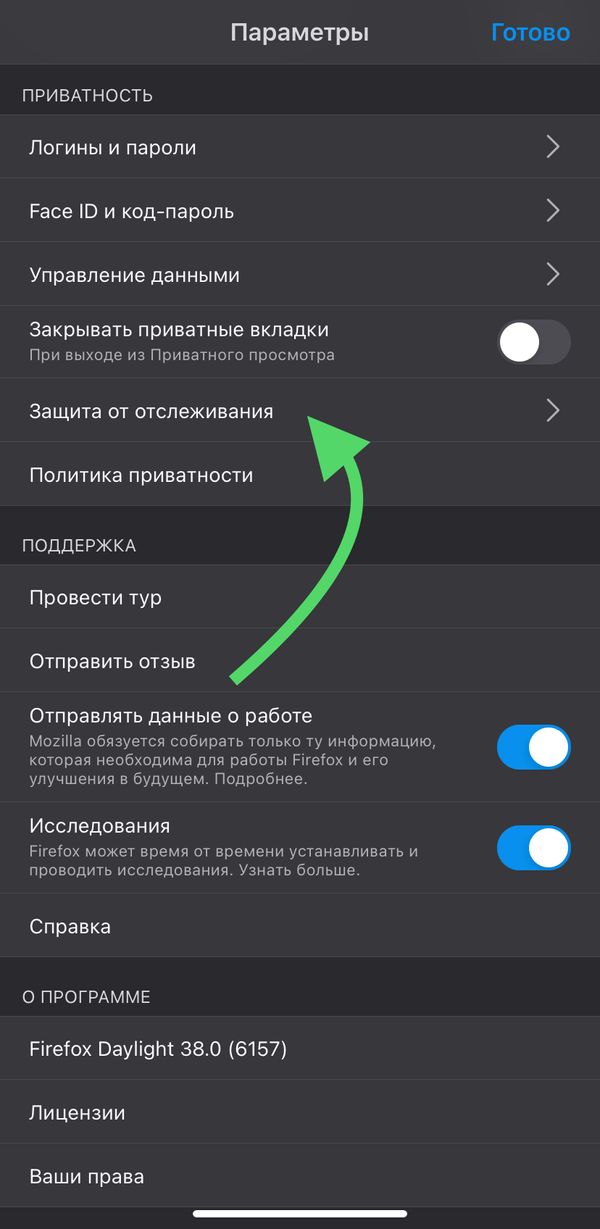

Если вы хотите заблокировать большее количество рекламных трекеров и всплывающих окон, то выберите «Строгую защиту». Этот режим может блокировать некоторые функции, которые вы захотите использовать, поэтому некоторые элементы не будут работать должным образом, если включен этот режим.
Больше интересного в нашем Telegram .
А ещё можете читать нас на Яндекс.Дзен , в Google Новостях и смотреть на YouTube .
Как включить куки на Айфоне
Когда на слуху крутится слово «Cookie», многие воспринимают его как кондитерское изделие (печенье). На самом деле, ничего общего с вкусным десертом нет. Cookies представляет собой небольшие файлы с данными, располагающимися на устройстве. Данные файлы, с одной стороны, существенно упрощают жизнь пользователей, с другой, представляют опасность для конфиденциальности. Как направить работу файлов в нужное русло, должен знать каждый пользователь Айфонов.
Что такое куки и зачем они нужны
Файлы cookie — это короткие файлы, записывающие сведения с посещаемых пользователем сайтов. Все записанные данные передаются на серверы сайтов для последующей обработки. Файлы запоминают своих пользователей. Например, если потребуется повторный вход на сайт, не потребуется заново вводить логин или пароль, при посещении интернет-магазина может сохраниться корзина с выбранными товарами.
Cookie каждый пользователь может настроить по своему усмотрению:
- разрешить использование для всех сайтов или отдельно выбранных;
- наложить запрет для всех сайтов или каких-либо конкретных.
На заметку! Отдельные сайты могут работать или функционировать некорректно, если в браузере выключены куки. Пользователь получит предупреждение о необходимости его включения.
Как налажена работа cookie:
- пользователь заходит в браузер и открывает определенный сайт;
- браузер самостоятельно создает файл, который будет находиться на устройстве;
- в файле хранятся сведения о действиях пользователя (введенные пароли, логины и пр.);
- после закрытия сайта браузер отправляет сохраненный файл обратно на сервер, для последующей обработки.
Если произойдет повторный вход в тот же ресурс, произойдет отправка идентификатора пользователя на сервер сайта, где начнется проверка по базе, на наличие такого «куки» пользователя. Если все будет совпадать, автоматически произойдет ввод логина пароля и прочих настроек, которые ранее использовались при заходе на сайт. Для пользователей данная процедура проходит незаметно.
Как включить файлы cookie на Айфоне
Чтобы грамотно ответить на данный вопрос, следует учитывать определенные нюансы сервиса, используемого для входа в сеть. Если активация куки прошла правильно, но пользователь видит сообщения о том, что они не функционируют, нужно очистить кэш и удалить все временные файлы, расположенные на устройстве.
Некоторые пользователи утверждают, что при активации cookies устройству может быть нанесен серьезный вред как в результате попадания вредоносного вируса. На самом деле, это заблуждение, так как файлы не наделены широким спектром действий, так как выступают простыми текстовыми данными. Они не могут тормозить работу системы и не требуют регулярного удаления.
Как правило, куки включены по умолчанию. Если они по какой-либо причине отключены, необходимо их активировать самостоятельно.
В Safari
Многие юзеры выходят в интернет через встроенные в их телефоны браузеры, оснащенные поддержкой приема cookies. Модели айфонов поддерживают браузер Safari. Чтобы правильно активировать cookies, достаточно зайти в настройки и совершить несколько манипуляций. Во вкладке безопасность следует выбрать вариант — «всегда», относительно файлов куки.
В Яндекс.браузере
Для включения куки в браузере Яндекс, пользователю необходимо кликнуть на три точки, расположенные в правом верхнем углу браузера. Они отвечают за настройки. В новом окне следует пролистать страницу до самого низа и нажать на ссылку для показа дополнительных настроек. В разделе личных данных нужно перейти в меню настроек содержимого.
Здесь находятся настройки, отвечающие за поддержку файлов куки в браузере. Пользователь может выбрать сохранение всех cookies или разрешить сохранять данные для текущего сеанса или вовсе не разрешать сохранение.

В Google Chrome
Чтобы запустить куки на данном браузере, пользователь должен стандартно перейти в настройки — раздел «инструменты» и отыскать вкладку «приватность». В меню достаточно выбрать включить запоминание истории посещения сайтов. Все внесенные поправки сохраняются через кнопку «ОК».
Включить сохранение можно иным способом. Первичные действия будут такими же. В меню из предлагаемого списка, пользователь должен выбрать пункт, согласно которому. Куки будет использовать настройки хранения истории. В соответствующей строке проставляется галочка — «принимать файлы с сайтов», задается значение «всегда». Срок действия — до истечения. Все внесенные поправки следует сохранить.
В браузере Opera
Многие пользователи отдают свое предпочтение браузеру Opera. Главными критериями при выборе данной поисковой системы, служат следующие показатели — простота, удобство безопасность. При его регулярном использовании нередко возникает вопрос о том, как подключить cookies для хранения информации.

Для этого в настройках нужно перейти в меню вкладки — «дополнительно» и в боковом меню найти строку Cookies, нажав на нее. Активация будет проведена через пункт «принимать cookies».
Завершающим действием будет сохранение всех внесенных изменений.
В браузере Mozilla Firefox
Файлы куки делают использование интернета максимально комфортным. Если пользователь проходит авторизацию на каком-то сайте, при помощи данных файлов при повторном использовании сервиса войти в свой аккаунт он сможет без нового заполнения полей логина и пароля.
Иными словами, файлы сохраняют индивидуальные настройки на различных ресурсах. Поисковая система Фаерфокс по умолчанию выставляет включенными параметры cookies. Чтобы проверить это, достаточно перейти в меню и выбрать настройки.
Порядок действий будет стандартным. Первым делом необходимо перейти в раздел настроек, во вкладку приватности. В меню пользователь должен кликнуть по отметке — «будет запоминать историю» и сохранить все внесенные изменения.
Имеется еще и второй способ включения куки в браузере. Также потребуется совершить переход в настройки, найти там вкладку приватность и перейти к параметрам браузера. Страница предложит список, из которого нужно выбрать пункт — «будет использовать ваши настройки хранения истории». Напротив раздела «принимать куки с сайтов», ставится галочка.
Срок в данном случае указывается — до истечения действия и для сохранения нужно подтвердить все совершенные действия.
Как отключить cookie на Айфоне
Отключение куки производится тем же путем, что и включение. На примере Яндекс.Браузера, отключение будет осуществляться следующим образом:
- открываются настройки и нажимается кнопка с изображением трех полос (находится вверху справа);
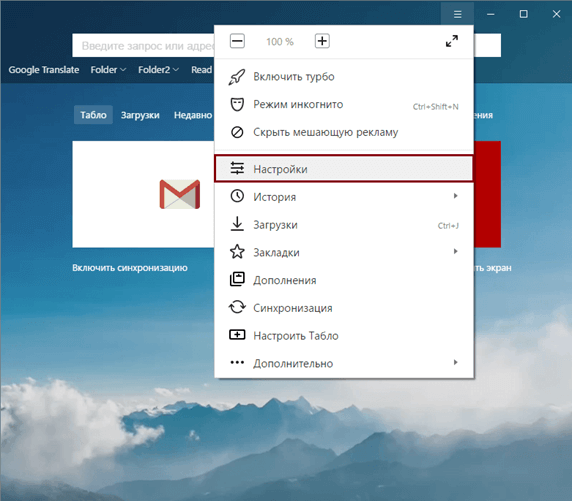
- в меню выбирается раздел настроек, прокручивается страница до конца, к меню показа дополнительных настроек;
- в личных данных следует нажать на «настройки содержимого»;
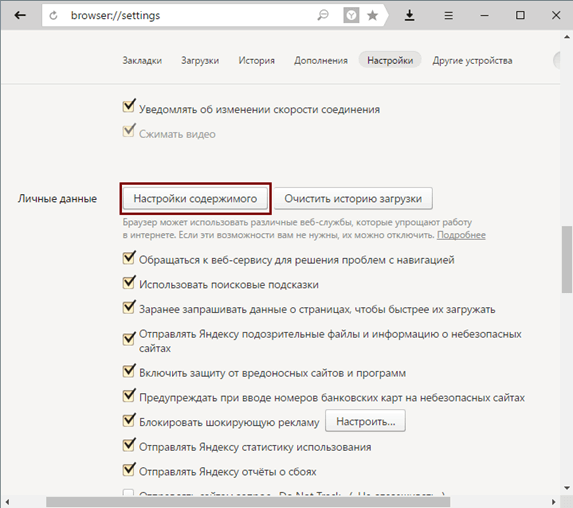
- в открывшемся окне перейти в раздел файлов куки и отметить галочкой один из предложенных пунктов — «Не разрешать сайтам сохранять данные» или «Блокировать данные и файлы cookie сторонних сайтов».
Последний вариант включает небольшое исключение, позволяющее устройству корректно взаимодействовать с необходимыми сайтами.
Как очистить cookies
Каждый браузер имеет опцию, позволяющую удалять файлы куки. Опция может иметь разные названия и располагаться в различных частях системы.
Пример очистки на браузере Internet Explorer:
- перейти в меню и добраться до раздела «сервис» — «безопасность» — «удалить журнал»;
- откроется новое окно, где необходимо поставить галочки напротив пунктов, указывающих на файлы, необходимые для удаления.
Помимо куки, пользователю следует выбрать строку временных файлов (контент с посещаемых сайтов). Иными словами, это кэш, в котором собираются текстовые файлы, картинки и пр.
Очистить куки можно и при помощи специальных программ — Ashampoo WinOptimizer, CCleaner, Glary Utilities.