How to Use Dynamic Island on iPhone 14 Pro
If you have an iPhone 14 Pro or Pro Max or thinking about getting one, learn all about its most enchanting feature!

Ever since Apple unveiled the iPhone 14 lineup, the two words you keep hearing everywhere are “Dynamic” and “Island”. iPhones 14 Pro and Pro Max have ditched the notch and adopted the pill-shaped cutout to house the camera and sensor array in the display, as many users were speculating would happen this year. iPhones 14 and 14 Plus still have a notch, though.
But in a not-so-surprising move, Apple did not do what people were simply expecting it to do. When has it ever? The tech giant loves to make moves that knock everyone’s socks off. Dynamic Island came rather close to achieving it, even with its simplicity. It’s one of those features that, once implemented, seem like such a glaringly obvious solution to a problem. In this case, it morphs the pill-shaped cut-out into a powerhouse of information, instead of something you just have to endure. It’s even got Android users trying to spoof the feature, despite calling it useless. Let’s have a look at it in all its glory, shall we?
What is the Dynamic Island?
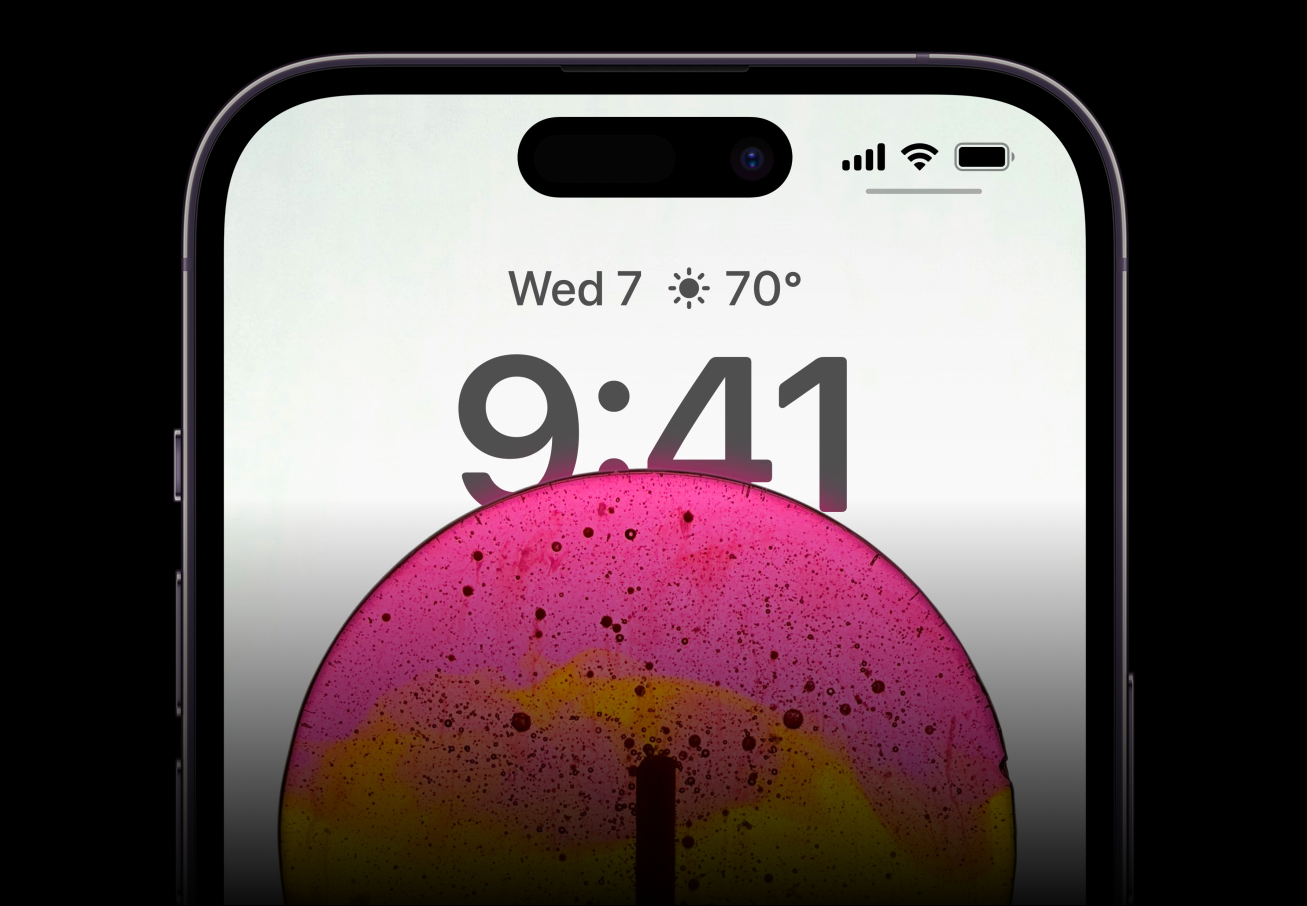
Although the name is somewhat ridiculous to hear the first time, it describes the pill cut-out on the front display exactly. After all, it is an island, suspended in the middle with the screen surrounding it on all sides. And it is dynamic, even if it is all a sleight-of-hand.
Curious choice of words, right? Why would I call it sleight-of-hand? Because that’s exactly what it feels like. When you see a magician pulling rabbits out of hats or making objects disappear, you know it isn’t real. But you let yourself be fooled that it is. That’s the exact nature of Dynamic Island.
Dynamic Island is basically the name for the area around the cut-out that has the sensors and the camera. The pixels around the cut-out morph into different shapes to deliver different alerts and notifications. But it integrates so beautifully with the hardware that it feels like the cut-out itself is expanding to provide you the different animations. And that’s impossible. It would require magic to make hardware dynamic, won’t it? Exactly my point. It’s not magic, but it feels like it – most of the time.
Of course, at certain angles and outside in the sun, there is a distinct separation of the cut-out from the screen and the island. But it isn’t a glaring distraction, just enough to remind you that it’s still the real world and not the magical corridors of Hogwarts.
Initial implementation doesn’t take Dynamic Island to its full potential. Sometimes, you won’t even realize it’s there. But a part of it’s because third-party app developers are yet to board this train. And with only limited apps utilizing this interface at the moment, the usage is sparse. But hopefully, that’ll change as soon as more and more third-party apps adopt it and when Live Activities also makes its way to iOS 16.1.
In its present state, here’s the complete extent of how you can use it.
Using the Dynamic Island
You can see the Dynamic Island at work with many system apps. As soon as you unlock your iPhone, you can see the island expanding to show an animation for Face ID. The animation for using the Face ID for unlocking the device is subtle as opposed to when using it in other apps.
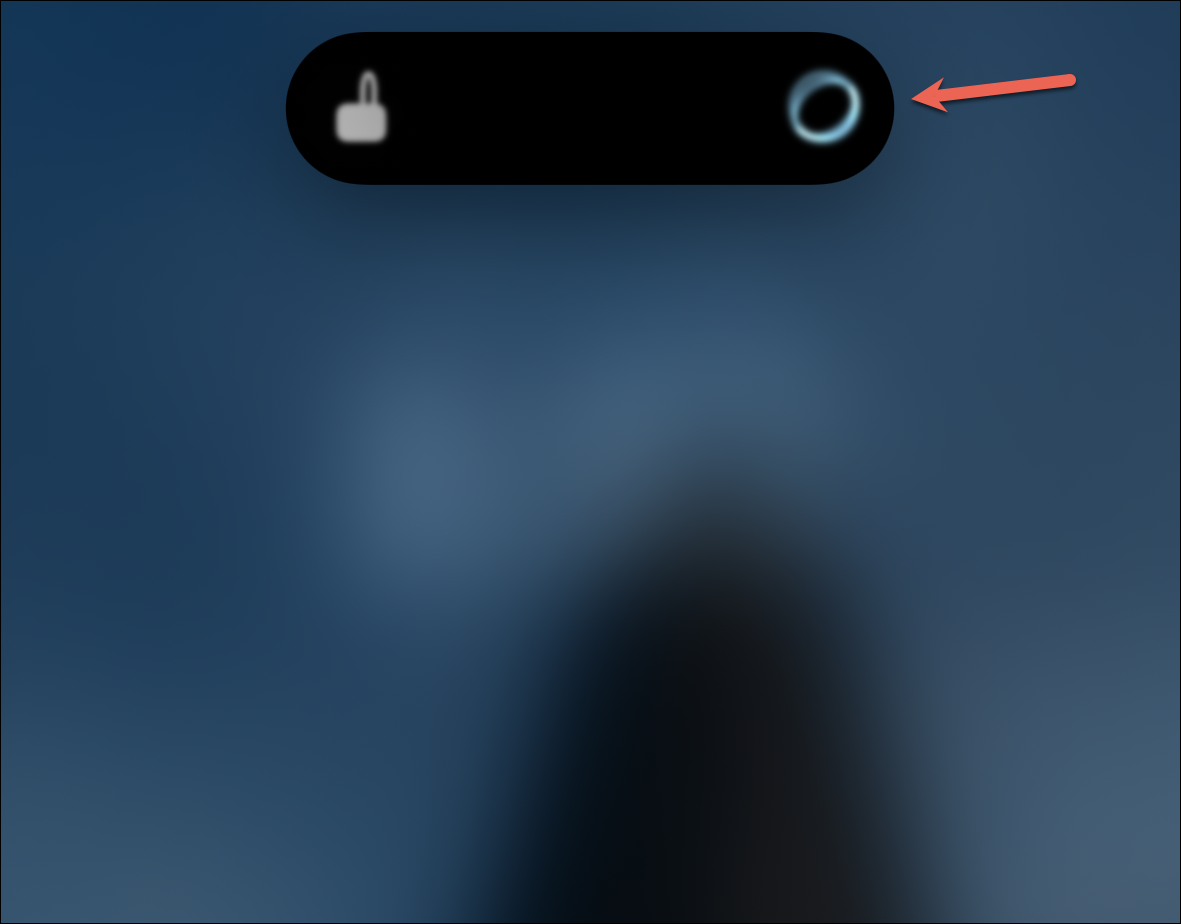
The Face ID expansion for using it within apps is a little unnecessary in my opinion. It expands to a huge square on the screen, which could have been incorporated into the small rectangle from above.
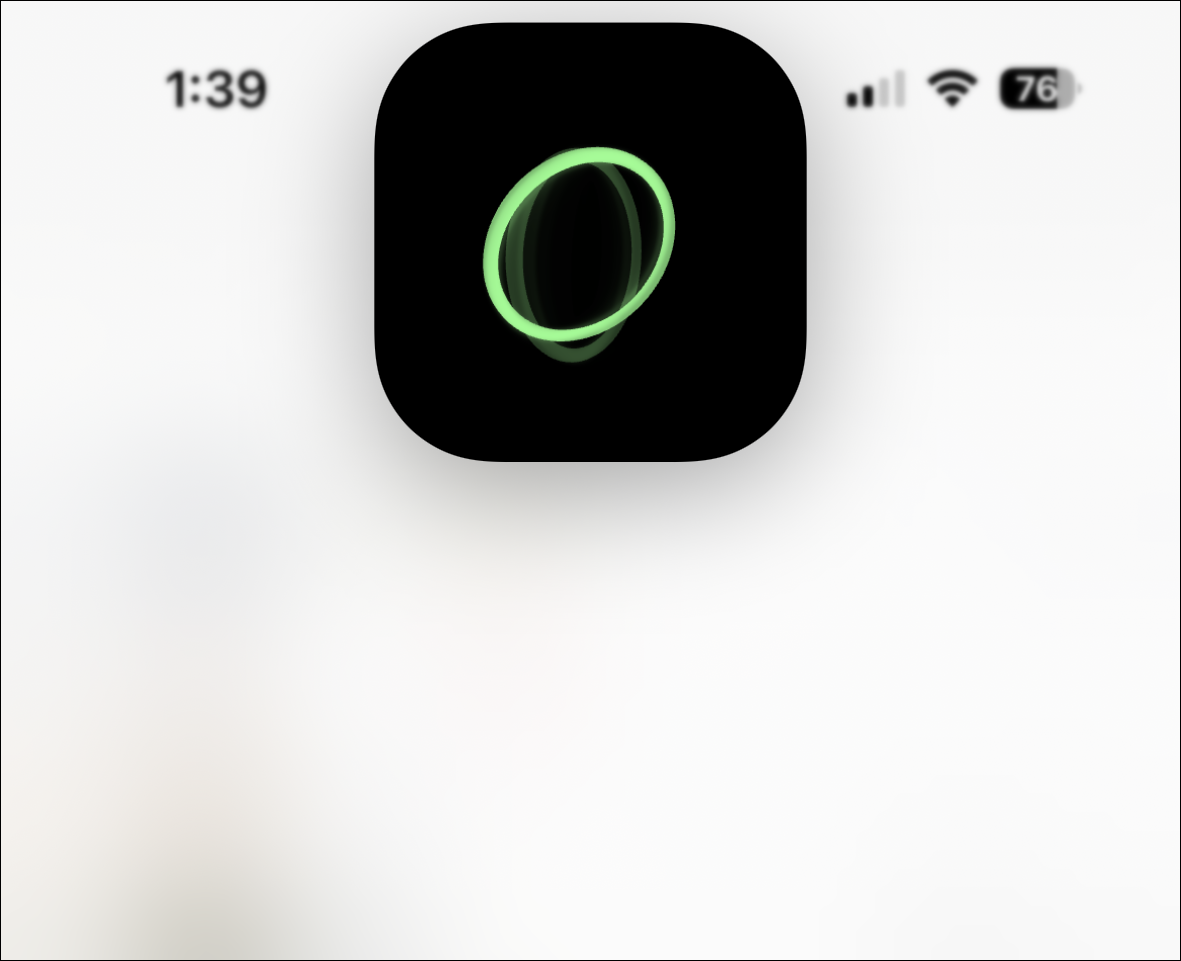
Opinions aside, Dynamic Island can show you a slew of alerts presently. Other alerts it shows include:
- Confirmation for Apple Pay Transactions
- Privacy indicators for camera and microphone that used to appear in the status bar
- AirPods connection and battery status
- iPhone charging status
- Low battery alert
- File receiving using AirDrop
- Switching between Silent mode and Ring
- Toggling Airplane mode from Settings
- Carkey locking/ unlocking
- AirPlay Connections
- Connecting accessories
- Find My Alerts
- Shortcut actions
Apart from these brief alerts, the Dynamic Island can also show activities that are ongoing when you have minimized the app. These include:
- Incoming calls
- Ongoing call durations
- Media playback for music and podcasts
- Active timers
- Screen Recording
- Voice Memo Recordings
- Directions from Apple Maps
- Personal Hotspot connections
- Live Activity Sports scores
For many of these apps, like music apps, when you swipe up on the app, instead of minimizing to the Control Centre, it minimizes to the Dynamic Island.
You’ll also see activities for some third-party apps in the Dynamic Island. It’s because they use existing APIs from Apple that the company has connected to the Dynamic Island. For example, the NowPlaying API used by music and Podcast apps or the CallKit API that apps like Whatsapp, Zoom, Skype, etc. use. App developers can make further changes to their app’s Dynamic-Island specific API, but even if they do not, you still get to enjoy the automatic integration they currently offer.
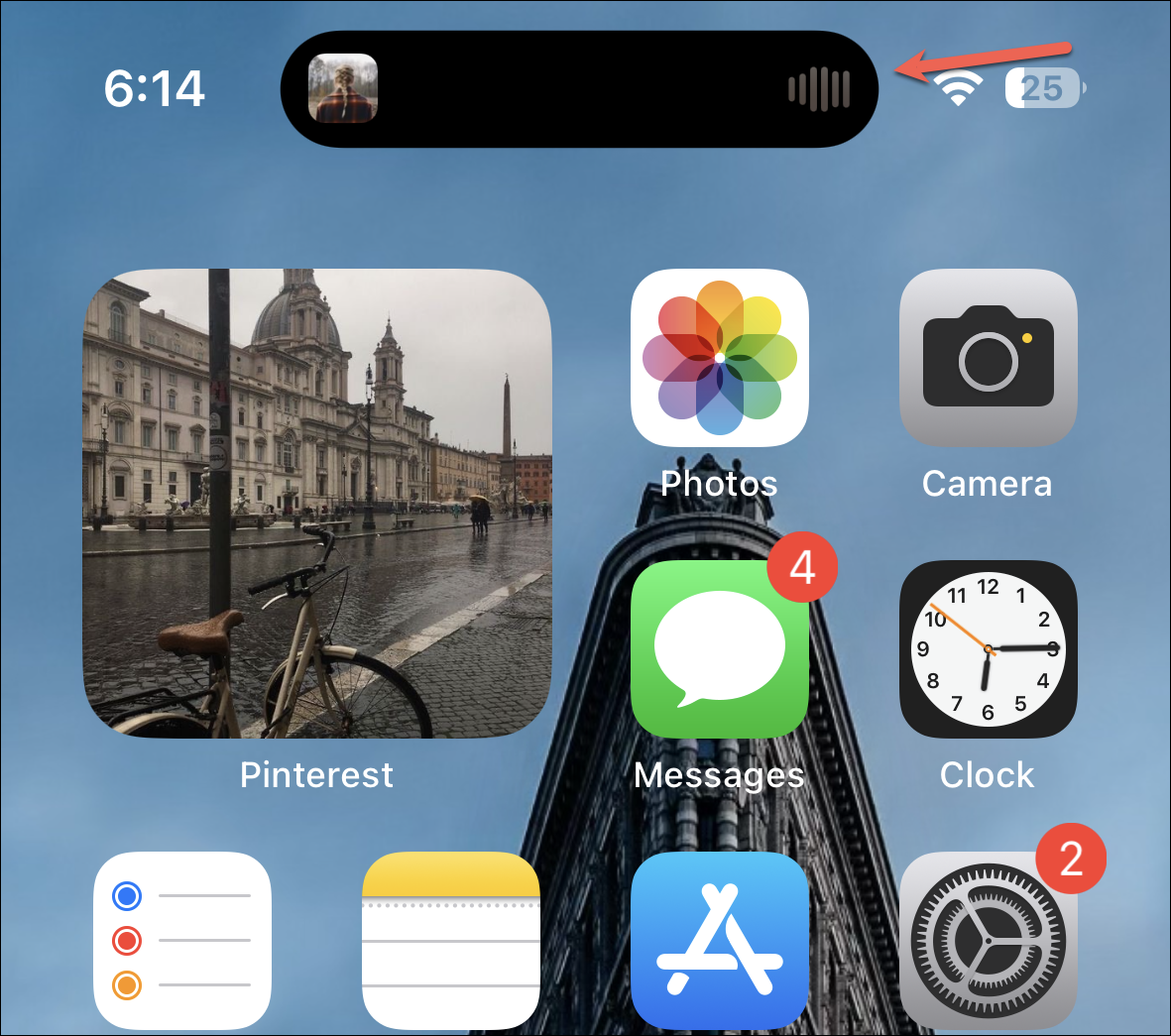
But do note that for some apps, the integration with Dynamic Island isn’t yet complete. For example, if you’re using Google Maps for directions, you’ll see an indicator of the same in the Dynamic Island.
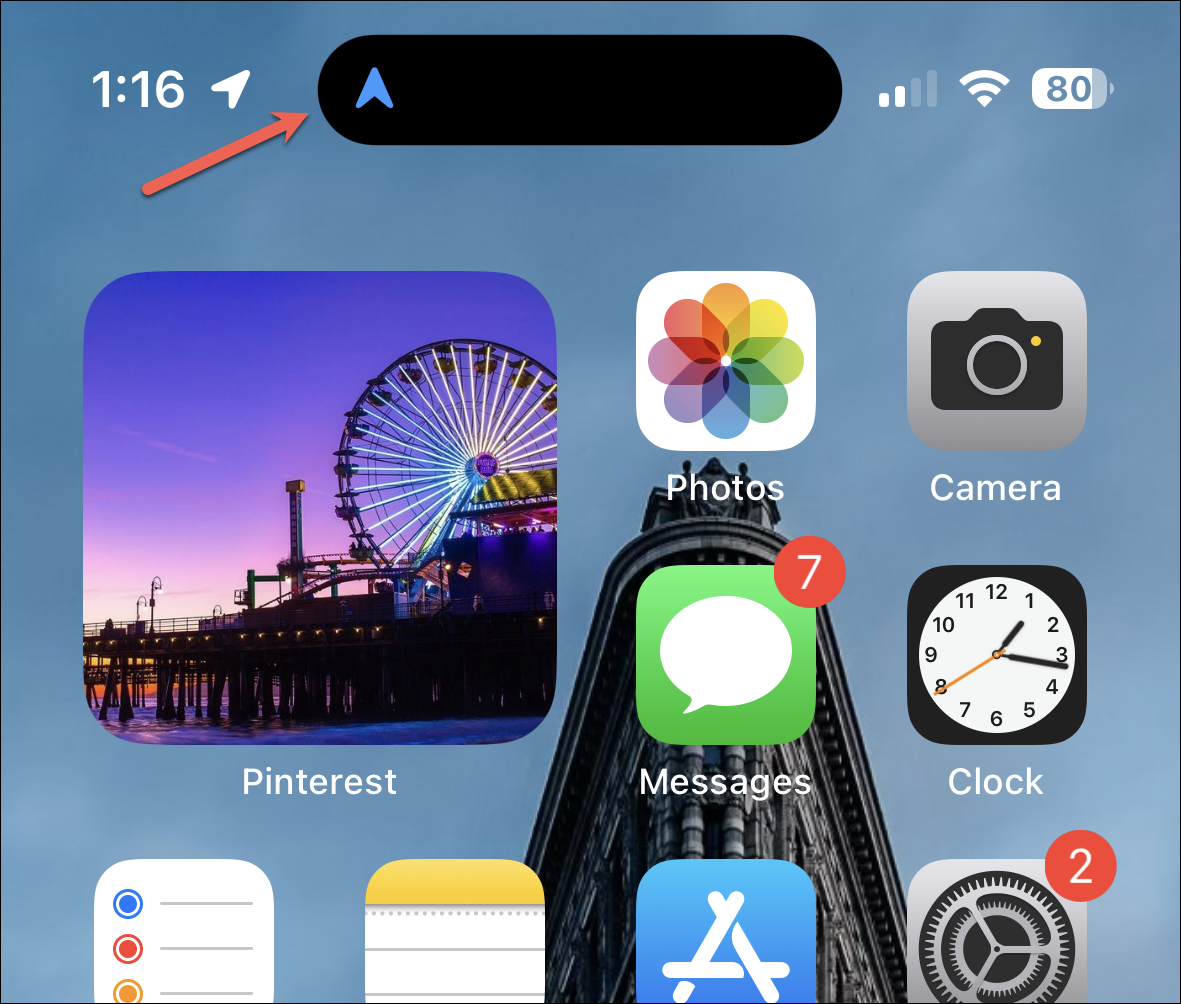
But it doesn’t show upcoming directions as Apple Maps do. But when using Apple Maps, Dynamic Island allows you to use other apps while still making sure you don’t miss any turns.
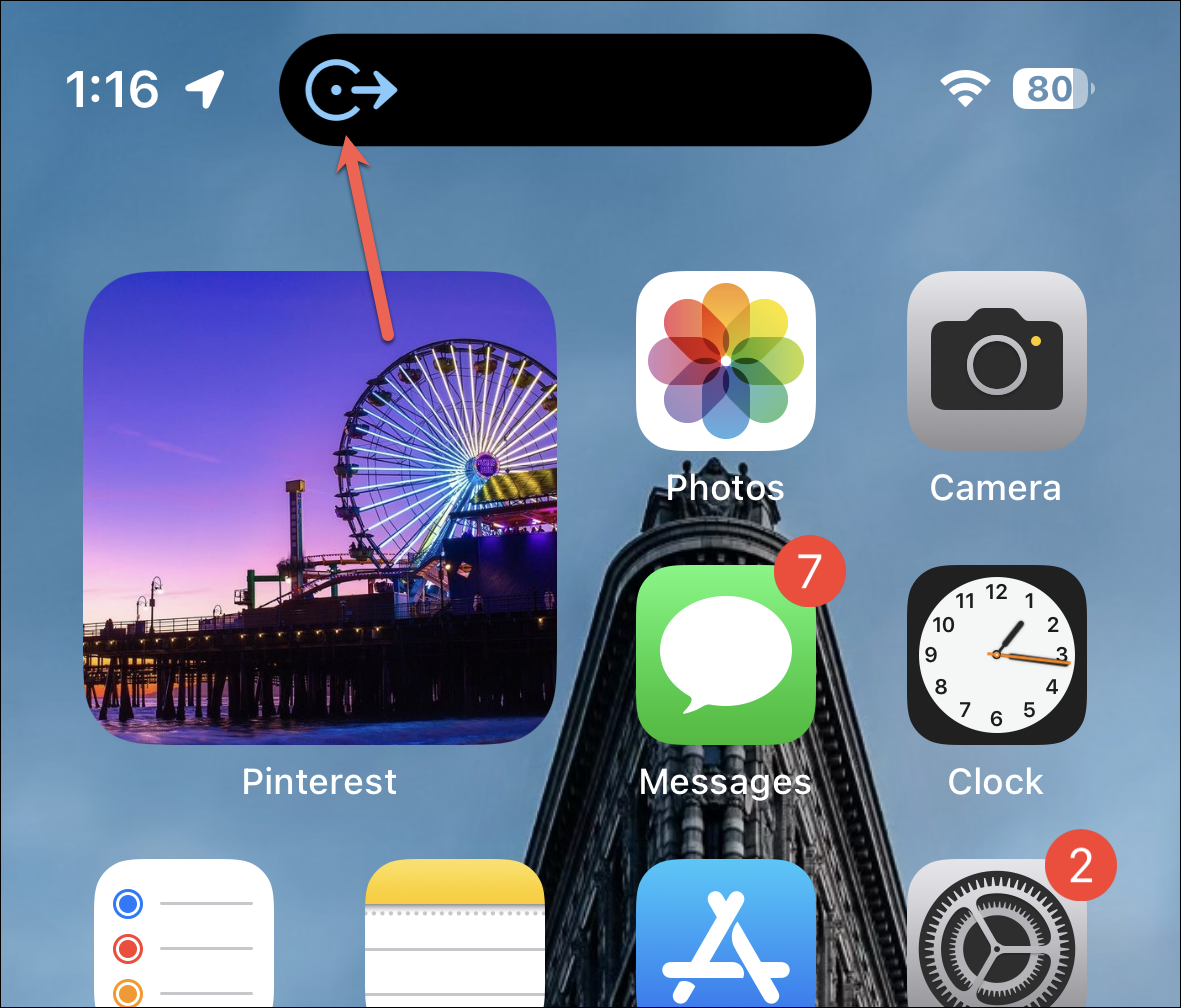
Interacting with the Dynamic Island
Tapping the Dynamic Island takes you to the app. For some of these Dynamic Island activities, you can also interact with the island by long pressing it. For instance, long pressing the island when music is playing brings the playback controls widget on the screen whereas tapping it will open the music app.
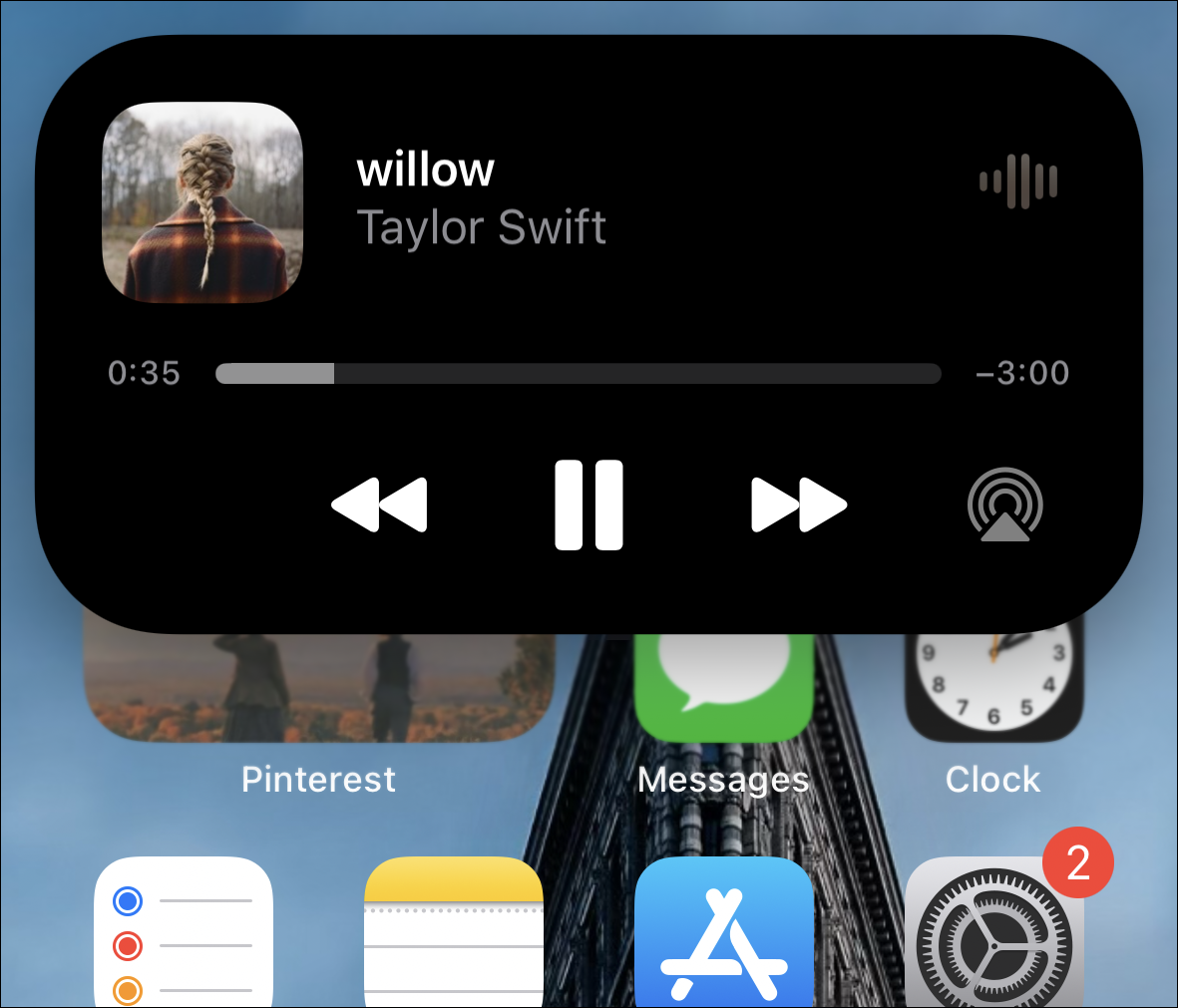
This lets you use those features even when using other apps. You don’t even have to swipe the Control Centre down to access the playback controls!
Long-pressing doesn’t work for all activities, though. Third-party apps will also be able to use this expanded view. App developers can use this expanded view creatively, so I’m excited to see what they’ll bring for us when they implement the functionality.
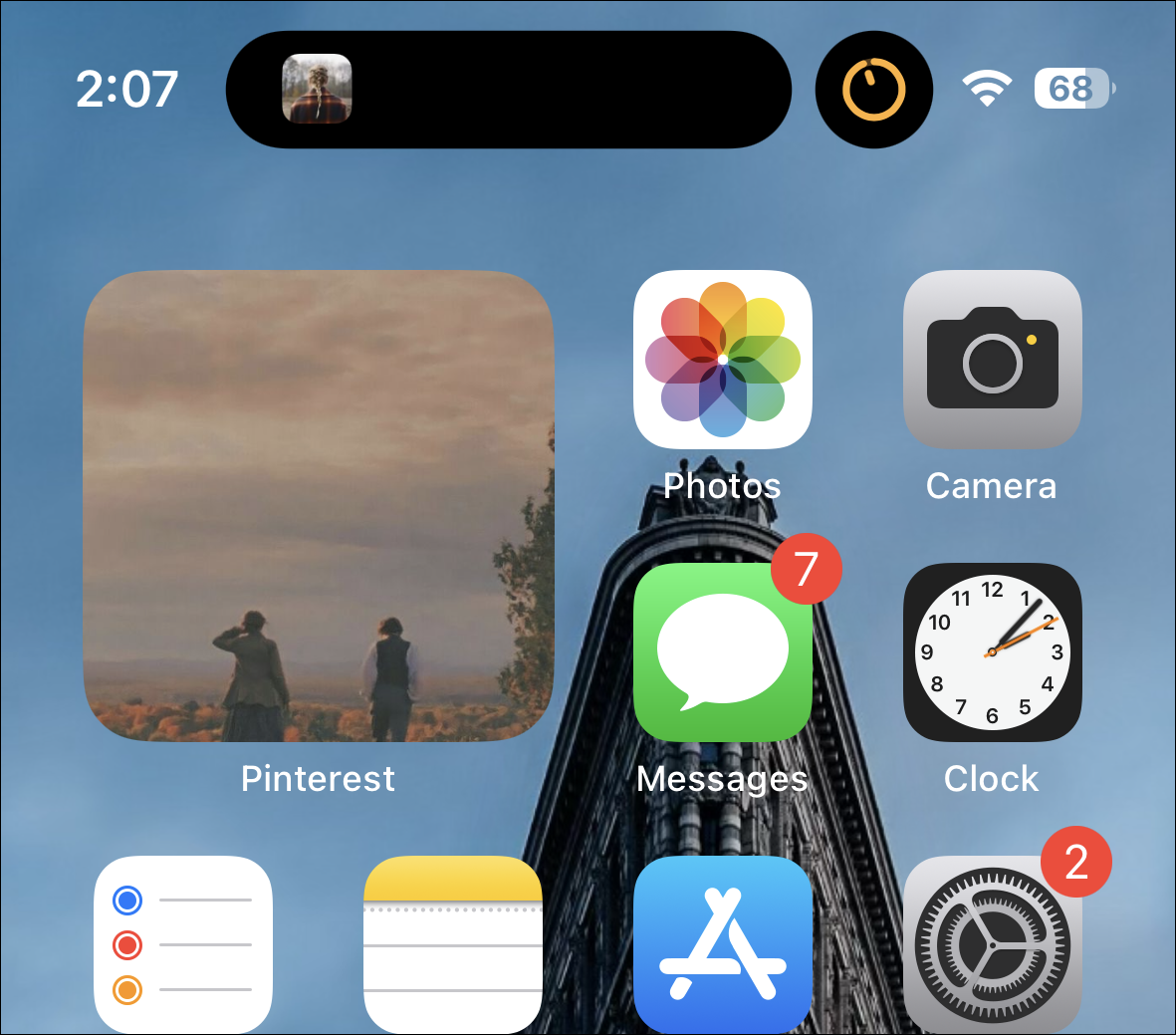
When you’re using two apps with Dynamic Island activities at once, the island splits into two to incorporate both. For example, if you’re listening to music while a timer is going on, you can find one in the larger island on the left (which Apple calls the leading side) and the other in the small circular island on the right (which is being called the trailing side). You cannot switch the apps between the two sides.
Dynamic Island also disguises itself nicely in the landscape mode in some apps, like YouTube. It disappears almost entirely, along with the status bar, in the landscape mode where a black margin on the left swallows it. Only when some activity happens does it become visible. In others, the cut-out does stick out like a sore thumb and is more noticeable than the notch unless you’re using the app in dark mode.
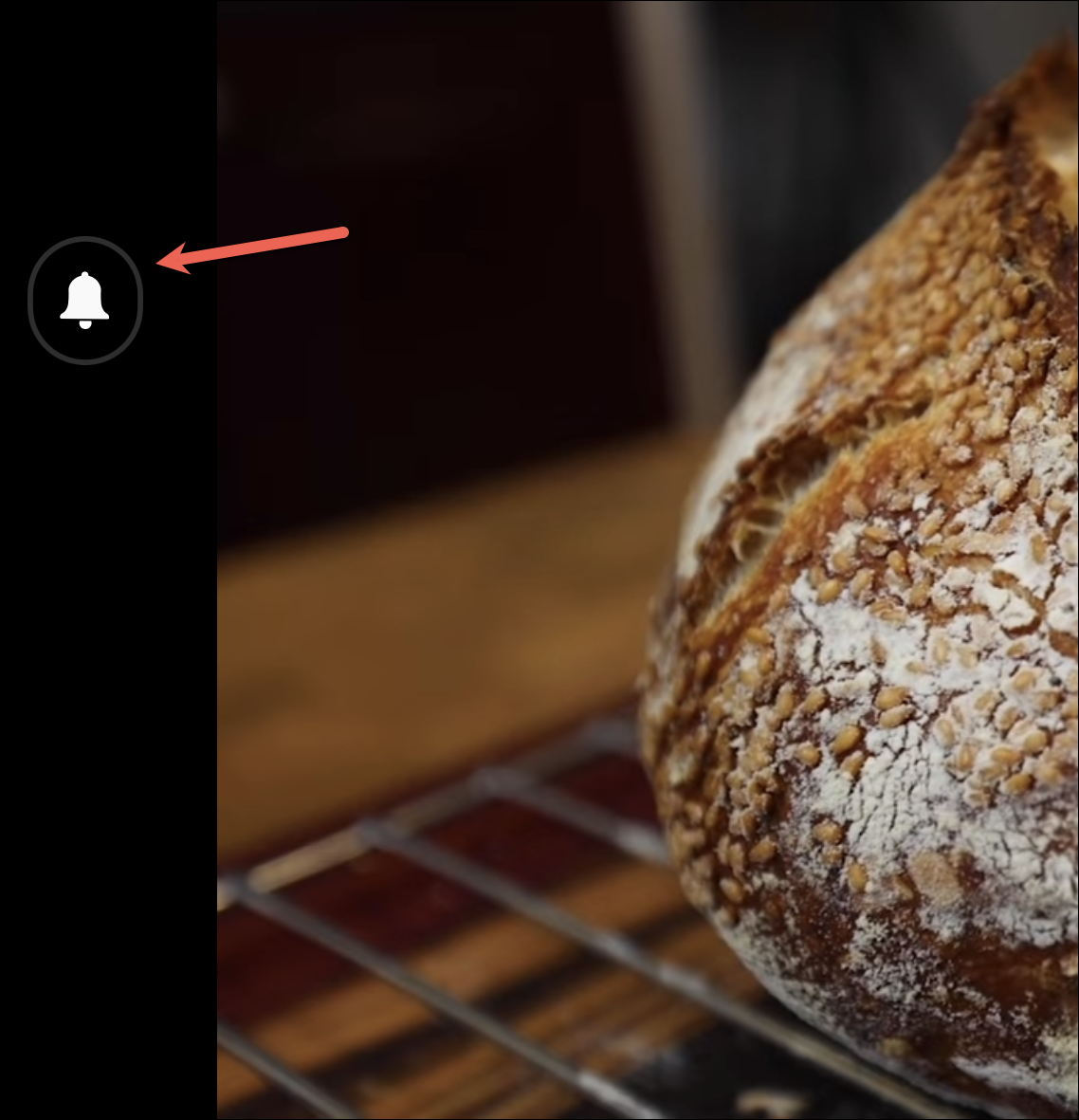 Dynamic Island in Landscape mode.
Live Activities in the Dynamic Island
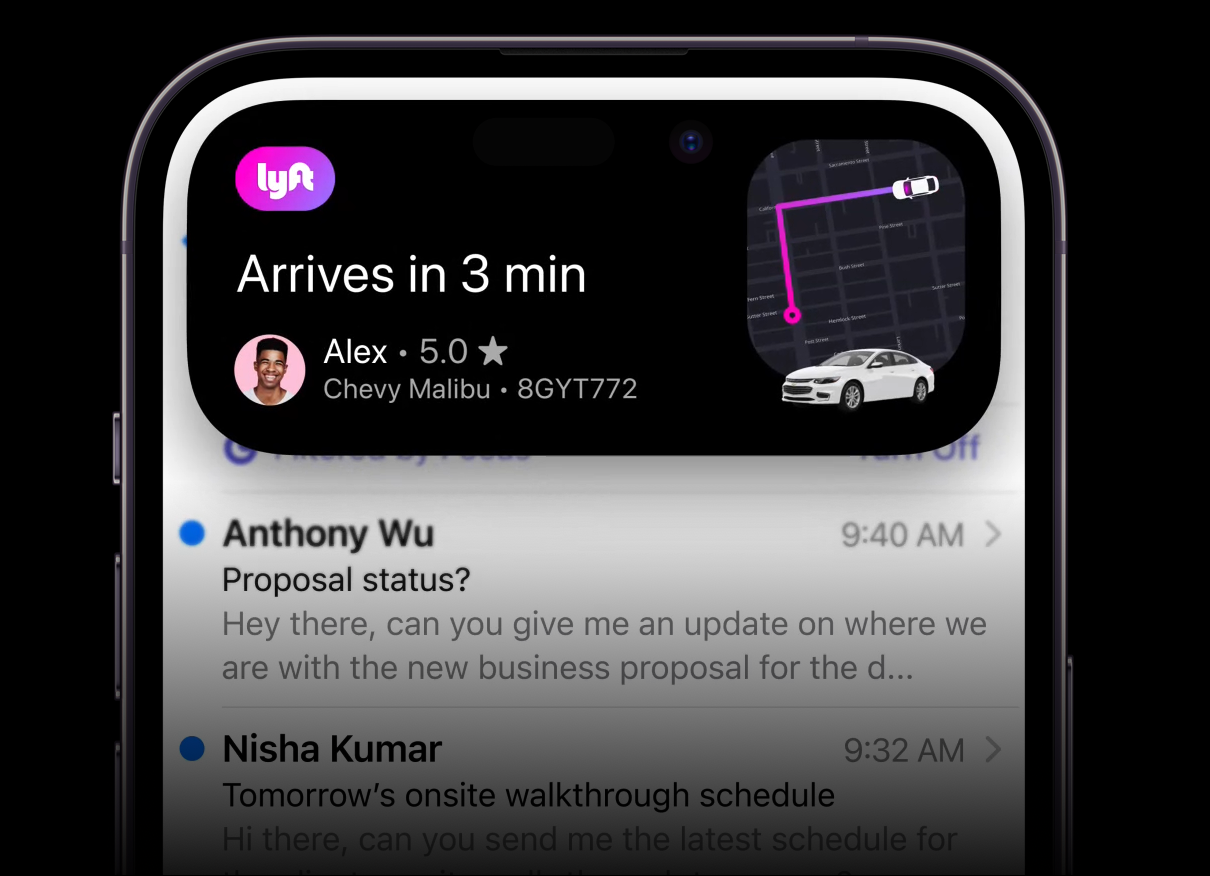
Live Activities are one of the much-awaited features of the iOS 16 update. And they’ll fit so nicely with the Dynamic Island that they deserve a special mention of their own. Live Activities will feature live updates from activities within apps on your Lock Screen. You can stay updated about scores from a live game or get updates about your food orders or the status of your cab from apps like Uber and Lyft. We all know that by now.
But how would Live Activities behave on unlocked devices? On phones without the Dynamic Island, users will receive Live Activity updates as banner-style notifications on their screen.
But on the iPhone with the Dynamic Island, the Live Activity will be displayed in the compact view in the island. Users can long-press it to view the expanded view at any time. And when there’s an update in the activity, it’ll automatically show it in the expanded view before going back to the compact view!
Where Dynamic Island Needs Fixing
For some activities in the Dynamic Island, you can swipe to make them even more minimal. For instance, if you swipe on the Dynamic Island activity for an ongoing call, it’ll hide the call duration to show only the icon for the call in the Dynamic Island.
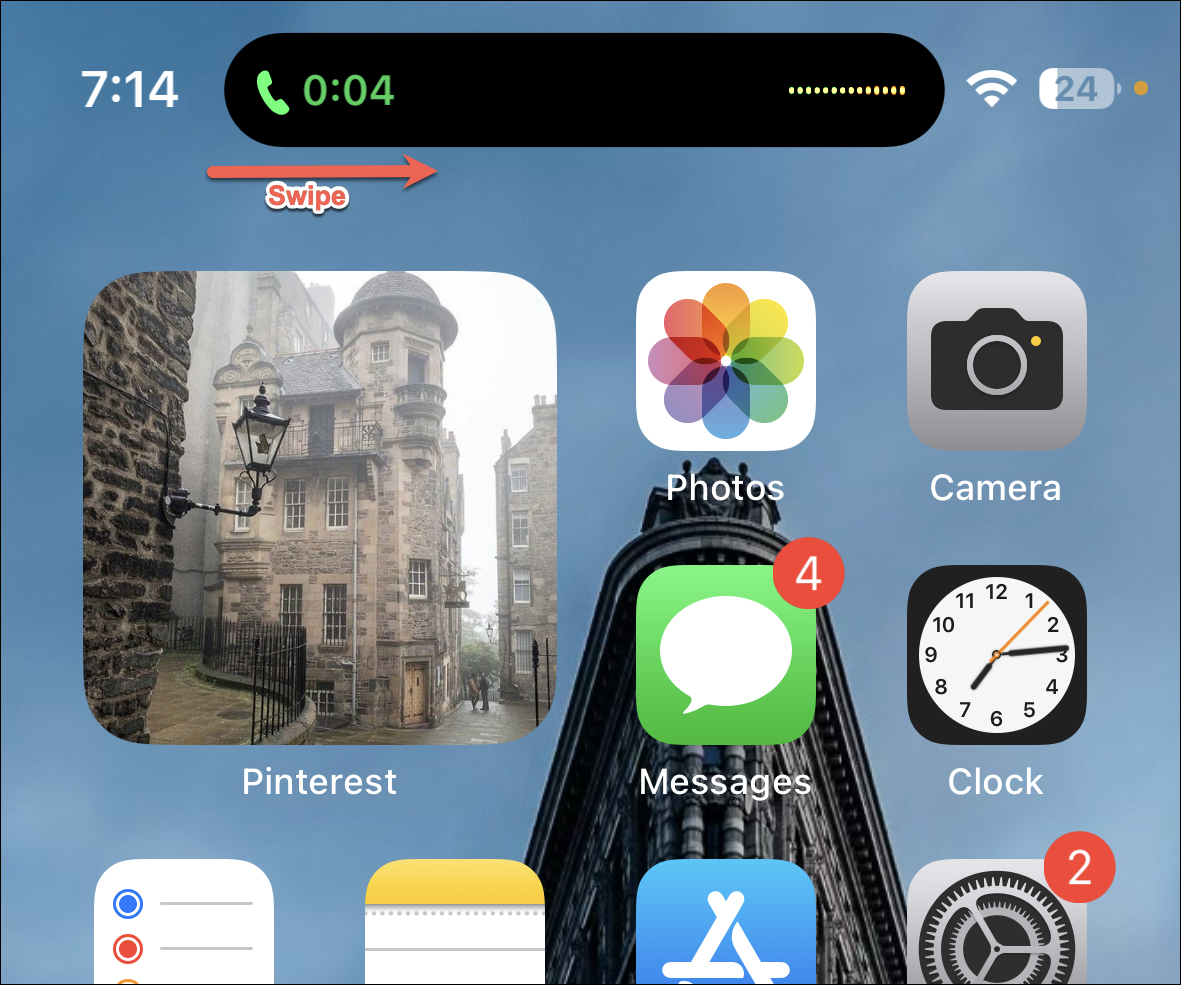
But in my testing, it appears the feature is somewhat broken yet. It does work with calls, but only to an extent. You can minimize the island, but once it has been minimized, getting the original view back is a pain in the neck. You first have to expand it and then close the expanded view for it to return to normal. That certainly cannot be normal behavior.
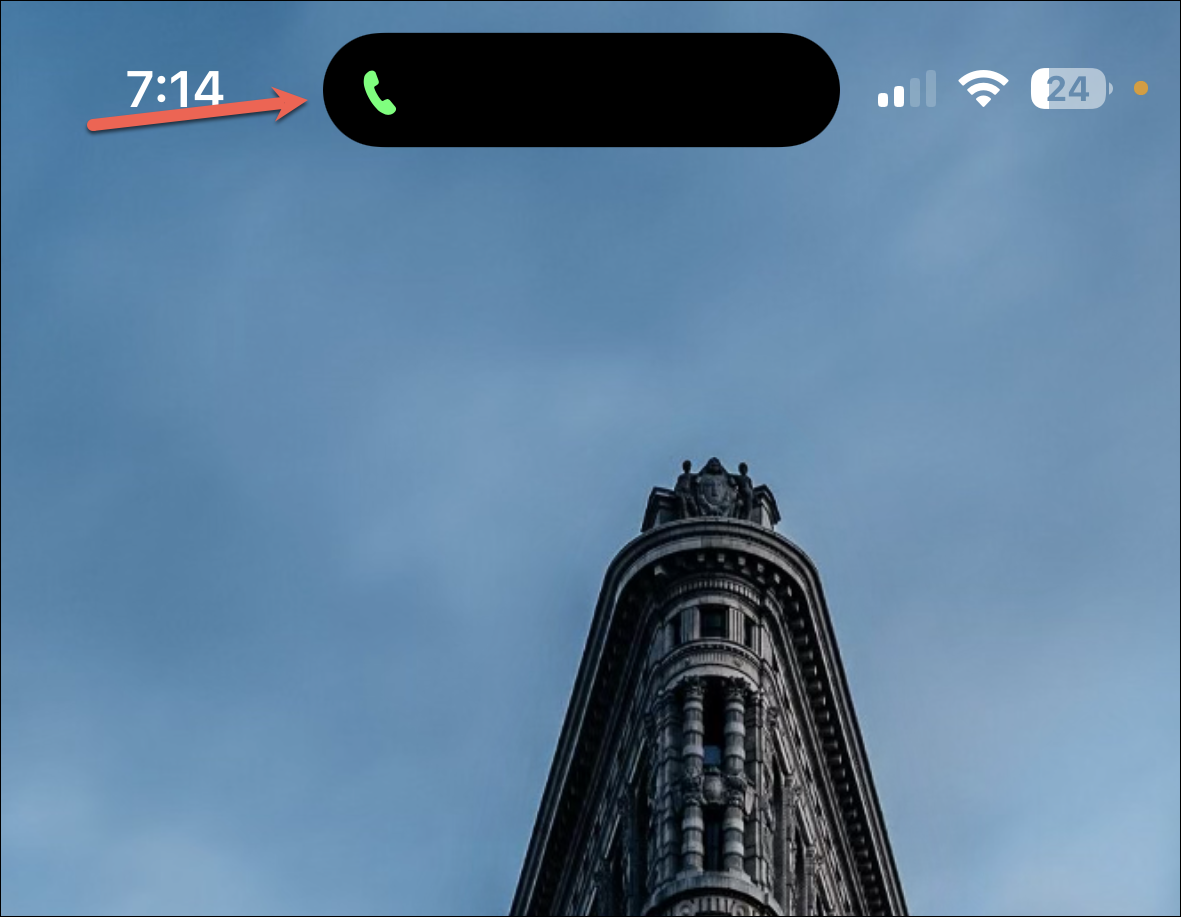
With all other apps, the feature goes completely awry. If you swipe on the Dynamic Island with the timer or media playback activity, the activity goes away completely. All you’re left with is the cut-out. Touching the island then does nothing. It doesn’t open the app nor can you long-press it for the expanded view. And there’s no getting it back until you close the app from the app switcher and open it again.
Screen Recording becomes much more convenient with the Dynamic Island. In phones with a notch, you have to go to the Control Centre to end the recording. But in phones with the Dynamic Island, you get the functionality right on the screen. Tapping or long-pressing the compact view expands the island and you can stop the recording.
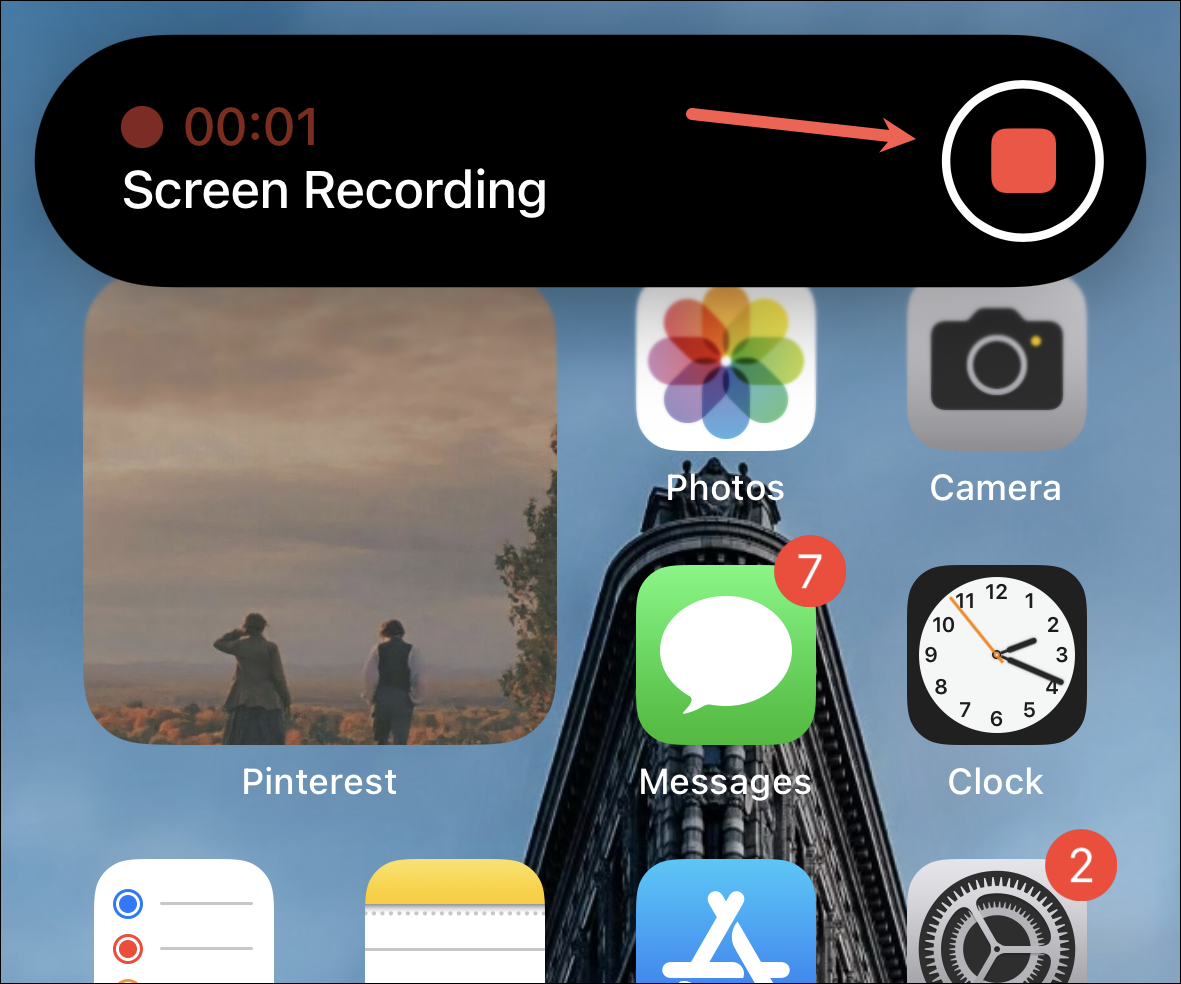
And the best part? The expanded view does not make it to the saved video. But there are a few kinks here also that need to be straightened out – the island appears to be glitching sometimes in the video in parts when it was expanded.
There are also inconsistencies with the Dynamic Island in the landscape mode which can become a problem while using it. It sometimes disappear entirely in the landscape mode and you can access it until you switch back to portrait. Now, if this is intentional or something that needs to be addressed in future iterations remains to be seen.
Use Dynamic Island to Play Games or Keep Pets
Perhaps the most innovative use of Dynamic Island, after Apple’s implementation, is using it in games or to keep virtual pets.
Hit the Island is a game you can find in the App Store that offers a simple ball game where the goal is to hit the Dynamic Island. You can get it from the App Store for some fun.

Apollo for Reddit, on the other hand, has implemented a feature called Dynamic Zoo. It lets you hang out with a Pixel Pal. These pixel pets keep you company on the island while you browse the app. The pals are customizable and you can choose from a cat, dog, fox, hedgehog, or an axolotl. Some of these are only available with a paid subscription, though. Only the cat and the dog are free.
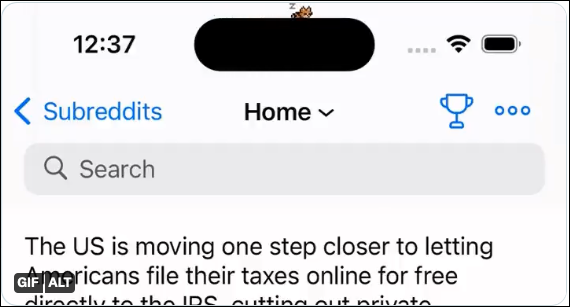
These apps just show that there’s so much more experimenting that can be done with the Dynamic Island and what we’re seeing right now is just the tip of the iceberg.
Dynamic Island is still in the initial stages but it is a promising feature. And certainly, one that looks like the future of the pill!
Как настроить dynamic island на iPhone 14 Pro Max
Dynamic island — это новая возможность, предоставленная Apple в своем последнем флагманском смартфоне iPhone 14 Pro Max. Dynamic island позволяет пользователям создавать и настраивать интерактивные острова прямо на экране своего устройства. Это отличная возможность для тех, кто хочет персонализировать свой iPhone до мельчайших деталей.
Dynamic island предлагает широкий выбор настроек, которые позволяют изменять фон, расположение и множество других параметров острова. Вы можете выбрать собственную тему острова, добавить свои любимые виджеты и приложения, а также настроить анимацию и взаимодействие с остальными элементами интерфейса.
Для того чтобы настроить dynamic island на iPhone 14 Pro Max, вам потребуется выполнить несколько простых шагов. Сначала откройте настройки вашего устройства и найдите раздел «Dynamic island». Затем выберите опцию «Создать новый остров» и следуйте инструкциям на экране.
Вам будет предложено выбрать фон для острова, установить его размер и форму, добавить виджеты и приложения, а также настроить другие дополнительные параметры. Вы можете выбрать из предложенных вариантов или загрузить собственные изображения и виджеты.
Когда вы будете довольны настройками, сохраните изменения и ваш dynamic island будет создан. Теперь вы можете наслаждаться уникальным внешним видом своего iPhone 14 Pro Max с интерактивными островами, которые отражают вашу индивидуальность и стиль.
Dynamic island — это увлекательная и функциональная возможность, которая добавляет в ваш iPhone новые возможности и гибкость в настройке. Попробуйте настроить свой dynamic island и получите новые ощущения от использования вашего смартфона Apple.
Установка и активация dynamic island
Для установки и активации dynamic island на iPhone 14 Pro Max следуйте инструкциям ниже:
Шаг 1: Перейдите в приложение «Настройки» на вашем устройстве.
Шаг 2: Прокрутите вниз и выберите пункт «Дисплей и яркость».
Шаг 3: В разделе «Display Zoom» выберите опцию «Dynamic Island».
Шаг 4: Нажмите на кнопку «Установить», чтобы загрузить и установить dynamic island.
Шаг 5: После завершения установки, ваш iPhone 14 Pro Max будет автоматически перезагружен.
Шаг 6: После перезагрузки, вернитесь в раздел «Дисплей и яркость» и выберите опцию «Dynamic Island» в разделе «Display Zoom».
Шаг 7: Теперь dynamic island будет активирован на вашем iPhone 14 Pro Max. Вы можете настроить его параметры, выбрав опцию «Настройки Dynamic Island».
Теперь вы готовы использовать dynamic island на вашем iPhone 14 Pro Max и наслаждаться улучшенным опытом использования экрана.
Настройка dynamic island на iPhone 14 Pro Max
Для использования dynamic island на iPhone 14 Pro Max выполните следующие шаги:
- Откройте настройки телефона, каснувшись значка «Настройки» на главном экране.
- Прокрутите вниз и коснитесь вкладки «Экран и яркость».
- Нажмите на «Dynamic island», чтобы открыть панель настроек.
- Настройте свой dynamic island, выбрав из предлагаемых вариантов или создав свои собственные.
- После завершения настройки коснитесь кнопки «Применить», чтобы сохранить изменения.
Примечание: Для некоторых функций dynamic island, таких как настройка фона и иконок, может потребоваться загрузить специальные пакеты тем.
Теперь ваш iPhone 14 Pro Max настроен для отображения dynamic island в соответствии с вашими предпочтениями и личным стилем!
Процедура создания и изменения dynamic island
Шаг 1: Перейдите в настройки своего iPhone 14 Pro Max, нажав на иконку «Настройки» на главном экране.
Шаг 2: Прокрутите вниз и выберите раздел «Оформление и яркость».
Шаг 3: Нажмите на «Dynamic Island» в разделе «Рабочий стол».
Шаг 4: В появившемся меню выберите «Настроить» для настройки dynamic island.
Шаг 5: Включите опцию «Включить dynamic island».
Шаг 6: Нажмите на кнопку «Выбрать изображение» и выберите желаемое изображение для dynamic island.
Шаг 7: Для изменения масштаба выбранного изображения используйте функции увеличения и уменьшения на экране.
Шаг 8: Нажмите на кнопку «Готово», чтобы сохранить изменения.
Шаг 9: Теперь dynamic island будет отображаться на главном экране вашего iPhone 14 Pro Max.
Примечание: В процессе создания и изменения dynamic island вы можете также настроить его позицию на экране и прозрачность.
Полезные советы по использованию dynamic island на iPhone 14 Pro Max
Вот несколько полезных советов, которые помогут вам максимально использовать dynamic island на iPhone 14 Pro Max:
| 1. | Персонализируйте свой остров: Используйте различные виджеты, приложения и ярлыки, чтобы создать уникальный интерфейс вашего острова. Вы можете изменять размеры и расположение элементов, чтобы сделать их более удобными для вас. |
| 2. | Разделите остров на различные зоны: Если у вас есть много приложений или виджетов, вы можете разделить свой остров на различные зоны. Например, вы можете создать отдельную зону для работы, развлечений или коммуникации. |
| 3. | Используйте жесты: iPhone 14 Pro Max поддерживает различные жесты, которые могут помочь вам управлять dynamic island более эффективно. Например, вы можете использовать свайпы влево или вправо, чтобы быстро перемещаться между разными островами. |
| 4. | Настройте виджеты: dynamic island позволяет добавлять различные виджеты на ваш остров. Вы можете настроить каждый виджет, чтобы он отображал необходимую вам информацию, например, погоду, календарь или новости. |
| 5. | Экспериментируйте с различными макетами: iPhone 14 Pro Max предлагает различные варианты макетов для dynamic island. Попробуйте разные комбинации и выберите наиболее удобный и эстетичный макет для вас. |
Следуя этим полезным советам, вы сможете максимально настроить и использовать dynamic island на вашем iPhone 14 Pro Max, чтобы сделать его наиболее удобным и персонализированным для вас.
How to Activate Dynamic Island on your iPhone 14 Pro and Pro Max
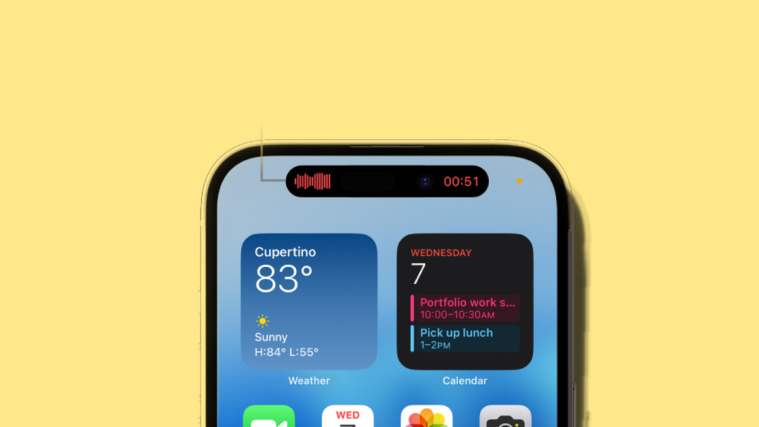
So, you want to make Dynamic Island do something, right? Or simply show it off to someone curious about it. But how do you activate Dynamic Island when you want? Well, this post will help you with this.
The new Dynamic Island feature is one of the main driving factors behind the staggering iPhone 14 Pro sales lately. It’s Apple’s take on hiding the notch on the new iPhone 14 Pro and Pro Max. And it does look great, so much so that you often want to activate and use it.
The iPhone 14 Pro models feature a 30% smaller notch, allowing for more screen real estate. Instead of stopping at the slightly smaller notch, Apple decided to blur the lines between hardware and software using Dynamic Island, which overlays a software pill over the display cutout so that you can interact with it and view ongoing notifications and alerts. But many users around the world have been reporting that they are unable to use the Dynamic Island feature. Well, read below to find ways to activate and use Dynamic Island on your iPhone 14 Pro and Pro Max.
- Why won’t Dynamic Island do anything?
- How to activate Dynamic Island?
- Use a Supported app
- Supported App List
Why won’t Dynamic Island do anything?
Dynamic Island is designed to look like your camera cutout and thus it remains static until you have an app working in the background that can actually use the feature and its notification system. Dynamic Island is supposed to aid multi-tasking by minimizing the time you spend switching between apps. Remember how the only way to track timers, music, deliveries and more was by either opening the dedicated app or by using dedicated widgets? Well, now all these activities directly show up in Dynamic Island. This helps you focus on the task at hand while ensuring that you do not have to switch apps or visit your home screen to track ongoing activities.
However, if you do not have any background activities going on, then your Dynamic Island will be static and won’t do anything. It is likely that you’re facing a similar issue as you haven’t used a supported app with background activity to fully utilize Dynamic Island on your new iPhone 14 Pro or Pro Max.
How to activate Dynamic Island?
You can test and activate Dynamic Island by using any app with supported background live activity that can be shown in Dynamic Island. Use the section below to help you use a supported app to test Dynamic Island on your iPhone 14 Pro or Pro Max.
Use a Supported app
We recommend you start by using a stock app that supports Dynamic Island. This will help you verify its functionality and activate and use it as intended. Use the steps below to help you along the way.
Open the Clock app on your iPhone and tap Timer at the bottom.

Set any timeer you like on your iPhone by swiping on the numbers. We will set a timer of 15 minutes for this guide.

Once you’re done, tap Start.

The timer will now start on your iPhone 14 Pro or Pro Max. Swipe up from the bottom to close the Clock app on your iPhone. Your timer should now move to your Dynamic Island and you should be able to track it using the same.

Tap and hold on your Dynamic Island to view a larger widget for your timer. You can now tap the Pause icon to pause the timer.

You can also tap the X directly from the Dynamic Island to dismiss the current timer.

And that’s how you can use a supported app to activate Dynamic Island on your iPhone 14 Pro or Pro Max.
Supported App List
Here’s a list of apps that currently support Dynamic Island. If you use either of these apps, you should be able to track ongoing background activities on your iPhone 14 Pro or Pro Max using Dynamic Island.
- Apple Maps
- Apple Pay
- Apple Music
- Clock
- Phone
- FaceTime
- Wallet
- Voice memos
- Shortcuts
- AirDrop
- Focus
- Battery levels and charging
- Connected devices like AirPods
- Lyft
- Flighty
- Apollo
- Hit the Island
- Audible
- NPR One
- Overcast
- Spotify
- Amazon Music
- Pandora
- YouTube Music
- SoundCloud
In addition to these apps, the following system alerts and background activities will also show up in Dynamic Island on your iPhone 14 Pro and Pro Max.
- Live Activities
- On-going calls (Voice and Video)
- SharePlay activities
- Timers
- Voice Memos
- Screen Recordings
- Personal Hotspot
- Mic and Camera indicators
- NFC interactions
- Silent Switch toggle
- Airplay
- Bluetooth accessories
- Focus mode changes
- Airdrop
- Sim card alerts
- Find My network alerts
- Face ID
- Apple Pay
- CarKey
- Low Battery alerts
- Charging alerts
All these system alerts and apps will show up in your Dynamic Island which should help you activate and use the same on your iPhone 14 Pro and Pro Max.
When will other apps support Dynamic Island?
Third-party apps should soon start supporting Dynamic Island with future updates. This feature is quite new and third-party app developers are getting accustomed to and using Dynamic Island. Many apps will have to come up with new ways to interact with Dynamic Island which can take some time. You can expect to see many third-party apps support Dynamic Island by the end of this year.
We hope this post helped you easily activate and use Dynamic Island on your iPhone 14 Pro and Pro Max. If you face any issues or have any more questions for us, feel free to reach out using the comments below.
Как настроить динамический островок на iPhone 14 Pro Max
Dynamic island — это новая функция, которая появилась в последнем обновлении операционной системы iOS для iPhone 14 Pro Max. Она позволяет пользователям создавать и настраивать анимированные обои для главного экрана своего устройства. Это отличный способ добавить индивидуальность и стиль к вашему iPhone.
В этой статье мы подробно расскажем, как настроить dynamic island на вашем iPhone 14 Pro Max. Мы покажем вам все необходимые шаги, чтобы вы могли создать и выбрать обои, а также настроить анимацию и эффекты. Готовы начать? Тогда давайте приступим.
Первым шагом для настройки dynamic island на iPhone 14 Pro Max является выбор подходящего обоев. Вы можете выбрать из предложенных вариантов, которые поставляются вместе с операционной системой, или загрузить свои собственные изображения. Важно выбрать фотографии или иллюстрации, которые хорошо сочетаются с анимацией и которые вы хотели бы видеть каждый день на своем главном экране.
Совет: Используйте фотографии с высоким разрешением, чтобы обои выглядели четкими и красочными.
После выбора фотографий вы можете настроить анимацию и эффекты. Dynamic island предлагает широкий выбор настроек, позволяющих создать уникальный и впечатляющий образ. Вы можете настроить скорость и направление анимации, а также добавить различные эффекты, такие как затемнение, размытие или градиенты. Играйтесь с настройками, чтобы найти наиболее подходящий стиль для вашего iPhone.
Установка dynamic island на iPhone 14 Pro Max
Чтобы установить dynamic island на ваш iPhone 14 Pro Max, выполните следующие шаги:
- Проверьте, обновлена ли ваша операционная система до последней версии iOS. Для этого перейдите в «Настройки», затем выберите «Основные», и нажмите на «Обновление ПО». Если доступна новая версия iOS, установите ее перед продолжением.
- Откройте App Store на вашем iPhone 14 Pro Max и найдите приложение «Dynamic Island». Нажмите на кнопку «Установить», чтобы скачать и установить приложение на ваше устройство.
- После установки откройте приложение «Dynamic Island» и следуйте инструкциям по созданию своего острова. Выберите фоновое изображение острова из предложенных или загрузите собственное изображение. Затем добавьте различные элементы на остров, такие как деревья, животные и домики.
- Когда вы закончите настройку острова, нажмите на кнопку «Применить», чтобы применить dynamic island к вашему экрану дома.
- Теперь вы можете наслаждаться своим собственным dynamic island на iPhone 14 Pro Max. Чтобы изменить остров или добавить новые элементы, просто откройте приложение «Dynamic Island» и внесите необходимые изменения.
Таким образом, установка dynamic island на iPhone 14 Pro Max очень проста и позволяет вам настроить и наслаждаться уникальным островом прямо на вашем устройстве.
Шаг 1: Подготовка устройства
Перед настройкой dynamic island на iPhone 14 Pro Max необходимо выполнить несколько предварительных шагов:
- Убедитесь, что ваш iPhone 14 Pro Max имеет последнюю версию операционной системы iOS.
- Резервное копирование данных: перед настройкой рекомендуется создать полную резервную копию данных своего устройства. Вы можете сделать это с помощью iCloud или iTunes.
- Зарядка устройства: убедитесь, что ваш iPhone 14 Pro Max полностью заряжен перед началом настройки dynamic island.
- Подключение к сети Wi-Fi: убедитесь, что ваш iPhone 14 Pro Max подключен к стабильной сети Wi-Fi для обновления настроек и загрузки новых динамических обоев.
Шаг 2: Загрузка и установка приложения
1. Откройте App Store на вашем iPhone 14 Pro Max, нажав на иконку на главном экране.
2. Введите «dynamic island» в поле поиска в правом верхнем углу экрана и нажмите на кнопку «Искать».
3. Выберите приложение «Dynamic Island» из списка результатов поиска.
4. Нажмите на кнопку «Установить» рядом с названием приложения.
5. Приложение начнет загружаться и устанавливаться на ваш iPhone 14 Pro Max. Подождите несколько секунд, пока процесс завершится.
6. После установки приложения, его иконка появится на главном экране вашего iPhone 14 Pro Max.
7. Теперь вы можете открыть приложение «Dynamic Island» и начать настройку.
Шаг 3: Настройка dynamic island
- На главном экране iPhone 14 Pro Max откройте приложение «Настройки».
- Прокрутите вниз и выберите вкладку «Главный экран и Dock».
- Нажмите на опцию «Dynamic island».
- Выберите желаемый стиль dynamic island из предложенных вариантов. В зависимости от вашего выбора, на главном экране будет отображаться различное количество и размеры виджетов.
- Для дополнительной настройки dynamic island вы можете нажать на опцию «Настроить виджеты». Здесь вы сможете выбрать конкретные виджеты, которые будут отображаться на главном экране.
- После того, как вы закончите настройку dynamic island, нажмите на кнопку «Готово». Ваши изменения будут применены к главному экрану iPhone 14 Pro Max.
Теперь вы можете наслаждаться персонализированным и удобным dynamic island на вашем iPhone 14 Pro Max. Не стесняйтесь экспериментировать с различными настройками, чтобы найти то, что лучше всего соответствует вашим потребностям и предпочтениям.