Google Drive vs. Google Photos
With rapidly changing technology, companies are introducing new tools. Although those tools benefit users, some can easily confuse others.
Three of those are Google Drive, Google Photos, and Google One. What’s the difference between the three? The article covers Google Drive vs. Google Photos.
What’s the difference
Let’s begin with a simple definition. Google Drive is the same old cloud storage program allowing the uploading and sharing of files and folders.
Google Photos is also a cloud storage program, but it is only designed for your photos and videos. It is a separate app to help you back up your media files.
With the above information in mind, you might see a “Google Photos” folder in Google Drive with subfolders of years up to 2019. That folder was the photos folder until both were separated.
This folder is not synced with Google Photos, and you won’t find those photos in the Google Photos app. To get those photos on Google Photos, you will need to add those.
Both Google Drive and Photos count towards your Google account storage. But, with many options, it might not be obvious to count the total data. This is why Google One exists.
Google One (storage management)
Google One is not a cloud storage platform. It’s simply a program to display your account’s total and used storage. Google One displays the combined data of Gmail, Google Drive, and Google Photos.
You can also purchase the additional storage in the Google One app. For subscribers, the app comes with extra features and rewards.
Although the Google Drive website displays the total data usage, it’s good to use Google One to check your data because of the extended options.
Google Drive features not on Google Photos
In the next section of Google Drive vs. Google Photos, we explore some of the features only available on Google Drive.
Uploading files
As Google Drive is a cloud storage platform, it supports many files. Some of the supported file types are:
- Many image files
- Video file formats
- Audio file formats
- ZIP and some other file types
- PDF, Office, and Google Docs files
- Google Forms
PC backup options
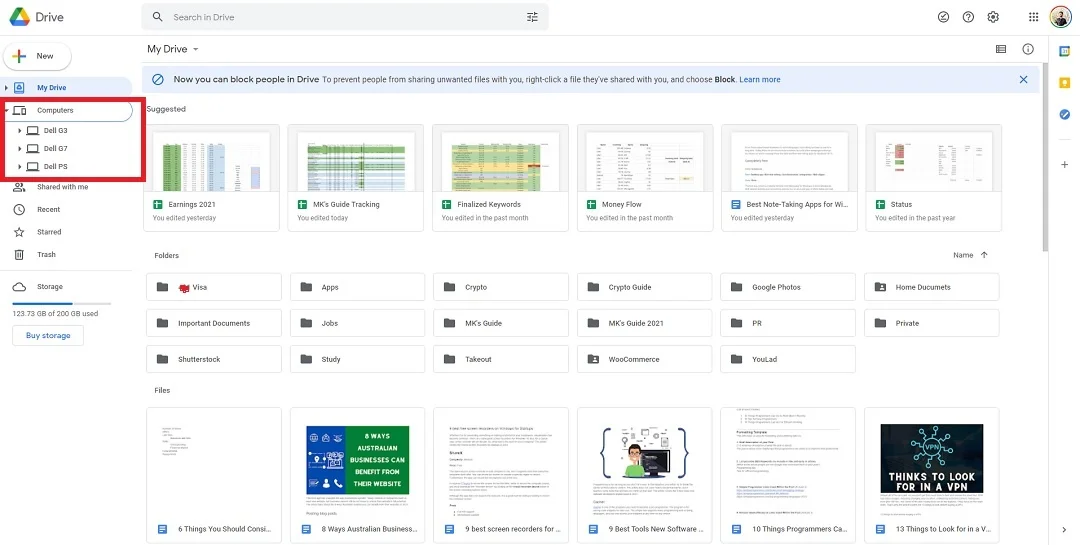
Computer Backup in Google Drive
One can download the Google Drive Desktop app for Windows and sync their data straight from the computer. Google Drive saves the data in a section titled “Computers” to help you quickly find the required data.
Google Photos features not on Google Drive
There are also plenty of options that only the latter supports, and in this section of Google Drive vs. Google photos, we cover a few of those.
Photo quality
The Google Photos app offers a feature to compress the photo before uploading. What this feature does is reduce the photo resolution to 16MB if it is larger than 16MB.
The feature also compresses videos larger than 1080p to 1080p. This is an excellent option to save on storage without compromising (too much) on the media quality.
Powerful search
The search of the Google Photos app is super powerful. The app uses AI to show the photos that you need. Along with media name search, you can search for:
- colors
- objects
- scenes
- people (faces)
- locations and more
For example, searching for trees shows photos of trees. The feature works amazingly well. I often use it to find a picture of my credit card taken many months ago. All I have to do is type the word “card” in the search box.
Google Drive does use AI to detect, but it’s not as advanced as Google Photos.
Photo Editor
Another feature you won’t find on Google Drive is the photo and video editor. I won’t talk about the video editor now, but the photo editor is one advanced editing tool.
Some features are for Google One premium subscribers, but there are plenty of free options to make your photos look stunning. Some editing options are:
- auto enhancement
- crop and rotate
- effects
- filters
- markup (text, pen, and highlight)
Assistant
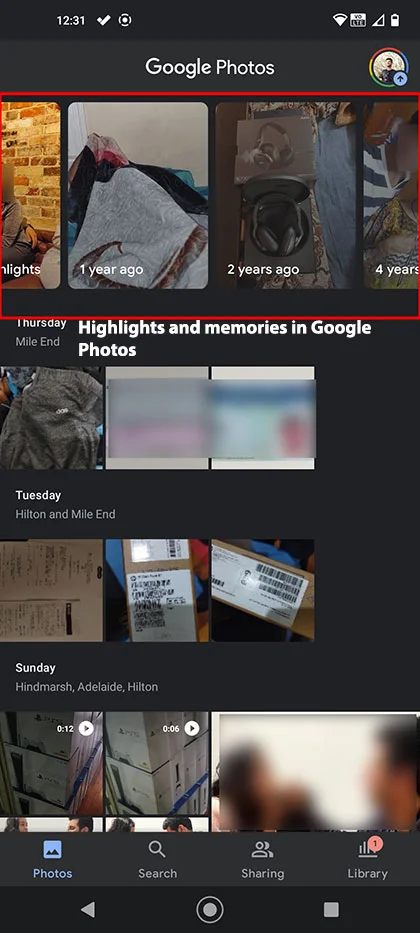
Memories in Google Photos
Another great feature of Google Photos is the assistant. You get notifications about recent highlights and memories. The app sometimes creates collages, animations, and cinematic photos to give your photos a new look.
Faces
As you take more photos, it becomes difficult to browse old photos. This is where AI intelligence comes to play.
The Google Photos app creates people’s faces in your photos and videos. You can then add the name of a person and search to see all their photos.
Google Drive vs. Photos: Links
Wrap up
This was the article Google Drive vs. Google Photos. It covered the essential differences and features of both.
Let me know your thoughts in the comments, and share this article with friends to help them understand the difference.
About The Author
Madhsudhan Khemchandani
3 thoughts on “Google Drive vs. Google Photos”
Great article! Answered my question regarding when to use Google Drive vs Google Photos. I had not previously considered Google 1 so thank you for explaining that concept as well.
Разница между Гугл Диск и Гугл Фото
При регистрации аккаунта в Google Диск вы наверняка заметили и существование отдельного сервиса Google Фото. Если вы собираетесь активно использовать предоставленное вам хранилище, то должны понимать в чем разница между Гугл Диски Гугл Фото. Попробуем определить, чем отличаются Google Drive и Google Photos.
Разница между Гугл Диск и Гугл Фото
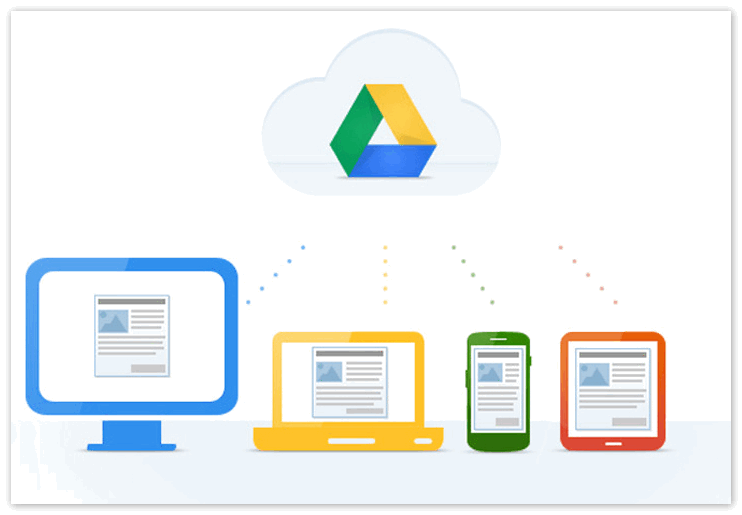
Сервисы имеют ряд идентичных возможностей:
- Просмотр загруженных фотографий;
- Загрузка фотографий вручную;
- Всплывающее окошко о состоянии загрузки;
- При нажатии на значок информации отображаются размеры фотографии;
- Предоставление общего доступа.
Это основные схожие моменты.
Гугл Диск
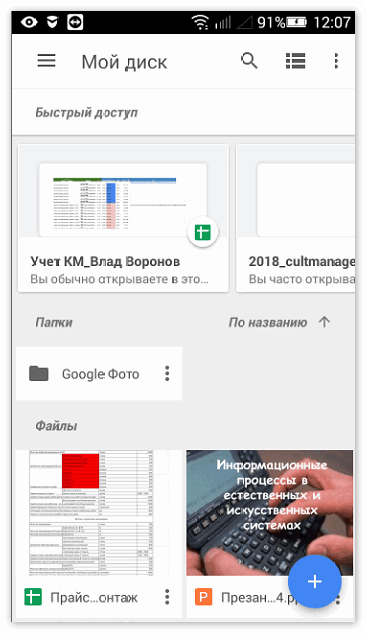
Веб-сервис представляет собой удобное хранилище ваших файлов. Загружать можно информацию в следующих видах:
- Фото;
- Видео;
- Документы;
- Карты;
- Таблицы;
- Презентации;
- Формы;
- Сайты.
Чтобы загрузить фото вам нужно перетащить файлы или папки с вашего компьютера на диск. Также можно воспользоваться автозагрузкой или синхронизацией.
Гугл Фото

Создание данного сервиса предназначено для более удобной организации загруженных фото- и видеофайлов.
Гугл фото отличается большими возможностями для редактирования. Однозначно данный раздел имеет ряд преимуществ перед прямым хранением фото на Google Диске.
- Возможность синхронизации с другими устройствами;
- Неограниченный объем;
- Упорядочение копий;
- Умная система поиска;
- Выделение файлов;
- Автоматическое создание анимации и коллажей;
- Внутренний фоторедактор;
- Возможность поделиться файлами в социальных сетях;
- Организация по типу содержимого.
Синхронизация с другими устройствами
Для платформ iOS, Android созданы специальные приложения, с помощью которых возможно загрузить фотографии на Гугл Фото. Удобная синхронизация позволяет сэкономить время. При отсутствии специальных мобильных приложений фото можно загружать вручную, путем перетаскивания файлов.
Неограниченный объем файлов
В отличии от Google Drive, Google Photos может иметь неограниченный объем хранилища. Для этого нужно в настройках выбрать сохранение файлов высокого качества. Под эту категорию подойдут фото и видео, снятые камерой не больше 16 Мп.
Выявление копий
В фотохостинг встроена умная система обнаружения дубликатов, с помощью которой выявляются одинаковые файлы не только по названию (EFIX), но и по содержимому. Программы выберет идентичные изображения и оставит только один вариант, что очень удобно для владельца.
Система умного поиска

Одна из самых поразительных систем в веб-сервисе – это умная система поиска, приписывающая хэштэги по изображению на фото. Программа легко определяет место, которое было запечатлено на снимке, географические объекты, цветы, ягоды, животных и многое другое. Например, если вам нужно найти фото вашего любимца, достаточно просто в поиске написать «кошка». Вам сразу станут доступными все ваши фотографии, на которых изображены животные семейства кошачьих.
Возможность выделения нескольких файлов
Незаменимая опция работает также, как и в большинстве менеджеров для файлов. Чтобы выделить несколько изображений одновременно, достаточно удерживать Ctrl и выбирать нужные файлы. Либо удерживать Shift и выбрать первое и последние нужное фото, если они идут подряд.
Создание анимации и коллажей
Подобной функции не найдется ни в каком другом фотосервисе. С помощью «Ассистента» создаются коллажи, анимации и даже панорамные фильмы из имеющихся фото. Работы можно просмотреть и понравившиеся сохранить. Система сама выбирает нужные фото, обрабатывает и создает творческие работы, которые не все в силах сделать самостоятельно.
Редактирование фотографий

Простая, но жизненно необходимая функция для всех любителей фотографировать и фотографироваться.
Возможность шаринга
Сегодня актуальным является ведение страниц в нескольких социальных сетях. Когда необходимо поделиться фотографиями с друзьями, очень кстати придется предложенный шаринг. Кнопка находится в верхней панели инструментов.
Поиск по типу содержимого
Гугл Фото проводит автоматический анализ содержимого ваших файлов. Возможна сортировка по следующим разделам (количество и состав плиток индивидуальны у каждого пользователя в зависимости от содержимого):
- Видео;
- Творчество;
- Гугл Диск и др.
Изучая разницу между Гугл Диском и Гугл Фото, очевидно, что предпочтение стоит отдать второму. Его функции более удобные и инновационные. И, что не мало важно, Google Photos – бесплатный сервис.
Google Drive vs. Google Photos: What's the difference?
Google offers two different apps you can use to upload and share photos: Google Drive and Google Photos. That seems like one too many—at least, it did to me. But after looking into it, it turns out these services are pretty different.
Google Drive is a file storage service. You can manually upload photos and videos to it, sort them using folders, and share those folders. There are no photography-specific features, and everything you upload counts against your Google storage limits.
Google Photos is a photo and video syncing and backup service. You can sync photos and videos from your phone and/or computer, view them in a timeline organized by date, sort them into albums, and even search the photos themselves. You can also do some basic photo editing. Compressed photos and videos don't count against your Google storage limits, but uncompressed ones do.
Those are the basics, but there's a bit more to it than that. So let's take a closer look at the difference between Google Photos and Google Drive.
Looking for a cloud storage service? Check out our list of the best free cloud storage and file syncing apps.
Google Drive can store photos, but that's about it
Google Drive is a cloud storage service, meaning you can upload any kind of file to it. That includes photos and videos. You can upload any photo, or even a folder full of photos, to Google Drive using the Upload button, or by simply dragging the files to your Google Drive window.
Photos look like any other file in your Google Drive: you can organize them in folders and share those folders, as usual. Open any photo in Google Drive, and you'll see a few options—but not many.
You can open images in third-party apps and edit them there, but there's no built-in way to edit images. There are sharing and commenting features, however, meaning you can do some collaboration. It's a great way to quickly share folders full of photos with coworkers or anyone else you know who uses Google Drive.
Google Drive integrates with Zapier, which means you can do things like automatically save photo attachments you receive in Gmail to Google Drive or get new Slack notifications whenever someone adds a photo to your Google Drive. Learn more about how Zapier works.
Google Photos is built around your photo collection
Google Photos is all about organizing a massive photo collection. Install the Google Photos app on your phone, and every image you take will be uploaded to the Google cloud. There's also the Backup and Sync app, which automatically backs up photos from your computer and even any camera you attach to it.
You can browse your photos at photos.google.com or on the Google Photos app on your phone. Images are sorted by date, meaning you can scroll through the years.
You can also sort photos into albums, if you want, and share those albums with other Google Photos users.
One Google Photos feature I really love is the AI-driven search. You can type pretty much anything and get accurate results. Here's what happens when I search stairs .
There's also facial recognition, for humans and dogs alike. You can use this to search for holiday pictures of your favorite dog.
Or your favorite dog wearing hats.
Or maybe you want to see photos of your favorite dog during a particular season.
Google Photos also offers some very basic photo editing: you can apply filters, adjust levels, rotate, and crop your images.
It's not going to replace Photoshop, granted, but it's great for quick touches on your personal photo collection.
And that's what Google Photos is for: organizing your personal photo collection without a lot of effort on your part. It's easy to upload your photos, browse them, and search for the exact photo you're thinking of. It solves the problem of ever-growing, impossible-to-organize photo collections.
Google Photos offers free (compressed) storage
Your Google account probably has a storage limit—you can check your current usage here. This is worth doing when considering Google Photos, because photos and videos uploaded to Google Drive count against your Google storage limits. Google Photos offers free storage, as long as you're willing to compress your files.
Google Photos offers two upload options: Original quality and High quality. Media uploaded using the Original quality option count against your Google storage, same as any other file. Images and videos uploaded to Google Photos using the High quality option don't count—they're free. The catch: images are compressed to 15 megapixels and videos are compressed to 1080p. That's not terrible quality: you won't notice the resolution change on your phone, and Google claims you can print High quality photos up to 24×16 inches. But you might notice the difference on a large 4K TV or if you try to print the image on a poster, so keep that in mind.
How to move photos from Google Drive to Google Photos
Want to move some folders from Google Drive over to Google Photos? The simplest thing is to download the images, then upload them to Google Photos.
Step 1: Select the files you want to transfer in Google Drive, click the three dots in the top menu bar, then click Download.
The files will be bundled in a ZIP folder, which you can open on your computer.
Step 2: Open Google Photos, and drag the folder there. Your photos will automatically upload.
Step 3. Be sure to delete the files from Google Drive when you're done or they'll be taking up space in both services.
How to move photos from Google Photos to Google Drive
Again, the simplest thing is to download the photos from Google Photos and manually upload them to Google Drive.
Step 1: Select the photos you want to download, click the three dots in the top-right toolbar, then click Download.
The images will download in a ZIP folder, which you can open on your computer.
Step 2: Head to Google Drive and create a folder for the images (assuming you want a dedicated folder).
Step 3: Drag the photos from your computer to the Google Drive window.
Step 4: Delete the photos from Google Photos, assuming you don't want them in both places.
Should I use Google Photos or Google Drive?
Not sure which app to use? Both work great, but in my opinion, they have specific uses:
Google Drive is for quickly sharing a folder of photos, particularly in a work context.
Google Photos is for backing up and searching a growing photo collection, and it's probably most useful for personal use.
There are exceptions, of course—there always are—but that's a good start.
If you use Google apps for everything, you'll save a lot of time by automating them. Here are some ways to power up your Google apps with automation.
Get productivity tips delivered straight to your inbox
We’ll email you 1-3 times per week—and never share your information.
Justin Pot is a writer and journalist based in Hillsboro, Oregon. He loves technology, people, and nature, not necessarily in that order. Learn more: justinpot.com
Related articles

Evernote vs. Google Keep: Which note-taking app should you use? [2023]
Evernote vs. Google Keep: Which note-taking.

Notion vs. Evernote: Which app should you use? [2023]
Notion vs. Evernote: Which app should you.

Webflow vs. WordPress: Which is better for your website? [2024]
Webflow vs. WordPress: Which is better for.

Shopify vs. Square: Which merchant solution is best for your business? [2023]
В чем разница между Google Фото и Google Диском?

Google Фото настроен для изображений и поддерживает в основном форматы файлов изображений. В отличие от Google Диска, Google Фото поддерживает только изображения, видео и форматы файлов GIF, поэтому другие файлы нельзя использовать в Фото.
Также в отличие от Диска, если вы выберете хранилище изображений высокого качества, вы получите неограниченное хранилище, а не щедрую, но неограниченную квоту на Диске.
Google Фото выглядит так же, как и большинство приложений Google. Простой белый интерфейс с меню слева, значком настроек вверху справа и вашими изображениями и папками в центре. Отсюда вы можете открывать и слегка редактировать изображения в зависимости от ваших потребностей. Также есть возможность обмениваться изображениями, создавать слайд-шоу и создавать альбомы.
Программы для Windows, мобильные приложения, игры — ВСЁ БЕСПЛАТНО, в нашем закрытом телеграмм канале — Подписывайтесь:)
Возможности приложения намеренно легкие. Что он делает, он делает хорошо. В конце концов, это хранилище фотографий, поэтому функции редактирования минимальны, есть некоторые фильтры, настройки цвета и инструменты поворота, но это все. Для видео и GIF нет реальных возможностей редактирования. Просто возможность играть или просматривать в приложении.
Что хорошо делает Google Фото, так это упрощает хранение ваших материалов в облаке. Выгрузка и загрузка происходят быстро, есть приложение для синхронизации, которое вы можете использовать, если хотите, или вы можете выполнить синхронизацию вручную. Откройте Google Фото, перетащите фотографии и позвольте приложению сделать все остальное.

Google Drive
Google Диск – мое любимое приложение для облачного хранилища. Несмотря на то, что я использую Windows, OneDrive слишком сложен и слишком подвержен зависанию или ошибкам. Google Диск просто работает. Он отличается от Google Фото главным образом типами файлов, с которыми он работает. Насколько я могу судить по экспериментам, Диск может обрабатывать все типы файлов, включая изображения и видео.
Google Диск имеет такое же минималистичное ощущение, что и другие приложения, и сохраняет основные функции в центре внимания. Белый пользовательский интерфейс не совсем привлекателен, но он привлекает внимание к файлам и к тому, для чего вы здесь, а именно для управления вашим хранилищем и вашими файлами. Google Диск имеет тот же макет галереи, что и фотографии, с файлами в центре и пунктами меню внизу слева.
Несмотря на то, что вы можете хранить изображения на Google Диске, в Фото нет функций редактирования. Это чистое хранилище, поэтому любое редактирование нужно будет выполнять локально на вашем компьютере или в фотографиях после его передачи. При необходимости вы можете связать два приложения.
Чем Google Диск отличается от фотографий, кроме типа файла, так это в управлении файлами. В Google Фото изображения загружаются и автоматически сортируются по папкам или берут иерархию из источника, из которого они синхронизировались.
В Google Диске вы можете свободно перемещать, добавлять или создавать папки, а также копировать или перемещать файлы по своему усмотрению. Это мелочь, но она упрощает управление хранилищем.
Как упоминалось в Google Фото, в зависимости от того, как вы используете свои приложения Google, еще одно ключевое отличие состоит в том, что все, что вы храните на Google Диске, учитывается в вашем лимите хранилища. В отличие от фотографий, где выбор высокого качества не учитывается в этом пределе, учитывается все, что вы храните на своем Диске.
Просмотр Google Фото на Google Диске
Если у вас есть изображения, хранящиеся в Фото, и вы хотите просматривать их на Диске, вы можете это сделать. Так же, как вы можете синхронизировать изображения, которые хранятся на Диске в фотографиях.
- Войдите в Google Диск и выберите значок шестеренки настроек.
- Выберите «Создать папку Google Фото» и включите «Автоматически помещать ваши Google Фото в папку на Моем диске».
Если вы используете телефон Android, сделайте следующее:
- Откройте приложение Google Фото и выберите трехстрочный значок настроек.
- Включите Google Диск.
- Выберите Google Фото в настройках и выберите Автодобавление.
Оба они позволят вам просматривать изображения, хранящиеся в Google Фото, при входе на Google Диск.
Так в чем же разница между Google Фото и Google Диском? На самом деле не много. Google Фото настроен на хранение изображений и имеет незначительные функции редактирования. Google Диск может хранить что угодно и не имеет функции редактирования. Вы можете связать их вместе и просматривать изображения, хранящиеся в Фото в приложении Диска.
Программы для Windows, мобильные приложения, игры — ВСЁ БЕСПЛАТНО, в нашем закрытом телеграмм канале — Подписывайтесь:)