Что такое adb на андроид
Platform-tools: r34.0.4 rev.2
ADB: 1.0.41 (34.0.4-10411341)
Fastboot: 34.0.4-10411341
Make_f2fs (casefold): 1.16.0 (2023-04-11)
Mke2fs: 1.46.6 (1-Feb-2023)
Последнее обновление утилит в шапке: 27.07.2023
- Посмотреть какие устройства подключены и могут работать с ADB.
- Просматривать логи.
- Копировать файлы с/на аппарат.
- Устанавливать/Удалять приложения.
- Удалять (очищать) раздел data.
- Прошивать (перезаписывать) раздел data.
- Осуществлять различные скрипты управления.
- Управлять некоторыми сетевыми параметрами.
Если что-то неправильно, то в списке подключенных устройств (List of devices attached) будет пусто.
Скрытые команды ADB
adb -d Команда посылается только на устройство подключенное через USB.
Внимание: Выдаст ошибку, если подключено больше одного устройства.
adb -e Команда посылается на устройство в эмуляторе.
Внимание: Выдаст ошибку, если подключено больше одного эмулятора.
adb -s <серийный_номер_устройства> Команда посылается на устройство с указанным серийным номером:
adb -p <имя устройства или путь> Команда посылается на устройство с указанным именем:
Если ключ -p не указан, используется значение переменной ANDROID_PRODUCT_OUT.
adb devices Список всех подсоединенных устройств.
adb connect <хост>[:<порт>] Подсоединиться к андроид хосту по протококу TCP/IP через порт 5555 (по умолчанию, если не задан).
adb disconnect [<хост>[:<порт>]] Отсоединиться от андроид подключенного через TCP/IP порт 5555 (по умолчанию, если не задан).
Если не задан ни один параметр, отключиться от всех активных соединений.
adb push <путь на PC> <путь на андроид> Копировать файл/папку PC->девайс.
adb pull <путь на андроид> [<путь на PC>] Копировать файл/папку девайс->PC.
adb sync [<каталог>] Копировать PC->девайс только новые файлы.
Ключи:
-l Не копировать, только создать список.
adb shell Запуск упрощенного unix shell.
Примеры использования
adb emu <команда> Послать команду в консоль эмулятора
adb install [-l] [-r] [-s] <название_приложения.apk> Послать приложение на устройство и установить его.
Пример: adb install c:/adb/app/autostarts.apk Установить файл autostarts.apk лежащий в папке /adb/app/ на диске с:
Ключи:
-l Блокировка приложения
-r Переустановить приложение, с сохранением данных
-s Установить приложение на карту памяти
Установка split apk
adb uninstall [-k] <название_приложения.apk> Удаление приложения с устройства.
Ключи:
-k Не удалять сохраненные данные приложения и пользователя.
adb wait-for-device Ждать подключения устройства.
adb start-server Запустить службу/демон.
adb kill-server Остановить службу/демон.
adb get-state Получить статус:
offline Выключен.
bootloader В режиме начальной загрузки.
device В режиме работы.
adb get-serialno Получить серийный номер.
adb status-window Непрерывный опрос состояния.
adb remount Перемонтировать для записи. Требуется для работы скриптов, которые изменяют данные на.
adb reboot bootloader Перезагрузка в режим bootloader.
adb reboot recovery Перезагрузка в режим recovery.
adb root Перезапуск демона с правами root
adb usb Перезапуск демона, прослушивающего USB.
adb tcpip <порт> Перезапуск демона, прослушивающего порт TCP.
adb ppp <tty> [параметры] Запуск службы через USB.
Note: you should not automatically start a PPP connection. <tty> refers to the tty for PPP stream. Eg. dev:/dev/omap_csmi_tty1
Параметры:
defaultroute debug dump local notty usepeerdns
FastBoot — консольное приложение для PC. Используется для действий над разделами
fastboot devices Список присоединенных устройств в режиме fastboot.
fastboot flash <раздел> <файл> Прошивает файл .img в раздел устройства.
fastboot erase <раздел> Стереть раздел.
Разделы: boot, recovery, system, userdata, radio
Пример: fastboot erase userdata Стирание пользовательских данных.
fastboot update <имя_файла.zip> Прошивка из файла имя_файла.zip
fastboot flashall Прошивка boot + recovery + system.
fastboot getvar <имя_переменной> Показать переменные bootloader.
Пример: fastboot getvar version-bootloader Получить версию bootloader.
fastboot boot <kernel> [<ramdisk>] Скачать и загрузить kernel.
fastboot flash:raw boot <kernel> [<ramdisk>] Создать bootimage и прошить его.
fastboot devices Показать список подключенных устройств.
fastboot continue Продолжить с автозагрузкой.
fastboot reboot Перезагрузить аппарат.
f astboot reboot-bootloader Перезагрузить девайсв режим bootloader.
Перед командами fastboot можно использовать ключи:
-w стереть данные пользователя и кэш
-s <серийный номер> Указать серийный номер устройства.
-p <product> Указать название устройства.
-c <cmdline> Переопределить kernel commandline.
-i <vendor id> Указать вручную USB vendor id.
-b <base_addr> Указать в ручную базовый адрес kernel.
-n <page size> Указать размер страниц nand. по умолчанию 2048.
Команду logcat можно использовать с машины разработки
$ adb logcat
или из удаленного shell
# logcat Каждое сообщение лога в Android имеет тэг и приоритет
Тэг – это строка указывающая компонент системы, от которого принято сообщение (например: View для системы view)
Приоритет – имеет одно из нижеследующих значений (в порядке от меньшего к большему):
V — Verbose (Низший приоритет).
D — Debug
I — Info
W — Warning
E — Error
F — Fatal
S — Silent (Наивысший приоритет, при котором ничего не выводится).
Получить список тэгов, используемых в системе, вместе с их приоритетами можно запустив logcat. В первых двух столбцах каждого из выведенных сообщений будут указаны <приоритет>/<тэг>.
Пример выводимого logcat сообщения:
I/ActivityManager( 585): Starting activity: Intent
Для уменьшения вывода лога до приемлемого уровня нужно использовать выражения фильтра. Выражения фильтра позволяют указать системе нужные комбинации <тэг> и <приоритет>, остальные сообщения система не выводит.
Выражения фильтра имеют следующий формат <тэг>:<приоритет> . где <тэг> указывает нужный тэг, <приоритет> указывает минимальный уровень приоритета для выбранного тэга. Сообщения с выбранным тэгом и приоритетом на уровне или выше указанного записываются в лог. Можно использовать любое количество пар <тэг>:<приоритет> в одном выражении фильтра. Для разделения пар <тэг>:<приоритет> используется пробел.
Пример ниже выводит в лог все сообщения с тэгом «ActivityManager» с приоритетом «Info» или выше, и сообщения с тэгом «MyApp» и приоритетом «Debug» или выше:
adb logcat ActivityManager:I MyApp:D *:S
Последний элемент в выражении фильтра *:S устанавливает приоритет «silent» для всех остальных тэгов, тем самым обеспечивая вывод сообщений только для «View» и «MyApp». Использование *:S – это отличный способ для вывода в лог только явно указанных фильтров (т.е. в выражении фильтра указывается «белый список» сообщений, а *:S отправляет все остальное в «черный список»).
При помощи следующего выражения фильтра отображаются все сообщения с приоритетом «warning» или выше для всех тэгов:
adb logcat *:W
Если logcat запускается на машине разработчика (не через удаленный adb shell), можно также установить значение выражения фильтра по умолчанию задав переменную окружения ANDROID_LOG_TAGS:
export ANDROID_LOG_TAGS=»ActivityManager:I MyApp:D *:S»
Следует обратить внимание что задав переменную окружения ANDROID_LOG_TAGS она не будет работать в эмуляторе/устройстве, если вы будете использовать logcat в удаленном shell или используя adb shell logcat.
Вышеописанная команда export работает в ОС *nix и не работает в Windows.
Контроль формата вывода лога
Сообщения лога в дополнение к тэгу и приоритету содержат несколько полей метаданных. Можно изменять формат вывода сообщений показывая только конкретные поля метаданных. Для этого используется параметр -v и указывается один из ниже перечисленных форматов вывода.
brief Показывать приоритет/тэг и PID процесса (формат по умолчанию).
process Показывать только PID.
tag Показывать только приоритет/тэг.
thread Показывать только процесс:поток и приоритет/тэг.
raw Показать необработанное сообщение, без полей метаданных.
time Показывать дату, время вызова, приоритет/тэг и PID процесса.
long Показывать все поля метаданных и отдельно сообщения с пустыми строками.
При запуске logcat можно указать формат вывода используя параметр -v:
adb logcat [-v <format>]
Пример, который показывает сообщения в формате thread:
adb logcat -v thread
Нужно отметить, что можно использовать только один формат с параметром -v.
Просмотр альтернативного буфера лога
Система логов Android держит несколько кольцевых буферов для лога сообщений и не все сообщения отправляются в основной буфер. Для отображения дополнительных сообщений лога нужно запустить logcat с параметром -b.
Таким образом можно посмотреть один из альтернативных буферов:
radio Просмотр буфера с сообщениями связанными с радио/телефоном.
events Просмотр буфера с сообщениями связанными с событиями.
main Просмотр основного буфера (по умолчанию).
Пример ниже показывает буфер с радио и телефонными сообщениями:
adb logcat -b radio
Просмотр stdout и stderr
По умолчанию система Android шлет вывод stdout и stderr (System.out и System.err) в /dev/null (удаляет). В процессах, которые выполняются в виртуальной машине Dalvik (Dalvik VM) может осуществляться запись копии вывода в лог файл. В этом случае система записывает сообщения в лог используя тэги stdout и stderr с приоритетом I.
Для перенаправления вывода нужно остановить эмулятор/устройство, затем выполнить команду shell setprop для включения перенаправления вывода. Пример того как это делается:
$ adb shell stop
$ adb shell setprop log.redirect-stdio true
$ adb shell start
Система сохраняет эту настройку, пока работает эмулятор/устройство. Чтобы использовать эту настройку по умолчанию в эмуляторе/устройстве, нужно добавить эту команду в /data/local.prop в эмуляторе/устройстве.
Список параметров команды logcat
-b <buffer> Загрузить альтернативный буфер лога для просмотра, такой как event или radio. Основной буфер используется по умолчанию.
-c Очистить (сбросить) лог и выйти.
-d Вывести лог на экран и выйти.
-f <filename> Записать сообщения лога в файл <filename>. По умолчанию в stdout.
-g Вывести размер указанного буфера лога и выйти.
-n <count> Установить максимальное количество ротаций лога (количество хранимых сжатых фрагментов лога) <count>. По умолчанию 4. Требует параметр -r.
-r <kbytes> Выполнять ротацию каждые <kbytes> вывода (разделять лог на фрагменты по <kbytes>). По умолчанию 16. Требует параметр -f.
-s Устанавливает silent фильтром по умолчанию.
-v <format> Устанавливает формат вывода сообщений лога. По умолчанию brief.
Что такое ADB и как с ним работать
Читая статьи о перепрошивке и рутинге Android-устройств, вы наверняка встречали упоминание консольной команды adb в тексте. Этот инструмент очень популярен среди энтузиастов ОС Android и применяется почти во всех графических и консольных утилитах для рутинга, снятия защиты и других действий. Однако, далеко не каждый пользователь знаком с этим инструментом и не знает его полезнейших возможностей, таких как установка и удаление приложений, синхронизация папок между настольной машиной и смартфоном, снятие скриншотов, открытие доступа в интерет через смартфон и многих других.
Что такое ADB
ADB это протокол или, проще говоря, система связи между настольной машиной и смартфоном по USB-кабелю, которая изначально была разработана сотрудниками Google для отладки и выполнения сервисных задач над смартфоном. Другими словами это инструмент для разработчиков, который тем не менее имеет множество функций, которые могут быть полезны и обычному пользователю.
ADB состоит из двух компонентов: сервера, который работает на смартфоне, и клиентской программы, которую пользователь запускает на большом брате. Сам клиент представляет собой небольшую консольную команду, которую следует запускать либо в окне DOS в Windows, либо в эмуляторе терминала в Linux. Вся работа с ADB сводится примерно к следующему: с помощью клиента пользователь отдает команду, а смартфон ее выполняет.
Как пользоваться ADB
Перед тем как начать использовать ADB следует обзавестись клиентом. По умолчанию он распространяется в составе Android SDK, однако если вы не хотите устанавливать SDK, клиент можно получить и отдельно. Архив с клиентами для Windows, Mac и Linux можно получить, например, здесь. Просто распакуйте этот архив на диск C: в Windows или в домашний каталог в Linux. Если вы работаете в Windows не забудьте установить все необходимые драйверы (обычно они устанавливаются автоматически при первом подключении смартфона/планшета с помощью USB-кабеля).
Теперь подключите устройство к USB и включите на нем режим отладки (Настройки — Для разработчиков — Отладка по USB). Откройте консоль (Пуск — Выполнить — сmd — Enter в Windows), перейдите и наберите следующие команды для проверки успешности соединения ADB-клиента с сервером:
Если все в порядке на экран должно быть выведено что-то вроде таких строк:
Сразу рекомендую переименовать файл adb-windows.exe в adb.exe для удобства (в дальнейшем я буду использовать именно такой вариант названия, тем более что в SDK он такой).
Установка и удаление приложений
С помощью ADB достаточно удобно устанавливать и удалять приложения со смартфона/планшета. Для этого предусмотрены команды “adb install” и “adb uninstall”. Так, например, чтобы установить пакет на смартфон, выполните такую команду в той же консоли:
Чтобы установить приложение на карту памяти добавьте ключ -s:
Для удаления приложения используйте такую команду:
Обратите внимание, что следует использовать системное имя приложения, которое можно узнать просмотрев информацию о нужном приложении на смартфоне, либо получить список всех установленных приложений выполнив такую команду:
И уже из него выбрать необходимое.
Копирование файлов и синхронизация каталогов
Кроме установки и удаления пакетов вы также можете перемещать файлы и целые каталоги между компьютером и картой памяти устройства. Так, например, чтобы переместить папку c:/music на карту памяти достаточно выполнить такую команду:
А чтобы получить папку с фотографиями с карты памяти — такую:
Однако, самое полезное применение ADB это синхронизация папок между компьютером и смартфоном. Допустим у вас есть папка c:/music, в которую вы постоянно добавляете новую музыку и хотели бы чтобы добавленная недавно музыка перекочевала на смартфон без необходимости копирования всей музыки, половина которой уже есть на смартфоне. Нет ничего проще, воспользуйтесь синхронизацией:
adb sync c:/music /sdcard/Music
Выход в интернет через смартфон
Еще одна очень интересная функция ADB это возможность проброса сетевых портов или, говоря на человеческом языке, возможность сделать так, чтобы выход в интернет происходил через смартфон. Да, для этого есть функция WiFi hotspot и различные приложения вроде PDANet, однако метод с использованием ADB поможет в случае экстренной ситуации, когда под рукой кроме смартфона и ADB нет ничего.
Чтобы воспользоваться этой функцией запустите ADB в режиме проброса портов:
Затем установите на смартфон и запустите приложение Proxoid и настройте браузер настольной машины на использование прокси по адресу “localhost:8080”.
Это все. Теперь выход в интернет будет происходить через смартфон. Сразу оговорюсь, что HTTPS-сайты работать не будут, поэтому получить доступ, например, к Gmail не получиться.
Бэкап и восстановление приложений и настроек
Современные версии ADB кроме всего перечисленного поддерживают также функцию бэкапа и восстановления установленных приложений и их настроек, что может пригодится при обнолвении прошивки или при экспериментах. Воспользоваться функцией очень просто. Чтобы сделать бэкап всех приложений и настроек достаточно выполнить следующую команду:
Все настройки и приложения будут сохранены в файл c:\backup. Для его восстановления достаточно выполнить такую команду:
Другие функции
Что еще можно сделать с помощью ADB? Например, получить доступ к консоли Android:
Имеет смысл использовать только в том случае, если вы знаете что это такое.
С помощью ADB также можно принудительно перезагрузить устройство:
Чтобы перезагрузиться в консоль восстановления используйте такую команду:
ADB по сети
Сервер ADB может работать и в сетевом режиме, когда вместо USB-кабеля для доступа к устройству используется локальная WiFi-сеть. В целях безопасности в стандартных прошивках сетевой режим отключен, но в таких прошивках как CyanogenMod, AOKP и других его можно активировать через настройки. А если получить root то и в любой прошивке с помощью бесплатного приложения WiFi ADB. Просто установите его, нажмите кнопку “Turn On” и наберите в консоли Windows строку, которая появится на экране, например:
Далее можно использовать все стандартные команды ADB
Выводы
ADB очень мощный инструмент, а если в придачу к нему вы изучите консоль Android, то сможете делать со своим смартфоном все, что угодно. Кстати, чтобы не вбивать все указанные в статье команды в консоли, можно создать несколько скриптов (текстовых файлов с расширением .bat) и добавить в них нужные команды. Тогда для запуска команд придется просто кликнуть по скрипту.
Android Debug Bridge (adb)
Android Debug Bridge ( adb ) is a versatile command-line tool that lets you communicate with a device. The adb command facilitates a variety of device actions, such as installing and debugging apps. adb provides access to a Unix shell that you can use to run a variety of commands on a device. It is a client-server program that includes three components:
- A client, which sends commands. The client runs on your development machine. You can invoke a client from a command-line terminal by issuing an adb command.
- A daemon (adbd), which runs commands on a device. The daemon runs as a background process on each device.
- A server, which manages communication between the client and the daemon. The server runs as a background process on your development machine.
adb is included in the Android SDK Platform Tools package. Download this package with the SDK Manager, which installs it at android_sdk /platform-tools/ . If you want the standalone Android SDK Platform Tools package, download it here.
For information on connecting a device for use over adb , including how to use the Connection Assistant to troubleshoot common problems, see Run apps on a hardware device.
How adb works
When you start an adb client, the client first checks whether there is an adb server process already running. If there isn’t, it starts the server process. When the server starts, it binds to local TCP port 5037 and listens for commands sent from adb clients.
Note: All adb clients use port 5037 to communicate with the adb server.
The server then sets up connections to all running devices. It locates emulators by scanning odd-numbered ports in the range 5555 to 5585, which is the range used by the first 16 emulators. Where the server finds an adb daemon (adbd), it sets up a connection to that port.
Each emulator uses a pair of sequential ports — an even-numbered port for console connections and an odd-numbered port for adb connections. For example:
Emulator 1, console: 5554
Emulator 1, adb : 5555
Emulator 2, console: 5556
Emulator 2, adb : 5557
and so on.
As shown, the emulator connected to adb on port 5555 is the same as the emulator whose console listens on port 5554.
Once the server has set up connections to all devices, you can use adb commands to access those devices. Because the server manages connections to devices and handles commands from multiple adb clients, you can control any device from any client or from a script.
Enable adb debugging on your device
To use adb with a device connected over USB, you must enable USB debugging in the device system settings, under Developer options. On Android 4.2 (API level 17) and higher, the Developer options screen is hidden by default. To make it visible, enable Developer options.
You can now connect your device with USB. You can verify that your device is connected by executing adb devices from the android_sdk /platform-tools/ directory. If connected, you’ll see the device name listed as a «device.»
Note: When you connect a device running Android 4.2.2 (API level 17) or higher, the system shows a dialog asking whether to accept an RSA key that allows debugging through this computer. This security mechanism protects user devices because it ensures that USB debugging and other adb commands cannot be executed unless you’re able to unlock the device and acknowledge the dialog.
For more information about connecting to a device over USB, read Run apps on a hardware device.
Connect to a device over Wi-Fi
Note: The instructions below do not apply to Wear devices running Android 11 (API level 30). See the guide to debugging a Wear OS app for more information.
Android 11 (API level 30) and higher support deploying and debugging your app wirelessly from your workstation using Android Debug Bridge (adb). For example, you can deploy your debuggable app to multiple remote devices without ever needing to physically connect your device via USB. This eliminates the need to deal with common USB connection issues, such as driver installation.
Before you begin using wireless debugging, do the following:
Ensure that your workstation and device are connected to the same wireless network.
Ensure that your device is running Android 11 (API level 30) or higher for phone or Android 13 (API level 33) or higher for TV and WearOS. For more information, see Check & update your Android version.
If using the IDE, ensure that you have the latest version of Android Studio installed. You can download it here.
On your workstation, update to the latest version of the SDK Platform Tools.
To use wireless debugging, you must pair your device to your workstation using a QR code or a pairing code. Your workstation and device must be connected to the same wireless network. To connect to your device, follow these steps:
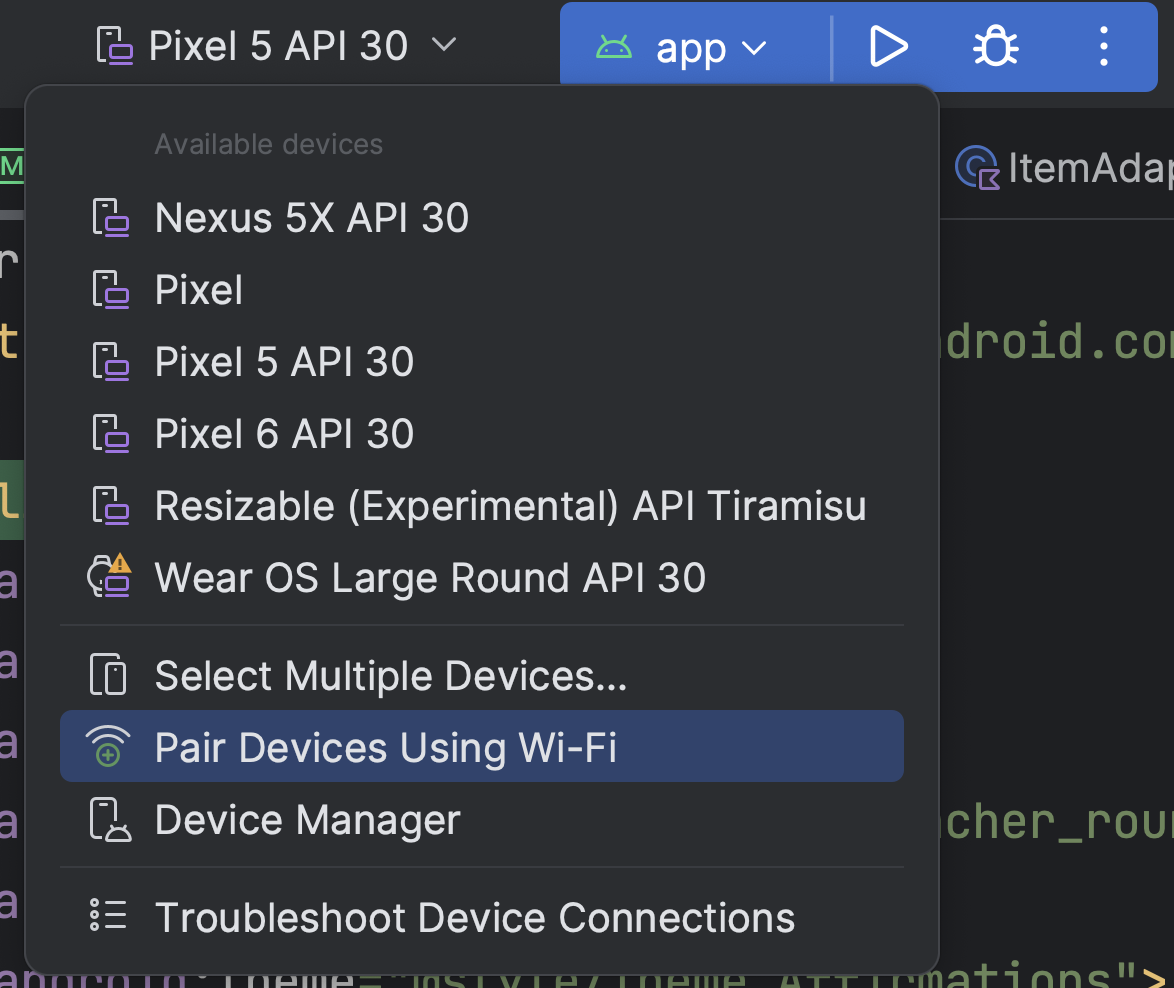
Open Android Studio and select Pair Devices Using Wi-Fi from the run configurations menu.
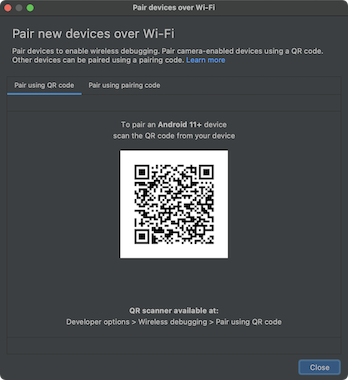
The Pair devices over Wi-Fi window pops up, as shown in figure 2.
On your device, tap Wireless debugging and pair your device:
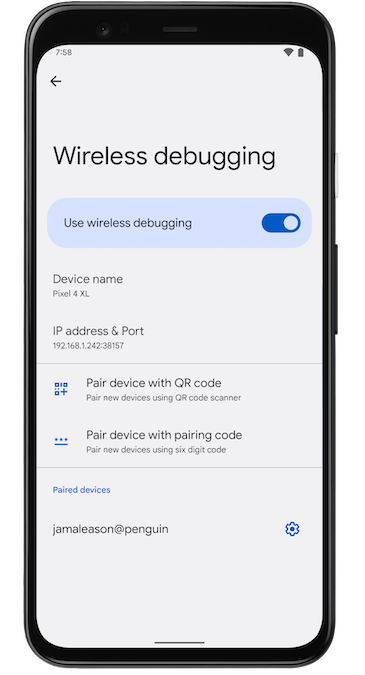
To pair your device with a QR code, select Pair device with QR code and scan the QR code obtained from the Pair devices over Wi-Fi popup shown in figure 2.
To pair your device with a pairing code, select Pair device with pairing code from the Pair devices over Wi-Fi popup. On your device, select Pair using pairing code and take note of the six-digit code provided. Once your device appears on the Pair devices over Wi-Fi window, you can select Pair and enter the six-digit code shown on your device.
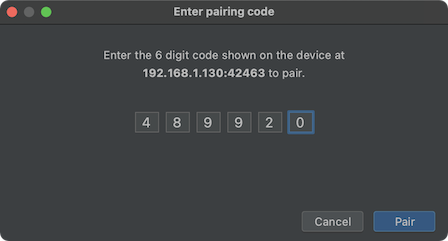
After your device is paired, you can attempt to deploy your app to your device.
To pair a different device or to forget the current device on your workstation, navigate to Wireless debugging on your device. Tap your workstation name under Paired devices and select Forget.
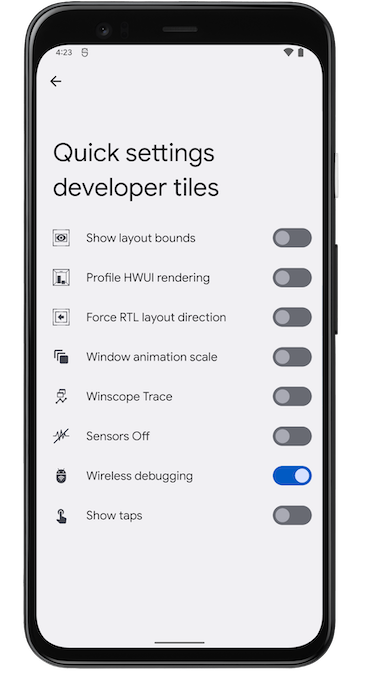
If you want to quickly turn on and off wireless debugging, you can utilize the Quick settings developer tiles for Wireless debugging, found in Developer Options > Quick settings developer tiles.
Wi-Fi connection using command line
Alternatively, to connect to your device using command line without Android Studio, follow these steps:
Enable developer options on your device, as described earlier.
Enable Wireless debugging on your device, as described earlier.
On your workstation, open a terminal window and navigate to android_sdk/platform-tools .
Find your IP address, port number, and pairing code by selecting Pair device with pairing code. Take note of the IP address, port number, and pairing code displayed on the device.
On your workstation’s terminal, run adb pair ipaddr:port . Use the IP address and port number from above.
When prompted, enter the pairing code, as shown below.

Resolve wireless connection issues
If you are having issues connecting to your device wirelessly, try the following troubleshooting steps to resolve the issue.
Check whether your workstation and device meet the prerequisites
Check that the workstation and device meet the prerequisites listed at the beginning of this section.
Check for other known issues
The following is a list of current known issues with wireless debugging (with adb or Android Studio) and how to resolve them:
Wi-Fi is not connecting: Secure Wi-Fi networks, such as corporate Wi-Fi networks, may block p2p connections and not let you connect over Wi-Fi. Try connecting with a cable or another (non-corp) Wi-Fi network. Wireless connection using `adb connect :port` over tcp/ip (following an initial USB connection) is another option, in case resorting to a non-corp network is an option.
adb over Wi-Fi sometimes turns off automatically: This can happen if the device either switches Wi-Fi networks or disconnects from the network. To resolve, re-connect to the network.
Connect wirelessly with a device after an initial USB connection (only option available on Android 10 and lower)
Note: This workflow is applicable also to Android 11 (and higher), the caveat being that it also involves an *initial* connection over physical USB.
Note: The following instructions do not apply to Wear devices running Android 10 (API level 29) or lower. See the guide about debugging a Wear OS app for more information.
adb usually communicates with the device over USB, but you can also use adb over Wi-Fi. To connect a device running Android 10 (API level 29) or lower, follow these initial steps over USB:
-
Connect your Android device and adb host computer to a common Wi-Fi network.
Note: Beware that not all access points are suitable. You might need to use an access point whose firewall is configured properly to support adb .
Your device is now connected to adb .
If the adb connection to your device is lost:
- Make sure that your host is still connected to the same Wi-Fi network as your Android device.
- Reconnect by executing the adb connect step again.
- If that doesn’t work, reset your adb host:
Then start over from the beginning.
Query for devices
Before issuing adb commands, it is helpful to know what device instances are connected to the adb server. Generate a list of attached devices using the devices command:
In response, adb prints this status information for each device:
- Serial number: adb creates a string to uniquely identify the device by its port number. Here’s an example serial number: emulator-5554
- State: The connection state of the device can be one of the following:
- offline : The device is not connected to adb or is not responding.
- device : The device is connected to the adb server. Note that this state does not imply that the Android system is fully booted and operational, because the device connects to adb while the system is still booting. After boot-up, this is the normal operational state of a device.
- no device : There is no device connected.
The following example shows the devices command and its output. There are three devices running. The first two lines in the list are emulators, and the third line is a hardware device that is attached to the computer.
Emulator not listed
The adb devices command has a corner-case command sequence that causes running emulators to not show up in the adb devices output even though the emulators are visible on your desktop. This happens when all of the following conditions are true:
- The adb server is not running.
- You use the emulator command with the -port or -ports option with an odd-numbered port value between 5554 and 5584.
- The odd-numbered port you chose is not busy, so the port connection can be made at the specified port number — or, if it is busy, the emulator switches to another port that meets the requirements in 2.
- You start the adb server after you start the emulator.
One way to avoid this situation is to let the emulator choose its own ports and to run no more than 16 emulators at once. Another way is to always start the adb server before you use the emulator command, as explained in the following examples.
Example 1: In the following command sequence, the adb devices command starts the adb server, but the list of devices does not appear.
Stop the adb server and enter the following commands in the order shown. For the AVD name, provide a valid AVD name from your system. To get a list of AVD names, type emulator -list-avds . The emulator command is in the android_sdk /tools directory.
Example 2: In the following command sequence, adb devices displays the list of devices because the adb server was started first.
To see the emulator in the adb devices output, stop the adb server, and then start it again after using the emulator command and before using the adb devices command, as follows:
For more information about emulator command-line options, see Command-Line startup options.
Send commands to a specific device
- Use the devices command to get the serial number of the target.
- Once you have the serial number, use the -s option with the adb commands to specify the serial number.
- If you’re going to issue a lot of adb commands, you can set the $ANDROID_SERIAL environment variable to contain the serial number instead.
- If you use both -s and $ANDROID_SERIAL , -s overrides $ANDROID_SERIAL .
In the following example, the list of attached devices is obtained, and then the serial number of one of the devices is used to install the helloWorld.apk on that device:
Note: If you issue a command without specifying a target device when multiple devices are available, adb displays an error «adb: more than one device/emulator».
If you have multiple devices available but only one is an emulator, use the -e option to send commands to the emulator. If there are multiple devices but only one hardware device attached, use the -d option to send commands to the hardware device.
Install an app
You can use adb to install an APK on an emulator or connected device with the install command:
You must use the -t option with the install command when you install a test APK. For more information, see -t .
To install multiple APKs use install-multiple . This is useful if you download all the APKs for a specific device for your app from the Play Console and want to install them on an emulator or physical device.
For more information about how to create an APK file that you can install on an emulator/device instance, see Build and run your app.
Note: If you are using Android Studio, you do not need to use adb directly to install your app on the emulator or device. Instead, Android Studio handles the packaging and installation of the app for you.
Set up port forwarding
Use the forward command to set up arbitrary port forwarding, which forwards requests on a specific host port to a different port on a device. The following example sets up forwarding of host port 6100 to device port 7100:
The following example sets up forwarding of host port 6100 to local:logd:
This could be useful if you are trying to detemine what is being sent to a given port on the device. All received data will be written to the system-logging daemon and displayed in the device logs.
Copy files to and from a device
Use the pull and push commands to copy files to and from a device. Unlike the install command, which only copies an APK file to a specific location, the pull and push commands let you copy arbitrary directories and files to any location in a device.
To copy a file or directory and its sub-directories from the device, do the following:
To copy a file or directory and its sub-directories to the device, do the following:
Replace local and remote with the paths to the target files/directory on your development machine (local) and on the device (remote). For example:
Stop the adb server
In some cases, you might need to terminate the adb server process and then restart it to resolve the problem. For example, this could be the case if adb does not respond to a command.
To stop the adb server, use the adb kill-server command. You can then restart the server by issuing any other adb command.
Issue adb commands
Issue adb commands from a command line on your development machine or from a script using the following:
If there’s only one emulator running or only one device connected, the adb command is sent to that device by default. If multiple emulators are running and/or multiple devices are attached, you need to use the -d , -e , or -s option to specify the target device to which the command should be directed.
You can see a detailed list of all supported adb commands using the following command:
Issue shell commands
You can use the shell command to issue device commands through adb or to start an interactive shell. To issue a single command, use the shell command like this:
To start an interactive shell on a device, use the shell command like this:
To exit an interactive shell, press Control+D or type exit .
Android provides most of the usual Unix command-line tools. For a list of available tools, use the following command:
Help is available for most of the commands via the —help argument. Many of the shell commands are provided by toybox. General help applicable to all toybox commands is available via toybox —help .
With Android Platform Tools 23 and higher, adb handles arguments the same way that the ssh(1) command does. This change has fixed a lot of problems with command injection and makes it possible to safely execute commands that contain shell metacharacters, such as adb install Let\’sGo.apk . This change means that the interpretation of any command that contains shell metacharacters has also changed.
For example, adb shell setprop key ‘ value ‘ is now an error, because the single quotes ( ‘ ) are swallowed by the local shell, and the device sees adb shell setprop key value . To make the command work, quote twice, once for the local shell and once for the remote shell, as you do with ssh(1) . For example, adb shell setprop key ‘ value ‘ .
See also Logcat command-line tool, which is useful for monitoring the system log.
Call activity manager
Within an adb shell, you can issue commands with the activity manager ( am ) tool to perform various system actions, such as start an activity, force-stop a process, broadcast an intent, modify the device screen properties, and more.
While in a shell, the am syntax is:
You can also issue an activity manager command directly from adb without entering a remote shell. For example:
Table 1. Available activity manager commands
- -D : Enable debugging.
- -W : Wait for launch to complete.
- —start-profiler file : Start profiler and send results to file .
- -P file : Like —start-profiler , but profiling stops when the app goes idle.
- -R count : Repeat the activity launch count times. Prior to each repeat, the top activity will be finished.
- -S : Force stop the target app before starting the activity.
- —opengl-trace : Enable tracing of OpenGL functions.
- —user user_id | current : Specify which user to run as; if not specified, then run as the current user.
- —user user_id | current : Specify which user to run as. If not specified, then run as the current user.
- —user user_id | all | current : Specify which user’s processes to kill. If not specified, then kill all users’ processes.
- [—user user_id | all | current] : Specify which user to send to. If not specified, then send to all users.
- -r : Print raw results (otherwise decode report_key_streamresult ). Use with [-e perf true] to generate raw output for performance measurements.
- -e name value : Set argument name to value . For test runners a common form is -e testrunner_flag value [, value . ] .
- -p file : Write profiling data to file .
- -w : Wait for instrumentation to finish before returning. Required for test runners.
- —no-window-animation : Turn off window animations while running.
- —user user_id | current : Specify which user instrumentation runs in. If not specified, run in the current user.
- —user [ user_id | current] : When supplying a process name, specify the user of the process to dump. If not specified, the current user is used.
- -n : Dump native heap instead of managed heap.
- -w : Wait for debugger when app starts.
- —persistent : Retain this value.
- —gdb : Start gdbserv on the given port at crash/ANR.
Specification for intent arguments
For activity manager commands that take an intent argument, you can specify the intent with the following options:
-a action Specify the intent action, such as android.intent.action.VIEW . You can declare this only once. -d data_uri Specify the intent data URI, such as content://contacts/people/1 . You can declare this only once. -t mime_type Specify the intent MIME type, such as image/png . You can declare this only once. -c category Specify an intent category, such as android.intent.category.APP_CONTACTS . -n component Specify the component name with package name prefix to create an explicit intent, such as com.example.app/.ExampleActivity . -f flags Add flags to the intent, as supported by setFlags() . —esn extra_key Add a null extra. This option is not supported for URI intents. -e | —es extra_key extra_string_value Add string data as a key-value pair. —ez extra_key extra_boolean_value Add boolean data as a key-value pair. —ei extra_key extra_int_value Add integer data as a key-value pair. —el extra_key extra_long_value Add long data as a key-value pair. —ef extra_key extra_float_value Add float data as a key-value pair. —eu extra_key extra_uri_value Add URI data as a key-value pair. —ecn extra_key extra_component_name_value Add a component name, which is converted and passed as a ComponentName object. —eia extra_key extra_int_value [, extra_int_value . ] Add an array of integers. —ela extra_key extra_long_value [, extra_long_value . ] Add an array of longs. —efa extra_key extra_float_value [, extra_float_value . ] Add an array of floats. —grant-read-uri-permission Include the flag FLAG_GRANT_READ_URI_PERMISSION . —grant-write-uri-permission Include the flag FLAG_GRANT_WRITE_URI_PERMISSION . —debug-log-resolution Include the flag FLAG_DEBUG_LOG_RESOLUTION . —exclude-stopped-packages Include the flag FLAG_EXCLUDE_STOPPED_PACKAGES . —include-stopped-packages Include the flag FLAG_INCLUDE_STOPPED_PACKAGES . —activity-brought-to-front Include the flag FLAG_ACTIVITY_BROUGHT_TO_FRONT . —activity-clear-top Include the flag FLAG_ACTIVITY_CLEAR_TOP . —activity-clear-when-task-reset Include the flag FLAG_ACTIVITY_CLEAR_WHEN_TASK_RESET . —activity-exclude-from-recents Include the flag FLAG_ACTIVITY_EXCLUDE_FROM_RECENTS . —activity-launched-from-history Include the flag FLAG_ACTIVITY_LAUNCHED_FROM_HISTORY . —activity-multiple-task Include the flag FLAG_ACTIVITY_MULTIPLE_TASK . —activity-no-animation Include the flag FLAG_ACTIVITY_NO_ANIMATION . —activity-no-history Include the flag FLAG_ACTIVITY_NO_HISTORY . —activity-no-user-action Include the flag FLAG_ACTIVITY_NO_USER_ACTION . —activity-previous-is-top Include the flag FLAG_ACTIVITY_PREVIOUS_IS_TOP . —activity-reorder-to-front Include the flag FLAG_ACTIVITY_REORDER_TO_FRONT . —activity-reset-task-if-needed Include the flag FLAG_ACTIVITY_RESET_TASK_IF_NEEDED . —activity-single-top Include the flag FLAG_ACTIVITY_SINGLE_TOP . —activity-clear-task Include the flag FLAG_ACTIVITY_CLEAR_TASK . —activity-task-on-home Include the flag FLAG_ACTIVITY_TASK_ON_HOME . —receiver-registered-only Include the flag FLAG_RECEIVER_REGISTERED_ONLY . —receiver-replace-pending Include the flag FLAG_RECEIVER_REPLACE_PENDING . —selector Requires the use of -d and -t options to set the intent data and type. URI component package You can directly specify a URI, package name, and component name when not qualified by one of the preceding options. When an argument is unqualified, the tool assumes the argument is a URI if it contains a «:» (colon). The tools assumes the argument is a component name if it contains a «/» (forward-slash); otherwise it assumes the argument is a package name.
Call package manager ( pm )
Within an adb shell, you can issue commands with the package manager ( pm ) tool to perform actions and queries on app packages installed on the device.
While in a shell, the pm syntax is:
You can also issue a package manager command directly from adb without entering a remote shell. For example:
Table 2. Available package manager commands
- -f : See associated file.
- -d : Filter to only show disabled packages.
- -e : Filter to only show enabled packages.
- -s : Filter to only show system packages.
- -3 : Filter to only show third-party packages.
- -i : See the installer for the packages.
- -u : Include uninstalled packages.
- —user user_id : The user space to query.
- -g : Organize by group.
- -f : Print all information.
- -s : Short summary.
- -d : Only list dangerous permissions.
- -u : List only the permissions users will see.
- -f : List the APK file for the test package.
- target_package : List test packages for only this app.
- -r : Reinstall an existing app, keeping its data.
- -t : Allow test APKs to be installed. Gradle generates a test APK when you have only run or debugged your app or have used the Android Studio Build > Build APK command. If the APK is built using a developer preview SDK, you must include the -t option with the install command if you are installing a test APK.
- -i installer_package_name : Specify the installer package name.
- —install-location location : Set the install location using one of the following values:
- 0 : Use the default install location.
- 1 : Install on internal device storage.
- 2 : Install on external media.
—no-incremental prevents adb from using this feature.
- -k : Keep the data and cache directories after package removal.
- —user user_id : Specifies the user for whom the package is removed.
- —versionCode version_code : Only uninstalls if the app has the given version code.
- —user user_id : The user to disable.
- 0 : Auto: Let system decide the best location.
- 1 : Internal: Install on internal device storage.
- 2 : External: Install on external media.
Note: This is only intended for debugging. Using this can cause apps to break and other undesireable behavior.
- 0 [auto] : Let system decide the best location
- 1 [internal] : Install on internal device storage
- 2 [external] : Install on external media
- none : nothing has been recorded for this domain
- verified : the domain has been successfully verified
- approved : force-approved, usually through shell
- denied : force-denied, usually through shell
- migrated : preserved verification from a legacy response
- restored : preserved verification from a user data restore
- legacy_failure : rejected by a legacy verifier, unknown reason
- system_configured : automatically approved by the device config
- >= 1024 : custom error code, which is specific to the device verifier
- —user user_id : include user selections. Include all domains, not just autoVerify ones.
- package : the package to reset, or «all» to reset all packages
- —user user_id : include user selections. Include all domains, not just autoVerify ones.
- —re-verify : send even if the package has recorded a response
- —package package : the package to set, or «all» to set all packages
- state : the code to set the domains to. Valid values are:
- STATE_NO_RESPONSE (0) : reset as if no response was ever recorded.
- STATE_SUCCESS (1) : treat domain as successfully verified by domain verification agent. Note that the domain verification agent can override this.
- STATE_APPROVED (2) : treat domain as always approved, preventing the domain verification agent from changing it.
- STATE_DENIED (3) : treat domain as always denied, preventing the domain verification agent from changing it.
- —user user_id : the user to change selections for
- —package package : the package to set
- enabled : whether to approve the domain
- domains : space-separated list of domains to change, or «all» to change every domain
- —user user_id : the user to change selections for
- —package package : the package to set
- enabled : whether to approve the domain
- domains : space-separated list of domains to change, or «all» to change every domain
- —user user_id : the user to change selections for
- —package package : the package to set, or «all» to set all packages; packages will be reset if no package is specified
- allowed : true to allow the package to open auto-verified links, false to disable
- —user user_id : the user to query for
- —package package : optionally also print for all web domains declared by a package, or «all» to print all packages
- domains : space-separated list of domains to query for
Call device policy manager ( dpm )
To help you develop and test your device management apps, issue commands to the device policy manager ( dpm ) tool. Use the tool to control the active admin app or change a policy’s status data on the device.
While in a shell, the dpm syntax is:
You can also issue a device policy manager command directly from adb without entering a remote shell:
Table 3. Available device policy manager commands
- —user user_id : Specify the target user. You can also pass —user current to select the current user.
- —user user_id : Specify the target user. You can also pass —user current to select the current user.
- —name name : Specify the human-readable organization name.
- —user user_id : Specify the target user. You can also pass —user current to select the current user.
- —name name : Specify the human-readable organization name.
- —user user_id : Specify the target user. You can also pass —user current to select the current user.
Supported on devices running Android 9.0 (API level 28) and higher.
This command is rate-limited. Supported on devices running Android 9.0 (API level 28) and higher.
This command is rate-limited. Supported on devices running Android 9.0 (API level 28) and higher.
Take a screenshot
The screencap command is a shell utility for taking a screenshot of a device display.
While in a shell, the screencap syntax is:
To use screencap from the command line, enter the following:
Here’s an example screenshot session, using the adb shell to capture the screenshot and the pull command to download the file from the device:
Record a video
The screenrecord command is a shell utility for recording the display of devices running Android 4.4 (API level 19) and higher. The utility records screen activity to an MPEG-4 file. You can use this file to create promotional or training videos or for debugging and testing.
In a shell, use the following syntax:
To use screenrecord from the command line, enter the following:
Stop the screen recording by pressing Control+C (Command+C on macOS). Otherwise, the recording stops automatically at three minutes or the time limit set by —time-limit .
To begin recording your device screen, run the screenrecord command to record the video. Then, run the pull command to download the video from the device to the host computer. Here’s an example recording session:
The screenrecord utility can record at any supported resolution and bit rate you request, while retaining the aspect ratio of the device display. The utility records at the native display resolution and orientation by default, with a maximum length of three minutes.
Limitations of the screenrecord utility:
- Audio is not recorded with the video file.
- Video recording is not available for devices running Wear OS.
- Some devices might not be able to record at their native display resolution. If you encounter problems with screen recording, try using a lower screen resolution.
- Rotation of the screen during recording is not supported. If the screen does rotate during recording, some of the screen is cut off in the recording.
Table 4. screenrecord options
Options Description —help Display command syntax and options —size width x height Set the video size: 1280×720 . The default value is the device’s native display resolution (if supported), 1280×720 if not. For best results, use a size supported by your device’s Advanced Video Coding (AVC) encoder. —bit-rate rate Set the video bit rate for the video, in megabits per second. The default value is 4Mbps. You can increase the bit rate to improve video quality, but doing so results in larger movie files. The following example sets the recording bit rate to 6Mbps: —time-limit time Set the maximum recording time, in seconds. The default and maximum value is 180 (3 minutes). —rotate Rotate the output 90 degrees. This feature is experimental. —verbose Display log information on the command-line screen. If you do not set this option, the utility does not display any information while running. Read ART profiles for apps
Starting in Android 7.0 (API level 24), the Android Runtime (ART) collects execution profiles for installed apps, which are used to optimize app performance. Examine the collected profiles to understand which methods are executed frequently and which classes are used during app startup.
Note: It is only possible to retrieve the execution profile filename if you have root access to the file system, for example, on an emulator.
To produce a text form of the profile information, use the following command:
To retrieve the file produced, use:
Reset test devices
If you test your app across multiple test devices, it may be useful to reset your device between tests, for example, to remove user data and reset the test environment. You can perform a factory reset of a test device running Android 10 (API level 29) or higher using the testharness adb shell command, as shown:
When restoring the device using testharness , the device automatically backs up the RSA key that allows debugging through the current workstation in a persistent location. That is, after the device is reset, the workstation can continue to debug and issue adb commands to the device without manually registering a new key.
Additionally, to help make it easier and more secure to keep testing your app, using the testharness to restore a device also changes the following device settings:
- The device sets up certain system settings so that initial device setup wizards do not appear. That is, the device enters a state from which you can quickly install, debug, and test your app.
- Settings:
- Disables lock screen.
- Disables emergency alerts.
- Disables auto-sync for accounts.
- Disables automatic system updates.
- Disables preinstalled security apps.
If your app needs to detect and adapt to the default settings of the testharness command, use the ActivityManager.isRunningInUserTestHarness() .
sqlite
sqlite3 starts the sqlite command-line program for examining SQLite databases. It includes commands such as .dump to print the contents of a table and .schema to print the SQL CREATE statement for an existing table. You can also execute SQLite commands from the command line, as shown:
Note: It is only possible to access a SQLite database if you have root access to the file system, for example, on an emulator.
Content and code samples on this page are subject to the licenses described in the Content License. Java and OpenJDK are trademarks or registered trademarks of Oracle and/or its affiliates.
ADB (Android Debug Bridge)

ADB is a command-line tool that lets you communicate with connected devices. It provides various device actions like clear app data, debugging apps, see device stats, capture screenshot etc..
In this article we’ll cover usage of some of the most useful commands of ADB.
ADB Shell
In adb you can start shell script and run shell commands like ls, rm, mkdir, netstat, dumpsys etc.
I find ls quite useful whenever i have to pull and push file between system and device it helps me finding files location on device
you can see sdcard in image right? Our device files are stored there we can use cd, ls to find files then use pull and push command to move files
ADB Pull and Push
Passing files between Device and System(Laptop or PC).
Push: Moving file from system to device.
Pull: Fetching files from device to system
If destination isn’t provided then file will be pulled to current directory opened in your Terminal.
ADB Screenshot
Capturing screenshot using screencap command.
ADB Install/Uninstall
To install an APK either release or debug use
Sometimes we want to install an updated APK over existing there we need to specify a release flag like -r
To uninstall an apk
ADB Screen Record
This one is mostly useful for Testers. I said testers because they can start recording before doing manual testing and share recordings if any issue occurs.
By default we can record a video of at max 3 minutes but it can be changed by specifying time-limit property
There are many other properties which we can specify. Use help to know details
ADB am (Activity Manager)
am can be used to stuffs like broadcasting intent starting an activity or opening settings screen. Try below command to check what am provides.
Let’s look at some of the Examples:
Note: -a represents action, -c represents category and -n represents component and -d is data
Making a Call
To make a call use -a android.intent.action.CALL
Force stop an app
To force stop an app provide it’s packageName
Open google map
Either you can provide latitude and longitude as below
Or you can query the address using q=search address
Opening a Url
To open a url use am(Activity Manager) with
Opening IME Settings
Broadcasting Intent
pm(Package manager)
pm also provides several useful commands
To see everything which pm provides run
To view packages of all installed apps we can use
Enable disable Wifi
i know not very useful but it’s there
There is many more which you can find and let me know too but these are i often use to save my time and debug my apps.