How To Use Your Ipad As A Second Monitor On Windows
In order for you to use your iPad as a second monitor, we will be using a paid app. However, if you’d like a free alternative, we have mentioned one in the article itself. Use the table below to navigate to it.
Benefits of a Multi-Monitor Setup#
Whether you’re using your iPad as a second monitor or outfitting it as a multi-monitor setup, there are a lot of benefits to doing so. Some of these are:
1. More Real Estate#
If you’re in the habit of opening multiple applications you already know what a pain it can be managing everything on a single screen. Using your iPad as a second monitor essentially gives you another desktop that can help ease the burden on the single screen.
2. Boosts Productivity#
This is one benefit I can vouch for myself. Being in a job that requires me to draw context from multiple tabs at once, my iPad helps a lot here. Using my iPad as a second monitor gives me the ability to have multiple apps open. All I have to do is avert my gaze there and all the information is waiting for me. Moreover, since the additional display works just like an extended one, you get all the clipboard options too.
3. Entertainment#
Hey, I’m not judging. If you’re in the habit of doing an activity on the side while you work, it’s perfect. Using your iPad as a second monitor means you no longer have to rely on just background sounds and can look at your iPad every now and then.
These are only some of the benefits you can derive from using your iPad as a second monitor. Once you hook it up, you can explore more yourself.
Things You Will Need to Use iPad as Second Monitor#
Before we get to the actual connection, there are a couple of things we need. I have created a small checklist that you should tick off. Having all this software and hardware beside you will ensure you can use your iPad as a second monitor immediately.
1. Duet Display – Paid#
The software we will be using is called Duet Display. While it is a paid software, it is an excellent one and works flawlessly. You can download Duet Display for your iPad ($9.99) and Windows (download). However, if you would like detailed instructions, scroll below and I’ll help you set it up.
2. iTunes#
In order to create a stable connection, it is advisable you download and install iTunes on your Windows PC. Use the links below to install iTunes and simply have it open in the background for the later steps. Download iTunes: Microsoft StoreDownload iTunes: Apple Official
3. A Fully Charged iPad and Laptop/PC#
Using your iPad as a second monitor undoubtedly uses battery from both your devices. Since we will also be downloading and installing software or two, I recommend fully charging your devices before we begin.
4. A Lightning to USB Cable#
We will need to establish a physical connection between your iPad and Windows PC. In order to use your iPad as a second monitor effectively, use the cable that came with your iPad for the steps below.
How to Download and Set-up Duet Display on iPad#
Let’s begin by setting up Duet Display on the iPad first. Follow the steps below to do so:
- Open the App Store on your iPad.
- Using the search bar, find and tap Duet Display.
- Tap the blue button to purchase and install Duet Display.
- Once installed, tap the Open button to begin.
Setting up#
- Press Next on the first screen that appears.
- Depending on your preferences, tap Accept or Not Now.
- You can skip the sign-up and simply tap Connect on the bottom right.
- Tap OK when Duet asks to access Bluetooth.
Duet Display on iPad has been set up and is ready to use. Just a few more moments before you use your iPad as a second monitor.
How to Download and Set-up Duet Display on Windows#
Setting up Duet Display on your Windows PC is as easy as the iPad. Since we have already purchased the software on the iPad, we won’t need to do it again. Simply follow the steps below to download and install Duet Display on PC.
- Visit Duet Display’s official website (Click Here)
- Once there, click the Windows button on the top right and the download will begin.
- Once downloaded, click it once to start the setup.
Setting up#
- Choose the desired path to where you want to install. Tick the license terms and press Install.
- The setup will take a few minutes and will install Duet Display on your computer. Once it’s done, press the Finish button.
- You must now restart to finish Duet Display’s setup. Since we will be using our iPad as a second monitor right now, I recommend pressing Yes and coming back to the guide once done. Now that you’re back, you’ll like to know that Duet Display is installed and ready on both your devices. Let’s move on to connecting this all and making your iPad a second monitor.
How to Connect and Use the iPad as a Second Monitor on Windows#
Before we begin, make sure your iPad along with the lightning cable is nearby. Furthermore, turn on iTunes and just have it running in the background. If Apple asks you to sign in, do so. Now, follow the steps below to use your iPad as a second monitor.
1.Unlock your iPad and have it on the Home Screen.
2. Connect your iPad to the PC using the lightning to USB cable. If your iPad asks you to enter your passcode, do so.
3. Open Duet Display on your iPad and you will see the screen below. Simply leave your iPad be. 4. Open Duet Display on your Windows by double-clicking the shortcut.
5. Choose No from the Diagnostic pop-up that appears.
6. You can choose Yes if you would like the iPad to auto-connect wirelessly the next time. However, I recommend sticking to wired mode since it is lossless.
Do me a favor and look at your iPad. Congratulations, you’re now using your iPad as a second monitor! Since Windows will treat it as a separate desktop, you can use your existing mouse to iPad navigate the iPad. You can even use the iPad’s touch controls to use the second monitor!
Adjust Settings#
Now that your iPad is being used as a second monitor through Duet Display, you can go ahead and adjust some finer settings. Since Duet Display uses power from both your iPad and the PC, it gives some options for adjustment. You can fine-tune options like Framerate, Performance, and even the resolution to suit your needs. Remember, the lower you go, the longer the iPad will run. However, I recommend keeping it at the original settings since the iPad has quite a big battery capacity. And that’s it! You can now use your iPad as a second monitor whenever you wish. Just run Duet Display on both devices, hook them up and get to it. Happy productivity!
Bonus: Use This Free Alternative to Duet Display#
While you might be itching to use Duet Display on the iPad, I understand if you’re having second thoughts. After all, the app does charge $9.99. However, I have a solution for you. For the users who want to try using their iPad as a second monitor before they buy, there’s an alternative. Called Splashtop Wired XDisplay, the software does exactly the same thing but is free. Splashtop is also perfect for iPad users with older models and Windows 7 users.
However, Splashtop has been not been updated in over four years and is a bit laggy when compared to Duet Display. Still, if you’re looking to use your iPad as a second monitor and don’t mind the things above, you can give it a try.
Installing and using Splashtop Wired XDisplay follows the same steps as Duet Display. Simply download the app on both the App Store and Windows. You can then connect your iPad like before and it will start working. My experience with Splashtop was as I mentioned, a bit laggy but still manageable. Give it a try to use your iPad as a second monitor.
Get Splashtop Wired XDisplay: App StoreGet Splashtop Wired XDisplay for Windows: Website
Bonus: Use iPad as Secondary Display with Mac#
While Windows requires additional software to use the iPad as a second display, Apple users can get this done much easily. The Sidecar feature available in macOS allows an iPad user to use it as a second monitor. You can either extend your display for more real estate or mirror your Mac desktop to get finer work done.
However, using Sidecar requires macOS Catalina or later. Moreover, you must have a compatible iPad using iPadOS 13 or later. Check out the full list of Sidecar system requirements to get a complete idea.
Sidecar, once set up, is extremely fluid and efficient. Users can easily start a Sidecar session, switch to screen mirroring, and adjust other finer aspects. Moreover, one of the best iPadOS 15 features — Universal Control — gives users the power to use a single mouse and keyboard across multiple Apple devices at the same time. Universal control works flawlessly across iPadOS and macOS Monterey.
Give Sidecar a try if you’re already in the Apple ecosystem. If you’re a Windows or Linux user, you can actually get macOS Monterey Universal Control on your devices as well.
Use Your iPad as Second Monitor and save Costs#
Here’s hoping that using your iPad as a second monitor will help you save valuable time and money. However, remember that your iPad is capable of a lot more. Users wanting more productivity out of the iPad can check out the iPad’s new multitasking controls. Or if you feel like exploring check out how to use the new widgets on the iPad. How’s your experience with the iPad as a second monitor? Let us know in the comments below!
How to Turn Your iPad into a Second Display for Your Windows Computer
Two monitors are better than one, I will leave it up for you to decide

I have been feeling sick lately and without any new stories, readership is down. Health is my priority now, but I’m also trying to figure out what changed.
Is it the algorithm? Have I been blackballed after this story went viral? Or I have lost my writing mojo?
Maybe I should have bought myself that new mac mini I promised myself to get once I made money from writing.
Priorities. They change. For now, I took out my even older laptop to see if it can weave new magic into my writing.
And then I began to tinker with the idea if I can use my iPad as a second monitor for my old windows laptop. The reason is the iPad even if mine is only the 9th generation has a touchscreen and it also occupies my working desk anyway.
So, is it possible to make my iPad as second monitor, a quick google search pointed me to a few hacks, there are free options and there are paid ones.
Since I can’t still figure out if I am going for a dual monitor setup in my writing workflow I went for the free solution using the SplashTop Wired XDisplay
Disclosure: As an Amazon Associate I earn from qualifying purchases.
I also don’t have any business relationship with Splashtop.
Splashtop Wired XDisplay
From its website, the developer is the same company that makes remote desktops possible. The product is free but it has its paid version. There are other alternatives and from what I read about them, it works the same way.
You must have both apps installed on your windows laptop and your iPad — you can use your phones and Amazon kindles too.
Here’s how to use your iPad as a second screen with SplashTop:
iPhone или iPad, в качестве второго дисплея для компьютера Windows. Как это сделать бесплатно?
Если вам не хватает размеров штатного дисплея PC (особенно это актуально в случае, если вы используете ноутбук с небольшой диагональю дисплея), то его можно расширить за счёт экранов iPhone или iPad. О том, как это сделать читайте в этом материале.
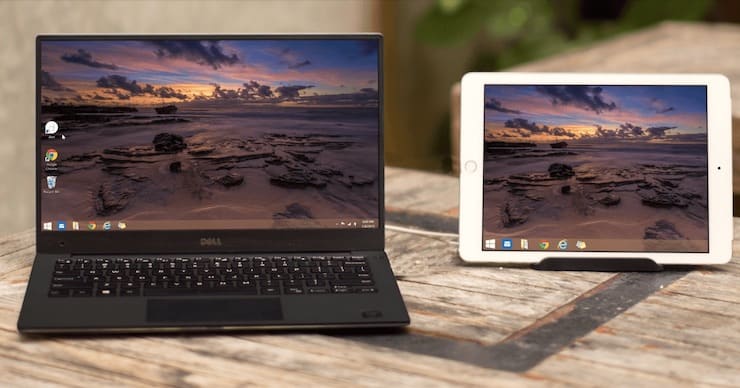
Для расширения рабочего пространства Windows PC мы воспользуемся бесплатным сервисом Spacedesk. На компьютер устанавливается программа, являющаяся серверной частью, а в смартфоне вместо клиента используется браузер.
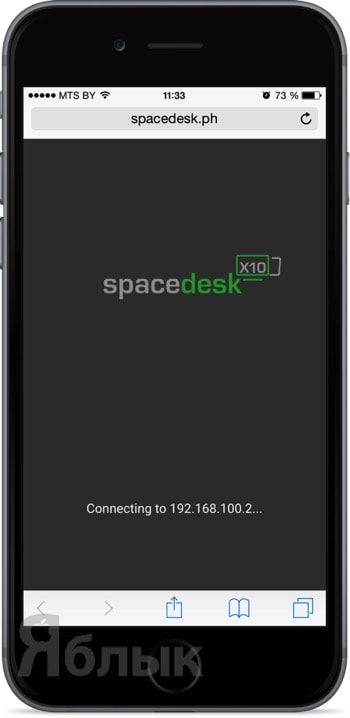
После выполнения несложных настроек, присоединения в одну сеть Wi-Fi и запуска сервиса вы получите расширенный рабочий стол. Скорость работы довольно высока, а задержка минимальна.
Как расширить рабочий стол Windows при помощи iPhone или iPad?
1. Пройдите на официальный сайт сервиса Spacedesk.
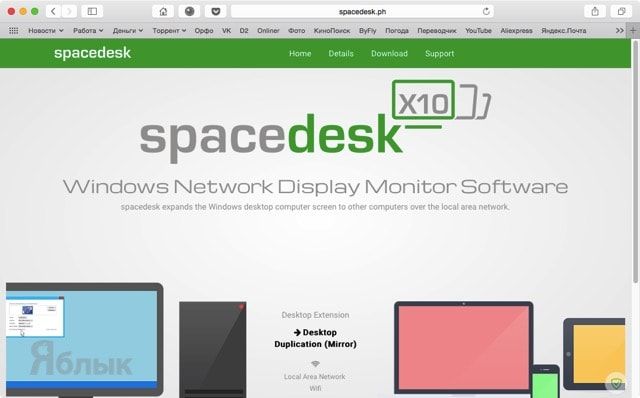
2. Перейдите во вкладку «Download».
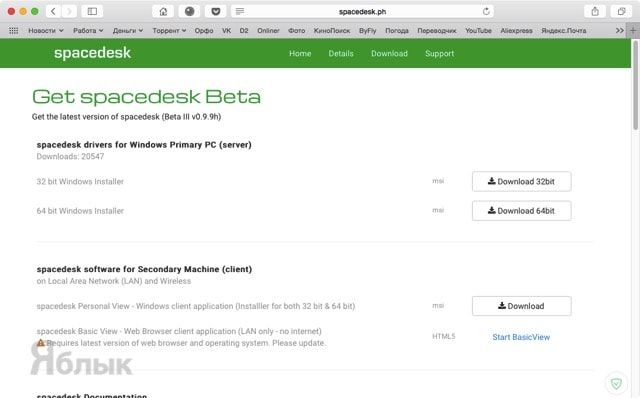
3. Скачайте серверную часть приложения «spacedesk drivers for Windows Primary PC (server)» нажатием кнопки «Download 32/64 bit» в зависимости от версии и разрядности системы.
4. Установите скачанное приложение и перезагрузите Windows PC.
5. После перезагрузки в трее появится иконка приложения.
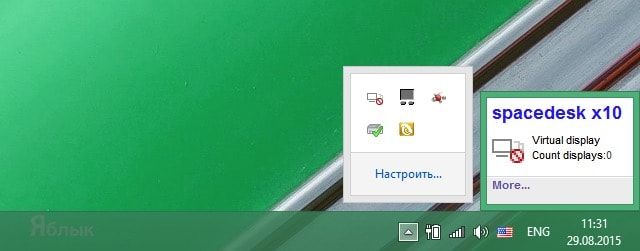
6. Подключите iPhone и iPad к одной беспроводной Wi-Fi сети вместе с компьютером (через сеть роутера или путём создания соединения компьютер-компьютер).
Примечание: На Windows 8 создание сети «компьютер-компьютер» (Ad-hoc) не отображается. Для её создания необходимо воспользоваться командной строкой, для этого обратитесь к следующей инструкции, размещённой на официальном сайте Microsoft. Более простым способом создания такого рода сети станет использование программы Connectify.
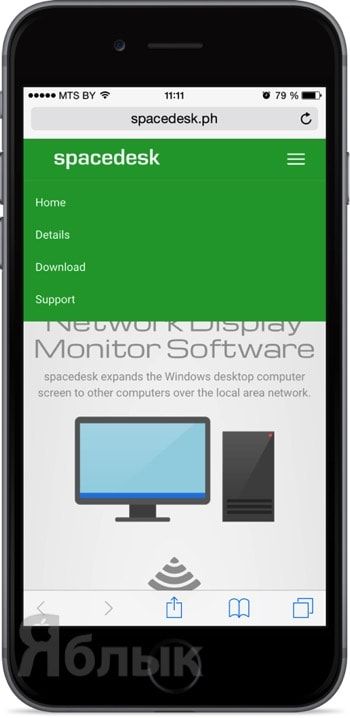
7. Откройте браузер Safari на iPhone, iPod touch и iPad.
8. Пройдите на официальный сайт сервиса Spacedesk.
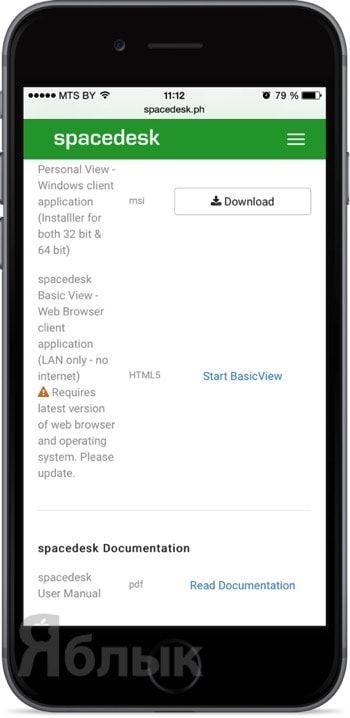
9. Нажмите кнопку меню и перейдите во вкладку «Download».
10. Включите режим «Start BasicView».
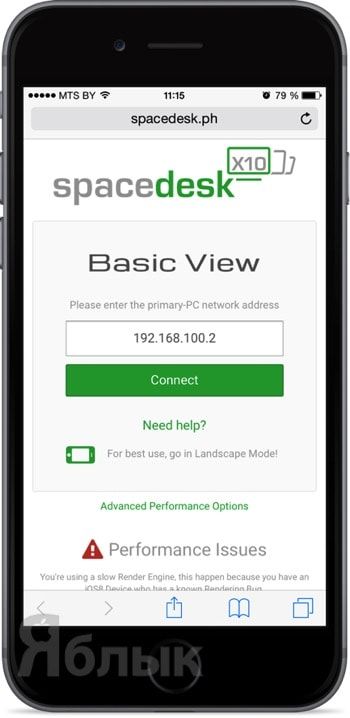
11. Введите IP-адрес PC, к которому вы хотите подключиться.
Как настроить рабочий стол Windows при использовании iPhone или iPad в качестве вспомогательного дисплея?
Для начала необходимо сделать так, чтобы iPhone или iPad автоматически не блокировался, для чего:
1. Откройте Настройки → Основные → Автоблокировка.
2. Установите значение «Никогда».
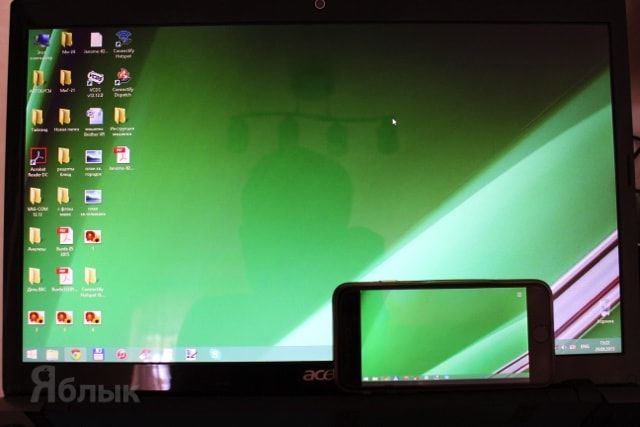
При первом подключении iPhone или iPad к PC через сервис Spacedesk, iOS-гаджет будет выступать в роли дублирующего монитор устройства.
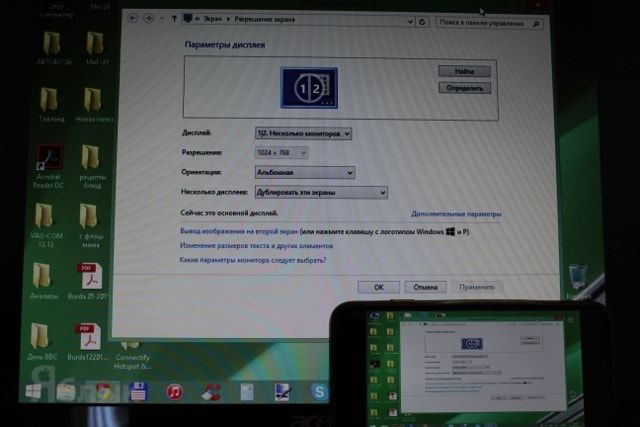
Для того, чтобы использовать iPhone или iPad в качестве вспомогательного дисплея:
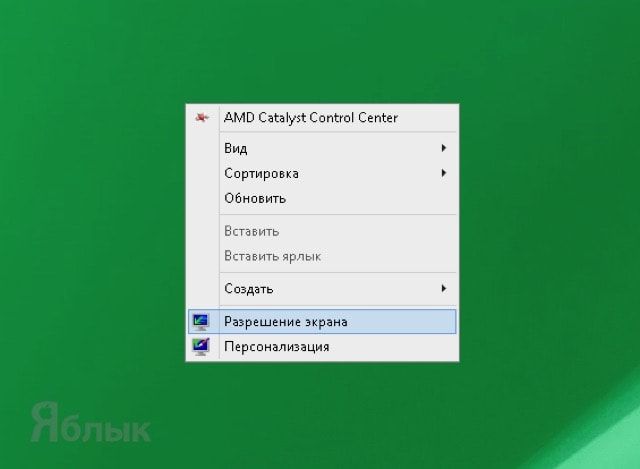
1. Щёлкните правой клавишей мыши по рабочему столу и выберите пункт «Разрешение экрана».
2. В поле «Несколько дисплеев» вместо пункта «Дублировать эти экраны» выберите «Расширить эти экраны» и нажмите кнопку «Применить».
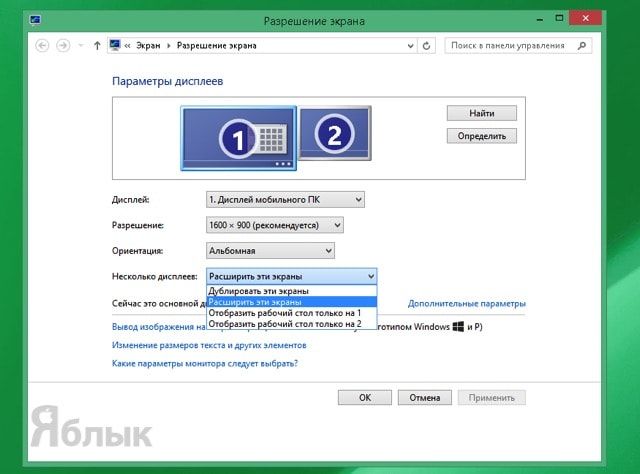
3. Если дисплей мобильного устройства станет основным, то ещё раз пройдите в настройки «Разрешение экрана» и в поле «Дисплей» выберите «Дисплей мобильного ПК» и поставьте галочку напротив пункта «Сделать основным дисплеем» и нажмите кнопку «Применить».
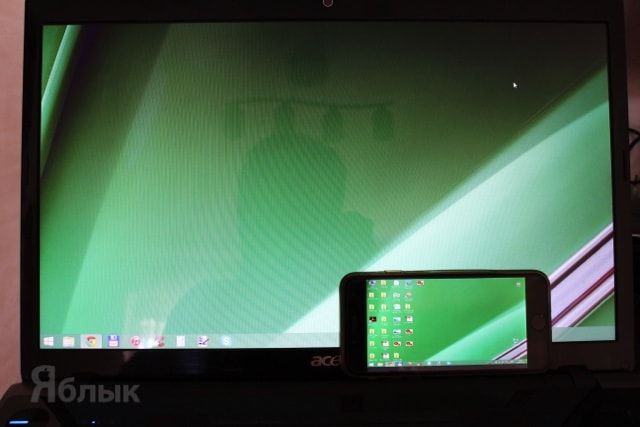
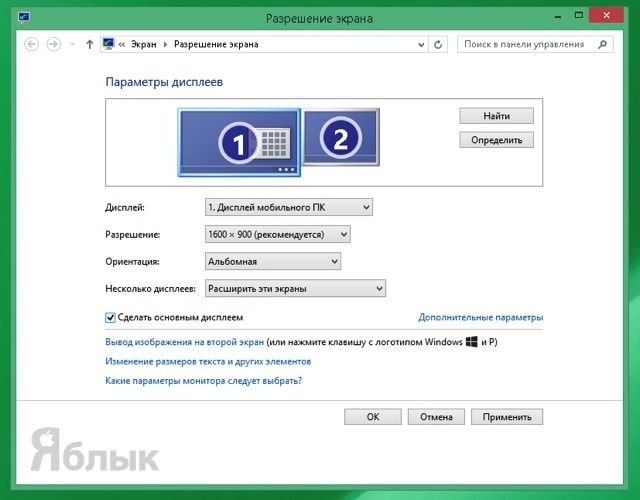
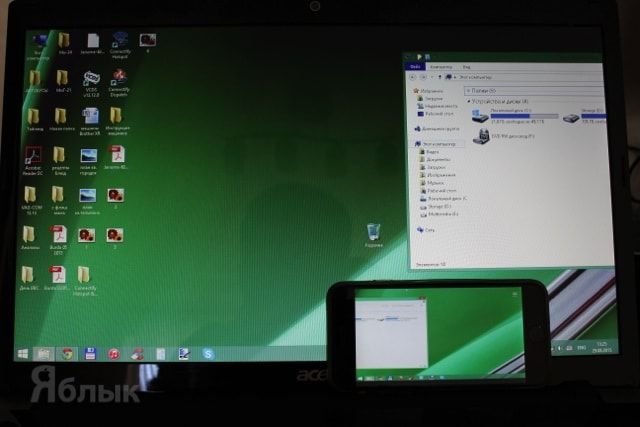
По умолчанию вспомогательный дисплей в лице iPhone или iPad будет располагаться справа от дисплея компьютера. Достаточно перетянуть какое-либо окно программы в Windows PC вправо, как оно тут же отобразится на дополнительном экране.
Ограничения
В качестве серверной части может выступать только Windows PC. Почему-то разработчики не выпустили версию ПО для macOS. Зато в качестве вспомогательного экрана могут выступать iOS/Windows Phone/Android-устройства, планшеты Surface, Mac и PC. На них должен быть установлен браузер Chrome, Firefox, Internet Explorer или Safari.
Как превратить очень старый iPad во второй дисплей компьютера. Новая жизнь!
 В закладки
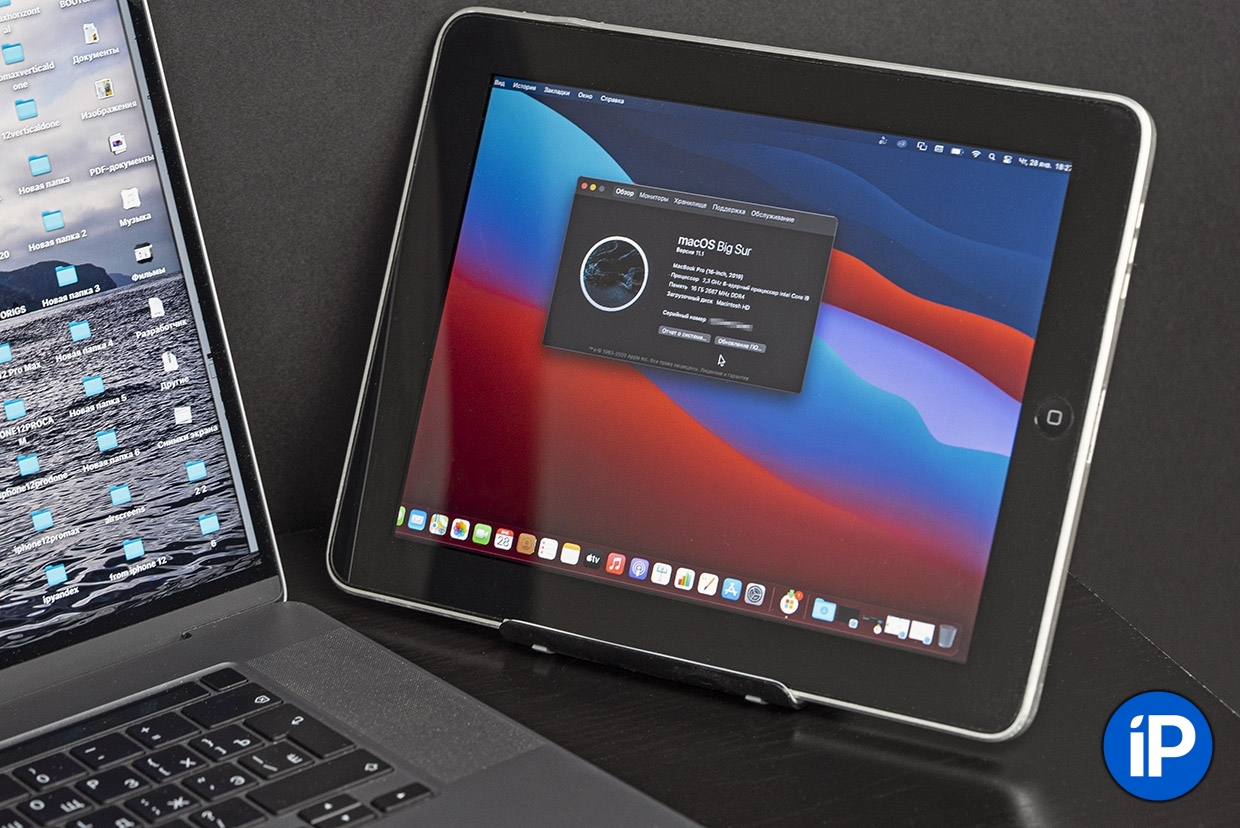
Вчера самому первому iPad исполнилось 11 лет. В очередной раз достал свой древний айпэд первого поколения, сдул пыль и убедился, что он сам по себе до сих пор работает.
Увы, особенного смысла в его владении нет, кроме как для ностальгии. Safari толком не открывает большую часть сайтов, из App Store почти ничего не скачать, а iOS 5.1.1 не поддерживает очень многое, что сегодня кажется необходимым в экосистеме Apple – от AirDrop до Apple Music.
Но я наконец-то нашёл ему полезное применение. Его можно сделать вторым экраном для любого компьютера, будь то Windows или macOS. Это просто, а платить ничего не придётся.
Достаточно любого старенького iPad, даже самого-самого первого. Он и Mac должны быть подключены к одной сети Wi-Fi. Процесс первичной настройки может испугать, но выполнять его придётся лишь единожды. Описывать буду сценарий с macOS, а для Windows сделаю инструкцию попозже, если кому-то будет интересно.
1. Вначале создаём вторую учётную запись на Mac
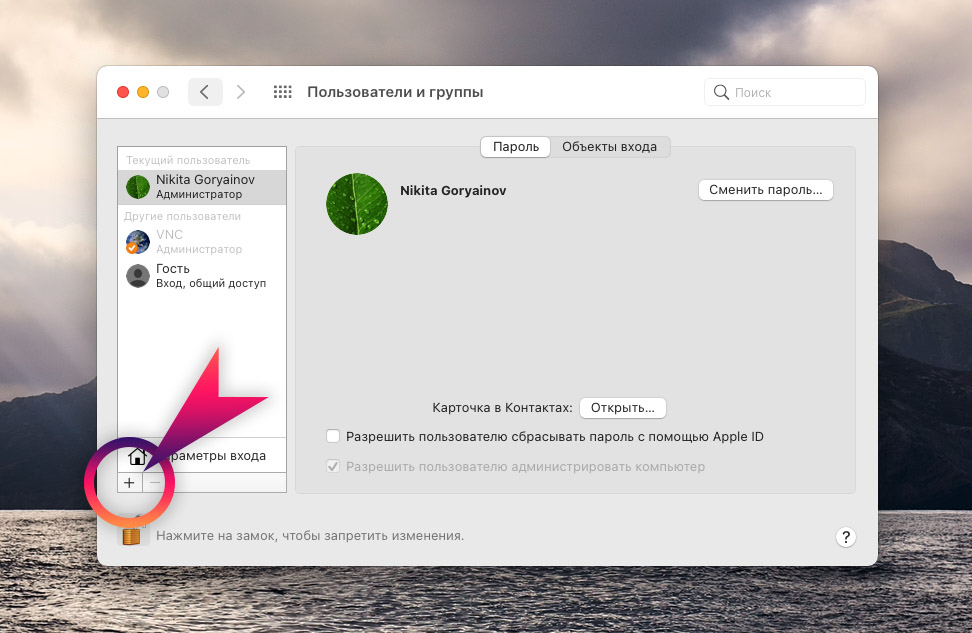
Не спрашивайте, зачем. Скоро поймёте.
Открываем на Mac Системные настройки -> Пользователи и группы. Нажимаем на «замок», вводим свой пароль учётной записи компьютера.
Жмём «плюсик» в левой нижней части окна, затем в выпадающем меню Новая учётная запись выбираем Администратор.
Полное имя, Учётная запись и прочие поля очевидны, заполняйте их на своё усмотрение. Только не забудьте пароль. Например, свою вторую учётную запись я назвал VNC. Как закончите, нажимаете Создать пользователя.
2. Включаем удалённый доступ к Mac через VNC
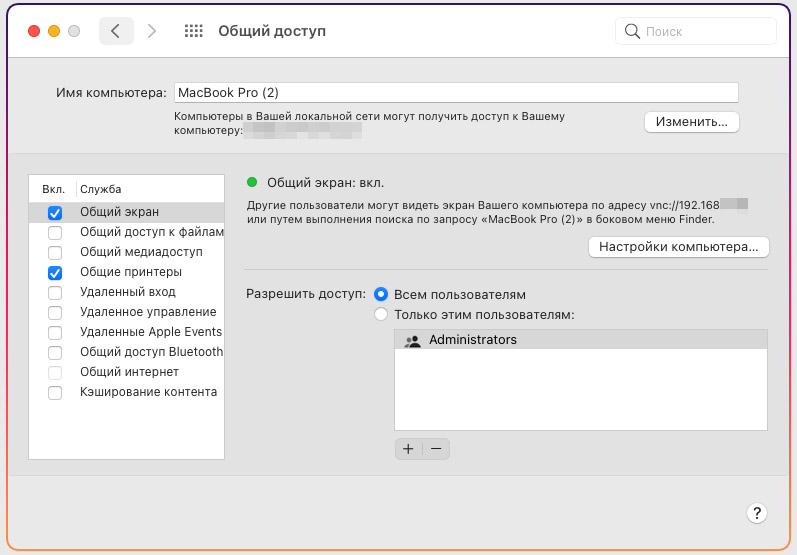
Заходим в Системные настройки -> Общий доступ. Ставим галку напротив пункта Общий экран.
Затем напротив Разрешить доступ выбираем Всем пользователям. Жмём на Настройки компьютера, включаем параметр Пользователи VNC могут получить управление экраном по паролю.
Введите пароль для VNC-подключения и запомните его – он понадобится уже скоро. Нажимаем ОК.
Теперь в окне настроек Общего доступа текстом отобразится IP-адрес, по которому ваш iPad сможет подключаться к Mac. Запомните его (например, у меня был 192.168.0.3). Если забудете, или IP-адрес изменится сам, просто уточните актуальный адрес в этом меню.
3. Скачиваем VNC-клиент на свой iPad
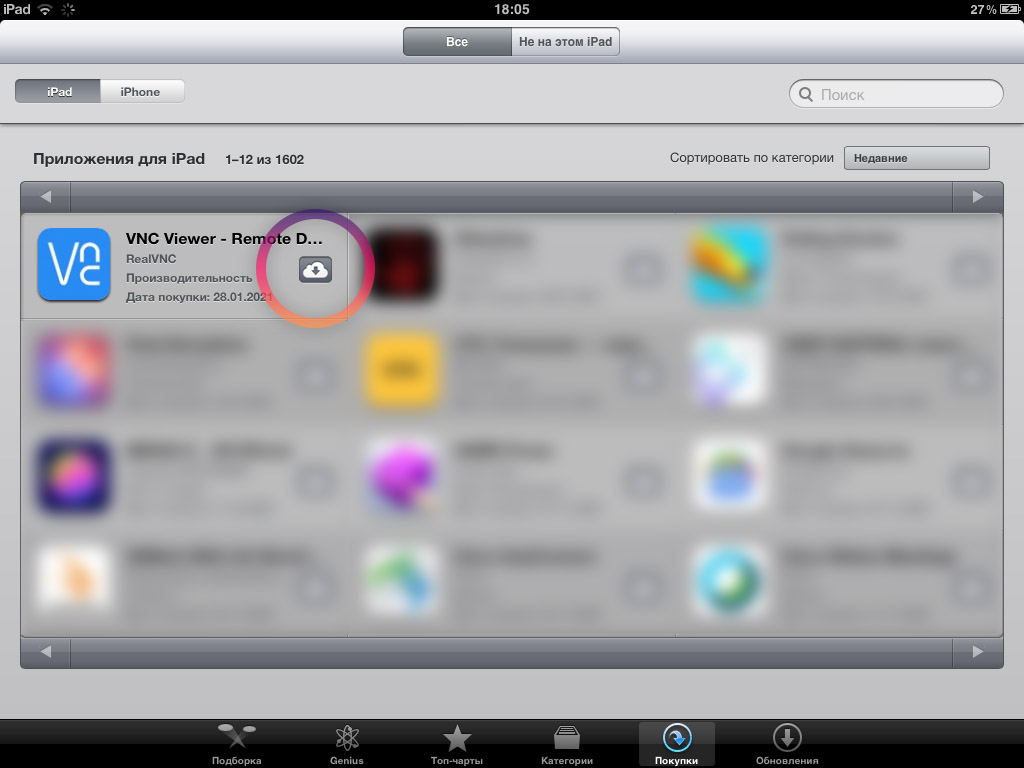
Если у вас старый iPad под управлением iOS версии менее, чем 9.0, вам на минуту понадобится любой другой современный мобильный девайс Apple.
С другого iPhone или iPad скачайте приложение VNC Viewer: бесплатно в App Store. Можете его сразу удалять, если планируете использовать другой девайс в качестве второго экрана.
Затем берём старый iPad. Открываем на нём App Store, переходим в раздел Покупки. Нажимаем на иконку загрузки напротив VNC Viewer.
Этот финт мы совершали для того, чтобы получить доступ к устаревшей версии VNC Viewer, совместимой с iOS 5.1.1. Она доступна в App Store только через историю покупок.
4. Подключаемся к Mac через старый iPad
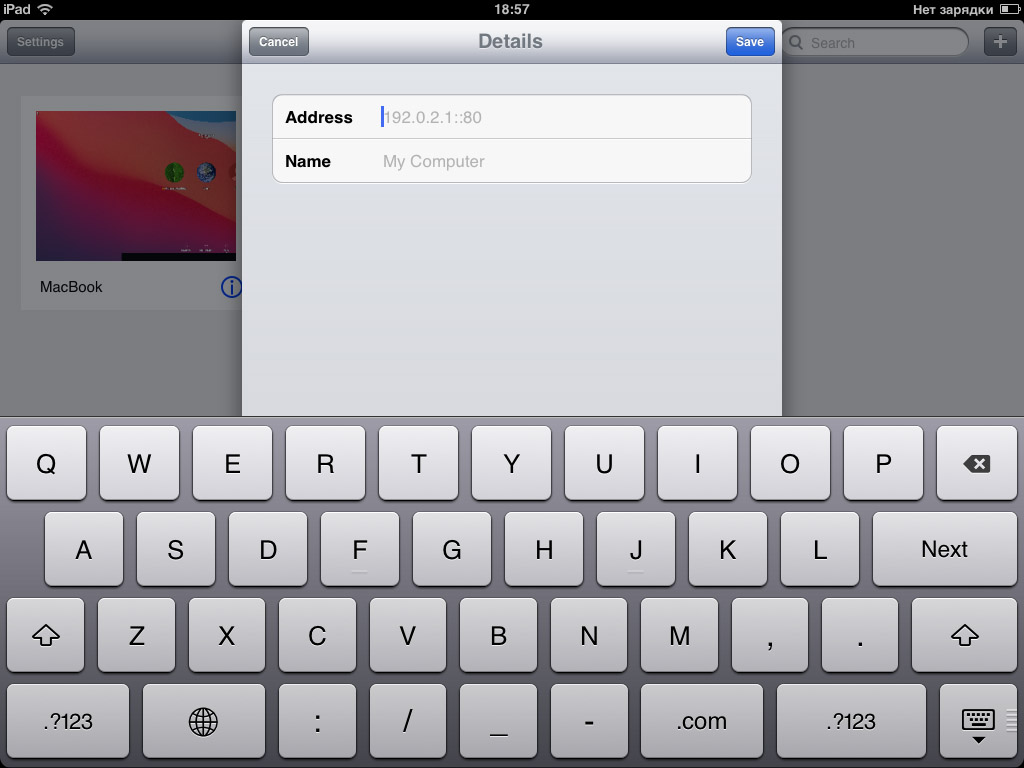
Открываем приложение VNC Viewer. Нажимаем на «плюс» в правом углу. В поле Address пишем IP вашего Mac, который вы недавно запоминали из меню Настроек общего доступа в macOS (например, 192.168.0.3). Поле Name можете заполнить как угодно.
В дальнейшем это подключение сохранится в памяти приложения.
Затем нажимаем на только что созданное подключение. Высветится предупреждение о незащищённом подключении, соглашаемся. Затем вводим пароль VNC-подключения, который вы создавали на Mac ранее. Пароль надо будет вводить каждый раз при подключении.
У вас отобразится экран входа в Mac. В нём пальцем выберите недавно созданную учётную запись (в моём случае называется VNC). Введите пароль этой записи с экранной клавиатуры.
Готово: iPad превратился во второй дисплей, но с оговорками
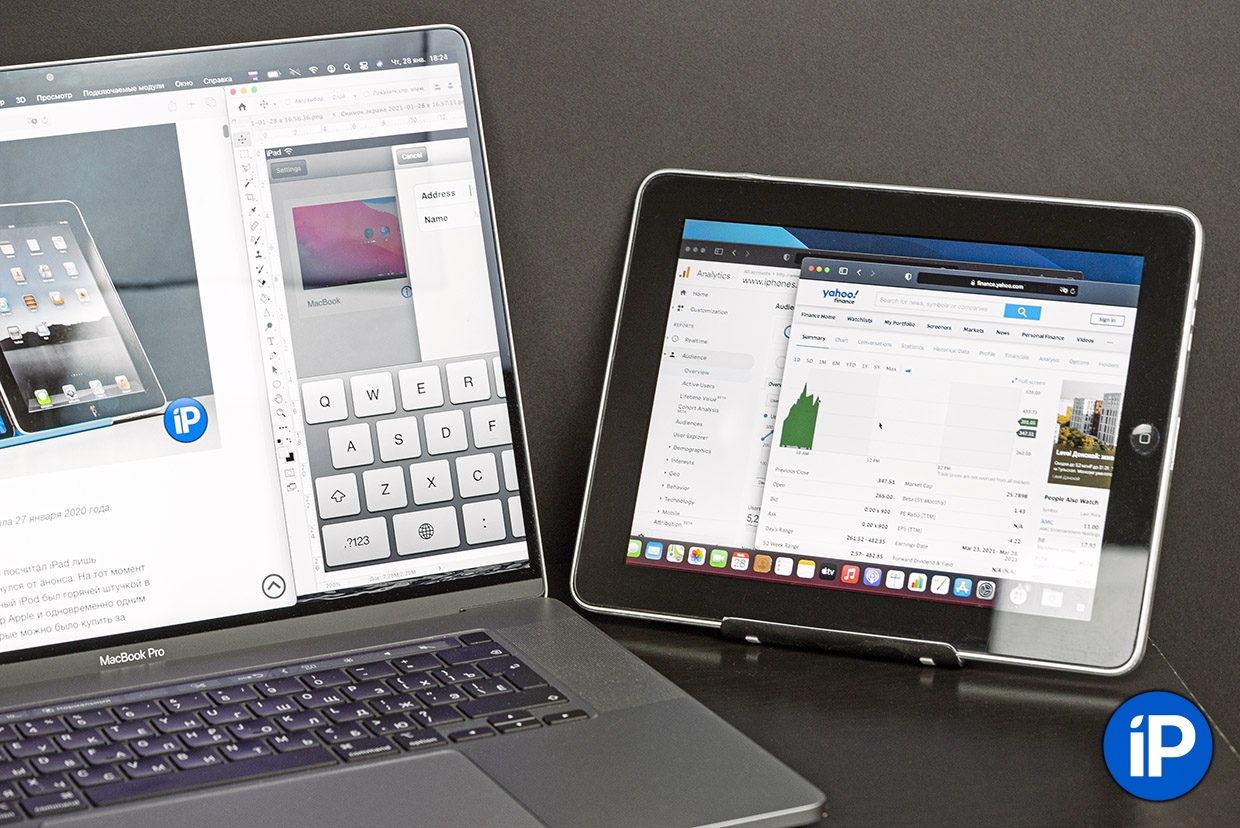
Теперь с одного вашего Mac одновременно можно работать в двух учётных записях на двух разных экранах. Одна будет отображаться на основном мониторе компьютера, а вторая – на iPad, подключенном через Wi-Fi.
Две учётные записи были нужны для того, чтобы разделить сами экраны. Без них VNC Viewer или другой VNC-клиент «клонировали» бы содержимого основного монитора Mac. А так у нас как бы два монитора получается.
Этот режим использования имеет свои плюсы. Можно настроить вторую учётку специально под «стриминг» на iPad – вывести нужные приложения, дашборды, виджеты и так далее.
Минус такого подхода в том, что это не традиционное «расширение» экрана. Скажем, вы не сможете перетащить окно с основного монитора на iPad. А приложения, запускаемые на основном экране и на экране iPad, будут функционировать раздельно друг от друга. Это же касается и буфера обмена.
Наконец, частота обновления экрана редко превышает 15-20 кадров в секунду. Для работы многим этого должно быть достаточно, особенно если планируете выводить на iPad какие-нибудь графики акций или другие данные, обновляющиеся в реальном времени.
Ну и здорово, что спустя 11 лет устаревший, мало на что способный планшетник можно задействовать в таком качестве. Нормальных гайдов на эту тему в интернете я не нашёл, только обрывочные советы. Надеюсь, статья поможет владельцам iPad 1-3 поколений выжать из своих планшетов что-то действительно полезное.
В закладки