Use your phone as a webcam on a PC and Record – Iriun

Have you ever thought of the importance of smartphones in our present lifestyle? Smartphones and iPhones have undoubtedly become an inseparable part of our lives.
Whether it be students taking lessons on devices or elders engaging in daily media, smartphones and iPhones have played a role at some point in everyone’s lives. Their roles have also extended out to homemakers’ discussion of kitchen recipes, doctors’ consultations for patients, etc.
It can be safe to say that there is hardly any instance where we are not making the best potential use of smartphones or iPhones for various needs.
Why you might need to use your smartphone or iPhone as a webcam :

Imagine enjoying the holidays with your family members at a remote tourist location, or perhaps visiting your relatives on the outskirts of the city. You feel a sudden need to attend an online office meeting, while your children want to discuss their studies with their teacher on a video call. Yet to your dismay, you don’t have a webcam on you, the built-in webcam of your laptop is of poor quality, and your desktop PC does not have a webcam.
You have an available alternative for unexpected situations as such, however. You can make use of the IRIUN Webcam application and Bandicam Webcam Recorder that allows you to record from an external hardware device such as a webcam, smartphone, or iPhone, and produce excellent quality webcam recordings. Furthermore, this option doesn’t require you to spend a lot of money on an expensive webcam.
How to use your phone as a webcam for your Windows
The first step requires you to download and install the IRIUN Webcam application on your smartphone or iPhone and connect it to your PC through a cable or wireless network. To use an android phone or iPhone as a webcam, follow the steps below:

Step-1: Go to the IRIUN website, and click on “Webcam for Windows” and install the application.
Now, you’re ready for the next step, which involves installing the IRIUN Webcam application on your smartphone, or iPhone to connect the device to your PC through a cable or Wi-Fi.
Step-2: Download the IRIUN Webcam app from the Google Play Store or the Apple App Store, open the IRIUN app on your phone, and give it permission to use your microphone and camera. Make sure your phone and the Windows PC are on the same Wi-Fi network.

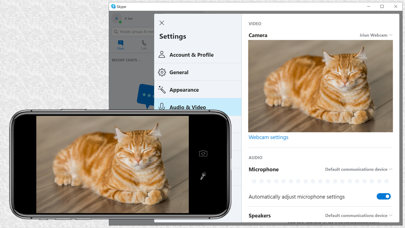
Once you open the app on your phone, a new IRIUN window will pop up on your computer screen, sharing your smartphone camera view as shown in the image above.
Step-3: Install Bandicam Webcam Recorder on your PC and use its “Webcam overlay” feature to record your phone as a webcam device to produce excellent recordings.
What is Bandicam Webcam Recorder, and what are its features?
-
is a professional webcam capture program that allows you to record from any external hardware device such as a webcam, smartphone, or iPhone.
- With Bandicam Webcam Recorder, you can capture webcam videos with audio and upload them to YouTube.
- Bandicam Webcam Recorder allows you to start or stop recordings by recording time or file size. You get the option to save the recorded videos in various file formats including MP4, AVI, and WAV files.
Once you connect your smartphone or iPhone, it can be used in a variety of ways. See examples below.
1. Use your phone as a webcam for Zoom, Skype, Google Meet, etc.
If you want to use your phone camera in Zoom meetings, Skype, GoToMeeting, etc., select the Iriun Webcam as a video source.

2. Record your computer screen and phone camera
You can add the webcam stream to the main video. The streaming webcam will be added to the whole video you’re recording. You can also change the webcam shape to a square, circle, or ellipse.

3. Use your phone as a microphone
If you have a microphone device, such as a smartphone, or an iPhone with a microphone, you can record audio together with the video.

Summary
This article demonstrates how to use your smartphone or iPhone camera as an external webcam device to record videos for various purposes when your PC or laptop webcam is not functional. You can make use of the IRIUN Webcam application on your smartphone or iPhone, together with Bandicam Webcam Recorder, to record videos on your PC.
Iriun Webcam for PC and Mac


Поделитесь ссылкой с друзьями
Для этого приложения пока нет обзоров
Для этого приложения пока не указаны ссылки
Аналоги Iriun Webcam for PC and Mac
Отзывы о приложении Iriun Webcam for PC and Mac ( 10 )
 Ocean bed , 02 июня 2022 в 07:43:21 # Спасибо! Очень полезное приложение. Добавьте пожалуйста выключение экрана для экономии заряда, тогда вообще будет Агонь) Ответить
Alfabet 156sw , 06 апреля 2022 в 15:22:10 # При запуске вижу картинку 4/3 вместо 16/9.
Иногда «лечится» включением и выключением стабилизации. Редко.
За что я только что отдал 650₽? За глючный софт, дающий картинку для старых кинескопных телевизоров моего детства?. Ответить
Tiktok hater123 , 11 сентября 2021 в 17:01:35 # After the last update, it’s just not connecting, i think it’s cause the versions on my phone and on my pc don’t match, and there is no option to revert back to the old one, if someone knows how I’d live to know Ответить
Samsss79 , 26 февраля 2021 в 21:03:55 # Прошу включите поддержку по USB. Все работает отлично, звук передаёт, у кого не передаётся, смотрите настройки устройств записи в винде, правой кнопкой по динамику в трее и выбрать Записывающие устройства. Выберите устройство Микрофон Irium webcam и потом будет все работать. В скайпе и других звлнилках тоже это устройство выбрать как микрофон. Спасибо за программу! Ответить
Orna tonn , 25 февраля 2021 в 20:58:20 # Приложение замечательно, добавьте пожалуйста возможно USB соединения для более стабильного захвата изображения! Ответить
Ilia , 25 февраля 2021 в 20:33:34 # Приложение выполнят свои функци, но почему-то не передается звук из микрофона. Очень хотелось бы получить не только видео, но и звук. Ответить
Kivuch st , 25 февраля 2021 в 11:28:20 # Под вин/мак все работает хорошо. Приложение минималистичное, но с другой стороны, главная функция работает хорошо. 4 звезды, потому как не смог заставить работать под Ubuntu 18.04 даже с vl4loopback устройством и нельзя принудительно поставить передачу потока через usb. Ответить
Emo in law , 24 февраля 2021 в 15:40:16 # Шикарное бесплатное приложение, выполняет свои задачи полностью. Конечно, настроек нет совсем, но как вебкамера — шикарно. Спасибо. Надеюсь на развитие в будущем Ответить
Timoha425 , 24 февраля 2021 в 06:27:37 # Перебрал много приложений(epocCam, ivcam и т.д)
У всех надо было заплатить, чтобы убрать водяной знак и разблокировать больше функций(которые вообще не нужны)
Тут же все просто: установил на телефон, установил на пк, подключил(wifi или по проводу) На пк открывается окошко где можно выбрать качество видео
Один минус: не передаётся звук Ответить
Chilintanowan , 23 февраля 2021 в 14:29:06 # Добавьте поддержку переключения на широкоформатную камеру для 11 и других устройств с несколькими камерами. Ответить
Iriun Webcam for PC and Mac 4+
Use your iPhone's camera as a wireless webcam in personal computer. Install needed drivers and enjoy iPhone's sharp image with your favourite PC and Mac video applications.
Installing Iriun Webcam drivers for your computer:
You can download needed drivers for your PC/Mac from https://iriun.com
Run the installer and follow instructions on the screen.
Using Iriun Webcam:
1. Launch Iriun Webcam app on your iPhone
2. Start Iriun Webcam Server on your PC/Mac
3. The phone is connected automatically to your computer using wireless WiFi network and the camera is ready to use.
4. Configure PC/Mac applications to use Iriun Webcam as a video source
What’s New
Added passcode option (Pro version required)
Ratings and Reviews
This close to being perfect
For the life of me I don’t understand why this doesn’t have USB support. It literally would’ve been, and I’m not exaggerating, the premium version of any other cam app here if it had this one small feature with the USB. The problem with WiFi is the lag and the latency. People wouldn’t have minded just plugging in their phone or that just being an option along with the wireless one. Other than that, I love that video quality change is free, I really can’t complain about a lot. But because of that minor problem I will still find myself using the other cams. Too bad, as I really liked the free features here. I’ll give it ⭐️ ⭐️ ⭐️/2
Finally found a perfect app to turn my phone into a PC webcam.
So i have been looking for a program for years to turn my phone into a webcam for my pc. I have finally found the perfect app to do so. I have been using this app for about a year now, i think. This app has never had a single issue for me and this app has always worked great without issues. I have bought the in app purchase for this app too, since the cost was not that much. All other camera apps i have used before this one had issues. Plus all the other apps i have used for this sort of things had resolutions and many features behind a monthly payment or just expensive in app purchases. Which was required to have features, Such as controlling it with my PC. Best webcam app i have used honestly and i like it. Keep up the good work, you are doing great.
Good but could be better
I have the app connected from my iPad to my Windows PC. It works nicely if you’re just running the app on both computer and iPad. Problem is that on the computer the program window will be small and you can’t resize it. When I tried using it as a webcam for zoom and jamkazam the results were the same. The visuals in both kept repeatedly blinking from the picture to black. I felt like a stroke warning should have been issued before I made my attempts. On zoom I tried sharing my screen and it worked, but again the screen was small and I couldn’t resize it. I paid $6.99 for screen control on my iPad but there are only a few things you can do: Flip camera, mirror, and brighten. I can’t really use brighten because my iPad doesn’t have a flashlight. I hope that if this app gets funded even more so that there would be more screen control options such as video filters, fix the blinking, and let’s me resize the window on my computer.
App Privacy
The developer, Iriun Oy , indicated that the app’s privacy practices may include handling of data as described below. For more information, see the developer’s privacy policy.
Data Not Linked to You
The following data may be collected but it is not linked to your identity:
Privacy practices may vary, for example, based on the features you use or your age. Learn More
Iriun Webcam
Iriun Webcam allows you to use your mobile phone’s camera as a webcam for your computer. Download the app and driver, connect your phone to your computer, and use your phone’s camera to live stream, video conference, or record video.
To use Iriun Webcam, you need to download the Iriun Webcam app on your phone from the App Store or Google Play Store, and also download the Iriun Webcam driver on your computer from the Iriun website. Once you have installed the app and driver, you can connect your phone to your computer using a USB cable.
Iriun Webcam is available for both Windows and Mac computers, and it supports a variety of video conferencing and streaming software such as Zoom, Skype, OBS, and many more.