Fix: Google Translate not Working
Google Translate may not work due to a variety of different reasons because the cases of the translation engine not working are very diverse and vary from case to case. This problem is common when using the mobile app, whereas other users encounter it in their browser or browser extension. When a user tries to translate, he gets the message of This Page Could Not Be Translated.
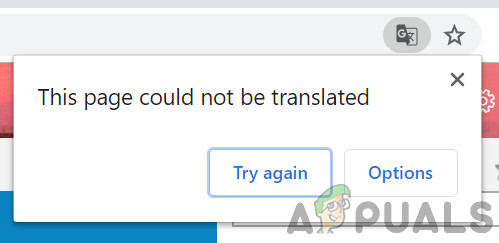 Google Translate not Working
If there is a genuine case where the translation is of illegal characters, you will not be able to work around that. Try translating meaningful words and sentences. Moreover, if you are using a VPN, then disable it, and then try to translate the text.
For Browsers:
The following solutions can be applied to browsers of any build. However, we will be only using the stable release of Google Chrome for illustration purposes.
Solution 1: Update Your Browser
Browsers are continuously updated to satiate the latest technological advancements. If you are using an older version of the browser, which is not compatible with the translation mechanism of Google Translate, then it can be the root cause of the issue at hand. In this context, updating your browser may rectify the problem. For elucidation, we will discuss the process for Chrome.
- Launch the Chrome browser and click on the vertical ellipsis (3 vertical dots) near the top right corner of the window and then click on Settings.
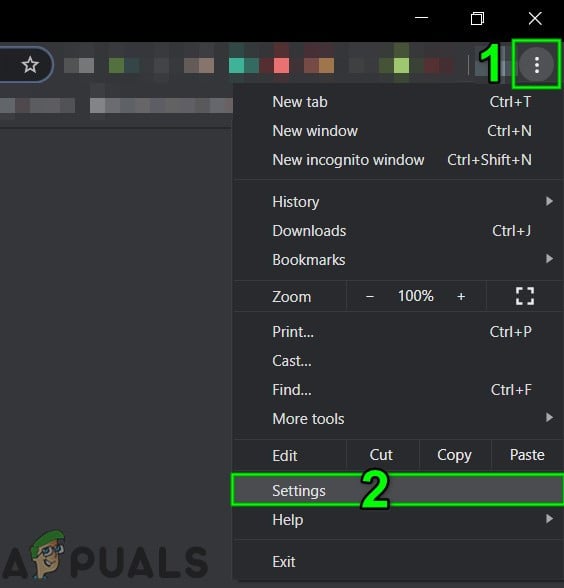 Open Chrome Settings
 - Then in the left pane of the window, click on About Chrome.
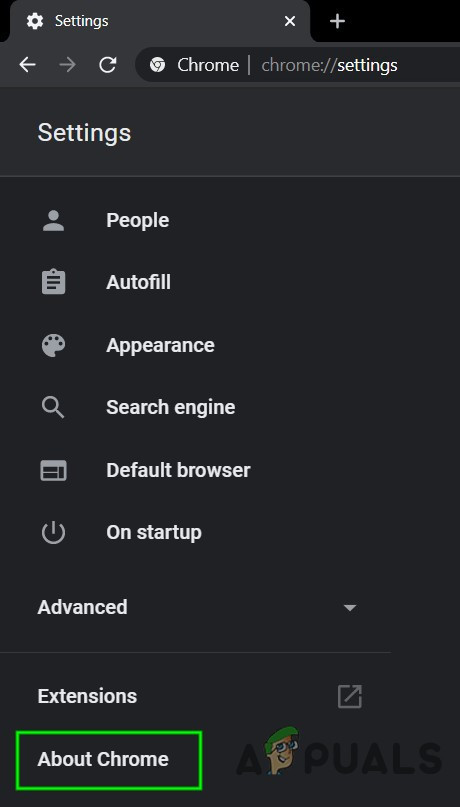 Open About Chrome
 - Now click on Check for Updates.
- After updating Chrome, open Google Translate, and check if it is operating fine.
Solution 2: Disable Browser Extensions or Try Incognito Mode
Extensions are used to enhance the functionality of a browser. However, if any of these are interfering with the translation mechanism of Google Translate, then it can stop it from working correctly. In the given circumstances, disabling browser extensions or using InPrivate/Incognito mode of your browser may solve the problem. This will help us identify any third-party problems interfering with Google Translate.
- Launch Chrome and click on the vertical ellipsis in the top right corner. Then in the menu displayed, click on More Tools and then click on Extensions.
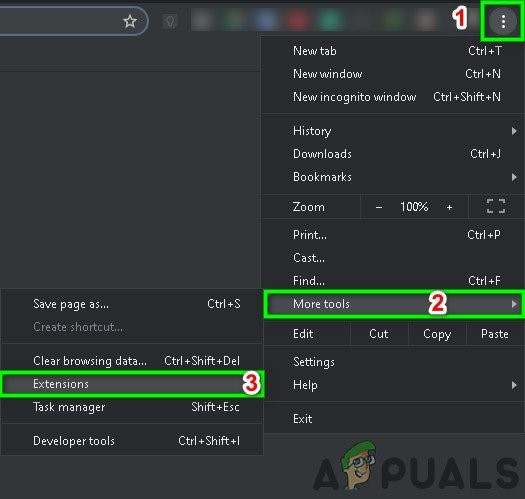 Open Chrome Extensions Menu
 - Now disable all the extensions by toggling the respective switch of each extension to Off. Wikipediaextension is known to create this type of issue.
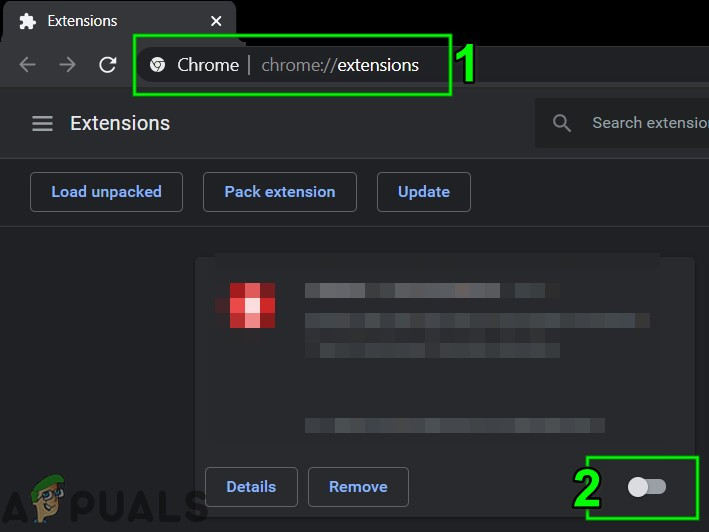 Disable a Chrome Extension
 - Then check if Google Translate has started to operate fine. If so, then enable the extensions one by one to find the culprit.
Solution 3: Deleting Cookies and Site Data
Cookies are used by browsers to store server/client communication details. Also, browsers use cache for smoother user experience and to boost up performance. However. if the cookies or cache in your browser are corrupt, then Google Translate may fail to translate the text. Do note that performing this solution will erase all the history and preferences.
- Launch Chrome and click on the vertical ellipsis (3 vertical dots). Then click on More Tools, and in the sub-menu, click on Clear Browsing Data.
- Now, in the Advanced tab, select the Time Range (preferably All-Time) and then select categories you want to clear (preferably all the categories).
- Now click on the Clear Data button and then confirm to clear the data.
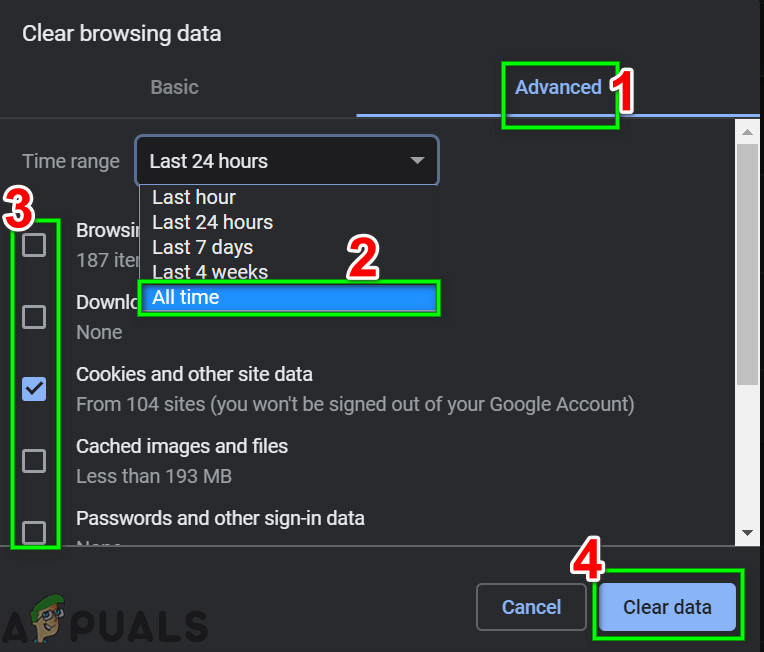 Clear Browsing Data of All Time
 - Then open Google Translate and check if it has started to work fine.
Solution 4: Reset Browser Settings to Default
Every Chrome user changes the browser settings as per his requirement. But if a setting essential for the translation engine of Google Translate is misconfigured, then Google Translate may fail to translate the text. In this scenario, resetting the browser settings to defaults may solve the problem.
- Launch the Chrome browser and click on the vertical ellipsis in the top right corner of the window. Then in the displayed menu, click on Settings.
- Now in the left pane of the window, expand the Advanced option and then click on Reset and Clean Up.
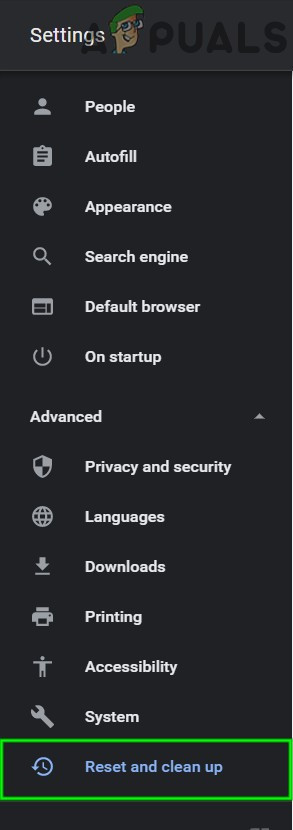 Click on Reset and Clean-Up in Chrome
 - Now click on the option of Reset Settings to their Original Defaults.
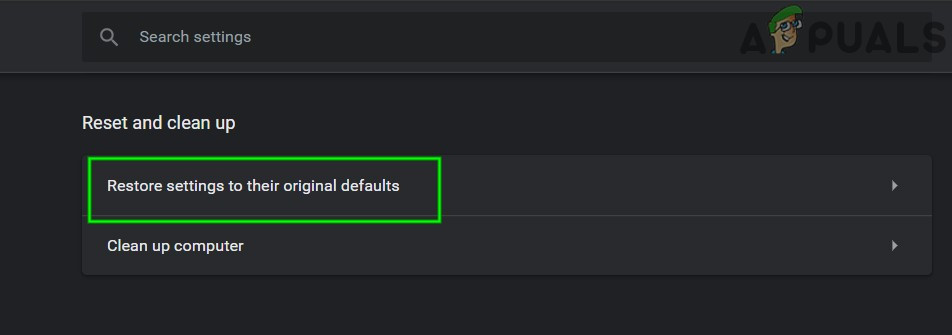 Click Reset Settings to their original defaults
 - Then check if Google Translate has started to work fine.
Solution 5: Try Another Browser
Every browser, like any other software application, has its share of software bugs. The Google Translate issue you are facing could be due to a temporary glitch in your browser. In this case, trying Google Translate in another browser may solve the problem.
- Launch another web browser (if not installed, then download and install one).
- Now open Google Translate to check if it is operating fine. If it is, make sure that the affected browser is updated to the latest build.
Solution 6: Use Chrome Extension
Google Translate has an extension/addon for nearly all the major browsers. If the Google Translate website is not working for you, then using the extension/add-on for the browser may solve the problem. Both the modules return the same results as they are fetching from the same API.
- Launch Chrome and navigate to the Google Translate extension page in Chrome Web Store.
- Now click on Add to Chrome, and then in the dialogue box shown, click Add Extension.
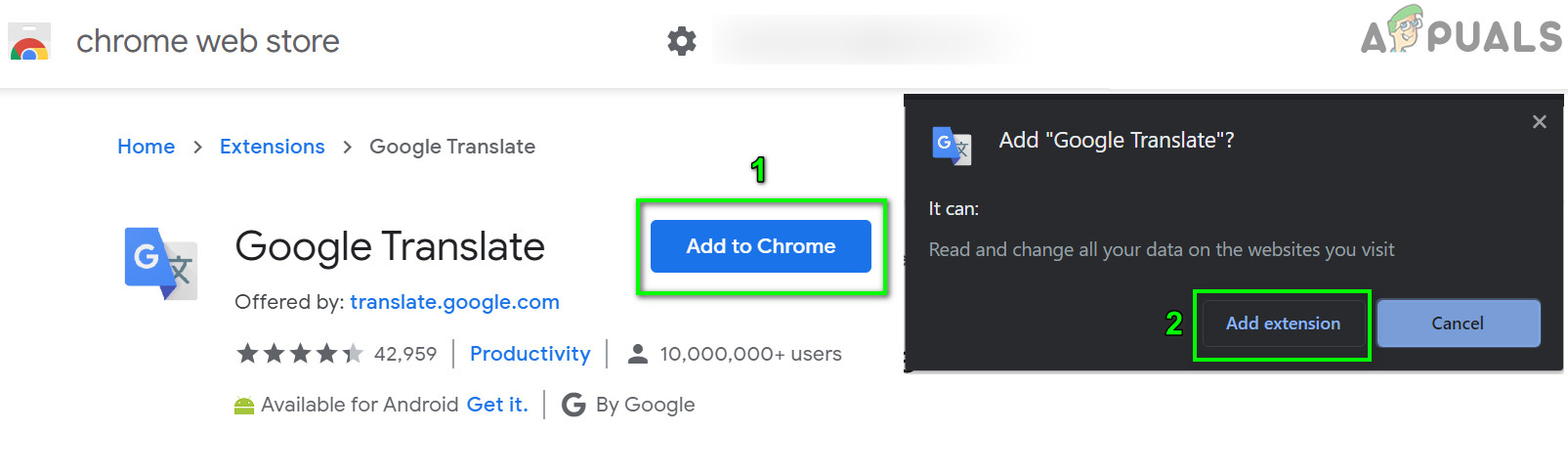 Add Google Translate Extension to Chrome
To use it the extension, click on the Google Translate icon on the right of the address bar and enter the text to be translated. If you want to translate the current page, click on Translate this page.
Solution 7: Enabling Automatic Source Language Detection
If the page you are trying to translate has multiple languages in it and the source language in the From box is not set to Detect Language, then the Google Translate may fail to translate the text. In this scenario, enabling the automatic feature will ensure that no wrong fields are selected.
- Try to translate the page/text in Google Translate you were having issues with.
- Then in the dropdown box of From, select “Detect Language” and check if the problem is sorted.
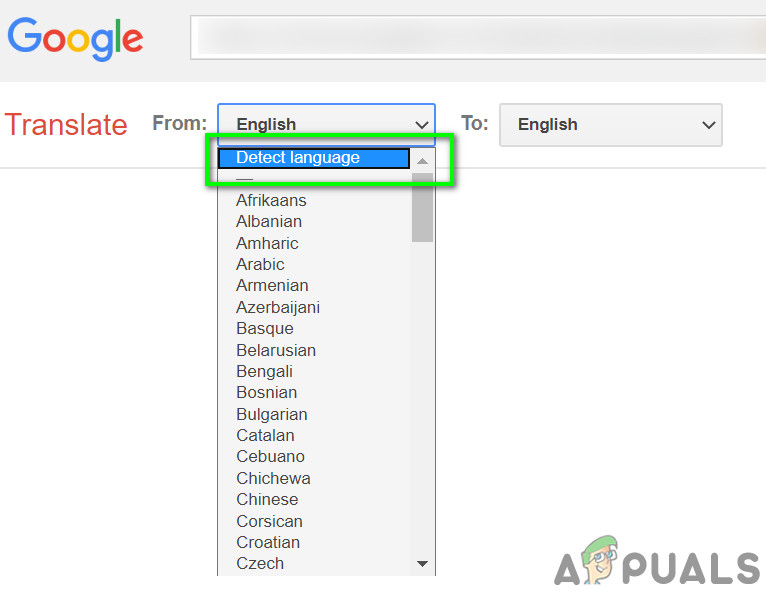 Select Detect Language in From Dropdown of Google Translate
 - If the automatic detection doesn’t work, you can try setting the source language manually using the drop-down and see if this does the trick.
For Android:
The following solutions can be used on any Android version or make. Make sure that you are logged in with your Google account before proceeding.
Solution 1: Clear Cache and Data of the Google Mobile App
Like any other mobile app, Google Translate uses a cache to boost up speed and improve the user experience. If the app cache has corrupt data, then it may not work correctly. In this scenario, clearing the cache and data of the mobile application may solve the issue. For elucidation, we will discuss the process for Android.
- Open Settings of your Android phone and tap on Apps/Application Manager after existing Google or Google Translate.
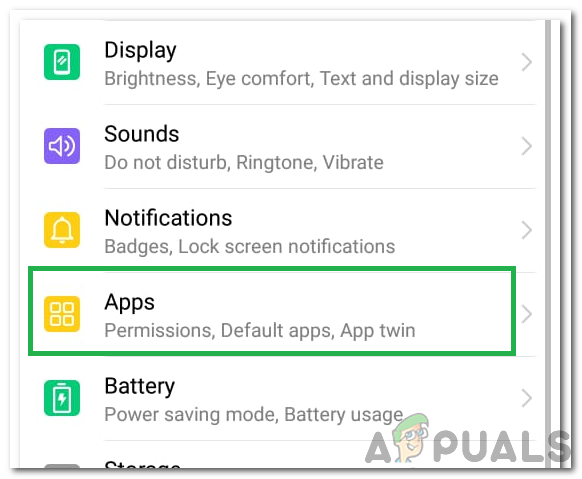 Clicking on the “Apps” option
 - Now location and tap on the Translate application.
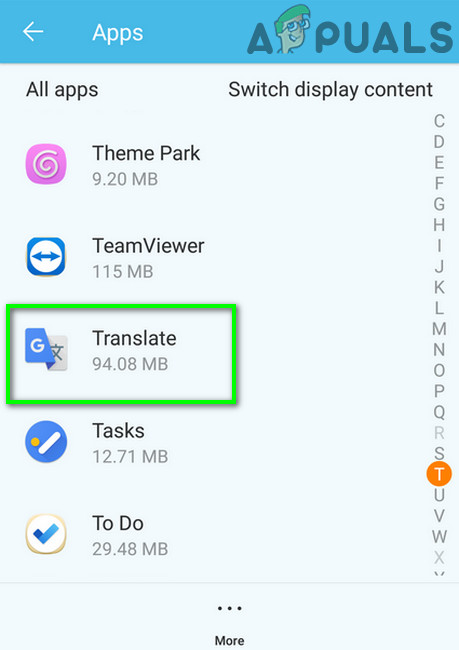 Tap on Translate in the Application Manager
 - Then tap on Force Stop and, when prompted, confirm to stop the application.
- Now tap on Storage and then tap on the Clear Cache button.
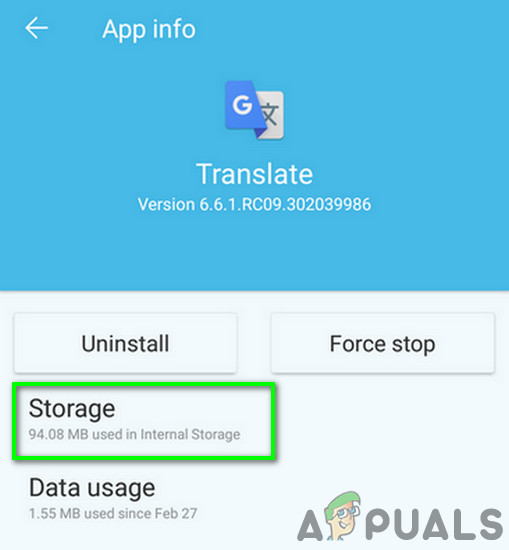 Tap on Storage for Google Translate
 - Now tap on the Clear Data button and then confirm to clear the data.
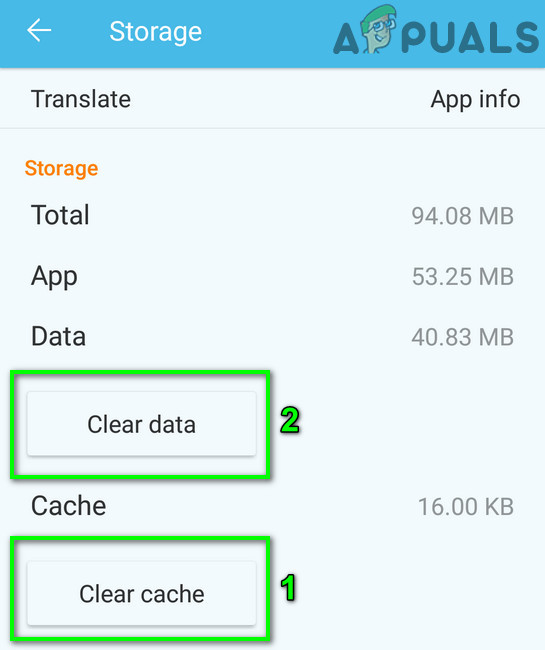 Clear Cache and Data of Google Translate App
 - Then launch the Translate app and check if it has started to operate fine. You may have to re-download offline languages.
Solution 2: Reinstalling the Translate Application
If clearing the cache and data has not helped you, then the installation of the Google Translation application may itself be corrupt. In this case, reinstalling the application may solve the problem as it will fetch fresh files from the servers and replace corrupt ones.
- Follow all the steps of Solution 1 (discussed just above this solution) to Force Stop the app and clear its Cache/Data.
- Open Settings of your phone and tap on Applications/Application Manager.
- Now tap on Google Translate.
- Select Uninstall and then confirm to uninstall the app.
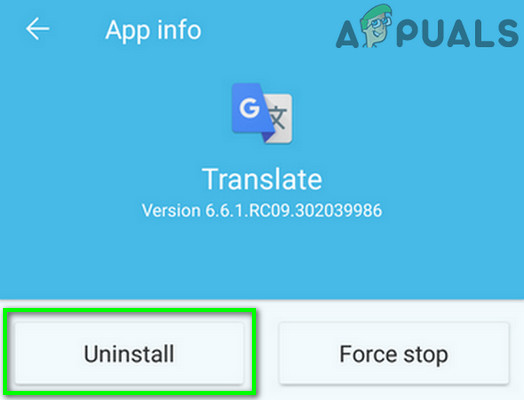 Uninstall Google Translate App
 - After uninstalling, restart your device.
- Upon restart, re-install the Google Translate app and check if it is clear of the error.
If you are still having issues, then you can try another service like Yandex or Microsoft Bing translator, etc.
Как исправить неработающий переводчик Google
Другое полезное руководство / by admin / August 05, 2021
Google Translate — один из лучших инструментов для перевода текста, доступных в настоящее время. Инструмент доступен как приложение, а также как веб-расширение. Таким образом, вам не составит труда перевести текст на любом устройстве. Обычно Google Translate работает без сбоев, если у вас стабильное интернет-соединение.
Однако время от времени вы можете столкнуться с проблемами, из-за которых Google Translate перестанет работать. Может быть ряд причин, по которым инструмент не работает. К счастью, есть несколько вещей, которые могут помочь решить эту проблему. В этом руководстве мы расскажем, как решить проблему с неработающим переводчиком Google.

Исправить расширение Google Translate, не работающее
Если вы используете расширение Google Translate в своем веб-браузере, вы должны сделать несколько вещей, чтобы решить эту проблему.
-
Подключиться к Интернету: Дважды проверьте, есть ли у вас активное подключение к Интернету. Веб-расширение Google Translate требует, чтобы вы были подключены к Интернету для работы. Если ваше интернет-соединение отключено, подключите его снова к кабелю Wi-Fi или Ethernet. Как только соединение будет установлено, проверьте, начал ли Google Translate работать.
Выполнение этих действий должно было устранить проблему с неработающим расширением Google Translate.
Исправить приложение Google Translate, не работающее
Для тех, кто использует приложение Google Translate, вы можете выполнить следующие действия, чтобы решить проблему.
- Проверь свой интернет: Это несложно, и, как мы упоминали выше, для работы Google Translate требуется активное подключение к Интернету. Тем не менее, у вас есть возможность загрузить некоторые языки для автономного перевода. Тем не менее, если вы не загрузили какой-либо язык, мы рекомендуем включить Wi-Fi или мобильный Интернет.
- Перезапустите приложение: Если вы подключены к Интернету, но по-прежнему сталкиваетесь с проблемой неработающего Google Translate, выйдите из приложения и перезапустите его.
- Очистить кеш и данные: На телефоне Android вы можете очистить кеш и очистить данные для Google Translate. Это удалит все загруженные языки. Однако это может помочь решить проблему. Чтобы очистить кеш и данные, выполните следующие действия:
- Идти к Настройки> Установленные приложения / Управление приложениями> Перевод> Использование хранилища.
- Нажмите на Очистить данные а также Очистить кэш.
- Переустановите приложение: Наконец, если ни один из описанных выше шагов не работает, возможно, вам придется переустановить Google Translate на вашем устройстве.
Скорее всего, проблема с неработающим Google Переводчиком будет устранена после выполнения всех действий. Мы надеемся, что это руководство помогло вам решить проблему.
How to Fix Google Translate ‘This Page Could Not Be Translated’?
Google translate is one of the highlighted features in Chrome that surely makes internet surfing much easier. As you keep looking for information on the world wide web and find something relevant, but if all the information is available in a foreign language, it must be really heartbreaking. Fortunately, if you are on the Chrome browser, you can easily translate it to any language you want. Now, be it French, German, Spanish, or Latin, you can instantly translate it to your preferred language in just one click.
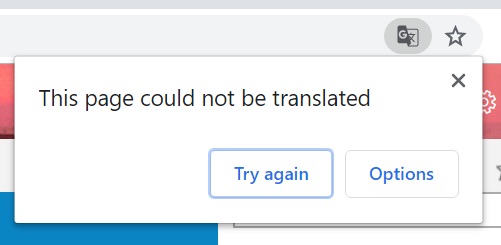
But, from time to time, users have come across the issue where they cannot translate the web pages on Chrome. Some users have said that as they try to make it work, they encounter an error saying “This web page could not be translated“. Well, there could be so many reasons you might have trouble using Google translate on Chrome. Therefore, to help you truly resolve the issue, we have brought some potential fixes. In this article, you will learn the most common reasons why Google translate might not be working on the Chrome browser and their working solutions.
Best Fix for Google Translate Not Working In Chrome
Google translate not working properly on Chrome might happen due to inappropriate browser settings configuration, language settings, third party extensions, or so. Well, whatever be the case, we will look into some reliable fixes that might help you deal with this problem easily.
1. Update Google Chrome
Before we actually start with our solutions, it is a must that you make sure you are using the latest version of the Chrome browser. Keeping your software updated is the best answer to avoid such problems.
Well, once you make sure of it, and are still in similar trouble, then you might like to look upon the next fixes.
2. Enable Google Translate Prompts on Chrome
By default, every time you open a web page with contents in a foreign language, the Chrome browser automatically prompts you to translate it to your preferred language. And by clicking on OK, you should be easily able to translate the page. However, if you do not see this prompt on your screen, you might have to enable it in the Settings.
- Open your Chrome browser.
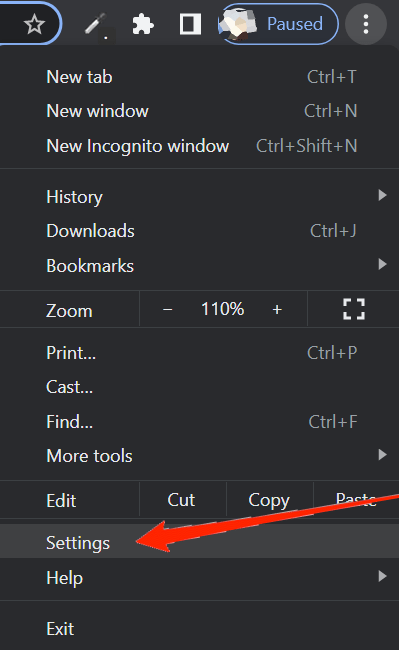
- Click on the three-dot icon at the top-right corner and select Settings.
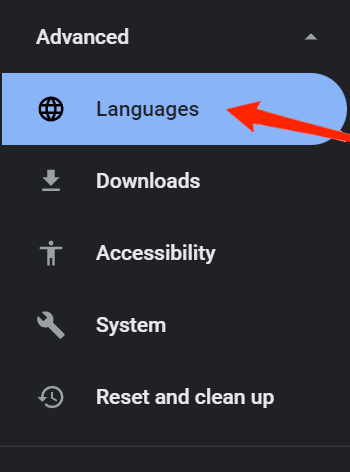
- Now, expand the Advanced section and click on Languages.
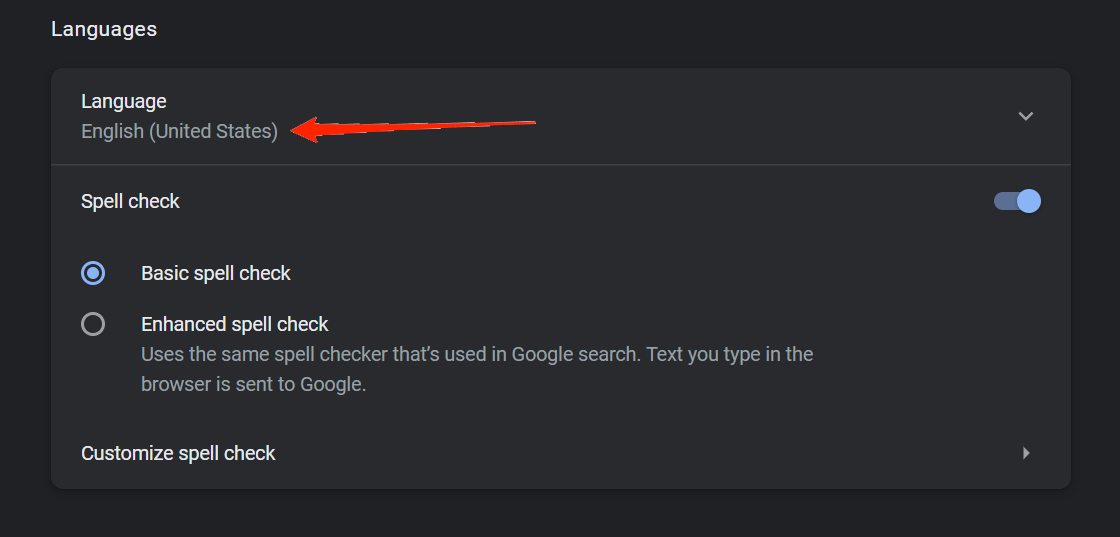
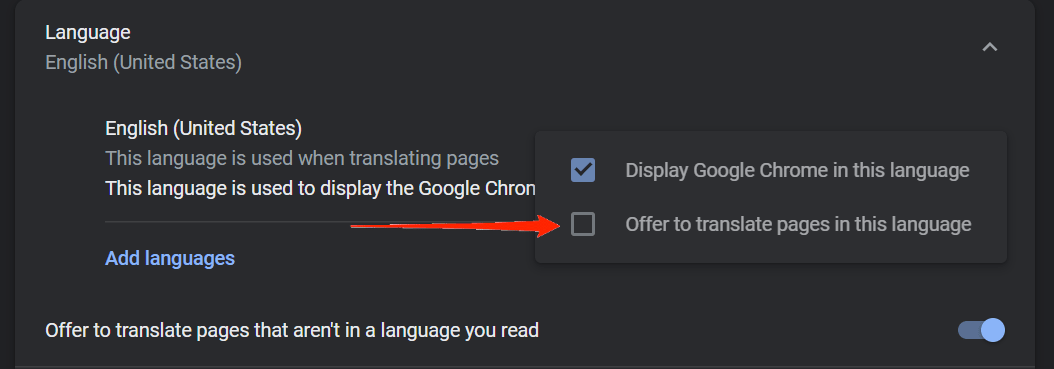
- Click on your selected language under the Languages section.
- Again, click on the three dots beside your selected language.
- Make sure to check the “Offer to translate web pages in this language”.
3. Manually Translate the Webpages
A lot of times, you will come through web pages that contain content in multiple languages. In such cases, it is often observed that Chrome doesn’t prompt you to translate the web pages. So, at such times, you might have to consider manually translating the web pages. This is actually much easier.
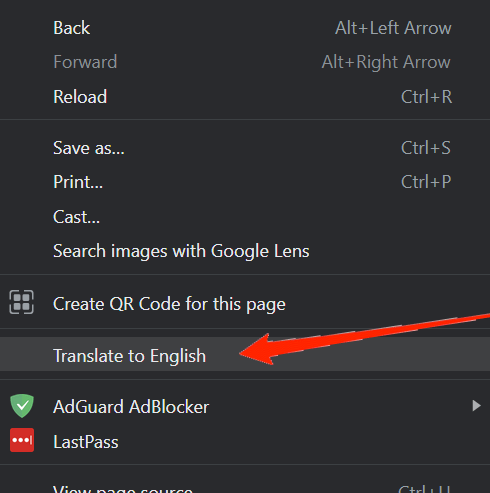
All you need to do is right-click in any black space within the webpage. You will then see an option “Translate to (your default language)”. Simply, click on it and it shall be translated instantly.
4. Clear Site Cookies
If you are facing this issue with a particular site only, there are high chances that the old cookies and cache are causing all the trouble. To avoid the issue in such a case, try clearing the cache and cookies for the site. You can do so by following the steps below:
- Firstly, visit the site that is causing all the trouble.
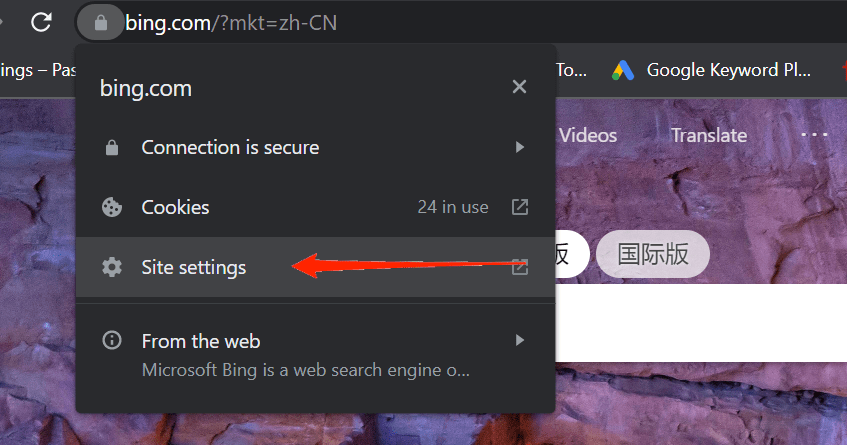
- Now, locate the pad-lock icon just placed in front of the web page link.
- Click on the lock icon and select Site Settings.
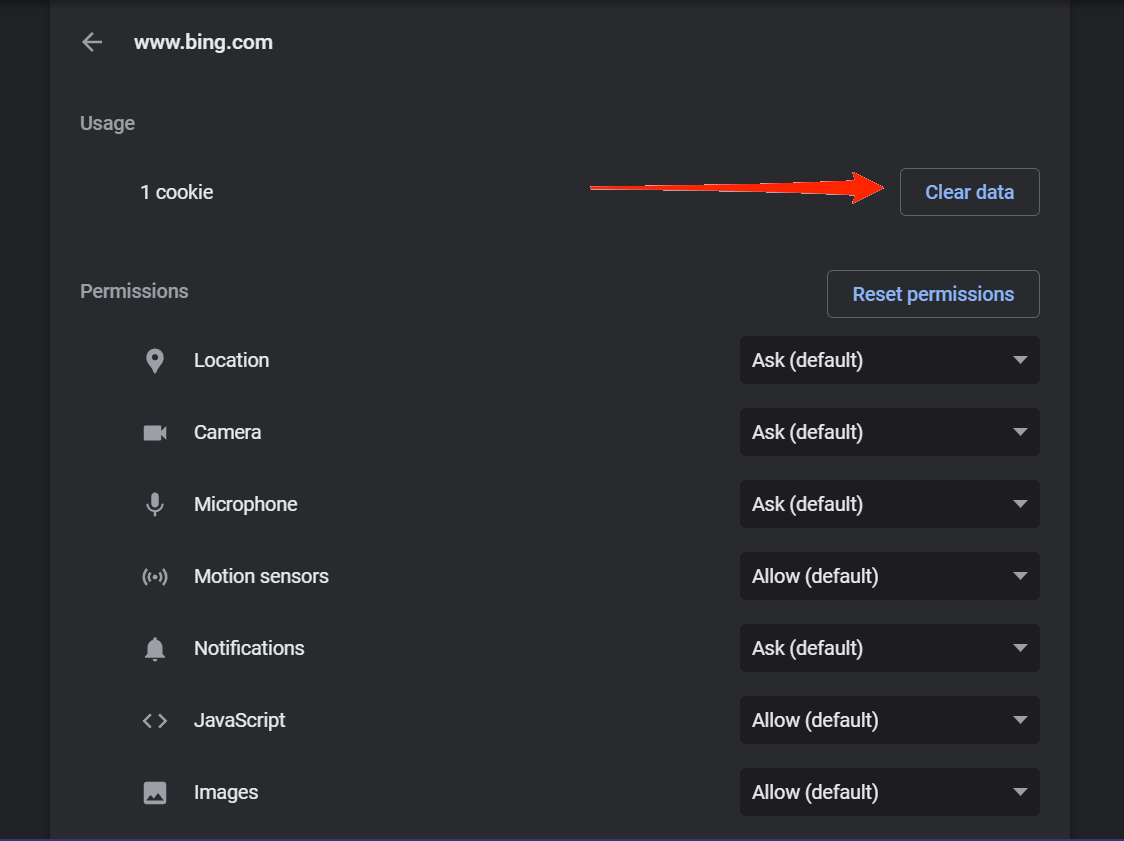
- Next, click on the Clear Data option.
- Go back to the website and refresh it.
After doing so, you should be easily able to translate the web page without any further trouble.
5. Try Incognito Mode
If none of these fixes work, it is possible that some third-party extension is creating a hindrance in the workflow of Google translate. The best way to find it out is by using the incognito mode. Open the same website in Incognito mode on your browser.
Note that incognito mode works by disabling all the pre-installed extensions by default. Therefore, if it is the issue of an extension, you will instantly know that Google translate works in the incognito mode.
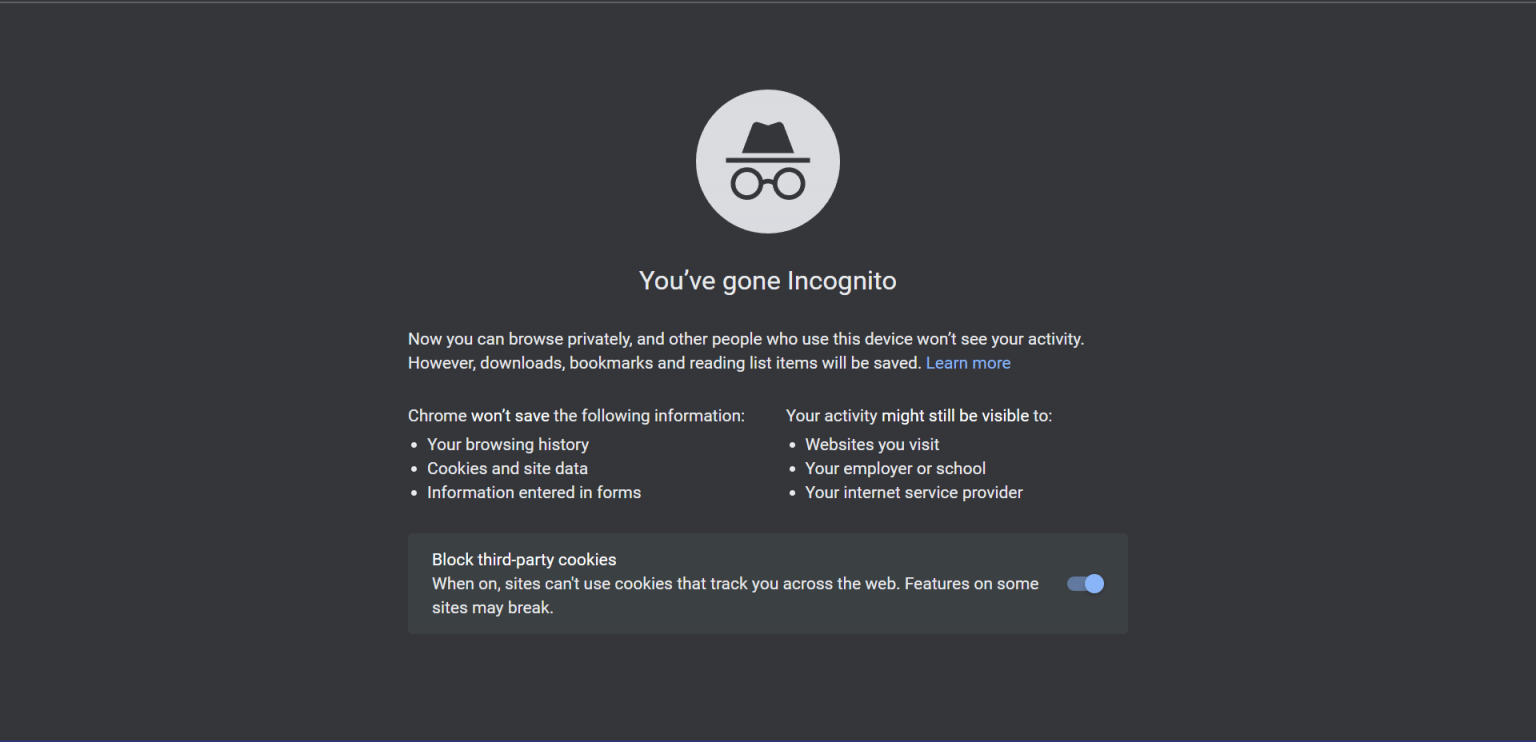
If that is the case, then you might have to identify and disable the particular extension. To do so, refer to the steps below:
- Go to your browser Settings.
- Head over to Extensions.
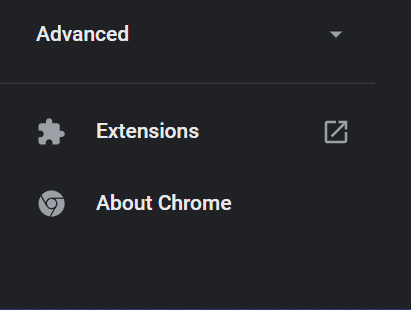
- Disable all the extensions one by one and check if Google translate works every time after disabling an extension.
This way you can find the problematic extension. You can then keep it disabled by default and enable it whenever you actually need it.
6. Try Extensions
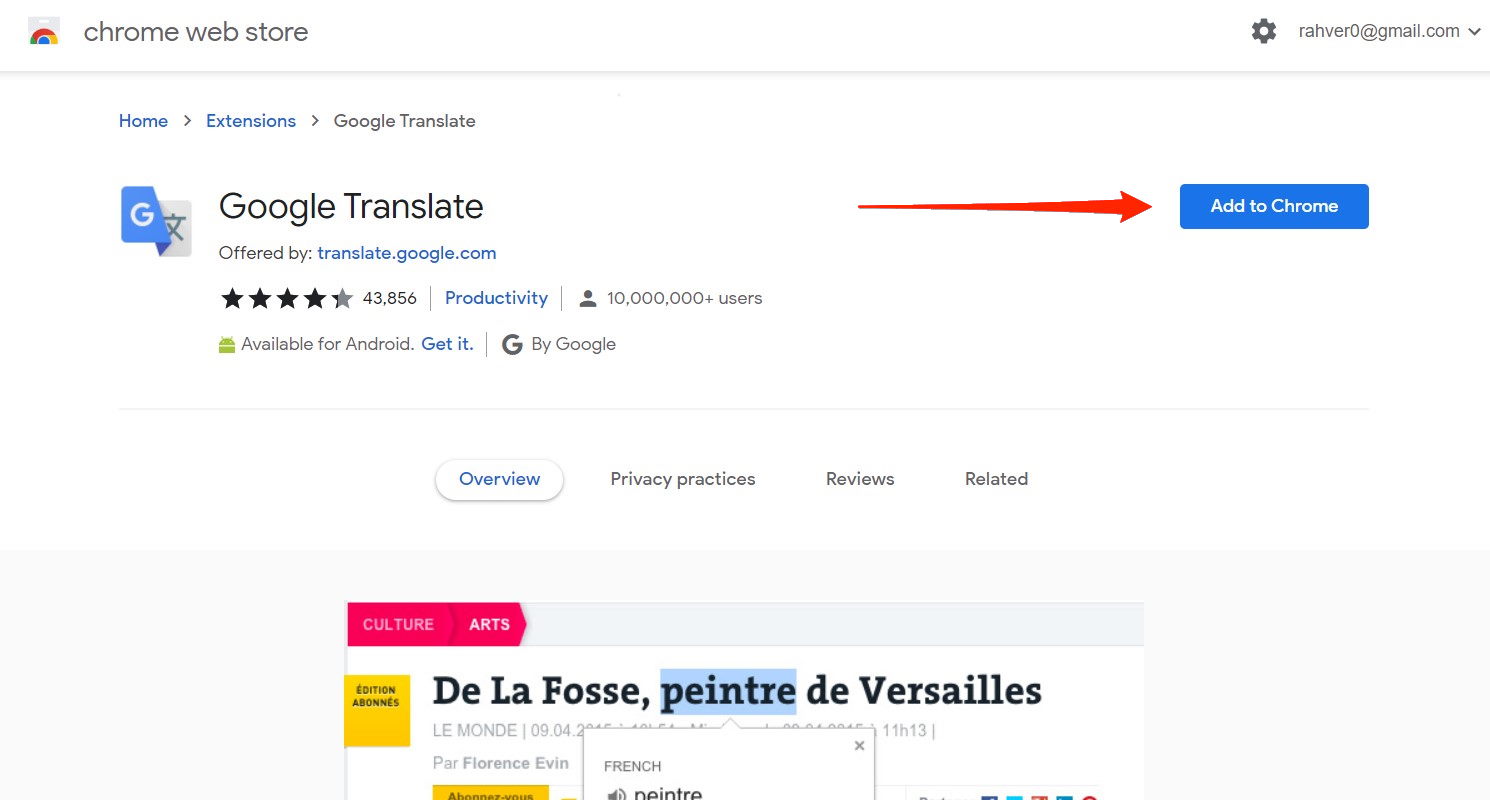
If none of the above methods works for you, and you urgently need to translate a website on your PC, then you can take the help of translation extensions. Chrome Webstore is filled with multiple third party extensions which offer translation services. We recommend you to try them if you’re facing issues with inbuilt translation services.
Wrap Up
In most cases, people keep the translate page option disabled in their Settings. And it is observed to be the most common cause behind the issue. Therefore, make sure you have enabled it before moving on to any other fix. If nothing works at all, you might try clearing the browser cache or re-installing Chrome in the worse scenario. Let us know if this information has been helpful to you and what was the root cause of this problem in your case.
If you’ve any thoughts on How to Fix Google Translate ‘This Page Could Not Be Translated’?, then feel free to drop in below comment box. Also, please subscribe to our DigitBin YouTube channel for videos tutorials. Cheers!
5 решений, когда Google Translate не работает
Способность Google Chrome легко переводить иностранные языки на английский (или любой другой предпочтительный язык) легко входит в число его лучших функций. Но есть случаи, когда встроенный в Chrome модуль Google Translate может работать некорректно. Если в вашем браузере возникают проблемы с переводом веб-сайтов, в этом посте будут рассмотрены способы устранения неполадок, когда Google Translate не работает.
Переводчик Google Chrome не работает по нескольким причинам. Это могло произойти из-за неправильно настроенных языковых настроек, конфликтов с расширениями или устаревшего веб-кеша. Итак, давайте рассмотрим несколько решений по устранению неполадок, которые вы можете применить сразу, чтобы вернуть функции перевода Chrome в нормальное состояние.
1. Включить запрос на перевод
По умолчанию Chrome настроен на автоматический перевод иностранных веб-сайтов. Если ваш браузер этого не делает, вам необходимо убедиться, что соответствующий языковой параметр включен.
- Начните с посещения панели настроек Chrome: откройте меню Chrome, затем нажмите «Настройки».
- Разверните раздел «Дополнительно» в левой части панели «Настройки» и нажмите «Языки». Затем нажмите «Язык» в разделе «Языки» (в правой части окна), чтобы увидеть дополнительные параметры.
- Убедитесь, что переключатель рядом с «Предлагать перевести страницы, которые не на языке, который вы читаете» включен.
Если вам нужно было включить эту опцию, выйдите из панели настроек и попробуйте загрузить сторонний веб-сайт. Вы должны сразу увидеть запрос на перевод сайта.
Программы для Windows, мобильные приложения, игры — ВСЁ БЕСПЛАТНО, в нашем закрытом телеграмм канале — Подписывайтесь:)
2. Перевести веб-страницы вручную.
Иногда запросы на машинный перевод Chrome могут не срабатывать, особенно если веб-страницы содержат разные языки. Но не волнуйся. В Chrome также есть опция, позволяющая принудительно переводить страницы.
- Щелкните правой кнопкой мыши пустую область на веб-странице, затем щелкните «Перевести на английский».
Это должно побудить браузер перевести иностранный язык на английский. Если вы хотите вернуться к исходному языку, просто перезагрузите страницу.
3. Используйте режим инкогнито.
Если вы неоднократно получаете сообщение об ошибке «Эта страница не может быть переведена» (или что-то подобное) в Google Chrome, вероятно, расширение конфликтует со встроенным модулем Google Translate.
Чтобы убедиться, что это так, попробуйте загрузить веб-сайт в режиме инкогнито, поскольку он работает со всеми отключенными расширениями: откройте меню Chrome, затем нажмите «Новый режим инкогнито», чтобы открыть новое окно в режиме инкогнито.
Если Chrome без проблем переводит иностранные веб-страницы в режиме инкогнито, вам необходимо изолировать проблемное расширение.
Перейдите на экран расширений Chrome (меню Chrome> Дополнительные инструменты> Расширения), затем продолжайте отключать расширения, пытаясь перевести веб-страницы, чтобы изолировать проблемное расширение.
4. Очистите файлы cookie и кеш.
Устаревший веб-кеш Chrome также может генерировать сообщения об ошибках «Не удалось перевести эту страницу».
Если проблема ограничена одним сайтом, попробуйте очистить связанный веб-кеш. Сначала загрузите веб-сайт в новой вкладке, щелкните значок замка в адресной строке, затем выберите «Параметры сайта».
На открывшейся странице настроек сайта нажмите Очистить данные. Это должно побудить Chrome удалить все локально сохраненные данные с веб-сайта.
Обновите сайт. Наверное, браузер должен без проблем перевести это.
В качестве альтернативы вы можете очистить весь кеш браузера в случаях, когда Chrome не может перевести несколько веб-сайтов. Просто помните, что вам нужно будет снова войти на веб-сайты, как только вы это сделаете.
Перейдите в Настройки Chrome> Конфиденциальность и безопасность> Очистить данные просмотров. В появившемся окне «Очистить данные просмотра» перейдите на вкладку «Дополнительно», установите для параметра «Временной интервал» значение «Всегда», установите флажки рядом с «Файлы cookie и данные сайта» и «Кэшированные изображения и файлы», затем нажмите «Очистить данные».
Используйте расширение Google Translate
Несмотря на вышеуказанные исправления, встроенный в Chrome модуль Google Translate по-прежнему может не работать на некоторых веб-сайтах по неизвестным причинам.
Если да, попробуйте вместо этого использовать расширение Google Translate. Вы можете скачать его в Интернет-магазине Chrome. Скачать Google Translate
Расширение Google Translate позволяет быстро переводить целые страницы и фрагменты текста. Он также предлагает возможность отправлять слова, предложения или абзацы прямо в Веб-сайт Google Translate.
Вы можете отключить расширение Google Translate и включить его только в тех случаях, когда встроенный в Chrome модуль Google Translate не активируется.
Вывод
Надеюсь, приведенные выше советы по устранению неполадок помогли вам решить загадки перевода Chrome. Если вы продолжаете испытывать частые проблемы со встроенным модулем Google Translate, подумайте о сбросе настроек Chrome – это отличный способ начать работу с браузером.
Программы для Windows, мобильные приложения, игры — ВСЁ БЕСПЛАТНО, в нашем закрытом телеграмм канале — Подписывайтесь:)