Как работает WhatsApp Web, или Как пользоваться Ватсапом на компьютере
Несмотря на всю популярность WhatsApp, это очень неуниверсальный мессенджер. В отличие от Telegram, Ватсап на нескольких устройствах одновременно работать не может. Вернее, может, но с рядом существенных оговорок. Причиной тому, как выяснилось, оказались проблемы в механизме синхронизации сообщений. То есть WhatsApp не в состоянии учитывать прогресс с одного устройства на другом, если они в это время оба не находятся в сети. Короче, дичь. Тем не менее, веб-версия у мессенджера есть, но работает она далеко не так очевидно, как могло бы показаться.
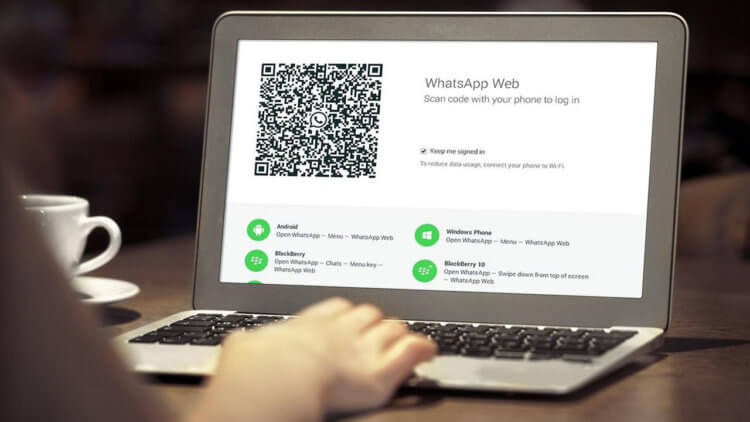
WhatsApp Web можно запустить в браузере на любом компьютере
Если вас интересует, что такое Ватсап веб, то знайте, что это специальная версия мессенджера, которая работает на мощностях браузера и предназначена исключительно для десктопных устройств. Проще говоря, для компьютеров. Потому что запустить её на смартфоне в обычном режиме не получится. Подробнее об этом вы можете почитать в этой статье.
Как Ватсап вывести на компьютер
Поскольку WhatsApp способен работать на нескольких устройствах сразу лишь довольно условно, чтобы подключиться к WhatsApp Web, вам потребуется смартфон. Даже несмотря на то что разработчики уверяют, что отменили привязку веб-версии к мобильной, технически она всё равно есть. Правда, теперь аппарат нужен не для поддержания работы мессенджера на компьютера, а для авторизации. Но что это меняет?
- Перейдите с компьютера на сайт web.whatsapp.com;
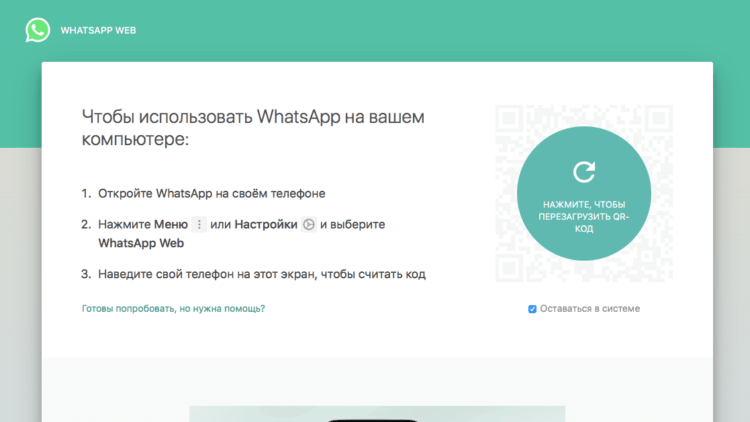
Подключиться к WhatsApp Web можно только с помощью смартфона
- Откройте WhatsApp на своём телефоне на Android или iOS;
- Нажмите «Меню» или «Настройки» и откройте сканер QR-кодов;
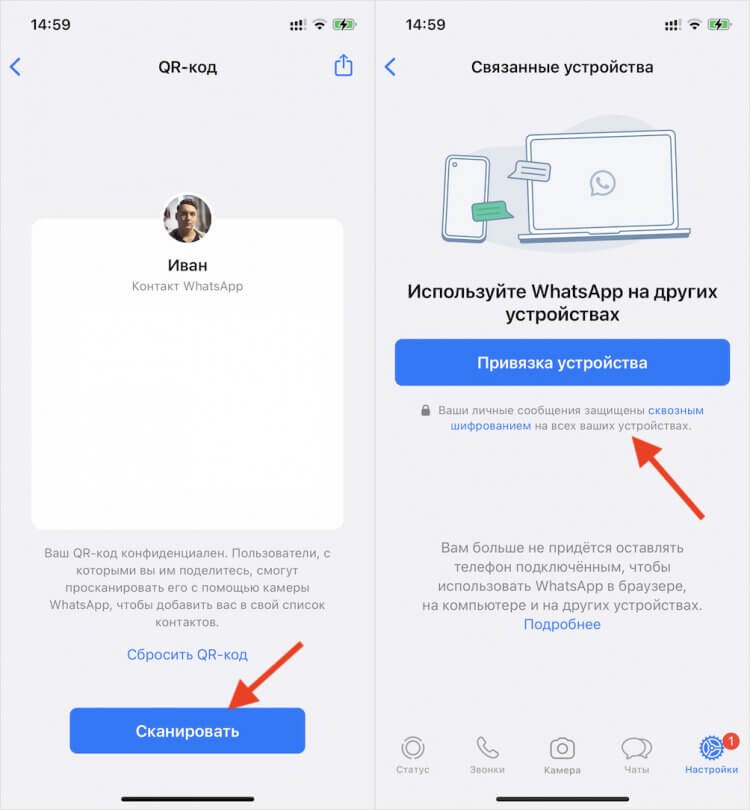
Без смартфона подключиться всё равно не удастся
- Наведите свой телефон на экран и считайте QR-код;
- Подтвердите привязку устройства к вашему аккаунту и отсканируйте QR-код на экране ПК ещё раз, если потребуется.
Вы в это точно верили! Собрали 10 самых популярных мифов о WhatsApp
Если раньше было необходимо, чтобы смартфон всё время оставался в зоне прямой видимости от компьютера, на котором запущен WhatsApp Web, то теперь это в прошлом. Ватсап с телефона больше не ретранслируется на компьютер, а нужен просто для сопряжения. Стало удобнее. Но процедуру авторизации придётся выполнять каждый раз после выхода из WhatsApp Web.
Поскольку все сообщения в Ватсап Веб больше не проходят через ваш смартфон, то и трафик расходоваться не будет, вне зависимости от объёма переданных или полученных через десктопную версию мессенджера данных. Поэтому нет разницы, как подключаться к WhatsApp Web: через LTE или Wi-Fi. Но учитывайте, что при использовании сотовых сетей, нагрузка ляжет на мобильный интернет, который у большинства пользователей не безлимитный.
Как отключить Ватсап Веб
Если вы не хотите пользоваться WhatsApp в браузере, вы можете скачать версию Ватсап для компьютера по этой ссылке. Он устанавливается как обычное приложение. Но принципиально опыт использования это не изменит. Настольная версия WhatsApp так же, как и браузерная, требует сопряжения со смартфоном для первого доступа, хоть он и перестал служить своего рода хабом.
Отключать Ватсап Веб от компьютера тоже нужно правильно. То есть просто закрыть вкладку браузера и уйти не выйдет. Если поступить таким образом, мессенджер останется открытым и любой, кто сможет получить доступ к этому компьютеру – особенно, если он не ваш личный, — сможет получить и доступ к содержимому вашего WhatsApp. Поэтому действовать нужно строго по инструкции:
- Откройте WhatsApp Web в браузере компьютера;
- Дождитесь, пока его содержимое загрузится;
Теперь для выхода из WhatsApp Web не требуется смартфон
- В левом верхнем углу нажмите на три точки;
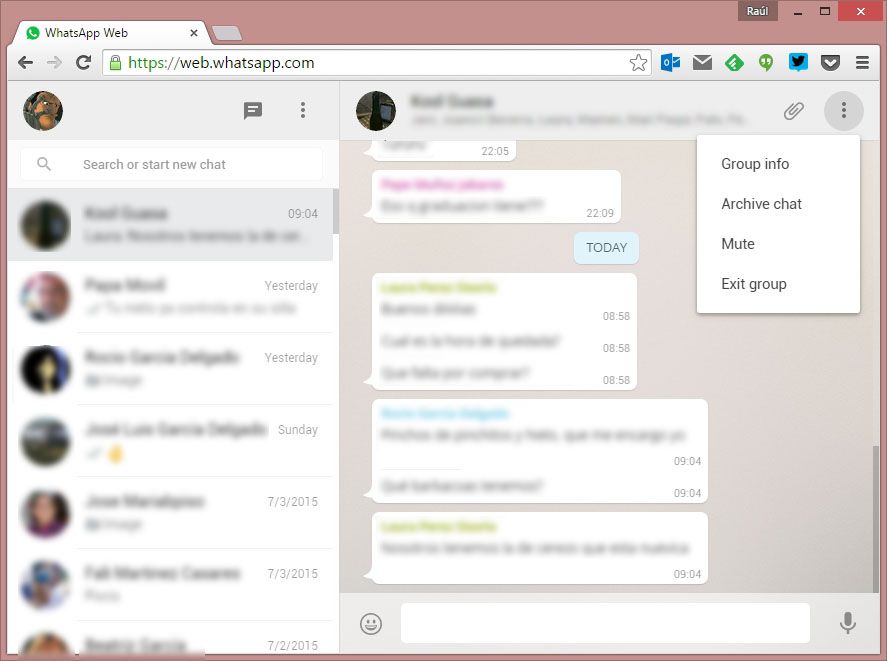
- В выпадающем окне нажмите «Выйти» и подтвердите выход.
Только после этого устройство будет отвязано от вашего аккаунта, и веб-версия WhatsApp перестанет работать на компьютере. С этого момента, если вы захотите получить доступ к мессенджеру на десктопе, подключаться к Ватсап Веб придётся повторно, следуя инструкции, представленной выше. Возможно, это не так удобно, но зато куда более безопасно.
How To Use WhatsApp Web On PC

Largely speaking, it’s a simple process and you’ll have the necessary items at hand. But for the sake of thoroughness, here’s the list.
- An Android phone or an iPhone with a working rear camera.
- A laptop or desktop computer with any modern web browser, like Google Chrome.
- An active internet connection for both your phone and your PC.
- The latest version of WhatsApp.
How WhatsApp Web Works
WhatsApp Web does not have all the features of the mobile app. In fact, it can’t work without the mobile app. You will need your phone to connect to and use WhatsApp Web.
This is, in essence, a clone or a mirror of what’s happening on your phone. If a message comes to your phone, you’ll see it in WhatsApp Web. If your phone doesn’t get a message because it doesn’t have an active internet connection or it’s switched off, then you won’t see it in WhatsApp Web either.
This makes WhatsApp Web inferior to other chat apps, but in some ways, it also makes WhatsApp Web more secure.
How to Set Up WhatsApp Web
Once you have these elements ready, setting up WhatsApp Web is simple:
- Open the browser on your PC and go to web.whatsapp.com.
- You will see a QR code that you need to scan to connect to WhatsApp Web.
- On your WhatsApp mobile app, tap Menu > WhatsApp Web to start the QR code reader.
- Point your phone’s rear camera to the QR code on your PC screen.
As soon as WhatsApp Web scans the QR code, it will connect your phone to your PC. In a jiffy, WhatsApp Web and WhatsApp mobile will be synced. You are now ready to use WhatsApp online through the computer.
Using Multiple WhatsApp Accounts
Some folks have two numbers associated with two different WhatsApp accounts. You can still control WhatsApp online for both on a single PC.
To do that, you will need to open WhatsApp Web in two different browsers, such as Chrome and Opera. Alternately, you can open WhatsApp Web in an incognito window, but that automatically logs you out after an hour.
What Makes WhatsApp Web Special
So why should you use WhatsApp Web when it’s more limited than the phone? Because of the keyboard, of course.
If you want to engage in long conversations with someone, it’s easier to type using a keyboard. In fact, WhatsApp Web also works with WhatsApp Business, and you’ll be glad that you can take care of multiple customers through it.
You can use keyboard shortcuts too. The most useful two to remember are Ctrl + Shift + [ to go to the previous chat, and Ctrl + Shift + ] to go to the next chat.
How Safe Is WhatsApp Web?
While it initially got some flak for its lack of security, WhatsApp now boasts end-to-end encryption for all of its messages. This extends to WhatsApp Web as well.
Still, it’s a good idea to employ the best security practices for WhatsApp and understand how safe your photos are in WhatsApp, whether you’re using it your phone or using WhatsApp Web. For example, if you have to use WhatsApp Web on a different computer, always open it through an incognito window.
How to Log Out of WhatsApp Web
If you are using WhatsApp Web on your own computer, you can stay logged in even when you are done. It’s convenient.
If you are using it on someone else’s computer, then remember to log out after you are done using WhatsApp online. It’s best to do this on both the computer and the mobile app.
To log out of WhatsApp Web through your computer, go to Menu > Log out.
To log out of WhatsApp Web through your phone, go to Menu > WhatsApp Web > Log out from all devices. As the name indicates, this will close WhatsApp Web on any computer you are logged in.
Once you log out, you will need to run the WhatsApp Web QR Code scan again to reconnect to the device.
How to install WhatsApp on your PC
How to use WhatsApp on your PC to send and receive messages. A few different options to sync your chats and contacts with your PC.
WhatsApp Messenger is the most used messaging app around the world, with over a billion active users every day. We receive WhatsApp messages at practically every hour of the day on our smartphones. But it’s not always practical or even possible to stop what you’re doing to grab your phone. In this case, you can use WhatsApp on a PC to respond quickly and conveniently.
To respond faster without having to stop what you’re doing or simply to not use your smartphone while you’re working —whether on your personal or work computer— you can install WhatsApp on your PC in just minutes and access all your chats and photos, send and receive files, respond when you receive a message, and sync all your contacts in seconds. Plus, there are multiple ways to do it: through its web client, through its official desktop client, or even using an Android virtualization tool.
WhatsApp on PC with WhatsApp Web
The first option for using WhatsApp on a PC is via WhatsApp Web. It’s necessary to have your phone connected to the internet in order to receive the messages. If it’s not turned on and connected to the internet (using WiFi or a data plan), you won’t be able to see your incoming messages or conversations on the PC.
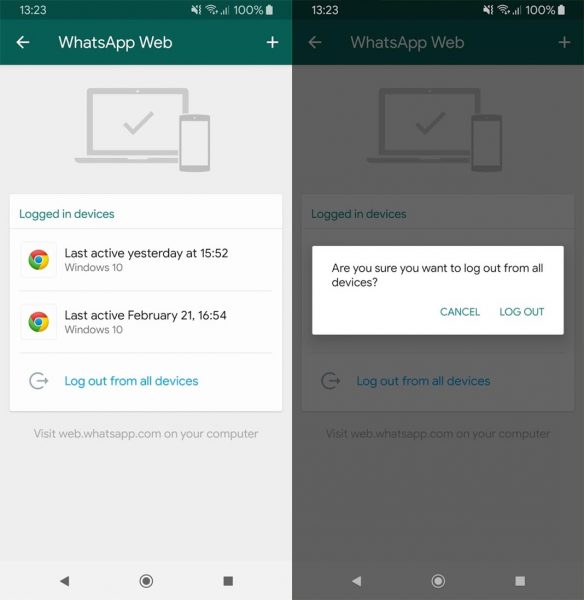
To use WhatsApp on a PC this way, you first have to go to web.whatsapp.com from your computer’s browser. Once you have the page open, you’ll see the instructions and a QR code that you’ll have to scan by following these steps:
- Open WhatsApp on your phone.
- Tap Menu or Settings and select WhatsApp Web.
- Point your phone at this screen to capture the code.
Once you’ve scanned the QR code, you’ll see all your conversations and can use them as usual, right from your browser. You can use WhatsApp Web in its own tab while your browse from another.
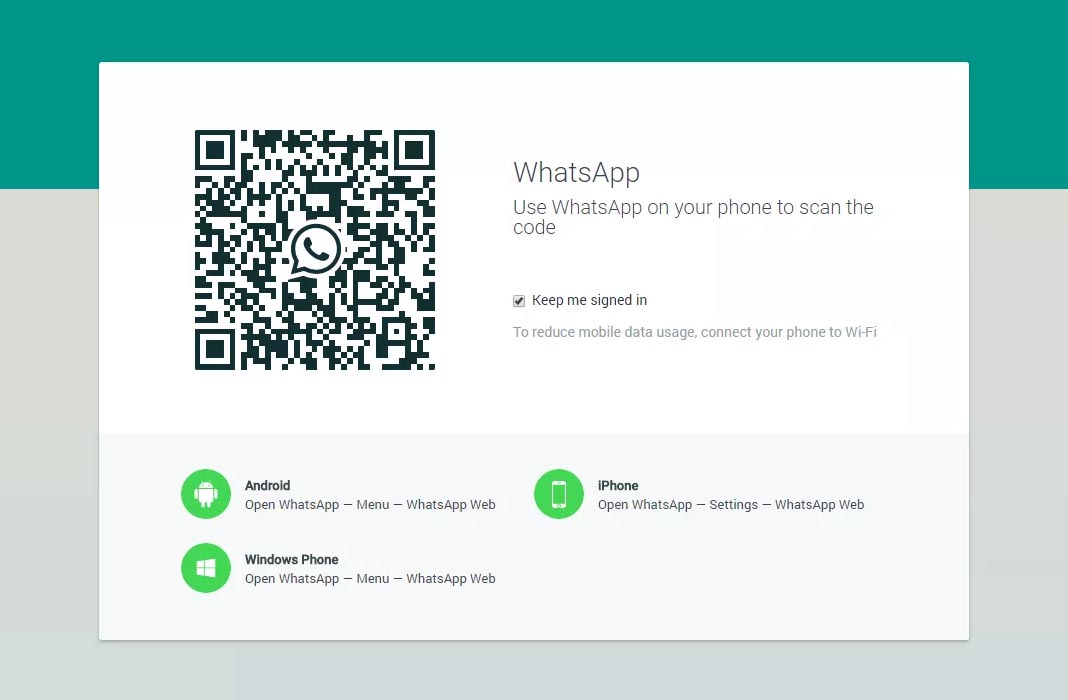
Don’t forget to log out!
It’s important for you to remember that if you don’t sign out of WhatsApp Web, the next person who accesses the computer and that browser will be able to read your conversations. Sign out using the three dots in the upper right corner in WhatsApp Web and click on Log Out. Or you can close all sessions available from your smartphone in case you forgot to log out before turning off your PC.
Go to your WhatsApp app on your smartphone, to the three dots in the upper right corner, and tap WhatsApp Web. There, you’ll see all the devices with open sessions and the last time they were actively used. Select Log out from all devices to sign out of all the computers where you’ve ever used the service.
Why use WhatsApp Web?
It’s good for using at work, for example. You can access it whenever you need to have a conversation via WhatsApp on PC to write faster or write more. It’s easier to have a conversation than having to keep your eye on your phone.
It’s also useful (although not the best way) to send files or texts form your smartphone to your PC. You can create a conversation with yourself in WhatsApp and use it to send images from the PC to your phone or viceversa.
WhatsApp on PC with WhatsApp Desktop
If you don’t want to have any browser open, you can get WhatsApp on your PC by using the WhatsApp Desktop client. You can install the official WhatsApp Desktop client for PC and manage all your conversations if you don’t want to have the browser open. Conversations, sent and received photos, and all your contacts will be synced.
With WhatsApp Desktop you can have the app installed and you’ll be notified when you get messages. Or you can open it whenever you want like any other computer program in just a few seconds if you have a shortcut on your desktop.
To activate WhatsApp Desktop with the desktop client, you’ll have to follow the same steps you’d follow to start a session in WhatsApp Web.
- Open WhatsApp on your phone.
- Tap Menu or Settings and select WhatsApp Web.
- Point your phone at this screen to capture the code.
Once the session is open, you’ll get notifications in the lower right corner of the screen on your PC if you get a WhatsApp message and you can stay up to date without having to look at your phone.
WhatsApp Desktop for Windows
What is WhatsApp Desktop useful for?
You can have it on hand at all times without having to open the browser and the WhatsApp website. You can keep your session logged in to use it every day. Of course, you’ll want to make sure no one else has access to your PC or they could get all your information.
WhatsApp on PC with an Android Emulator
A third option for using WhatsApp on PC is to use an Android virtualization tool. This type of software is able to run Android on your PC and lets you install thousands of apps from the operating system and use them on your PC without any problems.
WhatsApp with Bluestacks
To get WhatsApp on your PC using Bluestacks, you just have to install the tool on your PC and from the main desktop, you can search for available apps or install your own APKs downloaded from Uptodown. Install the WhatsApp Messenger APK, access it from Bluestacks, and start sending and receiving messages from your friends. [Download]
WhatsApp with Nox Player
The way WhatsApp works with Nox Player is simple, and in fact, it’s much easier to download the apps from Uptodown using it since our official app comes preinstalled. It’s an Android emulator for Windows that lets you access the Uptodown App Store and download WhatsApp from there. Once it’s downloaded, you can access the mobile version of WhatsApp Messenger on your PC and have all your chats available. [Download]
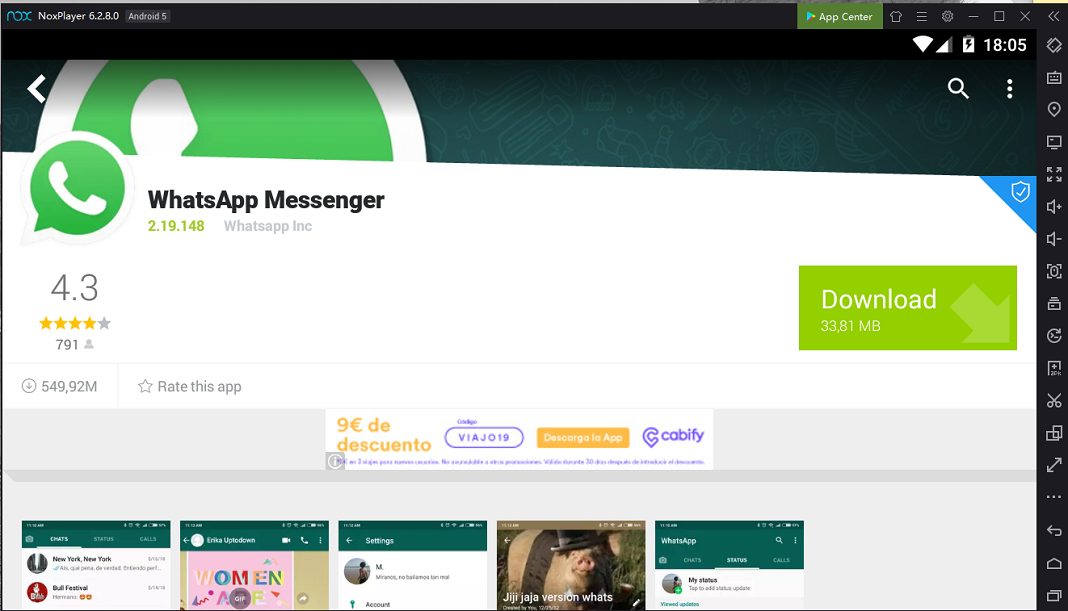
WhatsApp in Nox App Player
If you use an Android virtualization tool, the WhatsApp interface is exactly the same as what you’d see on your phone, letting you choose between the horizontal and vertical view. The only limitations are your PC’s hardware. What this means is, you can’t take photos or videos from the app if you don’t have a webcam connected. Beyond that, keep in mind that using apps like Nox App Player or Bluestacks isn’t the most convenient option, and is only really useful if you’re going to use other Android apps on your PC.
Как пользоваться WhatsApp на десктопе
Нет у меня более нелюбимого мессенджера, чем WhatsApp. Почему нелюбимый? Да потому что из распространенных мессенджеров он самый кривой и неудобный, но при этом им пользуется очень большое количество народу. И еще его купил Facebook — что неудивительно, потому что функционал Facebook разрабатывают такие же криворукие эбланы, как и те, которые трудятся над WhatsApp.
Что там кривого? Ну, прежде всего, то, что вотсап работает только на одном-единственном телефоне (и вообще не работает на планшетах без симкарты). Это дико неудобно. Второе — у него нет десктопной версии. Третье — он не облачный, не умеет хранить историю сообщений. (Правда, они вроде бы сделали какие-то костыль, позволяющий сохранять историю, но так как все это писали все те же эбланы — оно ни хрена не работает.) Четвертое — он еще и платный, начиная со второго года использования. И это только основные проблемы, а там их — хоть носом клюй.
Но мне в любом случае приходится осквернять вотсапом телефон: в Испании эта фигня дико популярна — прежде всего, из-за того, что SMS очень дороги (дешевле голосом позвонить), поэтому практически все используют WhatsApp вместо SMS. И попробуй заставь их перейти на 4talk: плачут, отбиваются, размахивают ручонками и говорят, что привыкли к WhatsApp. Правда, многих друзей-знакомых я уже пересадил (точнее, заставил поставить еще и второй мессенджер), но всю Испанию охватить пока не удалось.
Я, собственно, к чему. К тому, что у этого угробища все-таки появилась возможность работать на десктопе. Сделано это в их обычной кретинской манере, но все-таки хоть как-то работает, но не для всех клиентов (для айфона пока не работает).