How to Activate Gmail Dark Mode

Gmail’s dark mode is quite new, but it can actually make a huge difference to your everyday use of this app whether on your computer or laptop. Aside from making your screen look cool, it can also help reduce the glare from your phone when you are checking your email as well as your messages at night which is great. Another plus to using Gmail’s dark mode is that it may even help extend your battery life too. Isn’t that great?
Even though it has been months since the Android 10 and iOS 13 was released which included the system-wide dark mode, Gmail was the latest major app to get a new color scheme to match these operating systems’ dark mode.
Now that we have seen Gmail in dark mode, it is definitely worth waiting for its release because it is easy to activate and pretty straightforward too compared to going on dark mode for Facebook and WhatsApp. So, how to activate Gmail dark mode? Let’s find out.
How to Set Gmail Dark Mode on Desktop
If you frequently use your desktop or laptop to check emails and the like, you’re probably wondering how to activate Gmail dark mode on your device. The steps are easy enough to follow. Here’s what you’ll need to do.
· Go to Gmail.com then choose the ‘Settings’ icon. This is located at the top right portion of the screen and under your profile picture.
· Choose ‘Themes’ then scroll past the different themes featured until you find the black thumbnail. The label ‘Dark’ should appear over it when your mouse is hovering above the image.
· Select the image and you’re done.
How to Activate Gmail Dark Mode Android
For this to work, you will need to have the latest version of the Gmail app on your phone. If you are not sure if it is updated, go to the Google Play Store and search for the Gmail app. See if there is an update button on the screen. If there is none, then you are ready to activate the dark mode.
For those who have Android 10’s system-wide dark theme activated, the Gmail app should automatically go into dark mode once you open it. If not, you can still activate the dark mode manually. Here’s how to do it.
· Tap the menu icon on the top left of the screen.
· Scroll down the menu until you find ‘Settings’ then tap it.
· Go to ‘General Settings’ then tap it.
· You can now change your Gmail’s theme to light, dark, or even system default whichever you prefer.
However, you need to keep in mind that the dark mode won’t be available on android phones that have Android Pie or older OS. Still, it is possible to use Gmail while it is in dark mode when you visit the site itself with dark mode activated. This option is usually available with Firefox Preview and Chrome for Android devices.
How to Enable Gmail Dark Mode iOS
The dark mode for Gmail took longer to arrive in iOS, with the possibility of waiting for this option to be enabled server-side by Apple. Don’t worry iPhone users, the update will come but the pace is not as fast as we want it to be.
Once the update arrives, the new option will be enabled automatically if your phone is set to system-wide dark mode. On the other hand, you can activate dark mode manually. Here’s what you will need to do:
· Tap Gmail’s hamburger menu.
· Select ‘Settings’, then tap on ‘Theme’.
· Choose ‘Dark’ then refresh your Gmail to see if it is in dark mode.
If it hasn’t switched to dark mode, then you will need to wait a bit further for the updated iOS to be released.
Why Does Dark Mode Matter?
You’re probably wondering why many people are switching to dark mode when it comes to their phones and laptops even. Google has stated that there are two huge benefits from switching to dark mode. The first one is that you will be using less battery life and the second is that going on dark mode will not strain your eyes that much thanks to the dark environment on your screen.
Google has been flirting with its official dark theme for a few years now, and even released a half-baked one for their Android Pie 9.0. However, now that Android 10 is finally released, the company has also provided the developers with the tools that will help their app support their dark theme.
How to Enable Android 10’s System-Wide Dark Theme
If you have the Android 10 dark theme or dark mode as it is commonly referred to, you can enable it by opening the ‘Settings’ app. Choose ‘Display’ then turn on the Dark Theme option. Another way to enable this feature is to swipe down from the top of your screen then look for the night theme/mode toggle which is located in the quick settings panel.
It’s important to take note that enabling the dark theme for Android 10 will vary depending on what phone you are using. If the steps mentioned above didn’t work on your phone, you can use the search function in your phone’s ‘Settings’ app.
Once the dark theme has been turned on, any apps that have been updated to support the dark mode of Android 10 will automatically be reverted to dark mode.
Apps with Dark Mode That You Should Use
Although the release of dark mode for Android 10 took a while, once your app has updated, dark mode will be enabled immediately once you activate the dark theme in your Android 10.
The Android Message app does come with a lot of features, and one of them is switching to the dark theme once Android 10 is updated. There is an option to go to dark mode manually if you don’t have Android 10 yet. Other apps that support dark mode are Slack, Tumblr, and YouTube just to name a few.
How to enable Gmail’s dark mode on Android
Most applications have adopted what is popularly known as dark mode. This is a setting that is responsible for activating dark shades in all interface elements. It is advisable to use it in low-light environments or at night. Gmail has its own dark mode, and here, you will find two ways to activate it.
Enabling the dark mode in Gmail individually
Gmail has a dark mode activator that changes only the interface of the application. This means that the modification of this parameter will not affect other applications. Go to Settings.
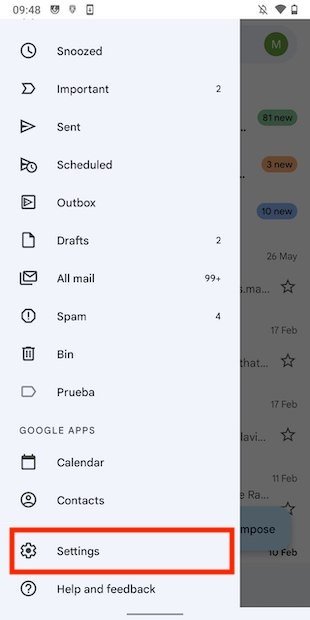
Open Gmail’s settings on Android
Then, tap on General settings.
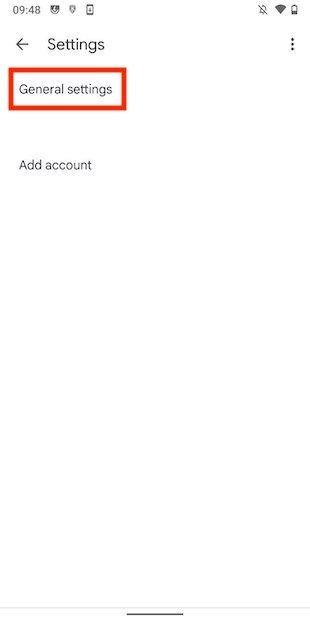
App’s general settings
Open the Theme section.
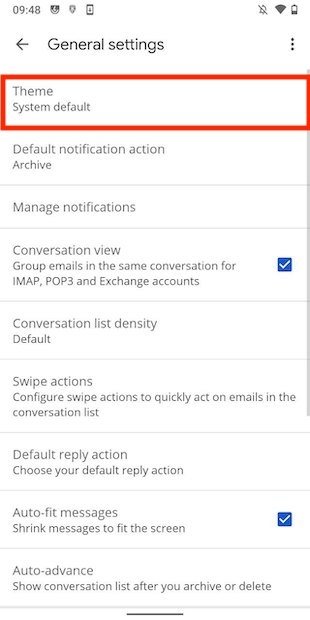
Theme settings
In the pop-up dialog, tap on Dark.
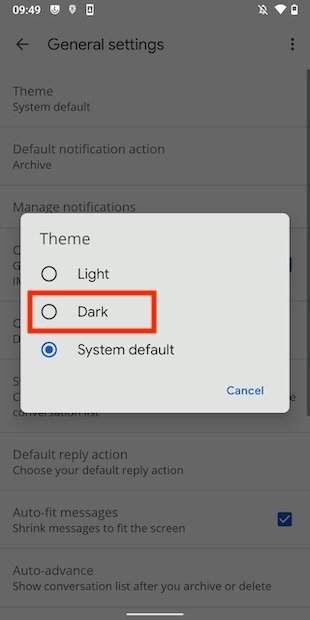
Enable the dark mode
The appearance of Gmail will change and will look much like the one you see in the following screenshot.
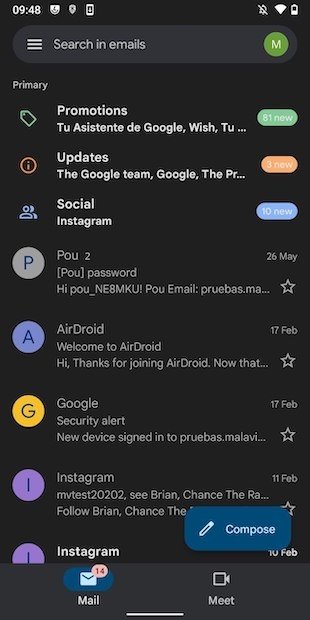
Gmail’s aspect with the dark mode enabled
How to enable Gmail dark mode with system options
Another way to enable dark mode in Gmail is by using the system options. Obviously, this will affect all applications. First, repeat the steps mentioned above, but in this case, make sure to enable System default.
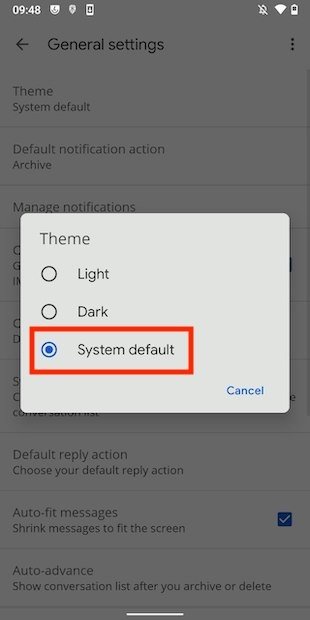
Adaptive theme
Now, go to the Android settings and open the Display section.
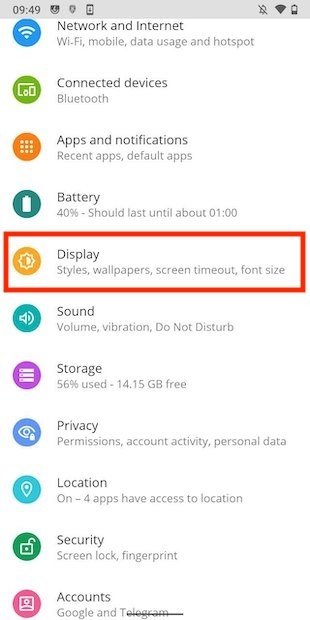
Screen settings
Activate the dark mode with the slider next to Dark mode. If you want to see some additional options, tap on the button.
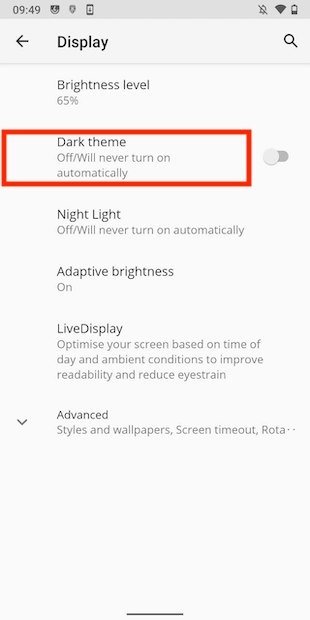
Dark theme settings on Android
If you tap on Schedule, you will have the possibility to program the activation of the dark mode.
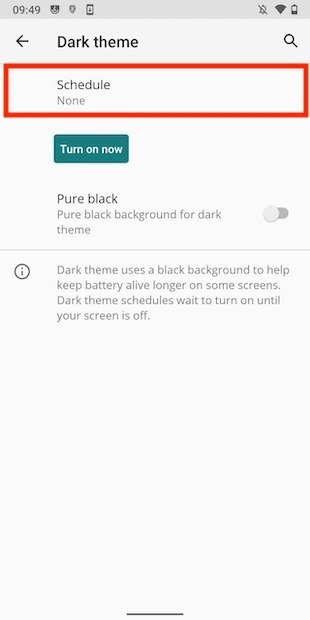
Schedule the dark mode
It is possible to ask Android to activate it after sunset and disable it during sunrise.
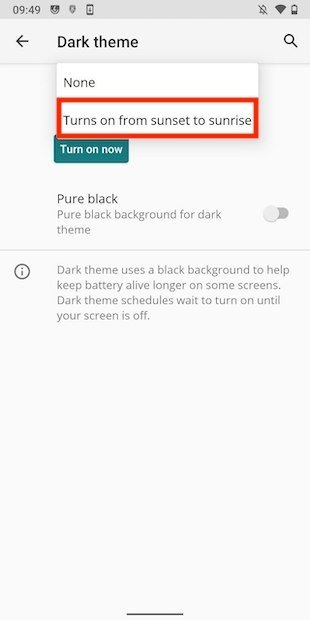
Scheduling the dark mode on Android
By doing so, you will have conditioned the activation of the Gmail dark mode to the system settings. From now on, Gmail will use this interface mode only when enabled on Android.
How To Enable Dark Mode For Gmail
Microsoft just added a dark mode to Outlook.com, but Google is way ahead of Microsoft. Gmail has had a dark theme for years. Here’s how to enable it—and get a better, more complete dark mode for Gmail, too.
How to Enable Gmail’s Official Dark Mode#
To change your Gmail theme, click the gear menu button at the top right corner of the Gmail website and select the “Themes” option.
This option is in the same place whether you’re using the new Gmail or the classic Gmail.
To use a basic dark theme with some dark grays, scroll down and click the black “Dark” tile to the right of the standard Gmail Light Theme.
To use an even darker theme with more pure blacks than grays, scroll down even further and click the “Terminal” theme.
You can also use any custom background image as the background for your dark theme. To select a photo, either click one of the suggested photos at the top of the themes pane or click the “My Photos” link.
From here, you can either click the “Featured” tab to select from a number of Google-chosen backgrounds or click the “My Photos” tab and select any photo from your Google Photos account.
To make any custom image available here, head to the Google Photos website and upload it to your Google Photos storage.
After selecting an image, click the A-shaped “Text Background” button at the bottom of the Pick Your Theme pane, and then select the “Dark” option. Click “Save” to save your changes.
Gmail will use a dark theme with your selected image shown in the background.
If you’d like to use the default Gmail theme again, just go back into the Themes dialog and select the standard Light Theme.
How to Get an Improved Dark Mode for Gmail#
Unfortunately, Gmail’s built-in dark themes have some problems. They look great when you’re just staring at your inbox, but you’ll still see a white background when you’re viewing an email thread, composing an email, or using the Google Calendar, Google Keep, or Tasks sidebar.
If you want a more complete dark theme for Gmail, you can get it with a few useful user styles. User styles are custom style sheets that your browser can apply to websites you visit, giving them a different look. These are similar to user scripts, which are snippets of code you can run on websites you visit.
To get these user styles, you’ll need to install a browser extension that allows you to use them. Unfortunately, the popular Stylish browser extension has begun spying on its users. Instead, we recommend Stylus. Install Stylus for Google Chrome or Stylus for Mozilla Firefox.
After installing the extension, you can quickly install user styles. We recommend installing Dark Gmail 2018 by DM. This style turns your emails and compose button dark, too, giving Gmail a more complete dark theme.
Just head to the website and click the “Install Style” button, and then click “OK” to install it in your browser.
The developer also recommends you choose the standard “Light” theme in Gmail’s theme settings while using this dark theme. Some interface elements may look strange when combining this user style with the standard Gmail dark theme.
Warning: These styles are hosted on the userstyles.org website, which is operated by the company that owns Stylish and is still the main source online for user styles. They will install perfectly fine if you’re using the Stylus browser extension instead. However, if you visit the website without Stylus installed, the website will encourage you to install Stylish. We recommend staying far away from Stylish.
If you’d like to turn the sidebar that contains Google Calendar, Keep, and Tasks dark as well, we recommend you install the New Gmail Dark Theme Tweaks – Gmail 2018 style as well.
To uninstall these scripts, click the Stylus button on your browser’s toolbar, select the “Manage” option, and then delete any styles you no longer want to use. You can also just uninstall the Stylus browser extension completely if you aren’t using it.
If you prefer dark colors on the web, you may want to try an extension like Dark Reader that promises a dark mode for all websites. You may want to use Windows 10’s Dark Mode or the dark theme on the Apple’s upcoming macOS Mojave, too.
Set Gmail dark mode or dark theme (1-minute guide)
How to set dark mode or dark theme on a desktop or Gmail app for Android or Ios. Follow this guide to get your black Gmail up in less than 1 minute.


The digital world warrants us to stare at screens for a significant amount of time. After staring at the screen all day long, the eyes may feel grating as the night sets. Using the dark mode can help minimize the amount of light hitting the eyes on your desktop or mobile device. There are different ways to use the Gmail dark mode. The exact option also varies based on your device.
What is Dark mode in Gmail
Dark mode in Gmail is a Gmail feature used to change the theme of your background to dark on your desktop or mobile device. Dark mode is used to reduce strain on the eyes when reading emails in dim light, to conserve battery life, or for its aesthetic appeal.
Gmail Dark mode vs dark theme
| Dark mode | Dark theme |
| Changes the user interface background to a darker shade | Changes the color emitted from the screen to a warmer color |
| Remains active all day long | Designed for use in the evening and at night |
How to set Gmail to dark mode
Note: This method is suitable for PC/ Mac users
1. “Select the Icon Gear” on the top right-cornor of the Gmail homepage.

2. Locate “Themes then Click on View All”

3. “Scroll down and Select the black rectangle”(When you hover your mouse over it, it should say “Dark”).

5. “Click on the Save” button.

The background should now be black and the inbox area is set to a lighter grey, keep in mind that each message will still have a white background. Your Gmail is now set to dark mode.
Why Gmail dark mode is not working?
There are times when you would prefer your Gmail to appear in dark mode. However, this option may not be apparent for all macOS users.
A few main reasons why your Gmail may not be in dark mode:
I. There is a bug
On very rare occasions, Gmail may not show in dark mode despite you enabling the feature on macOS and the browser because there is a bug. Try to research your problem to find out whether there are any challenges with Google products. That is particularly true if you have been using the feature and it just stopped working on its own.
1. “Log in to Gmail app Click on the 3 vertical lines” on the top left side of the screen.
2. “Select the Setting tab” on the side menu.
3. “Click on Theme” option in the general settings menu, then “Select Dark” when the pop up tab appears.

Why Gmail dark mode is not working on Android
If dark mode is not working on your Gmail Android App, you will need to perform several checks:
1. Confirm software compatibility
The Dark Theme is not available in all Android versions. Make sure that you are using the relevant Android OS that supports Dark Theme. You need Android Q (10) or higher.
I. Gmail app is not updated
By default, the latest version of Gmail is designed to pick up the phone’s Theme. That is, if you change your phone to Dark Theme, Gmail should immediately pick the Theme. If it doesn’t, the chances are that you need to check whether the app has a pending update in Play Store.
II. The phone needs a restart
If you are certain that your phone meets all the requirements, you may perform a restart on the Android device to have it working normally. Most users report that a simple restart helped sort out the issue of Dark Theme not showing in Android Gmail.
There isn’t a setting in the Gmail app itself – you simply set your phone’s settings to dark mode (and Gmail will follow suit). Here’s how to do that.
1. Go to your phone’s “Settings“.
2. “Scroll down” until you see display & brightness
3. “Click on dark” under appearance, by default, Gmail is set to correspond to system settings on your iPhone iOS. That is, if you change your iPhone’s theme, the same will be reflected in the Gmail app.

You could also turn on the Automatic option for Dark and Light themes. Doing so means that your phone will change the Theme automatically depending on the timeframes you will have defined.
Why Gmail dark mode is not working on iPhone iOS
If dark mode is not working on your iOS Gmail app, you will need to perform several checks:
I. Confirm software compatibility
The Dark Theme is not available in all iOS versions. Make sure that you are using the relevant iOS that supports Dark Theme. You need iOS 13.0 and later.
II. Gmail app is not updated
By default, the latest version of Gmail is designed to pick up the phone’s Theme. That is, if you change your phone to Dark Theme, Gmail should immediately pick the Theme. If it doesn’t, the chances are that you need to check whether the app has a pending update in App Store.
IV. The phone needs a restart
If you are certain that your phone meets all the requirements, you may perform a restart on the Android device to have it working normally. Most users report that a simple restart helped sort out the issue of Dark Theme not showing in Android Gmail.
Conclusion
To wrap up, Dark Theme in Android, iOS, macOS, or Windows provides you an opportunity to have a great viewing experience in low-light environments. It does not matter what the device or OS calls this setting. It does the same thing. When enabled, you can easily read your Gmail emails without stressing your e