Как вызвать Spotlight на Mac и начать им пользоваться
Рассказал, как запустить Spotlight, а также про 12 трюков, которые помогут им пользоваться более эффективно.
Влад Гороховский

Все знают про систему поиска файлов Spotlight, но далеко на каждый умеет использовать его на все 100%. Тем более, после выхода macOS Mojave, где он преобразился как снаружи, так и внутри. Ниже я собрал десяток трюков, которые помогут вам стать гуру этой нехитрой поисковой машины.
0. Как вызывать Spotlight
По умолчанию строка поиска Spotlight появляется при нажатии сочетания клавиш Cmd Пробел . Но, скорее всего, этим сочетанием у вас меняется раскладка клавиатуры на Mac. Тогда попробуйте Alt Пробел . Если и это не сработало, то нужно задать для Spotlight шорткат самостоятельно. Для этого зайди в ▸ Системные настройки ▸ Spotlite .
1. Поиск точных фраз
Вы уже наверняка знаете, что если в Google ввести поисковой запрос в кавычках, то поисковик будет выдавать только результаты с полным совпадением. Этот же приём работает и в Spotlight — ставите фразу в кавычки и получаете только те документы, которые содержат именно эту фразу, а не её отрывки.
2. Логические выражения
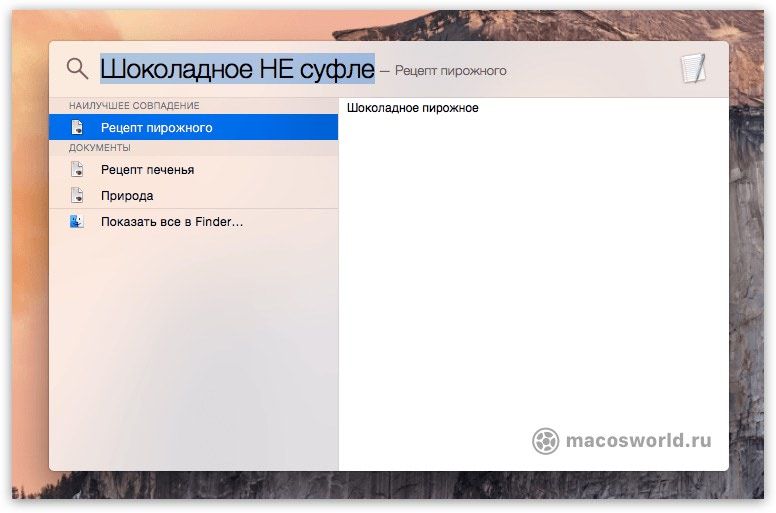
Spotlight умеет распознавать логические выражения, вроде НЕ, ИЛИ или круглых скобок. Вы можете не любить алгебру логики, но только взгляни, насколько удобно можно отсеивать результаты: у моей девушки на Маке есть несколько рецептов выпечки с шоколадом, включая шоколадное печенье, пирожные и суфле. Она уже готовила суфле на прошлой неделе, поэтому в этот раз хочет испечь что-нибудь другое. Ей достаточно ввести «шоколадное NOT суфле» и она получит все рецепты, кроме тех, которые содержат слово суфле. Просто и удобно.
3. Продвинутый поиск
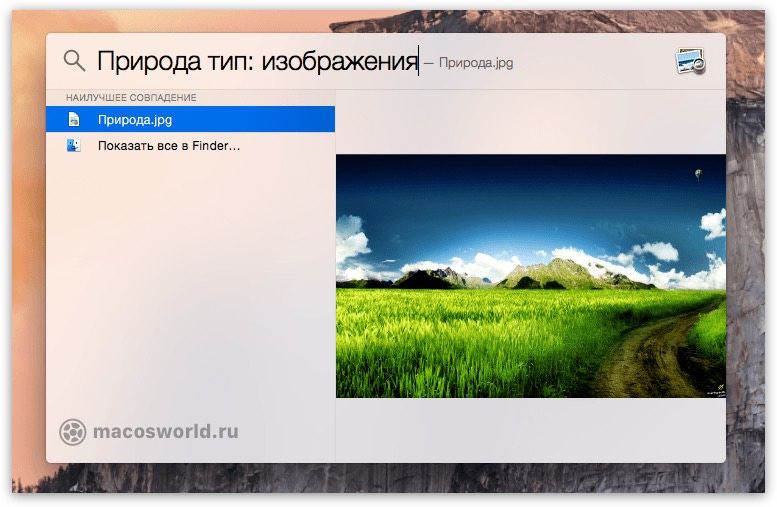
Поиск по имени довольно прост и удобен, но он абсолютно не эффективен в том случае, если у вас имеется пара сотен или тысяч файлов с одинаковым названием. В этом случае помочь сможет только хитрость. Вы можешь искать по типу файла, по дате изменения или создания. Для этого достаточно добавить тип: [тип файла], изменено: [ДД/ММ/ГГГГ] и создано: [ДД/ММ/ГГГГ] соответственно.
4. Узнать расположение файла
Предположим, что вы уже нашли нужный файл и открывать его вы не хотите, хотя вам нужно узнать в какой он лежит папке. Для этого можно воспользоваться комбинацией клавиш Cmd Enter или Cmd Клик левой клавишей мыши (или тачпада), после чего вы увидите выделенный файл в Finder.
5. Копируем файл прямо из Spotlight
Да-да, можно скопировать файл из Spotlight без лишних движений — просто перетаскиваете файл из результатов поиска в то место, куда его необходимо скопировать и все. Файл именно скопируется, а не переместится.
6. Запуск приложений
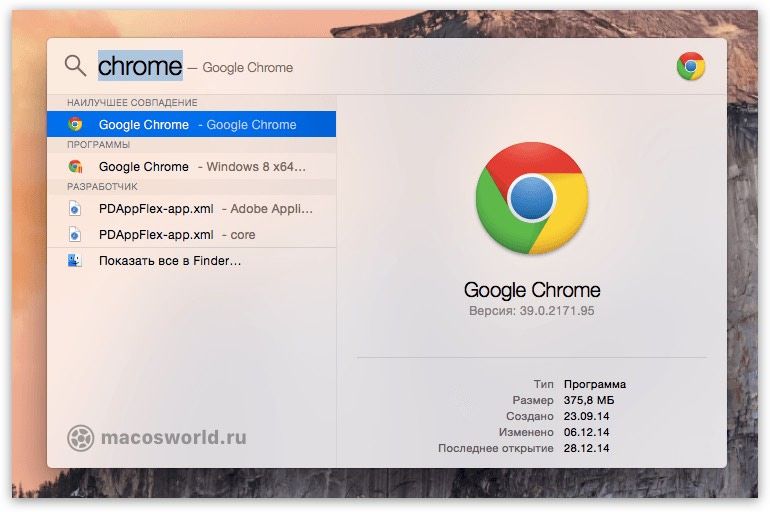
Лично мне лень запускать редко используемые программы через Launchpad, поэтому я просто ввожу название нужной программы в Spotlight и открываю его двойным кликом.
7. Поиск контактов
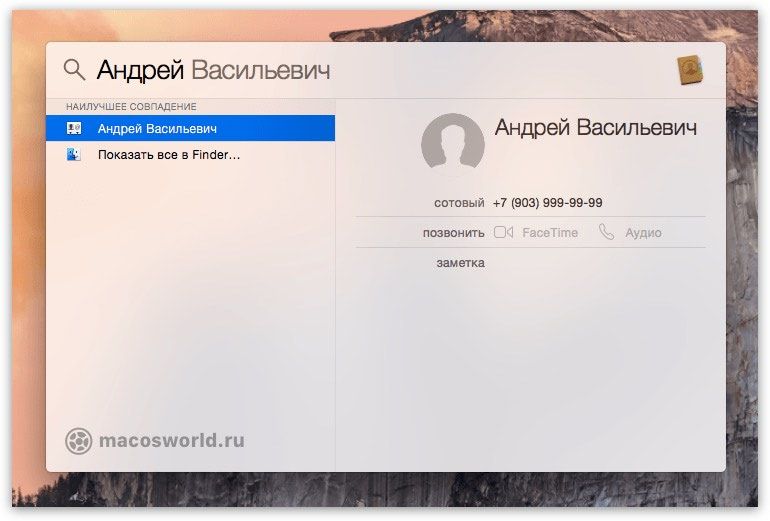
Если вы так и не привыкли использовать стандартное приложение Контакты, то у меня для вас хорошая новость — можно искать свои контакты с помощью Spotlight. Просто вводите нужное имя и получаете полную информацию, которую можно сразу же скопировать в буфер.
8. Отключение лишних результатов
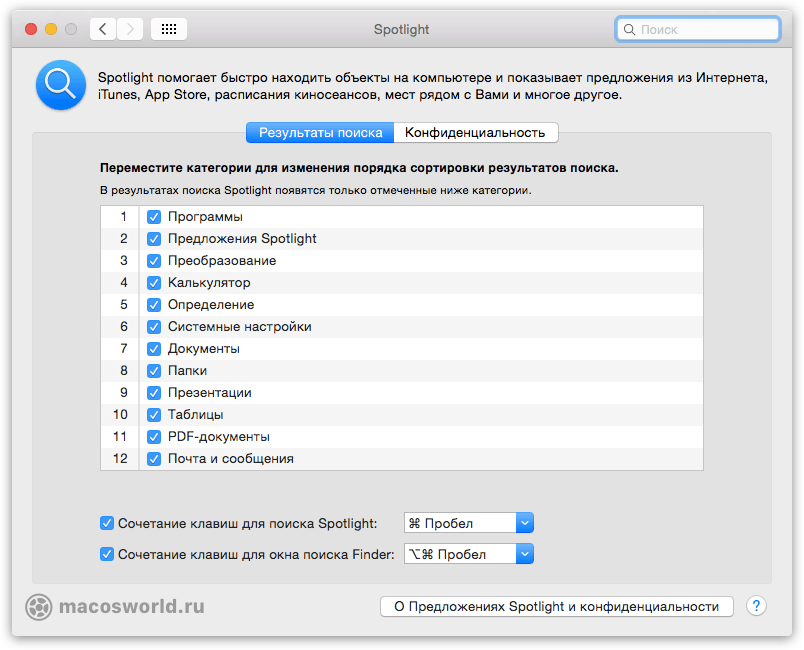
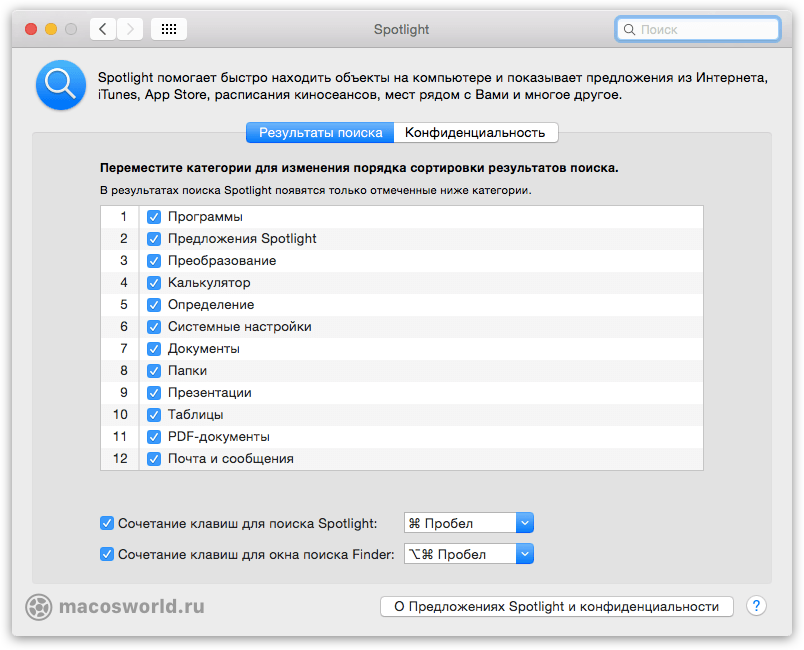
Если вам не нужны ни поиск по контактам, ни поиск по приложениям и вы считаете, что они только засоряют вашу поисковую выдачу, то можно просто отключить их, перейдя в Системные настройки ▸ Spotlight ▸ Результаты поиска . Оставьте галочки напротив тех категорий, которые вам важны и уберите все остальные.
Здесь же вы можете изменить порядок категорий по приоритету простым перетаскиванием. Ниже можно переназначить сочетание клавиш для вызова Spotlight.
Кстати, в соседней вкладке «Конфиденциальность» можно сразу добавить в исключения те папки и/или накопители, информацию с которых вы хотели бы скрыть от поисковика. Это особенно полезно, если нет желания, чтобы ваши фотографии с прошлого отпуска всплыли, пока вы пытаетесь показать шефу новые трюки из этой статьи.
9. Быстрый просмотр поисковой выдачи
Вы ведь не раз сталкивались с ситуацией, когда вместо 2-3 файлов вы получаете целый список из сотни файлов разного типа, но с аналогичным названием? Разобраться в этом хламе поможет простое сочетание клавиш Cmd Стрелка вверх/вниз . Оно позволяет быстро просматривать список листая категорию за категорией.
10. Калькулятор и конвертер валют
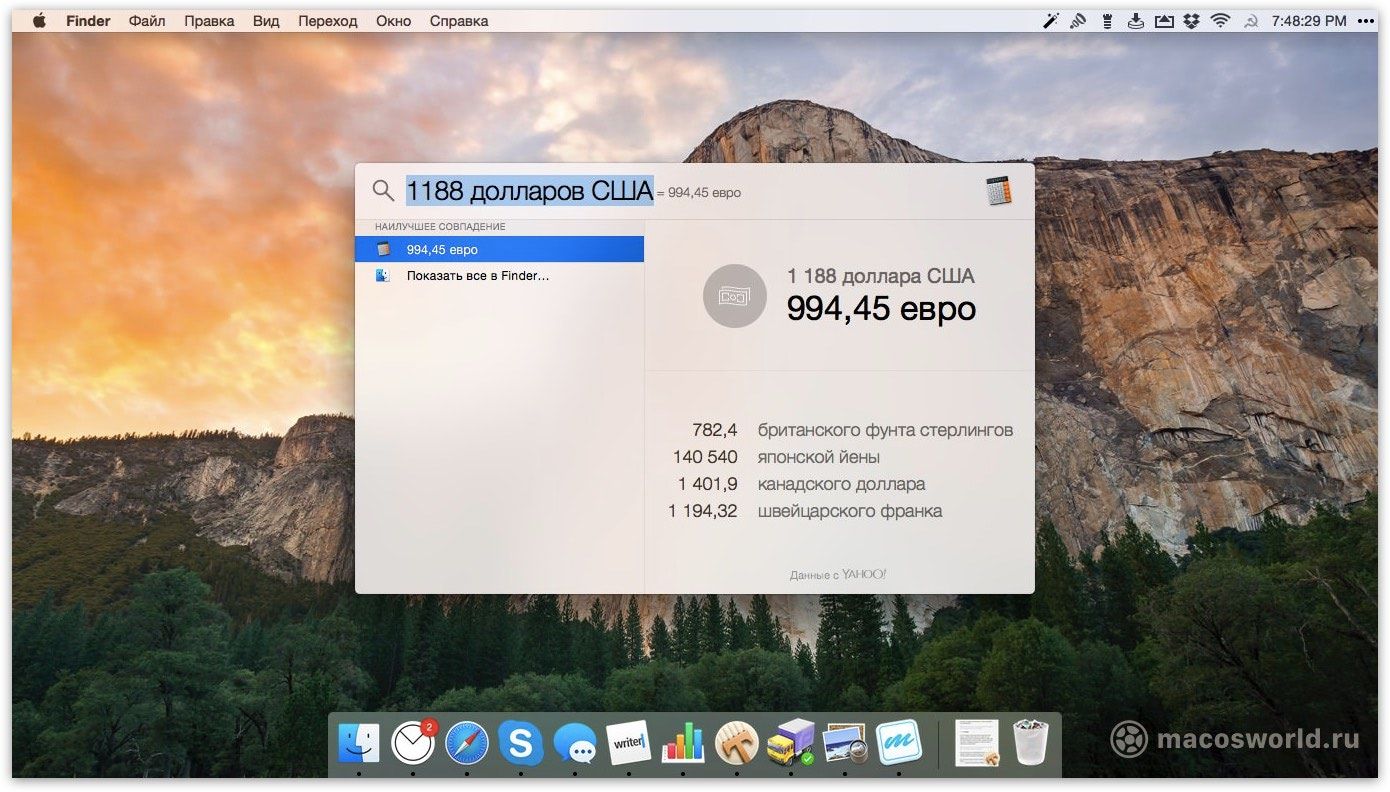
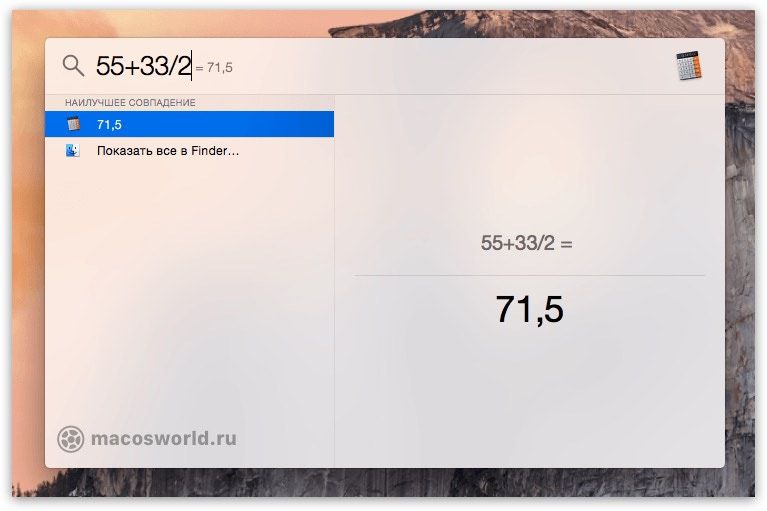
Простые выражения можно считать и без калькулятора: просто введите в Spotlight то, что нужно подсчитать и получите ответ.
Кроме того, можно воспользоваться встроенным конвертером валют, который переведёт любую валюту в ту, которую вы выбраи основной, когда настраивали свой Mac. Главное, придерживайся формата «XX название валюты», где XX — это количество валюты, а «название валюты» — это, собственно, название самой валюты, которую необходимо проконвертировать.
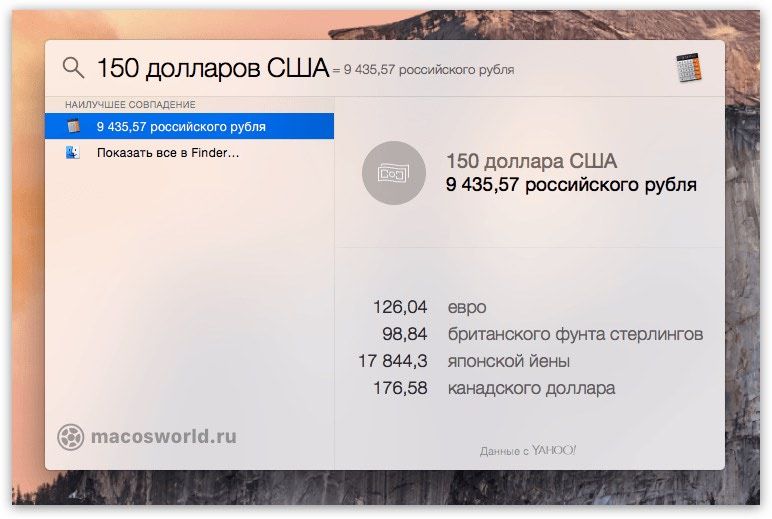
11. Словарь
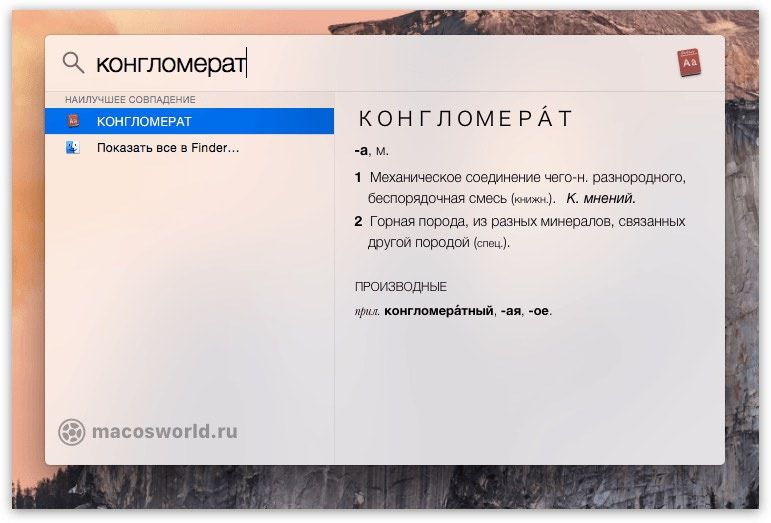
Если вы встретили незнакомое слово в присланном тебе отчёте, то необязательно сразу лезть в Safari, так как Spotlight умеет искать по встроенному в macOS словарю. Для этого просто вбейте его в строку поиска и перейдите в категорию «значение». Словарная база здесь так себе, но какие-то общие понятия найти можно.
На этом пока все, но я не прекращаю свои поиски и со временем обязательно дополню список новыми трюками, которые сделают вашу работу в Spotlight ещё эффективней.
How To Use Spotlight On Your Mac A Complete Guide
What Spotlight Can Find on Mac?How to Access Spotlight Search on MacHow to Use Spotlight on MacUse Spotlight to find Showtimes, Weather, and Nearby PlacesHow to Use Spotlight as a CalculatorUse Spotlight as a Conversion ToolHow to Change Spotlight Search PreferencesHow to Disable or Enable Spotlight Indexing on MacDisable Spotlight Search on Mac
What Spotlight Can Find on Mac?#
As evident from the above paragraph, Spotlight Search can pretty much find everything that’s on your Mac. It can even show helpful suggestions from the web like nearby locations, apps from the App Store, media from the iTunes Store, film showtimes, and more. Here’s the list of things it can search/perform on your Mac.
ApplicationsBookmarks & HistoryCalculator (you can use Spotlight for basic calculations)ContactsCalendar EventsConversionDictionary meanings and definitionsDeveloperDocumentsEvents & RemindersFoldersFontsImagesMail & MessagesMoviesMusicOther (includes other file formats and everything else)PDF DocumentsPresentationsSiri Suggestions (Weather, Sports score, Stocks, and more)SpreadsheetsSystem Preferences
You have the control to exclude certain category results or folders from showing up in Spotlight Search.
How to Access Spotlight Search on Mac#
The easiest and quickest way to access Spotlight is by pressing Command (⌘) + Space bar. You may also click on the search button in the top right corner of your Mac’s screen.
How to Use Spotlight on Mac#
After launching Spotlight Search, type the name or command to see the suggestions. The results appear almost in real-time as you type. In most cases, you do not even have to type the full word. You will get the appropriate suggestions; press the enter key to proceed. For example, suppose you wish to open Terminal. Just type ter and hit the enter key. To find documents, enter their name. If you do not know the name but remember the file type, enter it to see the relevant results. For example, type .zip to see all ZIP files. Or, type .mkv to see big video files and so on. You may also use the word “kind” followed by the file type. Suppose you wish to find all audio files, type kind:audio in the Spotlight Search. The same goes for other file types like kind:folders, kind:zip, etc. To see all search results in the Finder, double-click on Show all in Finder. Spotlight also lets you search using natural language. For example, type emails from iGeeksBlog, or apps from last week, etc. To open a search result, double click it. You may also select a particular result and hit the enter key. To navigate through the list, use the Up Arrow and Down Arrow keys. If you wish to know the location of a file or folder, select it and press & hold the Command key. You will see the location path. To open this location, press Command + R. You may also drag the file or folder from Spotlight Search to the desktop or anywhere else. This will not move the file but create a copy. You can also view the files recently used in a particular app: For this, type the app name. (But do not hit the enter key. If you do, the said application would open.) You will see the recent files listed on the left side. Notes:
You can drag the Spotlight window anywhere on the screen and also increase its height.Do you use Screen Time on Mac? When you reach the time limit, the app icons in Spotlight Search will be dimmed, and you will see an hourglass icon.
Use Spotlight to find Showtimes, Weather, and Nearby Places#
To find showtimes: Enter the movie name. To see what’s playing in your nearby location, type ‘Showtime.’ For weather: Open Spotlight and type ‘weather.’ Or type ‘weather in New Delhi.’ For nearby places like restaurants, type a command like ‘places to eat chicken.’ After this, choose a result from the Maps section.
Use Spotlight as a Calculator#
Calculating is quick and straightforward. To start, type something like 450 + 768 in Spotlight. You will see the result immediately. For subtraction use (–), for multiplication use (*), and for division use (/). Note: There is no need to press the equal sign (=) to see the answer.
Use Spotlight as a Conversion Tool#
For converting from one unit to another, type it in the Spotlight Search, and you will see the result immediately. As an example, type any of the following words. Currency: 50 dollars to Indian rupees or $50 to ₹Temperature: 98.3 F to CLength: 400 meters to feet or 400 m to ft or 99 cm to yardsWeight: 50 kg to pound or 98 ton to kg and so on… Note: You will see the suggestion for most conversions even without entering the ‘to‘ part. This is based on your Mac’s language + region/location settings. For example, if I (being in India) type 50 dollars (or $50) in Spotlight, it automatically shows the converted currency in Indian rupees.
How to Change Spotlight Search Preferences#
How to Disable or Enable Spotlight Indexing on Mac#
Want to disable Spotlight indexing altogether? After this, no file result from Mac’s drive will show. Open Finder → Applications → Utilities → Terminal. Or, type Terminal in Spotlight Search. To disable indexing, enter this command in the Terminal and enter Mac’s password when asked: sudo launchctl unload -w /System/Library/LaunchDaemons/com.apple.metadata.mds.plist To enable indexing again (that is, rebuild the Spotlight index), enter this command in the Mac’s Terminal: sudo launchctl load -w /System/Library/LaunchDaemons/com.apple.metadata.mds.plist Note: On newer Mac’s you may have to disable System Integrity Protection.
Disable Spotlight Search on Mac#
You can make the Spotlight almost useless by taking away its indexing powers (Pro Tip above). Apart from that, you can turn off Spotlight Suggestions and disable location services for Spotlight Suggestions. Here’s how.
How to Turn off Spotlight Suggestions#
From now onwards, Spotlight will search only Mac’s local content and the enabled dictionaries. Want to prevent it from accessing the location (and as a result, turn off location-based results)?
How to Disable Location Services for Spotlight Suggestions#
Signing Off This is almost everything you need to know about Spotlight Search on Mac. The above guide is applicable for almost all macOS versions, including Mojave, Catalina, and the latest Big Sur. Finally, if you use Time Machine (which you should), Spotlight makes it easier to search and recover lost or deleted items from the backup. READ NEXT:
How to Password Protect a Folder on MacWhat is Other on Mac Storage and How to Delete It?How to Unlock Your Mac With Apple Watch (A Step-by-Step Guide)How to use Spotlight Search on iPhone (iOS 15) 


Секреты поиска Spotlight на Mac
Если вы давно пользуетесь macOS, то наверное уже привыкли к поиску Spotlight, с помощью которого можно легко найти практически любой файл на накопителе Mac. В этой статье мы расскажем о некоторых полезных советах, которые помогут во взаимодействии с поиском Spotlight.

Как вызвать поиск Spotlight на Mac
Осуществить поиск при помощи Spotlight можно нажав соответствующую кнопку в строке меню macOS.

Кроме того, вызвать поле поиска Spotlight можно при помощи горячих клавиш ⌘Cmd + Пробел некоторые пользователи устанавливают сочетание Control + Пробел.
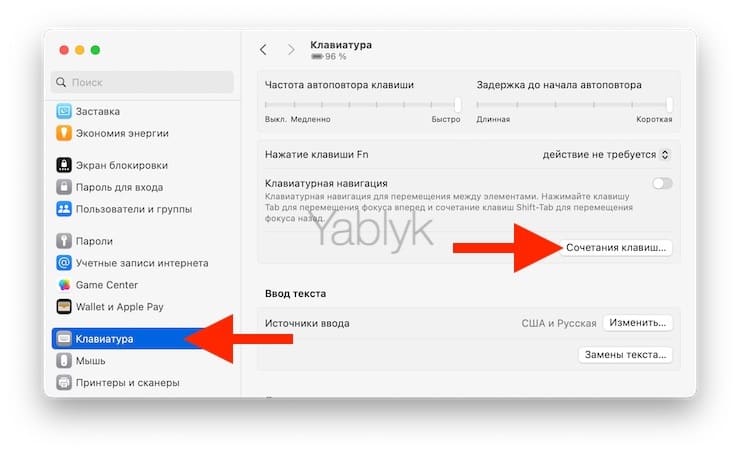
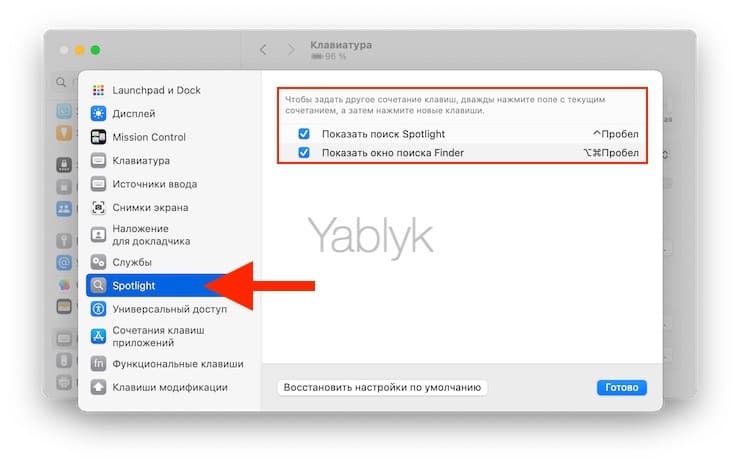
Комбинацию клавиш вызова Spotlight, при необходимости, можно настроить под себя по пути «Системные настройки» → раздел «Клавиатура» → «Сочетания клавиш» → «Spotlight».
Как настроить поиск Spotlight на Mac
Прежде чем приступить к использованию Spotlight в macOS, необходимо его настроить. Для этого откройте «Системные настройки» и перейдите в раздел Siri и Spotlight (в старых версиях macOS — Spotlight).
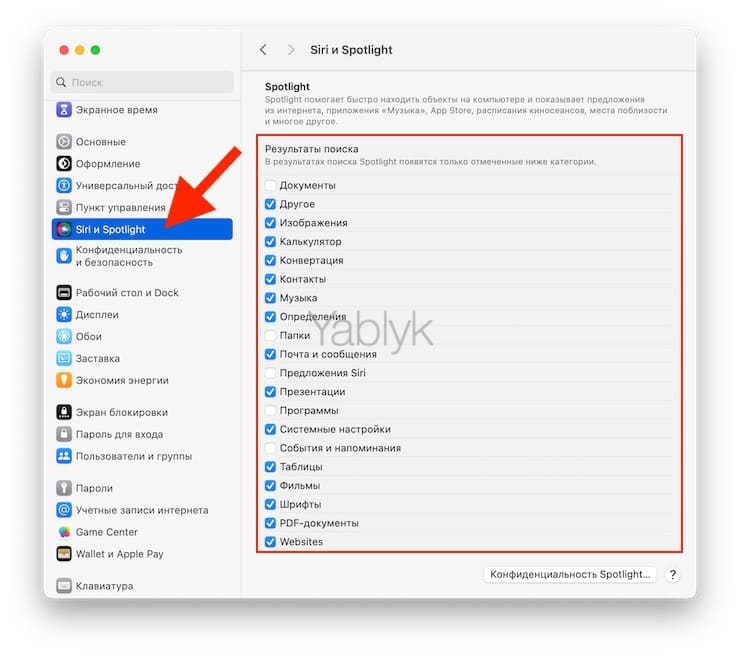
В разделе Результаты поиска вы можете выбрать типы файлов, которые будут отображаться в результатах поиска. Отключите те типы файлов, которые вы вряд ли будете искать. В этом же окне можно настроить порядок отображения файлов в результатах поиска. Поставьте на первое место те файлы, с которыми приходится иметь дело чаще всего. Например, PDF, документы и папки.
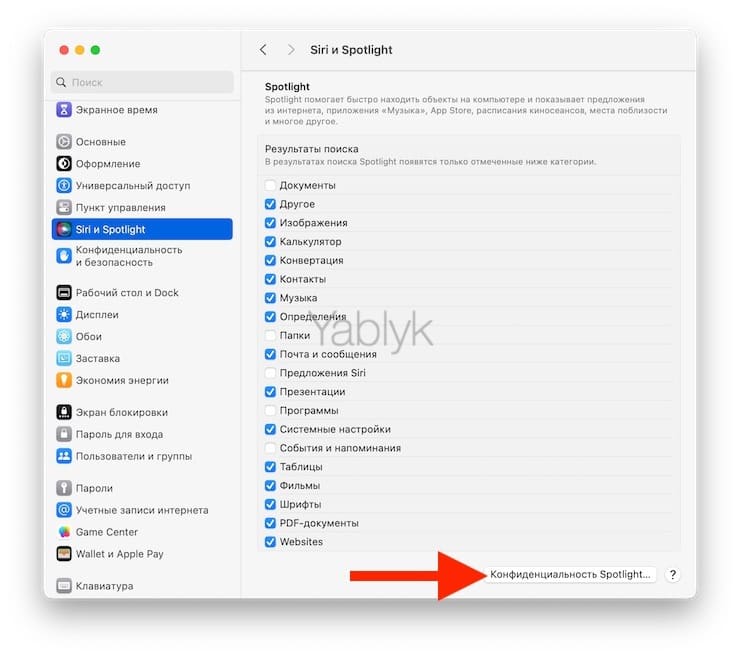
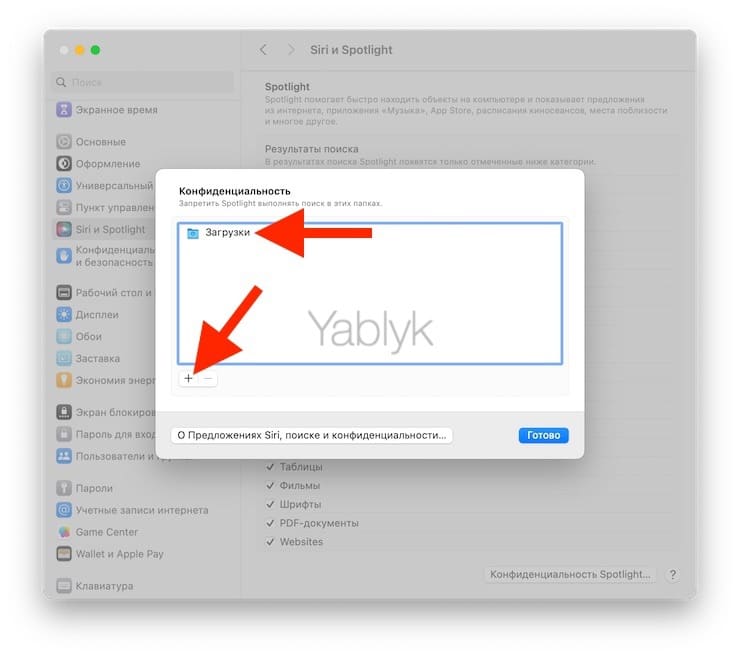
Нажмите кнопку Конфиденциальность Spotlight. Здесь можно установить исключения для поиска, добавив папки, которые никогда не будут учитываться при поиске с помощью Spotlight. Для этого просто перетащите нужные папки в это окно и нажмите кнопку «+» для добавления.
Уточнение поискового запроса Spotlight
Обычно, одного или нескольких слов из названия файла вполне достаточно для поиска через Spotlight. Но иногда результатов будет довольно много и вывести их все в окно поиска будет просто невозможно. В таких случаях полезно уточнить поисковый запрос.
При поиске определенной фразы ее можно выделить кавычками. Это заставит Spotlight принудительно искать именно это сочетание слов.
Для еще более точного поиска можно указать и тип нужного файла. Например, документы.
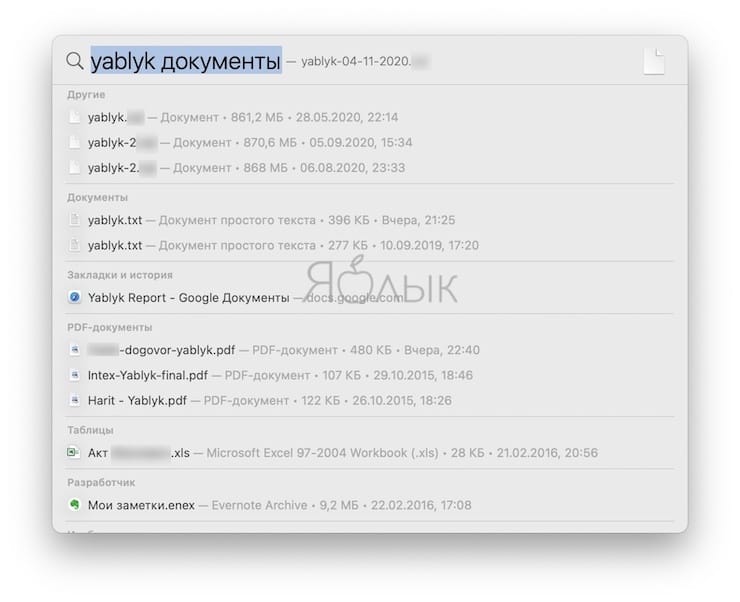
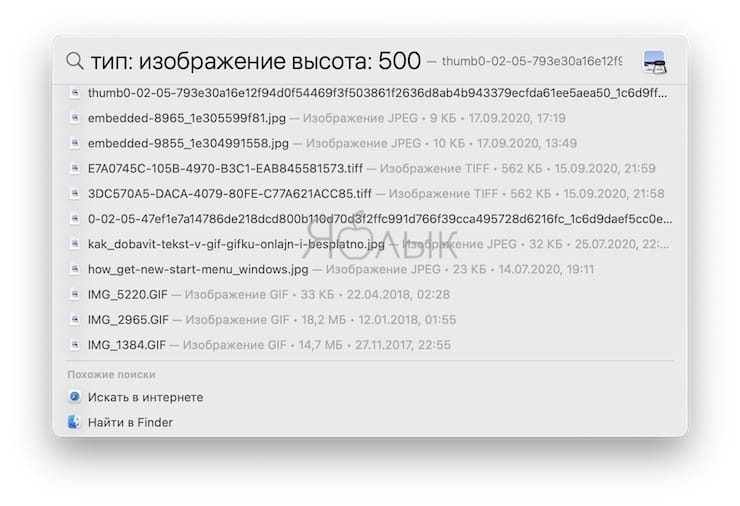
Можно оптимизировать количество результатов еще тщательнее, указав, например размеры искомого изображения.
Например, тип:изображение высота:500
Помимо этого Spotlight поддерживает работу с логическими операторами – «И», «ИЛИ», «НЕ».
Дополнительные возможности Spotlight
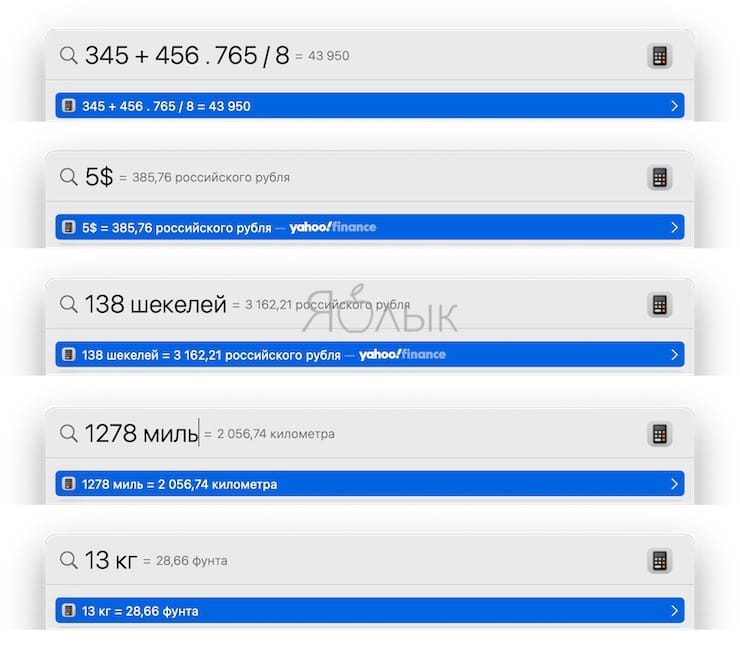
Поиск Spotlight, помимо своего прямого назначения – поиска файлов на жестком диске, может выполнять еще некоторые действия, например, выполнять математические действия, конвертировать различные валюты и величины:
Предпросмотр
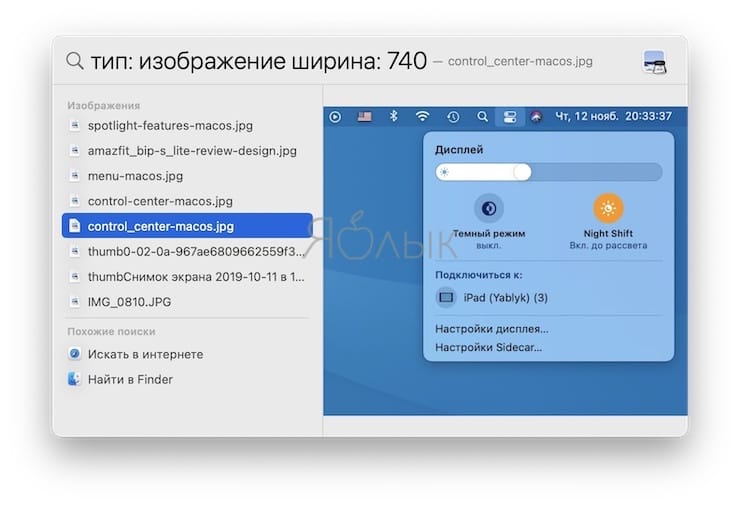
Если вы не уверены, что файл в результатах поиска именно тот, который вы ищете, то можете воспользоваться быстрым просмотром. Для этого просто кликните по названию файла – предварительный просмотр откроется в правой части окна.
Работа с результатами поиска
После того, как вы найдете нужный файл, его можно просто открыть нажатием в списке. Однако, все файлы из результатов поиска можно перетащить на рабочий стол, в окно Finder или в окно программы, для работы с этим файлом.
Горячие клавиши Spotlight
В Spotlight также нашлось место для полезных сочетаний клавиш. Все они представлены в виде списка ниже:
How to Use and Master Spotlight Search on Mac
The Spotlight search on Mac is a powerful tool. However, this built-in tool is overlooked and underutilized by most users. From launching applications to quickly finding a file, from performing calculations to executing system tasks, it can do so much for you. So, let’s deep dive into how to use Spotlight search on Mac and do a multitude of tasks in a fraction of a time.

Spotlight offers similar features across other Apple devices, i.e., the iPhone and iPad. And most of the tips and tricks for Spotlight covered in this article will also work on your other Apple device. So, let’s not delay further and make the most of this win-win situation.
How to Open Spotlight on Mac
There are several ways to access Spotling on your Mac, choose of the following as per your preference and convenience.
Open Spotlight From Menu Bar on Mac
Step 1: Move the cursor to the top-right corner of the menu bar.
Step 2: Click the magnifying glass icon.

Thereupon, the Spotlight search bar will appear on the screen, so type away. As you type, Spotlight will provide real-time search suggestions, helping you find what you’re looking for even faster.
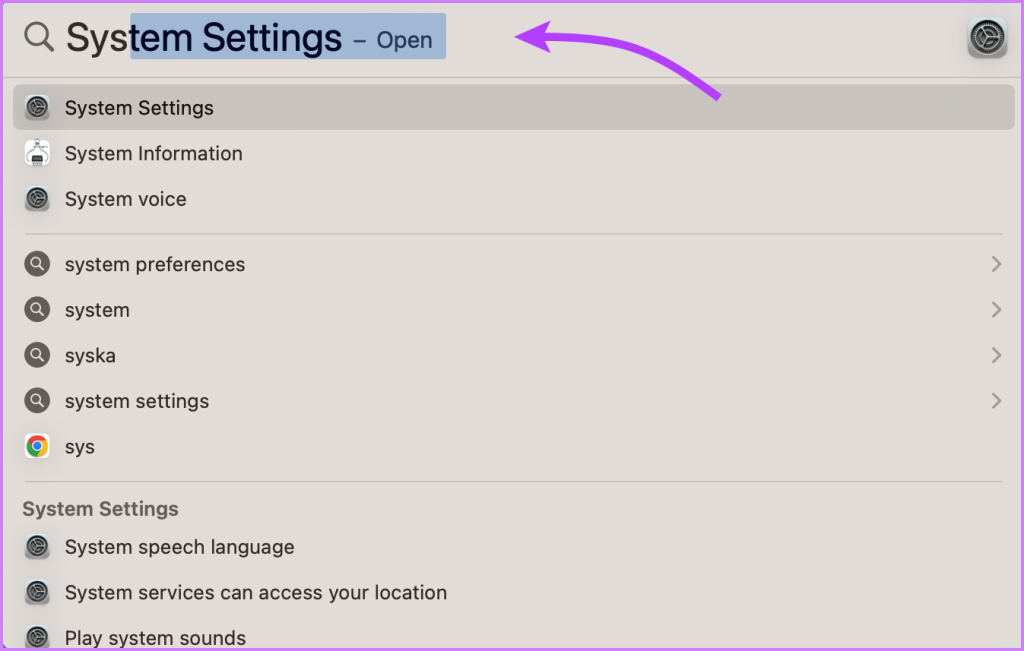
Note: If you can’t spot the Spotlight icon in the menu bar, go to Apple menu → System Settings → Control Centre → scroll down to Spotlight → select ‘Show in Menu Bar’.
Use Keyboard Shortcuts to Open Spotlight
You can open or close the Spotlight window by any of the following,
- Press the Command key (⌘) + Space bar simultaneously on your keyboard.
- Press the Spotlight icon (magnifying glass) from the row of function keys (if available).
Tip: To customize the keyboard shortcut for Spotlight, go to the Apple menu → System Settings → Keyboard → Keyboard Shortcuts → Spotlight → tap the existing shortcut and replace it with a new one.
Access Spotlight from Touch Bar
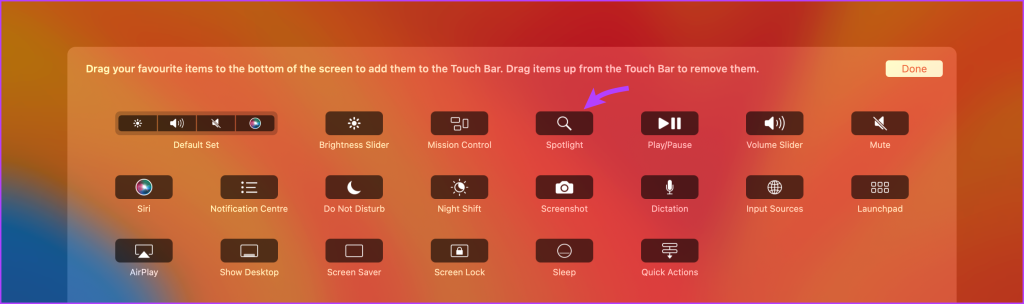
All you need to open Spotlight from Touch Bar is touch the Spotlight icon/shortcut. And to add the Spotlight shortcut to the MacBook Touch Bar, go to the Apple menu → System Settings → Keyboard → Touch Bar Settings → Customize Control Strip → Drag and drop the Spotlight icon to the touch bar.
Searching on Mac With Spotlight
Without a doubt Spotlight on Mac is the easiest way to search and open an app, file, documents, media, folders, web content, and even app content like contacts, emails, messages, etc.
And the process is pretty simple, open Spotlight and start typing what you need. Moreover, it provides real-time search suggestions, so, you might not even have to type the complete word or phrase.
Subsequently, Spotlight also categorizes the search result into various sections like applications, documents, folders, etc., allowing you to find stuff more quickly.
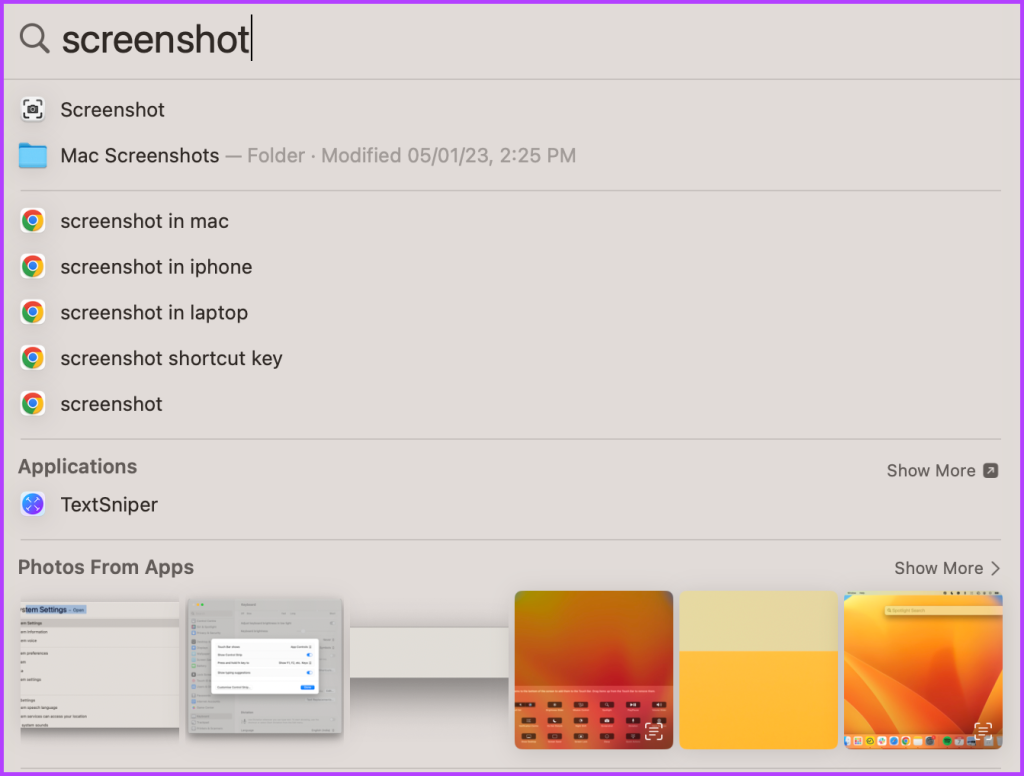
To preview or open a search result, press Return, click or double-click it. However, as promised earlier, there’s much more you can do with Spotlight, check out the following Spotlight hacks for Mac to know more.
15 Smart Tips and Tricks for Spotlight Search on Mac
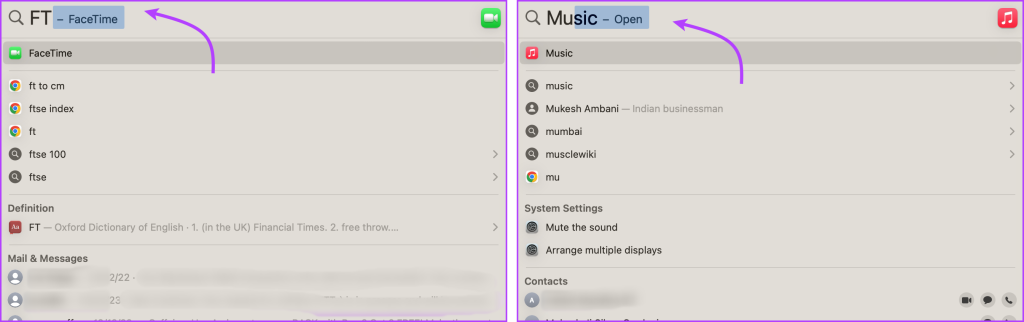
1. Search App With Initials
No need to type the whole app name, just the initials, say, FT for FaceTime or AS for App Store. For apps with a single word, simply type the first two letters, for instance, MU for Music, and ME for Messages.
2. Quick Actions using Spotlight
In addition to searching for various items, Spotlight can also perform some quick actions, so you don’t have to open the corresponding apps or webpage.
Calculate Quickly With Spotlight
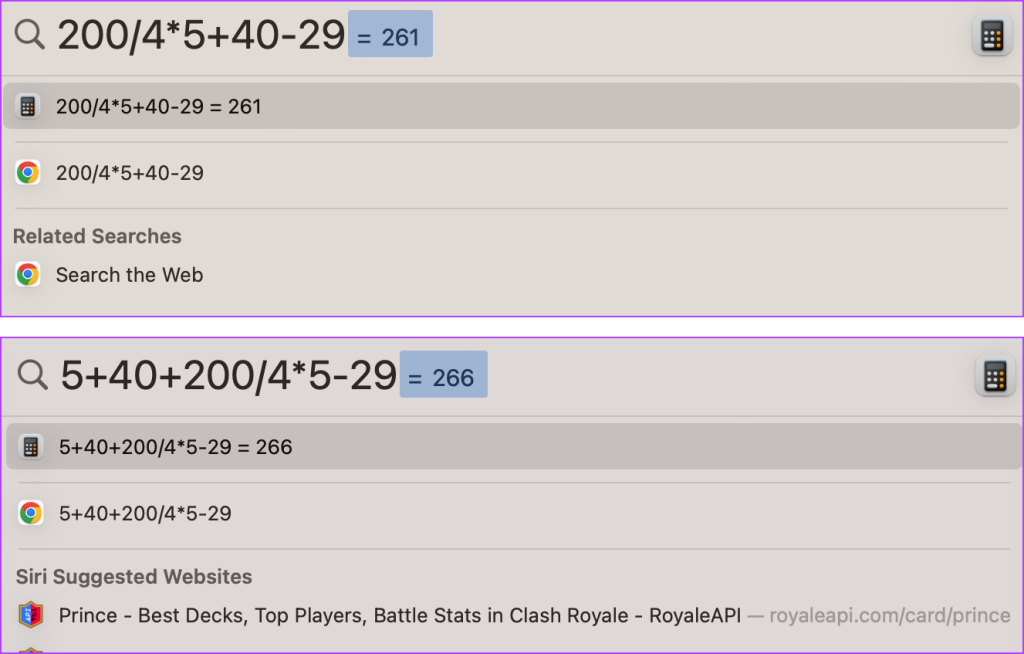
Unless you want to do some complex calculations, you really don’t need to open the Calculator app on Mac. Simply type in the calculation in Spotlight search and it will show you the result as a top hit instantly.
You can also add, subtract, divide, or multiply in one line. However, it follows the BODMAS rule, i.e., solves brackets first, then orders, division, multiplication, addition, and then subtraction. So just be mindful of that.
Convert Units and Temperatures
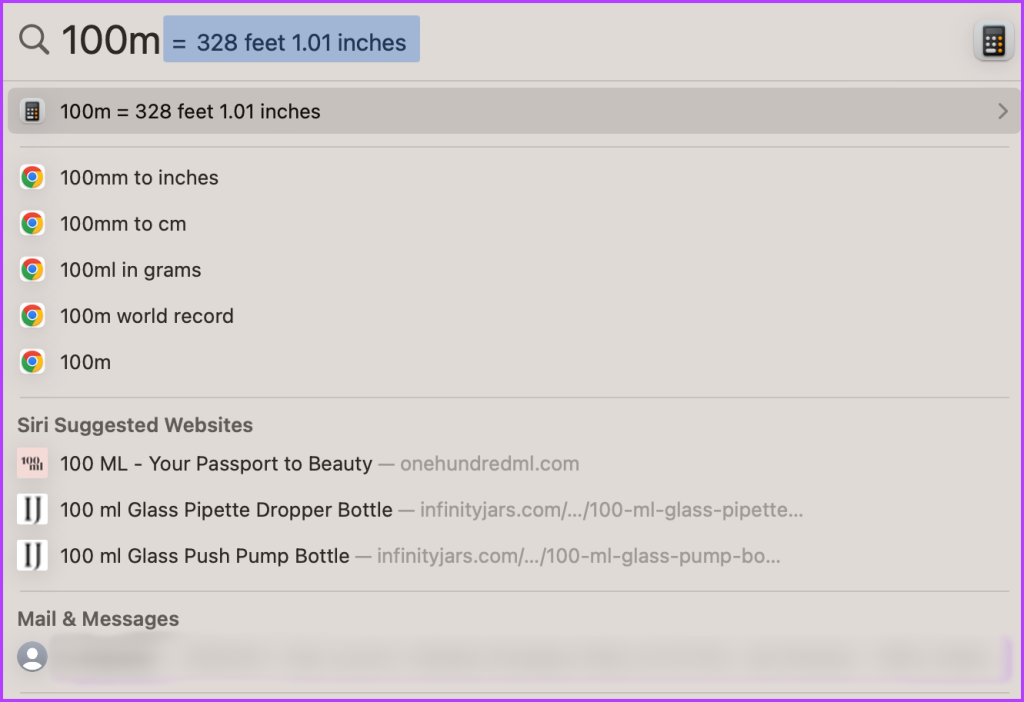
Again, Spotlight can manage basic unit conversions as soon as you type it. For instance, Meters will be converted into Feet and Inches; KG into Pounds and Ounces; Miles into KM.
Convert Currency
Similar to units, you can also quickly convert currency at the current conversion rate. It will instantly convert any international currency to local currency. However, you’ll have to add an ‘into’ to convert between different currencies.

Define Words Quickly
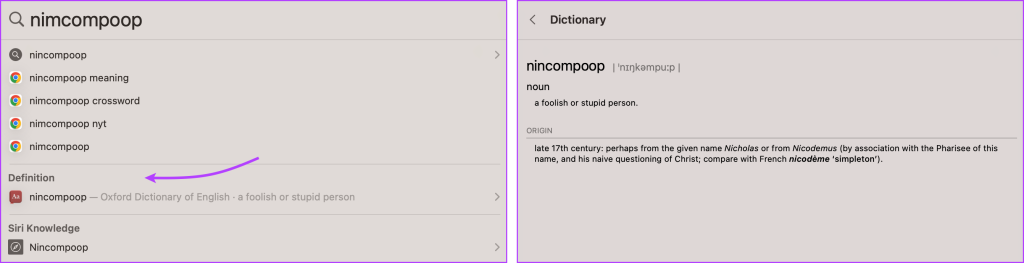
Get an instant definition of any word from Mac’s built-in dictionary. Simply type the word and look for the Definition section in the search results.
You can press Command + L to jump to the dictionary result. Double-click the definition to expand the result and see a more detailed description.
Tip: Use this guide to manage your Mac’s dictionary, whether you want to disable/enable, reset, add or delete words.
Check Weather
In the Spotlight search on Mac, type temperature for real-time local temperatures. For weather conditions of other places, enter the name of the place followed by temperature or weather.
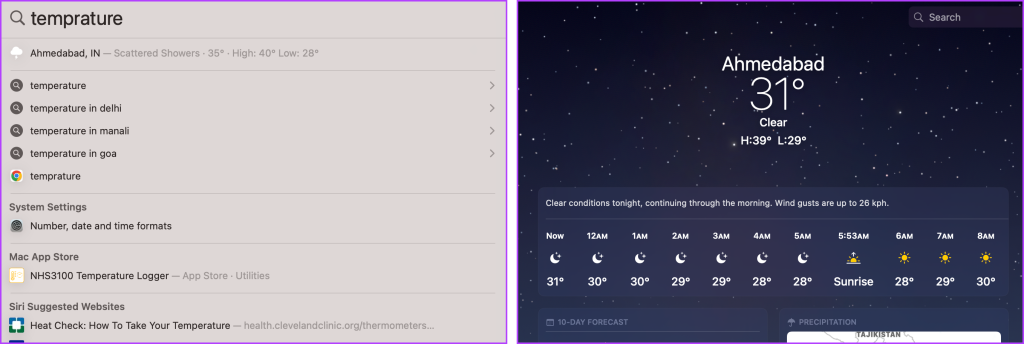
Click the weather indication to open the Weather app for a detailed view of weather conditions.
3. Track Your Flight Status With Spotlight on Mac
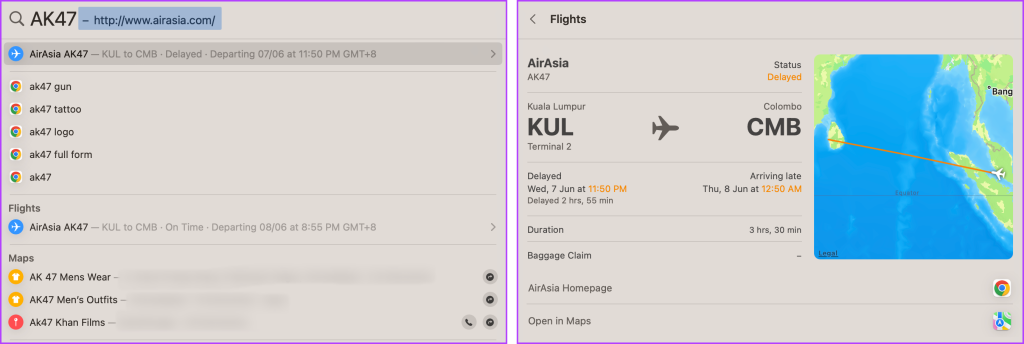
You don’t need any special flight tracking apps for your iPhone or Mac, as Spotlight can manage it all. Open Spotlight search and enter the flight number.
You’ll get brief current status as the top hit, double-click it to view detailed information, including a real-time Map of the flight.
4. See Results in Spotlight
If available click the item next to the Spotlight icon (magnifying glass). Markedly, this refines the search further, like in the example (screenshot), showing Maps/addresses for nearby cycle shops, Siri-suggested websites, apps on the App Store, etc.

5. See Results on the Web or Search Finder
To open a suggested website, click the Safari icon or default browser’s icon next to the item. You can also, scroll down to the end and click Search the Web.
Similarly, if you want to search for the item in Finder, click Search the Finder from the bottom of the page.
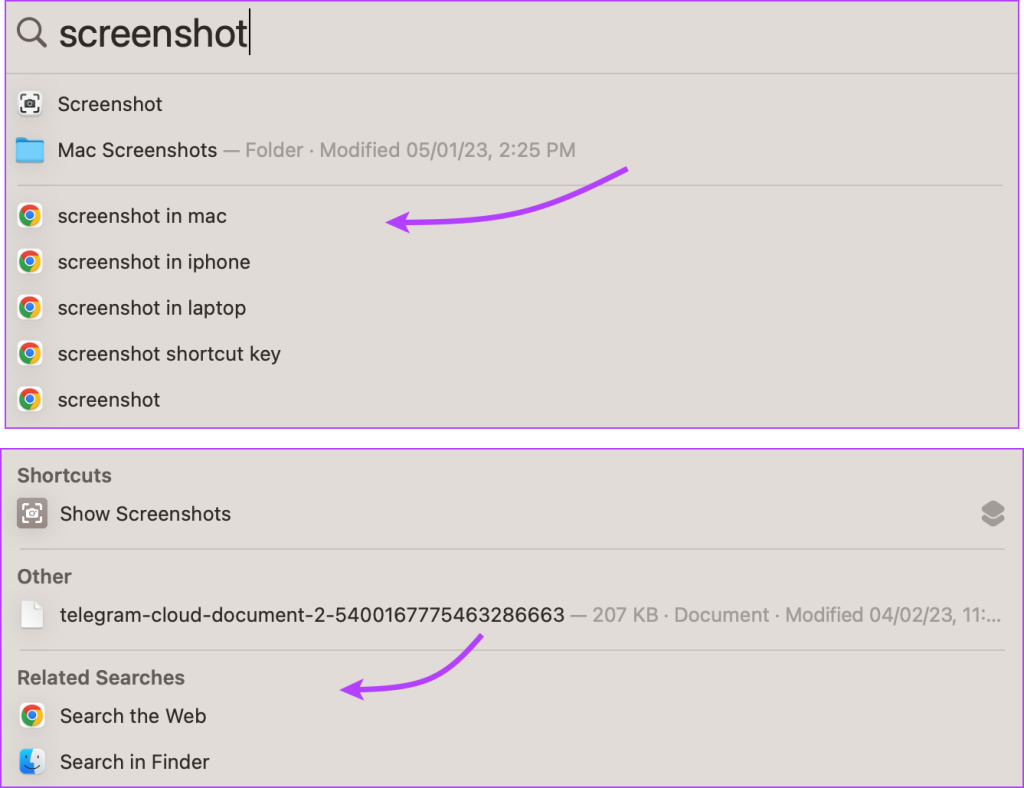
Tip: If you’d like to make your Finder more friendly, follow this guide to customize Finder for easier searches.
6. Search Images From The Web
While Spotlight primarily focuses on local content and system-related tasks, it can also help you search the web; albeit limitedly. Simply type the name of the location/landmark, animal, plant, thing, etc.

Double-click the thumbnail to view a bigger image or right-click to view the source website, copy the link, or share the image. To save the image, drag and drop it to a desired location.

7. Copy and Paste an Item From Spotlight
As we did with the images in the above screenshot, simply drag the file/folder/media and drop it to the desired location, whether Desktop, app, Finder, etc.
8. Resize or Move the Spotlight Window
While you can’t expand the Spotlight window horizontally, i.e., you can’t increase its width, you can stretch it vertically. To increase or decrease the height of Spotlight on Mac, click the edge of the window and simply pull it down or up.
Thereupon, the new size will become the default size of the Spotlight window. You can change it anytime by repeating the steps above. To move the window simply hold the window and move it around.
Tip: To reset the Spotlight window to its default position, click and hold the Spotlight icon from the menu bar.
9. View the Location of a File From Spotlight
Select the file → Press and hold the Command key. The file’s location will appear next to or at the bottom of the preview.

10. Filter Spotlight Searches on Mac
You could have multiple files with similar names or perhaps you don’t remember the name of the file or folder. But don’t worry, the following Spotlight tricks will help you find the item quickly.
Search the File by Type, Date, or Metadata Attributes
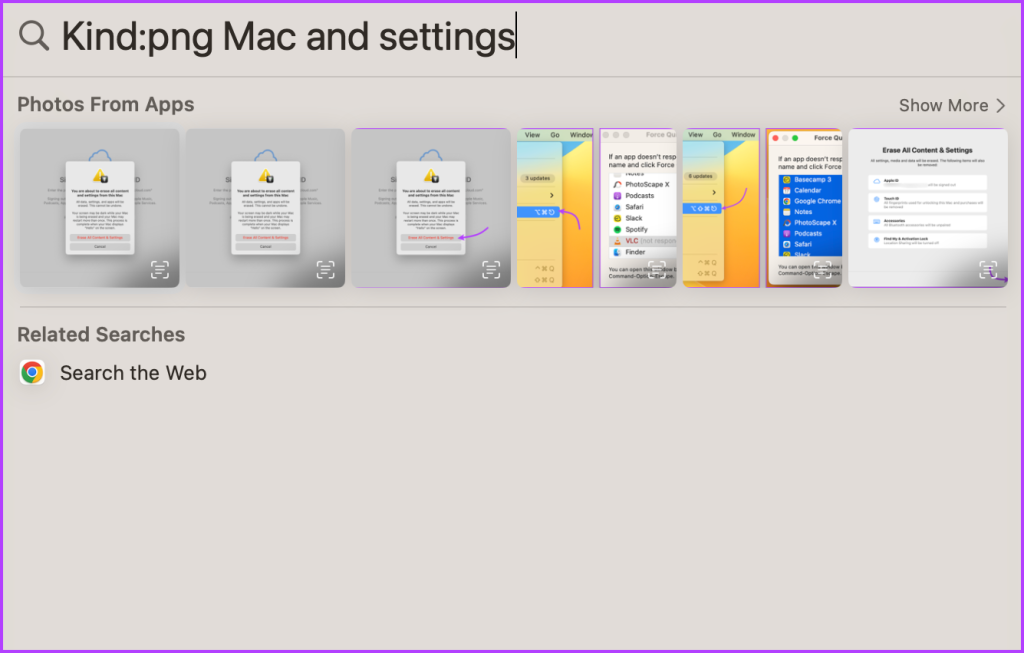
When looking for an image, type the file name followed by kind:image. Or kind:PDF to search for PDF files in Spotlight on Mac. Moreover, if you remember the date or month of creation or modification of the file, that can be added to the mix as well.
Use Created/Modified: DD/MM/YY, and throw in relational operators like <, >, = to search for refine the search before, after, or on that date.
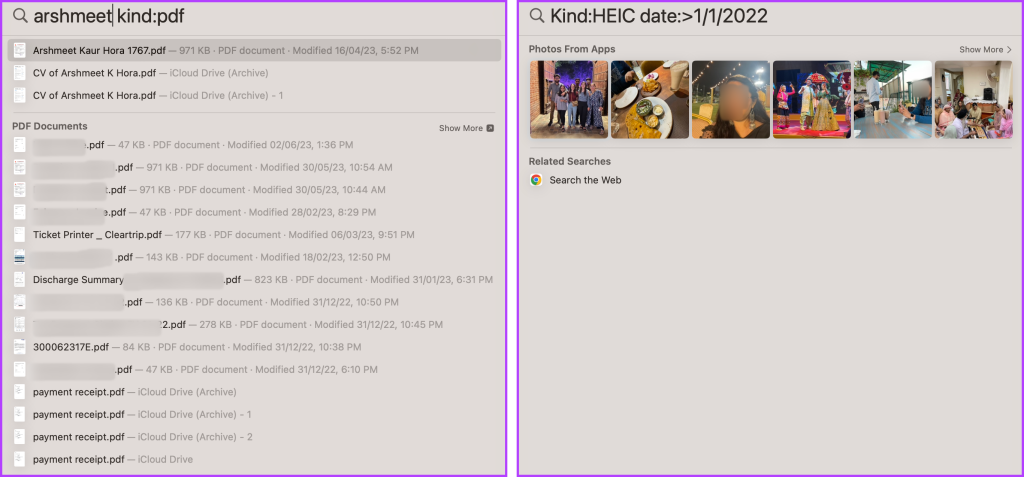
Remarkably, the trick also works with music, mail, messages, documents, podcasts, and more. You can also take advantage of the file’s metadata attributes, such as author, location, download source, etc.
Use Boolean Operators to Find Files in Spotlight
Similar to any search engine, you can use Boolean Operators, i.e., simple words like and, or, not, and not, etc. to refine Spotlight search on Mac. Here,
- And stands for results containing both or all keywords.
- Or means results containing either of the keywords.
- Not or and not means a result that contains the first keyword (before not) but not the second one after not.
11. Show or Hide Results From Particular Apps or File Types
In addition to the above-mentioned filtering tactics, you can also manage Spotlight indexing to include or exclude certain apps, files, folders, etc.
To do so, in macOS Ventura and above, go to Apple Menu → System Settings → Siri & Spotlight → under Spotlight section → check items you want to include and uncheck items you want to exclude.

If you’re using macOS Monterey and earlier, the above settings can be accessed at Apple Menu → System Preferences → Spotlight.
12. To Hide Files or Folders From Spotlight Search
Instead of hiding an app or file type completely, you can choose to hide a specific file or folder. Go to Apple Menu → System Settings → Siri & Spotlight → click Spotlight Privacy → tap + → add the folder or file you want to exclude from Spotlight search on Mac.
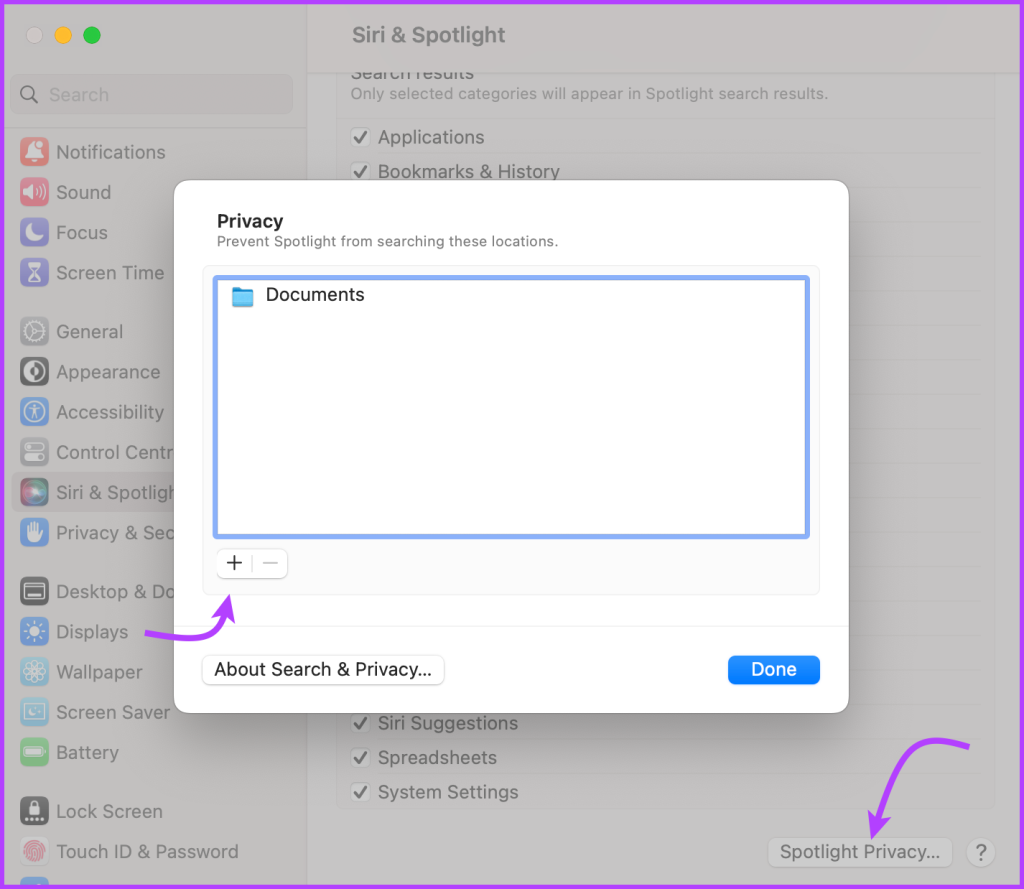
To rebuild the Spotlight index, i.e., unhide repeat the step, select the file/folder, and tap -.
13. Spotlight Keyboard Shortcuts on Mac
Apart from the shortcut to invoke Spotlight (Command + Space), macOS also offers some handy keyboard shortcuts to navigate Spotlight searches.
- Quickly switch between the preview area and the search bar – Press tab.
- Move through the results – Use the down arrow to move to the next result and the up arrow to go to the previous result.
- Switch between categories – Press Command + Down Arrow or Command + Up Arrow to move to the first result of the next or previous category, respectively.
- Open a result – Press the Return key
- See or open a file in an app or the Finder – Either press Command + R or press Command and double-click the file simultaneously.
14. Stop Spotlight From Searching the Web
When you turn off Siri Suggestions from Spotlight it will limit the Spotlight search on Mac to local files only, i.e., it will no longer search the web.
To do so, go to Apple Menu → System Settings → Siri & Spotlight from the sidebar → scroll to Search results under Spotlight section → uncheck Siri Suggestions.

15. Disable Location Services for Spotlight Search on Mac
Apple sometimes uses your IP address to gauge your approximate location and accordingly offers relevant suggestions in the Spotlight search. However, for privacy, you can keep your precise location under wraps by turning off the Location Services.
Go to Apple menu → System Settings → Privacy & Security → Location Services → System Services → toggle off Location-based suggestions (enter your password if prompted) → Done.

FAQs for Using Spotlight Search on Mac
1. How to clear Spotlight Search history on Mac?
To reset Spotlight search history you’ll have to Erase All Content and Settings. However, this will also reset your Mac, which is not ideal. Although if you don’t want your last search to show up the next time you open Spotlight, simply press Esc before exiting.
2. Can Spotlight search within specific folders only?
No, you’ll have to use Finder if you want to restrict the search to a certain folder.
3. Does Spotlight support natural language queries?
Yes, Spotlight supports natural language queries, allowing you to search using everyday language instead of specific keywords or syntax. You can ask Spotlight something like What’s the weather like today to Emails from xxx and it will gladly oblige.
4. Why is my Spotlight search on Mac isn’t working?
If your Spotlight search is not working, it might be because of a bug, a recent update, or some settings glitch. To resolve it, follow these fixes to get Spotlight working again.
5. Why are some files missing from Spotlight search results?
Maybe it’s an indexing error, and the folder, file, or app is accidentally or intentionally blocked. Additionally, the file might be restricted or inaccessible to your user account. So, you’ll have to first check Spotlight’s settings and then check other user accounts on your Mac.
Make the Most of Spotlight Search on Your Mac
We can’t emphasize the importance and usefulness of Spotlight on your Mac. Once you’ve mastered these Spotlight tips and tricks, it’s easier to supercharge your productivity and streamline your workflow.
Hope the article helped you. However, if you have any questions or queries remaining, ping us through the comment section and we’ll get back to you as soon as possible.