Статус бар
Статус бар (строка состояния) – это панель с основными иконками, расположенная в самой верхней части смартфона. То есть это тот самый блок, где собрана информация о текущем заряде аккумулятора, уровне сигнала интернета, уведомлениях от определенных приложений и режиме звука. Не нужно путать данное понятие со шторкой оповещений, так как это немного разные вещи.
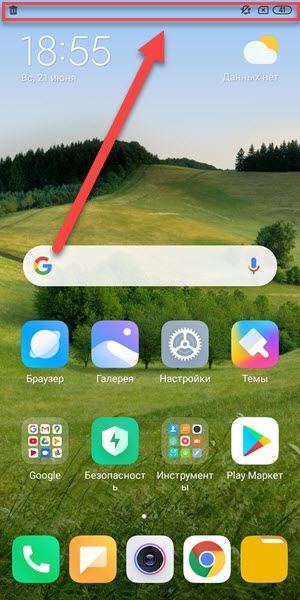
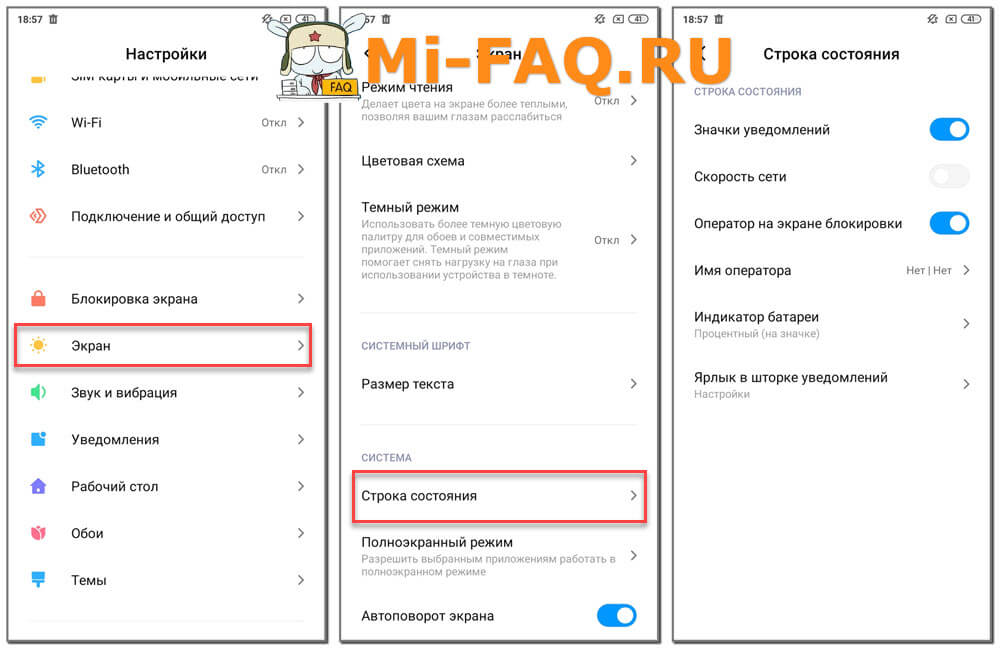
Вы можете самостоятельно настраивать некоторые иконки, которые будут отображаться в строке состояния. Например, добавлять информацию о текущей скорости сети или процентной индикации заряда аккумулятора. На телефоне Xiaomi это делается следующим образом:
- Открываем настройки.
- Переходим в раздел «Экран».
- Выбираем «Строка состояния» и активируем или отключаем определенные настройки.
Если хочется изменить дизайн иконок в статус баре, то используйте специальные приложения, такие как Super Status Bar и Material Status Bar Notific. В Play Маркете можете найти и другие программы, но только смотрите, чтобы они не требовали наличия root-прав.
What Do the Android Status Bar Symbols Mean? A full guide
Can’t figure out what a status bar icon means? This article will help.
The topmost bar on your smartphone’s display is meant to give you a look at the running status of the important functions of your phone. Hence the term ‘status bar’. The right side of the status bar is assigned to permanent icons that display essential functions of the phone, while the left side is usually allotted to app notifications. In this article, we explain what the Android status bar symbols mean and where you can find them.
Table of Contents
Battery icon
A permanent fixture at the right end of the status bar, the battery icon represents the charge you have left on your phone. The battery icon is full when your phone is at 100% charge. As the battery level drops down, it will be indicated in the battery icon as well. You can also choose to have the battery percentage displayed along with the icon.
When your phone is charging, the battery icon displays a charging sign within it. When the battery level drops below 15%, the icon turns red and shows the ‘Power Saving Mode’ sign.
Network, WiFi, and Data
To the left of the battery icon, you’ll find the signs for the cellular network, mobile data, and WiFi. Similar to the battery icon, the network icons reflect the strength of the network connection. The cellular network is typically represented by four vertical bars of increasing heights. The number of bars displayed in white represents the strength of the network connection.
Next to the network bars, you’ll notice a sign that says VoLTE. This means you can make voice calls over the LTE network. The vertical arrows in opposite directions represent the mobile data connection and are only displayed when you turn on the mobile data on your device. You can also choose to display the connection speed right next to this icon.
Other network icons you’ll find displayed on the status bar include WiFi, WiFi hotspot, and Bluetooth. These icons only appear when those functions are in use.
Call, Alarm, and Volume
These alerts are easy to recognise. You may have noticed the phone icon that appears when you’re on call. There’s a similar phone icon with an arrow diverting from it, which signifies a missed call. If you ever try out WiFi calling you’ll see a WiFi sign with the phone icon integrated into it.
Besides call signs, the status bar also has unique symbols for the volume setting on your phone. If your phone is on silent the status bar will display a muted speaker. If it’s on vibrate, the speaker will be accompanied by the vibration waves icon. A clock icon means you have set up active alarm(s) on your phone.
Other Icons
Apart from all the major icons mentioned above, there is a range of other symbols that get displayed on the status bar from time to time. Certain icons appear only appear when your use the corresponding function on the phone. This includes a pin icon for location services, a plane icon for airplane mode, a key icon for VPN status, and a rectangular box for screen casting. On top of that, the status bar also displays icons for app notifications. You may have noticed the WhatsApp icon appear on the status bar whenever you receive a new message. Other apps are also allowed to use the status bar to display notifications. You can read the full notifications by swiping down from the status bar.
Conclusion
These are the most common symbols displayed on the status bar and the meaning behind them. After going through this guide you will be able to spot these icons easily and understand what they signify. You can also hide unnecessary icons from appearing on the status bar by going to Settings>Notifications>Do Not Disturb>Hide Notifications>Hide status bar icons.
Android для чайников №3. Строка состояния
Один из самых функциональных и информативных элементов в Android-смартфоне.
Здравствуйте, уважаемые читатели, мы продолжаем нашу серию статей для начинающих пользователей. Сегодня речь пойдет о строке состояния, важном элементе Android-смартфона. Строка состояния находится в верхней части экрана, в ее правом углу расположены часы и индикатор батареи, а в левом — иконки с уведомлениями. Фактически, при взгляде на строку состояния вам сразу становится понятно, есть ли у вас новые уведомления или нет.

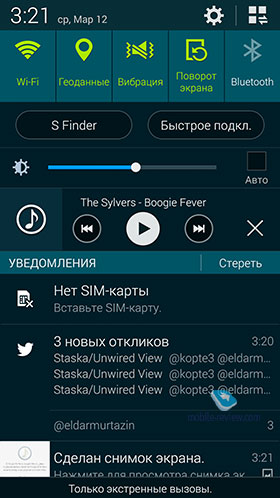
Строку состояния можно раскрывать, для этого достаточно провести пальцем от верхнего края экрана вниз. В раскрытом виде строку состояния еще иногда называют «шторкой», я также буду использовать это название, так что не пугайтесь.

После раскрытия строки состояния вы можете более детально просмотреть все ваши уведомления, это особенно удобно в случае SMS-сообщения, либо нового письма, когда достаточно одного взгляда, чтобы понять насколько важное сообщение пришло. Чтобы убрать уведомление, вам достаточно смахнуть его горизонтальным жестом влево или вправо. Чтобы скрыть все уведомления, нажмите кнопку, похожую на ступеньки сверху. В некоторых приложениях можно сразу же ответить на сообщение не покидая строку состояния.

Со строки состояния также можно получить быстрый доступ ко всем переключателям беспроводных интерфейсов, для этого вам нужно опустить шторку двумя пальцами. Переключатели на всех смартфонах выглядят по-разному, я решил использовать пример из Android 4.2, на котором построено большинство бюджетных смартфонов. короткое нажатие на переключатель включает/отключает интерфейс, а долгое открывает его настройки.

Также в отдельных оболочках (TouchWiz, Emotion UI) есть отдельный ползунок регулировки яркости, управлять подсветкой смартфона с его помощью очень удобно.

Заключение
К сожалению, из-за того, что большинство производителей изменяют интерфейс Android, я не мог написать единого гида по строке состояния, но общие принципы вроде смахивания уведомлений, открытия переключателей двойным опусканием шторки и т.д. должны работать на любом смартфоне.
Уважаемые продвинутые читатели. В статьях этого цикла будет особо строгая модерация, поэтому попытки поупражняться в остроумии могут закончиться для вас баном.
What Are the Different Types of Bars Available in Android?
Android is an open-source operating system, based on the Linux kernel and used in mobile devices like smartphones, tablets, etc. Further, it was developed for smartwatches and Android TV. Each of them has a specialized interface. Android has been one of the best-selling OS for smartphones. Android OS was developed by Android Inc. which Google bought in 2005. There are different types of bars available in android. Let’s discuss each bar in this article.
Types of Bars Available in Android
In Android for the same bar, different names are available. For example, the Action bar is now named Tool Bar, and sometimes it is also named as an app bar. So this creates confusion. We are going to try to overcome this confusion in this article.
- Status Bar
- Action Bar/Toolbar/App Bar
- System Bar/Android Navigation Bar
- Progress Bar
- Seek Bar
- Snackbar
- RatingBar
1. Status Bar
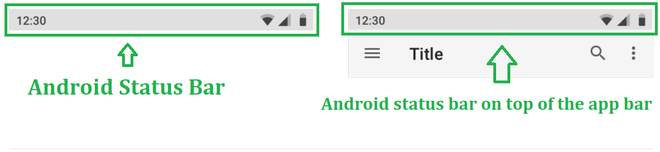
In an Android phone, the status bar contains the clock, battery icon, and other notification icons as shown in the below image. Most of the time, it is at the top of the screen. This is provided by the system; the app does not directly manipulate the contents of this bar.
Note: According to Google design guidelines; the height of the status bar is 24dp.
Below is a sample image to show where the status bar is present on an android device.
2. Action Bar/Toolbar/App Bar
- Action Bar: The action bar (sometimes referred to as the app bar), if it exists for an activity, will be at the top of the activity’s content area, typically directly underneath the status bar. It is a menu bar that runs across the top of the activity screen in android. Android ActionBar can contain menu items that become visible when the user clicks the “menu” button. In general, an ActionBar composed of the following four components:
- App Icon: App branding logo or icon will be shown here
- View Control: A dedicated space to display the Application title. Also provides the option to switch between views by adding spinner or tabbed navigation
- Action Buttons: Major actions of the app could be added here
- Action Overflow: All unimportant action will be displayed as a menu
- A dedicated space for providing the app identification and showing the user’s location in the app.
- Entree to major actions in an expected way, like search.
- Assist with navigation and view switching.
Below is a sample image to show where the Action Bar/Toolbar/App Bar is present on an android device.
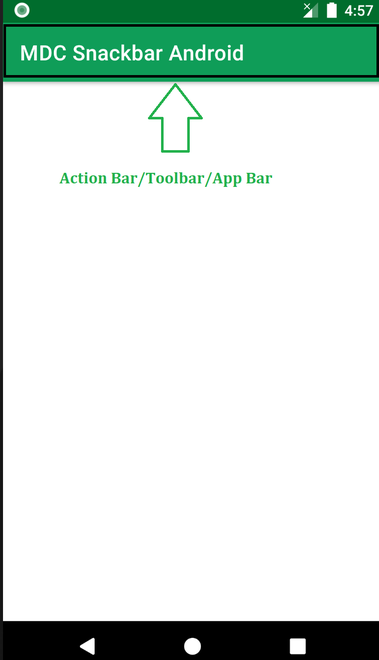
Note: There are some differences between these three confusing terms. We are going to discuss this in another article.
3. System Bar/Android Navigation Bar
The navigation or system bar contains the HOME, BACK, etc. buttons are. This is normally present on the opposite side of the screen of the status bar. Therefore it is usually present at the bottom of the screen. This is given by the system; the app doesn’t directly manage the contents of this bar. It also provides a menu for apps written for Android 2.3 or earlier. Below is a sample image to show where the System Bar/Android Navigation Bar is present on an android device.
4. Progress Bar
Android ProgressBar is a UI control that shows the progress of an operation. For example, downloading a file, uploading a file on the internet one can see the progress bar to view the time remaining in operation. There are two modes of progressBar:
- Determinate ProgressBar: In general, we use the Determinate progress mode in the progress bar because it displays the amount of progress that has happened like the (%) percentage of the file downloaded, how much data uploaded or downloaded on the internet, etc.
- Indeterminate ProgressBar: Here, we don’t get the idea of the progress of work means how much it has been completed or How long it will take to complete.
Below is a sample image of how the progress bar looks like.

5. Seek Bar
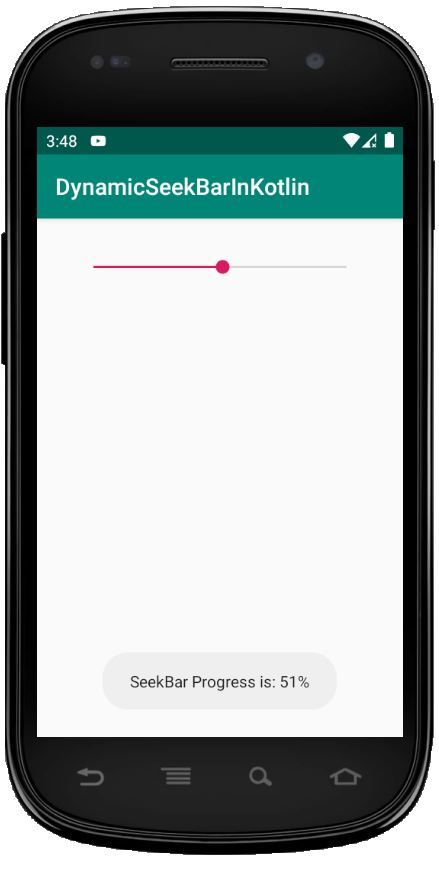
Android seek bar is a revised version of progressBar that has a draggable thumb in which the users can drag the thumb back and forth to set the current progress value. We can use the seek bar in our android device like Brightness control, volume control, etc. It is one of the essential UI elements that provides the option to choose the integer values within the defined range like 1 to 100. By dragging the thumb in SeekBar, we can slide back and forth to choose a value between the minimum and maximum integer value which we defined using the android:min and the android:max attributes. respectively. Below is a sample image of how the Seek Bar looks like.
6. Snackbar
Snackbar provides lightweight feedback about an operation. The message appears at the bottom of the screen on mobile and lower left on larger devices. Having a CoordinatorLayout in the view hierarchy provides Snackbar to facilitate specific features, such as swipe-to-dismiss and automatically moving of widgets. Snackbar is comparable to Toast but the only significant difference is that an action can be added with Snackbar. Below is a sample GIF of how the Snackbar looks like.
7. RatingBar
Android RatingBar is a user interface widget that is used to get the rating from the customers or users. It is an extension of SeekBar and ProgressBar that shows star ratings and it allows users to give the rating by clicking on the stars. In RatingBar, we can establish the step size using android:stepSize and it will always return a rating value as a floating-point number such as 1.0, 2.0, 2.5, etc. By using, android:numStars attribute one can define the number of stars in RatingBar. RatingBar is used to get ratings from users or customers about the product, movie or hotel experience, etc. Below is a sample image of how the RatingBar looks like.